With the significant evolution of the Apple Intelligence AI system, Siri has taken a giant leap from a simple voice command tool to a personal assistant capable of understanding context and helping you manage your daily tasks with advanced automation. If you are using a compatible model, such as an iPhone 15 Pro or iPhone 15 Pro Max or later, Siri’s new capabilities allow you to write messages, analyze documents, and interact intelligently with everything on your screen. However, to fully leverage these capabilities, the smart assistant requires fine-tuning and continuous guidance to understand your preferences and workflow.

The Right Start: Adjusting Settings and Interaction Style
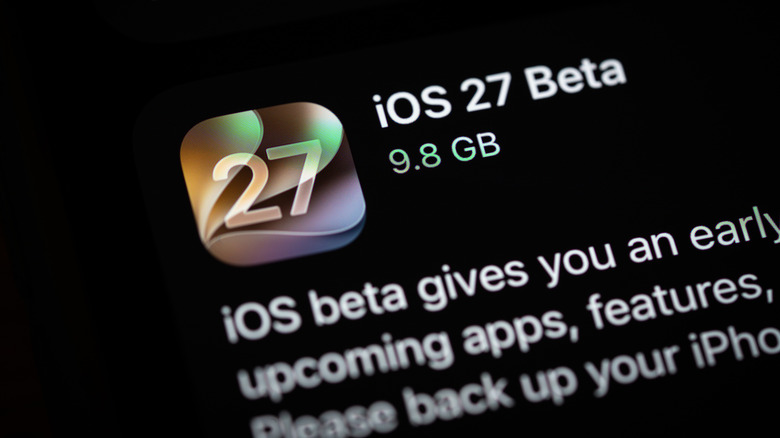
The essential step to taming AI capabilities begins in the Settings menu under Siri (Settings > Siri). Through the Requests section, you can determine how you prefer to summon the assistant; whether via the “Siri” or “Hey Siri” command, restricting it to the full command only to prevent accidental activation, or even opting for a long press on the side button and disabling voice activation entirely. From the Voice menu, you can try different tones and accents to choose the voice most comfortable to your ears.
It doesn’t stop at the summoning method; it extends to the response style. Through the Responses tab, you can decide whether you want spoken responses or silent answers that appear only on the screen. An important point arises here regarding sending text messages automatically; if you are in the exploration phase of AI, it is preferable to turn off the instant sending option and have Siri ask for your confirmation before sending any text to avoid any potential misunderstanding in message phrasing. Once you are confident in its accuracy, you can switch to automatic sending without hesitation.
Do not ignore additional settings such as the “Keep Conversations” history period and Accessibility Settings, which allow you to slow down Siri’s speaking pace, adjust the wait time before it begins responding, and determine whether you want the assistant to respond even when the iPhone is placed face-down on a table.
Setting Preferences and Building Personal Conversation Context

The distinguishing feature of recent Siri versions is their ability to remember context and retrieve details from previous conversations and various applications. For example, when you ask it to suggest a restaurant for dinner, clearly state your dietary requirements, such as meals being vegan or gluten-free; the system will record these criteria and automatically apply them to its future recommendations without needing to repeat them every time you search for a meal.
This linking capability extends to your conversations and emails. If a friend named Alice sent you a recipe several days ago and you can’t remember where you saved it, you only need to ask: “Where is the recipe Alice sent me?” The AI will search through messages and mail and bring up the requested result effortlessly. If you prefer to protect your privacy in specific apps, you can go to (Settings > Siri > Excluded Apps) and exclude sensitive chat apps to prevent Siri from accessing them, keeping in mind that excluding an app disables the assistant’s ability to read its context or search within it.
Interconnected Workflows Across Apps
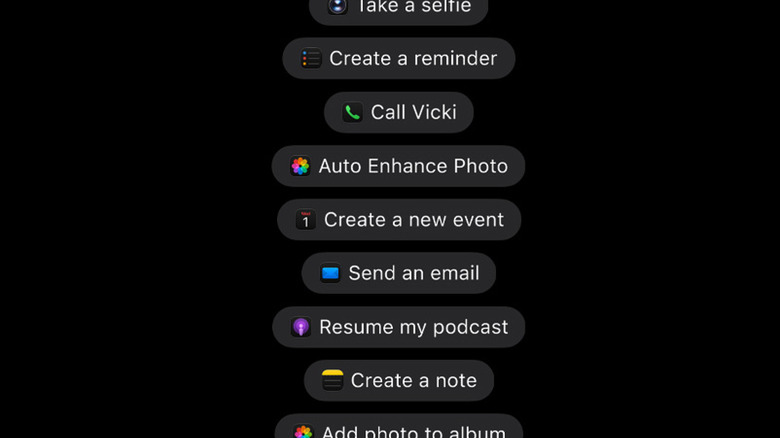
System apps can now work in perfect harmony to execute a series of complex tasks with a single voice command. You can give a direct order such as: “Email the photo of the big tree I took to Alice,” and the assistant will analyze the photos, identify the requested shot by description, open the Mail app, create the message, attach the photo, and send it seamlessly. This capability extends to tasks like summarizing documents and sharing them with specific contacts.
To ensure the workflow runs according to your preference, specify to Siri which apps you prefer to use for each task. If you rely on WhatsApp for communication instead of the default Messages app, clarify that in your first request so it remembers your preferred platform next time. Although this integrated support is currently dedicated to Apple apps and third-party apps that support the App Intents interface, compatibility for other popular apps is expanding gradually.
On-Screen Awareness

To get the most out of this technology, ensure that the “Automatic Visual Look Up” option is enabled in the Siri settings menu. This intelligence extends to quick photo editing with natural language commands without opening complex editing tools; you can simply say: “Make this photo brighter” or “Crop the edges of the photo,” and Siri will complete the edit in moments.
Call Context Feature
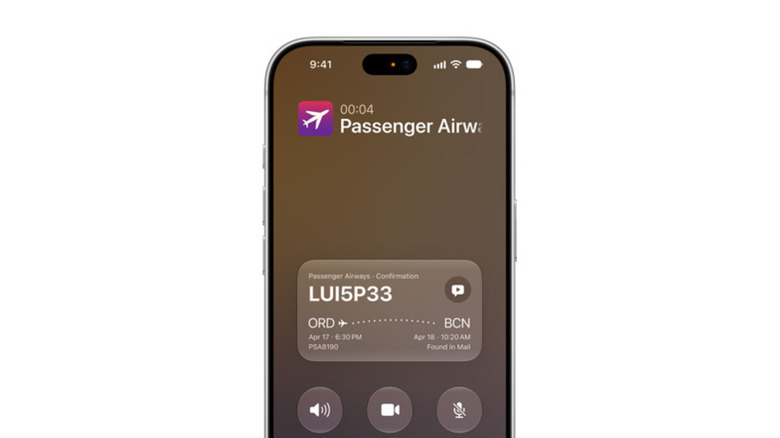
You have undoubtedly experienced the annoying situation of talking to a customer service representative at a bank or airline, where they ask for a ticket number or verification code, forcing you to leave the call screen and search frantically through your messages and folders. Here, the Call Context feature comes in to save you this trouble entirely. When enabled through (Settings > Apps > Phone > Apple Intelligence & Siri) and enabling the “Show When Calling” option, the assistant automatically recognizes the caller’s identity.
Once the conversation begins, the AI proactively searches your mail and files for any booking data or numbers relevant to that call, placing them in a clear pop-up card on your screen without you having to leave the Phone app. If you have to wait on the line, you can use the “Hold Assist” feature, which monitors the call and notifies you as soon as the hold tone ends and the representative returns to speak.
The Balanced Equation: Investing in Intelligence and Protecting Privacy

Optimal use of the new Siri depends on continuously training it by clearly expressing your choices and needs through voice; the more you interact with it, the more its responses become tailored to your personal lifestyle. With these vast capabilities, protecting personal data remains a fundamental issue. Although processing is done locally on the Neural Engine inside the iPhone to ensure security, Apple gives you full control over the apps and data the assistant can access, allowing you to choose for yourself the boundary between convenient automation and strict privacy.
Source:

Post Comment