There's no more frustrating feeling for an iPhone user than seeing the battery indicator turn red in the middle of the day when you're far from the nearest power outlet. You fully charge your phone in the morning, and by lunchtime, you're frantically searching for a charger or power bank to save the day. The good news is that a drop in battery life doesn't necessarily mean your device is junk or that the battery needs immediate replacement. There are built-in features and tools within iOS that can stop this unnecessary power drain, and most importantly, they don't require you to turn your cutting-edge smartphone into a useless old device.
1. Let the adaptive power feature do the work for you.
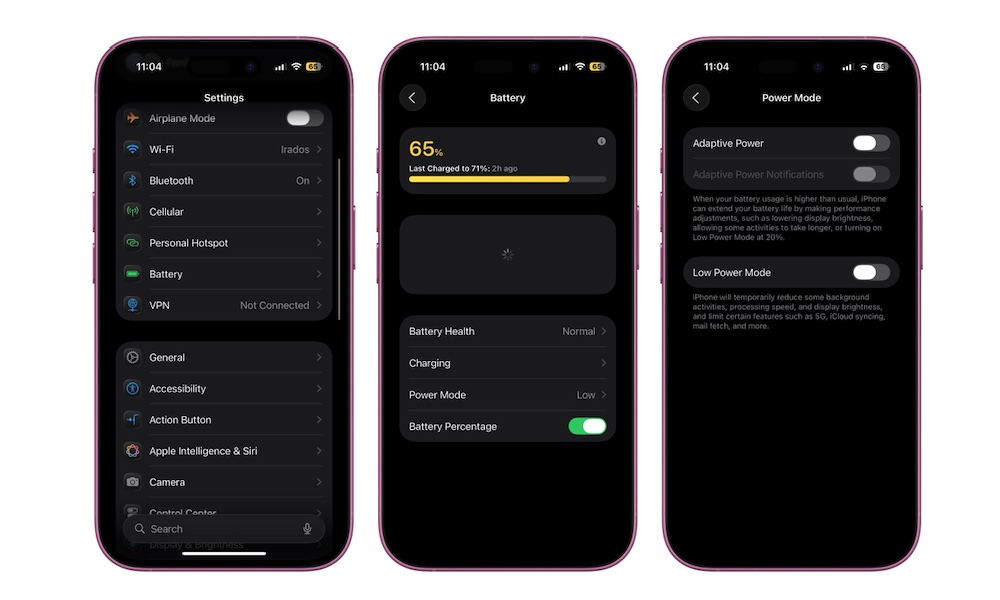
If your device supports Adaptive Power, it's undoubtedly one of the first features you should activate immediately. Instead of waiting until your battery is nearly dead before manually managing it, this feature intelligently monitors your typical usage patterns and learns when you consume more power than usual throughout the day.
When the system anticipates your need for extra power to get through the day, it begins making subtle, unnoticeable adjustments in the background, such as subtly reducing screen brightness or limiting background app activity, while intelligently optimizing performance so that demanding tasks like using the camera or playing games in Game Mode aren't affected. Furthermore, the feature automatically activates Low Power Mode when the battery reaches 20%, so you can forget about constantly monitoring the percentage.
To activate the feature, go to Settings, tap Battery, then select Power Mode and enable Adaptive Power. Note that the feature is automatically enabled on the iPhone 17 series and iPhone Air, while it requires manual activation on compatible iPhone 15 Pro and iPhone 16 models. It also needs at least seven days to learn your usage habits before its effects begin to take effect.
2. Prevent unwanted apps from updating in the background
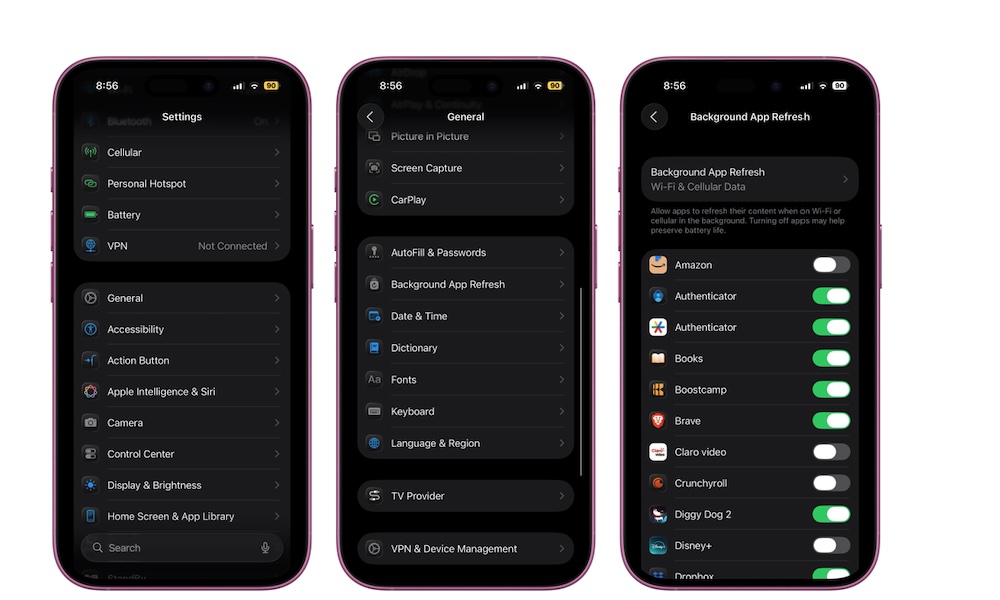
Background App Refresh is a feature that allows apps to continuously fetch the latest data and content, even when you're not using them. While this is useful for social media apps that you want to keep up with, it also puts extra strain on the iPhone's processor and drains the battery unnecessarily.
Of course, some essential apps might need this feature to function efficiently, but the vast majority of apps don't need to run 24/7 in the background. The smartest solution is to customize this permission by going to Settings, then General, selecting Background App Refresh, and then turning the feature off for unnecessary apps, or even disabling it entirely if you prefer maximum battery saving.
3. Switch to automatic 5G mode
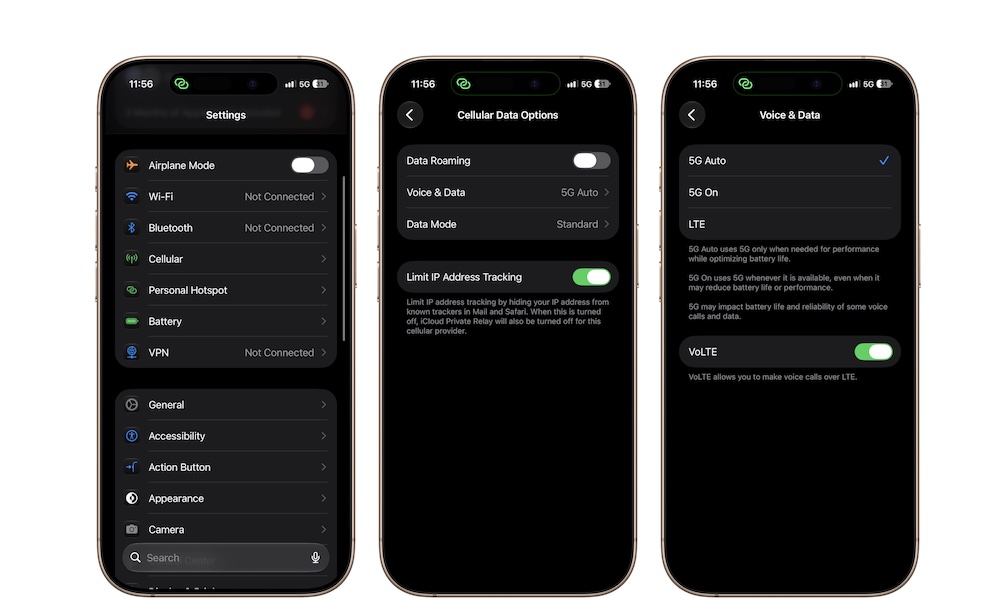
5G networks offer incredibly fast connection speeds, but wait, do you really need record-breaking speeds when you're checking emails or reading a news article? Probably not. And if your phone is set to always be on 5G, it will constantly be searching for the network and consuming a huge amount of power, even for simple tasks that don't benefit from those super-fast speeds.
The ideal option for most users is to enable 5G Auto, where the phone only uses the 5G network when high speeds are truly beneficial, then instantly switches back to the less data-intensive LTE networks when data needs decrease. You can activate this in Settings > Cellular > Cellular Data Options > Voice & Data, and select 5G Auto, or even switch to LTE if your priority is maximizing battery life.
4. Rest the Always-On display feature on busy days
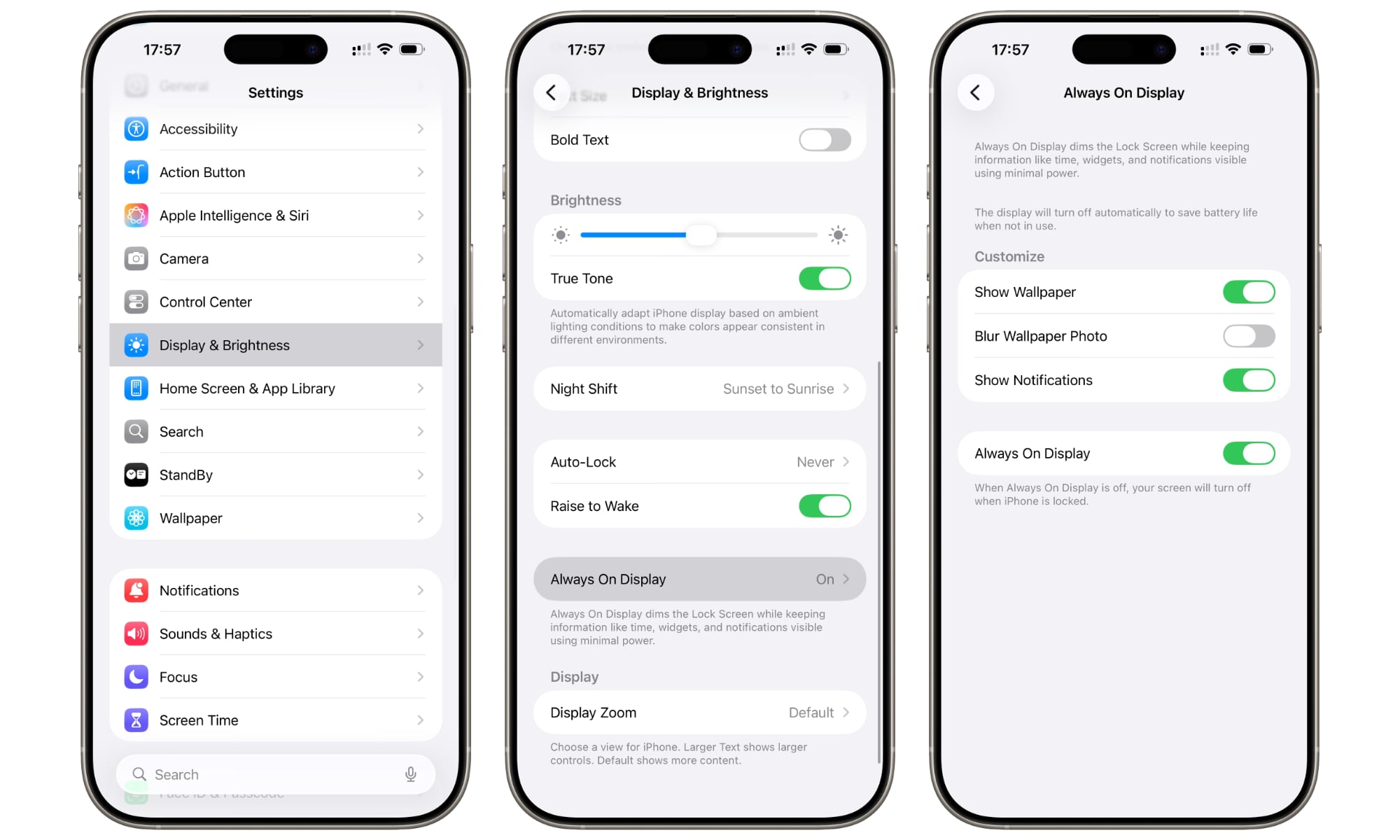
The Always-On Display feature on newer iPhone models provides a great way to see the time and notifications at a glance. While Apple designed the screen to operate at very low refresh rates to conserve power, it still consumes some battery life over extended periods.
If you're about to have a long, busy day out or while traveling without access to a charger, disabling the always-on display will give you a valuable extra percentage of power. That's precisely why Low Power Mode automatically turns it off. You can manually disable it by going to Settings, then Display & Brightness, selecting Always On, and then turning it off. It will automatically turn back on once you're back at your safe place next to the charger.
5. Activate low power mode preset at 40%
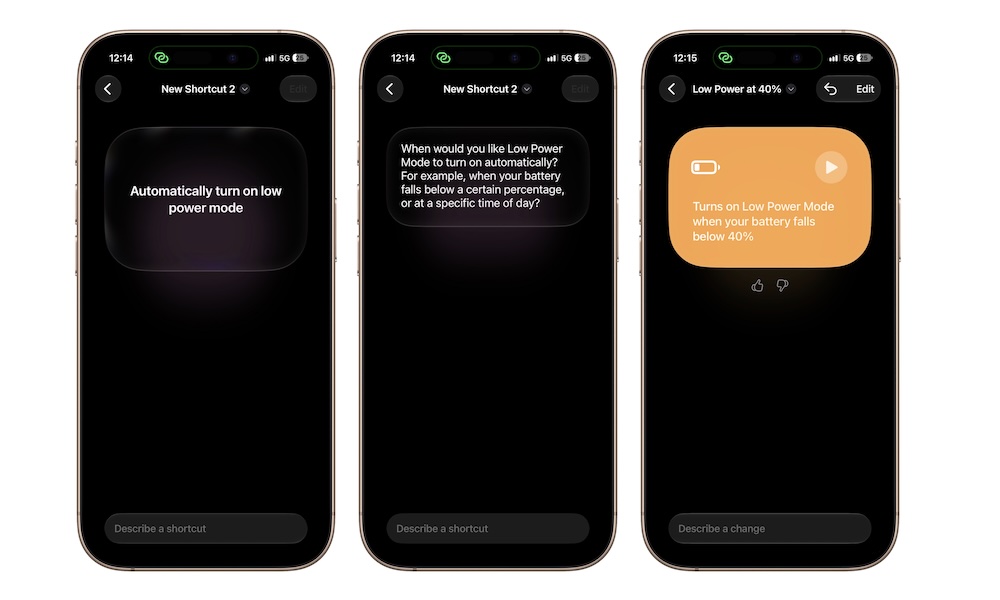
Who said you have to wait for the battery to reach the critical 20% to activate Low Power Mode? You can anticipate the problem and have the iPhone activate this mode automatically once the charge level drops to 40% via the Shortcuts app, ensuring a smooth and slow battery drain throughout the afternoon.
If your device is running a recent update that supports Apple's AI, you can simply open the Shortcuts app, press the Add button, and type a simple request such as: Create an automation to automatically turn on Low Power Mode when the battery drops below 40%, and the AI will accurately build the automation in a few seconds.
To do it manually using traditional steps, follow these instructions:
- Open the Shortcuts app and go to the Automation tab.
- Press the Add (+) button to create a new personal automation.
- Select Battery Level from the menu.
- Move the cursor to 40% and select the option "Falls Below 40%".
- Activate the Run Immediately option.
- Look in the procedures for Set Low Power Mode and make sure it is set to On, then press Done.
Maximize battery life without compromising on the brilliance of your device.
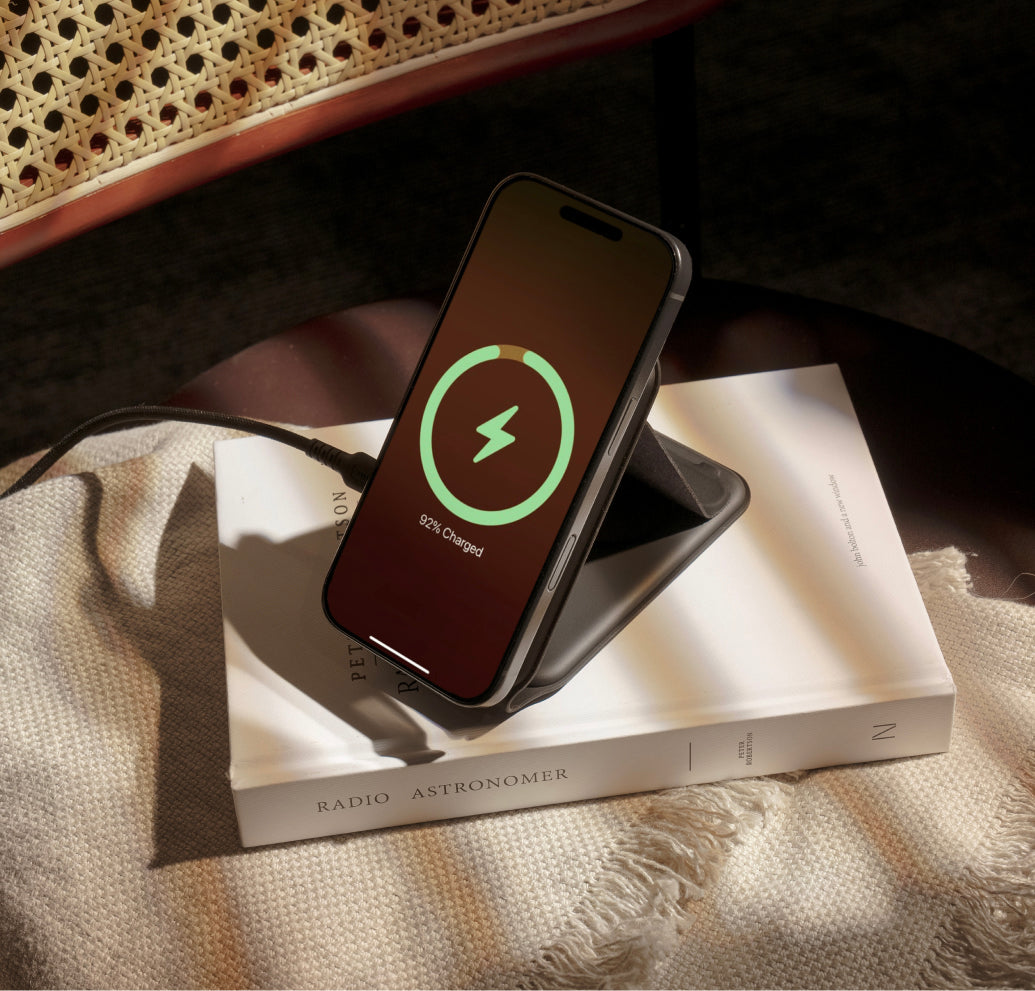
Preserving battery life doesn't mean disabling all the features you paid for and turning your stunning screen into a dull device. Even if you own an older iPhone model, these smart adjustments give you the perfect balance between smooth performance and efficient power consumption without any compromise.
There will certainly come a moment when the chemical health of the battery becomes worn out and requires a change at authorized service centers, or perhaps a complete device upgrade, but until that time comes, these steps will ensure that you extract every possible drop of energy from your device's battery so that you can continue your day with confidence and peace of mind.
Source:




6 comment