Apple devices are wonderful, even genius, but sometimes they seem to have their own independent opinion on when they should make noise. Some of these opinions make sense, while others might surprise you at 2:00 AM while you are in the middle of a deep sleep! Have you ever wondered why your iPhone alarm went off at full volume despite having Silent Mode enabled? Or why a Mac doesn’t have a silent mode at all? Well, my friend, let’s break down these mysteries together and regain control over our devices.
What makes noise on your devices?
Before we talk about how to mute or silence these devices, let’s take a closer look at what might provoke your devices to make sounds in the first place. There are many sources, and understanding them is half the battle. Notification sounds, for example, are at the mercy of both Focus modes and Silent Mode. You can configure which apps have the right to scream at you through Settings, either globally or for each app individually.
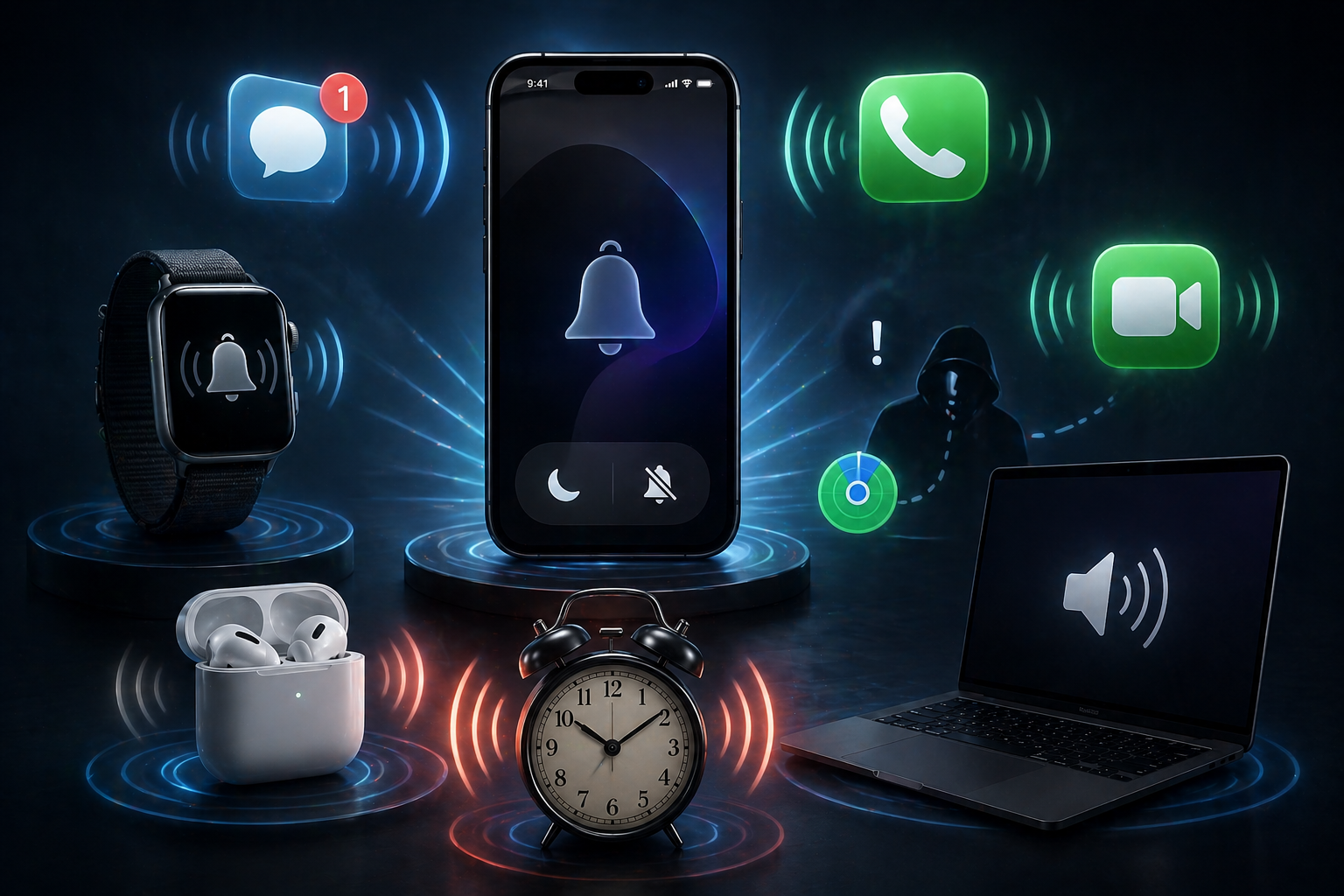
As for ringtones for phone calls or FaceTime, they are easily muted by enabling Silent Mode or Focus modes. But what about alarms? That is where the trick lies! Alarms on iPhone and iPad do not recognize Silent Mode and ignore it completely to ensure you wake up. Interestingly, the “Find My” service intentionally bypasses all mute settings, because its goal is to help you find your lost device, or to terrify the thief who stole it!
The truth about “Silent Mode” and what it really does
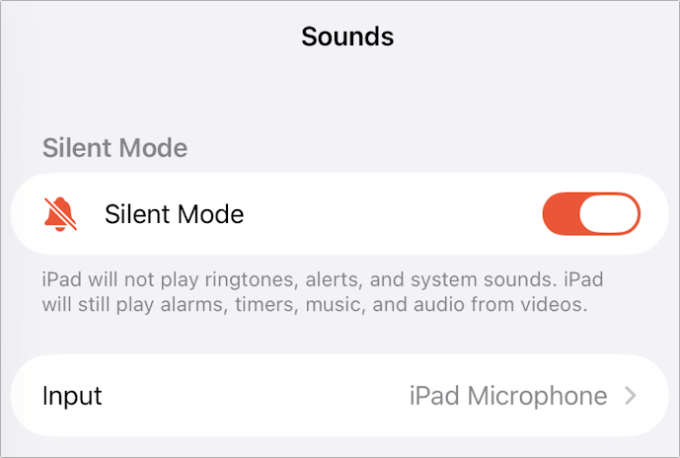
Silent Mode is available on iPhone, iPad, and Apple Watch. When you enable it, it disciplines your device and mutes ringtones, message alerts, and standard system sounds. However, it categorically does not disable sounds for alarms, timers, music, or videos; they will all play and blare even if your device is silent. Apple’s logic here is simple: these are sounds you requested yourself (like music and alarms) or sounds you desperately need to hear (like emergency alerts).
Despite this apparent clarity, you will find strange exceptions. For example, an Apple Watch in Silent Mode will indeed mute alarms, unless you have enabled the “Bypass Silent Mode” option for that specific alarm. If your Apple Watch is not being worn and is on the charger, it ignores Silent Mode entirely and sounds the alarm, assuming that since you aren’t wearing it, you need a loud sound to hear it.
How to enable Silent Mode according to your device
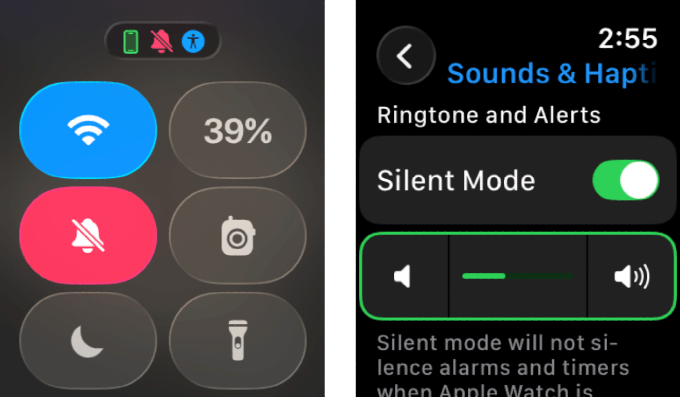
Apple has changed the ways to enable Silent Mode over time and with the evolution of devices. If you have an iPhone 15 Pro or later (including the future iPhone 17 and 17 Pro), you can easily enable Silent Mode from “Sounds & Haptics” settings or via the side Action button. As for older phones, they still rely on the classic side switch dedicated to Ring/Silent that we have loved for so long.
For iPads, you can access it through “Settings” then “Sounds” then enable “Silent Mode”. And let’s not forget that on almost all these devices, you can quickly access mute activation through the Control Center by tapping the famous bell icon. It’s simple, but it requires you to remember where Apple hid these settings on each device.
Mac devices: There is no silent mode for you!
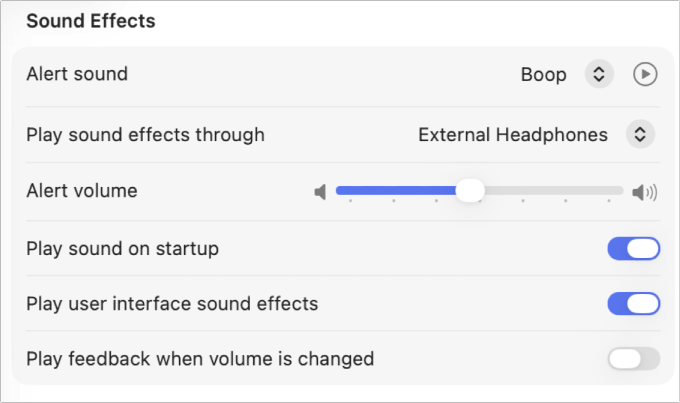
If you are looking for a “Silent Mode” button on your Mac, I regret to tell you that you are looking for a mirage. Apple clearly assumes that if the Mac is awake and making sounds, you are sitting right in front of it and can handle the situation. Instead of muting the sound with one click, the Mac divides sound into two main categories: Sound Effects (like alerts and system error sounds), and the device’s main volume (like music and video).
To control annoying system alerts without affecting your music, you have to go to Sound settings, then the “Sound Effects” section, and lower the “Alert volume” slider to zero. This way, you will enjoy videos in complete comfort without being bothered by the system sound every time you press a wrong button. As for iPhone or iPad, always remember the “Change with Buttons” option, which allows the side volume buttons to directly control the phone’s ringer or media playback based on your personal preference.
Source:


Leave a Reply