Apple designed the iPhone to be easy to use from the very first moment, but many default settings run in the background without you noticing. Some of these track your activity, drain your battery, or send your data to Apple. The good news is that a few simple tweaks are enough to make your phone more private and faster.
Turn Off App Tracking Requests
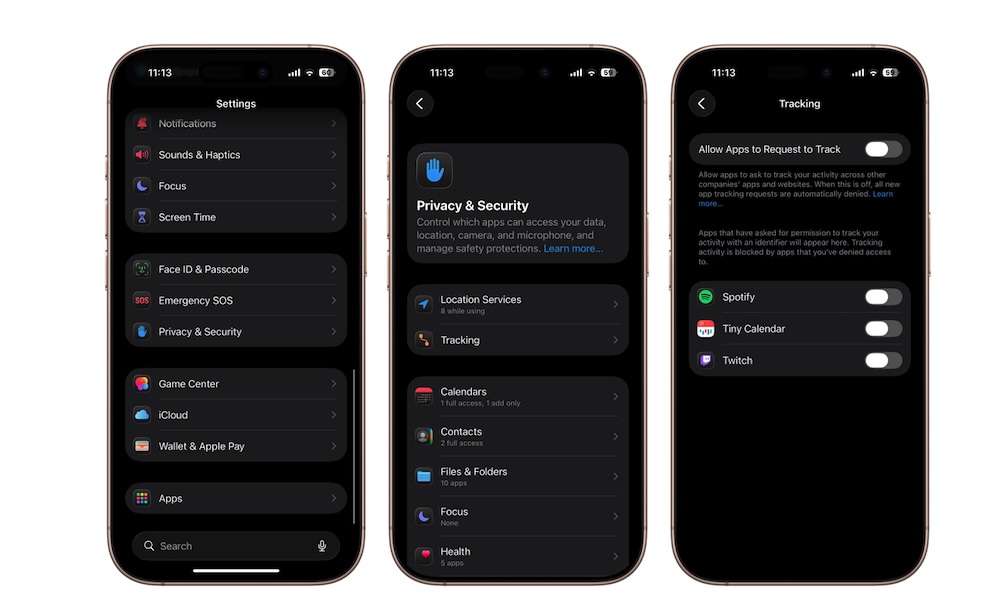
Since Apple launched the “App Tracking Transparency” feature, apps have been required to ask for your permission before tracking your activity across other apps and websites. However, these frequent pop-ups can become annoying.
To turn off requests permanently: Settings ← Privacy & Security ← Tracking ← Turn off “Allow Apps to Request to Track”.
Turn Off iPhone Analytics Sharing
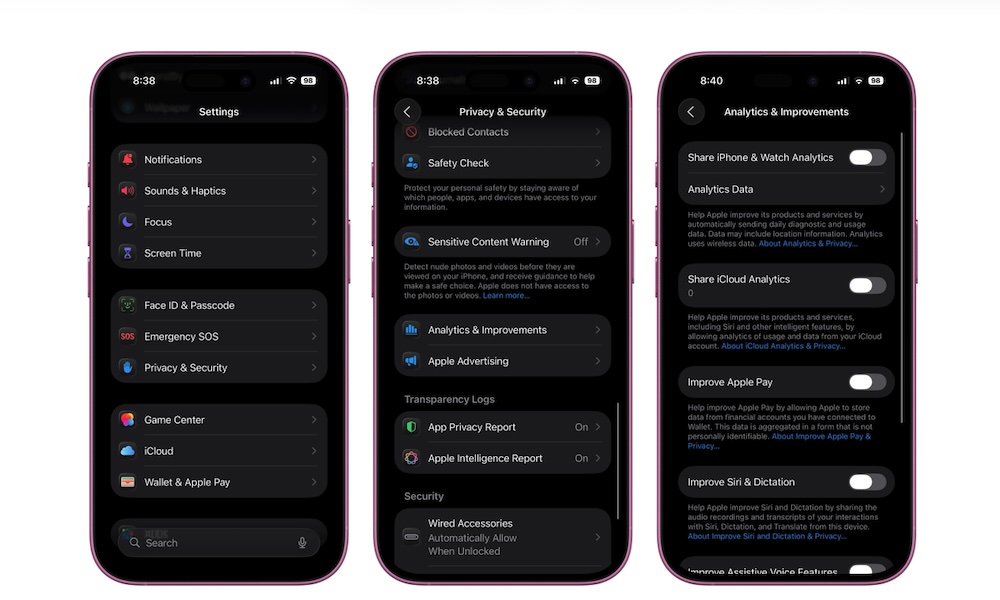
Your phone automatically collects crash reports and usage data and sends them to Apple. Even if this data is anonymized, many users prefer not to share it at all.
To turn it off: Settings ← Privacy & Security ← Analytics & Improvements ← Turn off all options.
Turn Off Personalized Ads
 Privacy > Apple Advertising > Turn off Personalized Ads, to enhance privacy protection.” width=”1000″ height=”600″ />
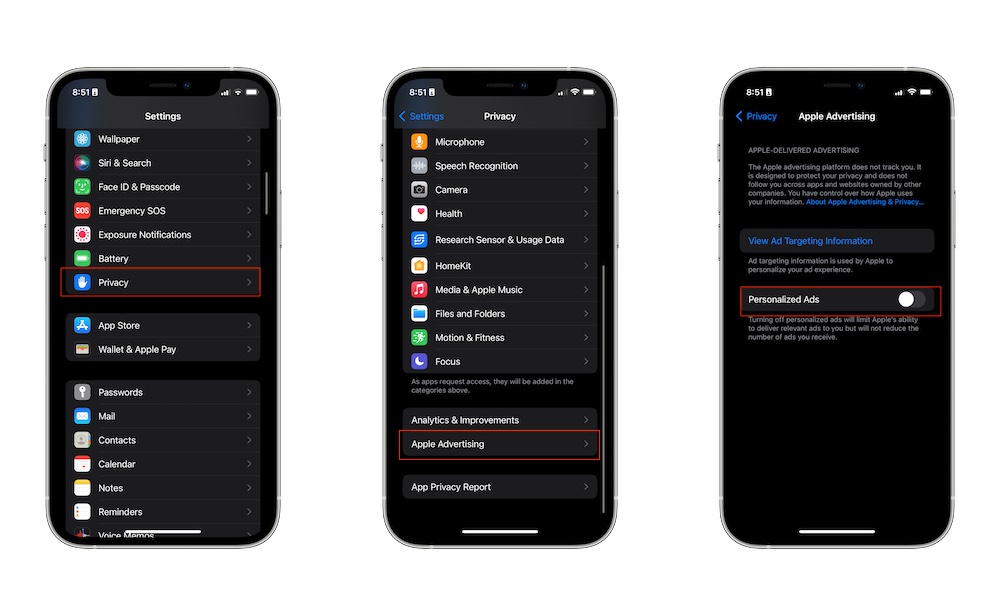
Apple uses your activity within its services to show personalized ads in the App Store, the News app, and others. Turning off this option will not remove ads, but it will prevent your data from being used to target you.
To turn it off: Settings ← Privacy & Security ← Apple Advertising ← Turn off “Personalized Ads”.
Turn Off Significant Locations
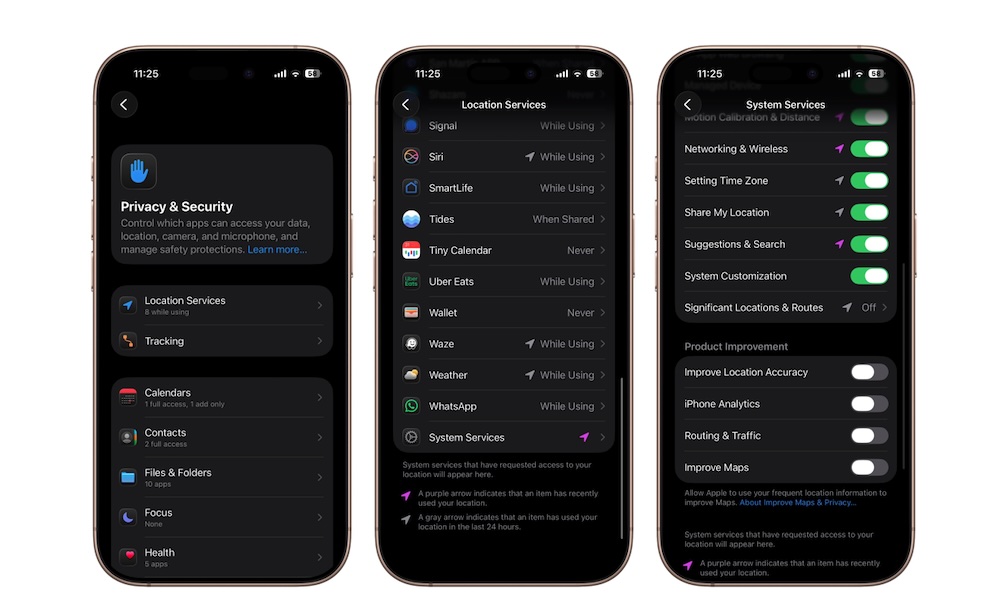
It might surprise you that your phone keeps a history of the places you visit regularly, such as your home, workplace, and favorite restaurants. Apple says this data is encrypted and local, but many prefer to turn this feature off entirely.
To turn it off: Settings ← Privacy & Security ← Location Services ← System Services ← Significant Locations.
You can also delete the location history from the same page.
Turn Off Precise Location for Most Apps
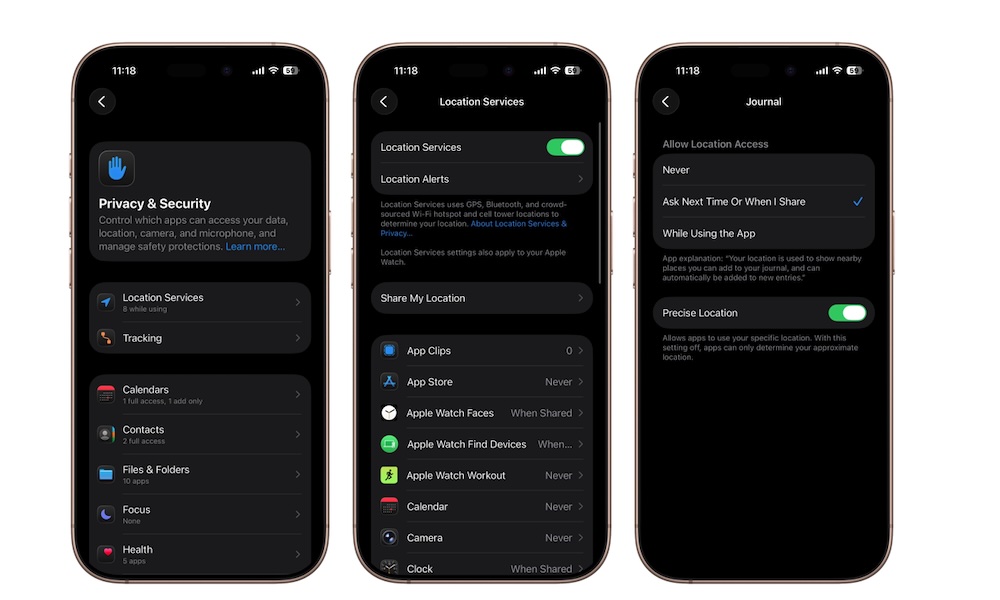
Most apps do not need your precise geographical location; weather, shopping, and restaurant apps work efficiently with just an approximate location. Allowing precise location for every app drains the battery and poses a privacy risk.
To turn it off for each app individually: Settings ← Privacy & Security ← Location Services ← Select the app ← Turn off “Precise Location”.
Exception: Navigation apps like Apple Maps and Google Maps actually need precise location.
Turn Off Background App Refresh
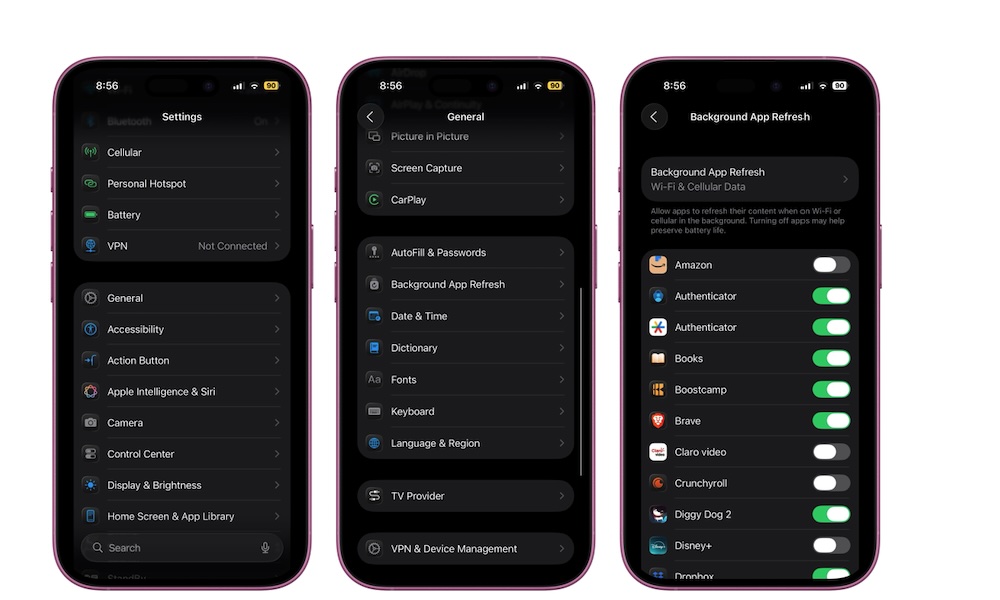
This feature allows apps to update their content even when you are not using them. The problem is that many apps misuse this permission, which drains the battery and consumes your data plan.
Most importantly, turning off this feature will not affect the arrival of notifications or messages, as they will continue to work normally.
To turn it off: Settings ← General ← Background App Refresh ← Turn off the feature entirely or for specific apps.
Turn Off Video Autoplay in the App Store
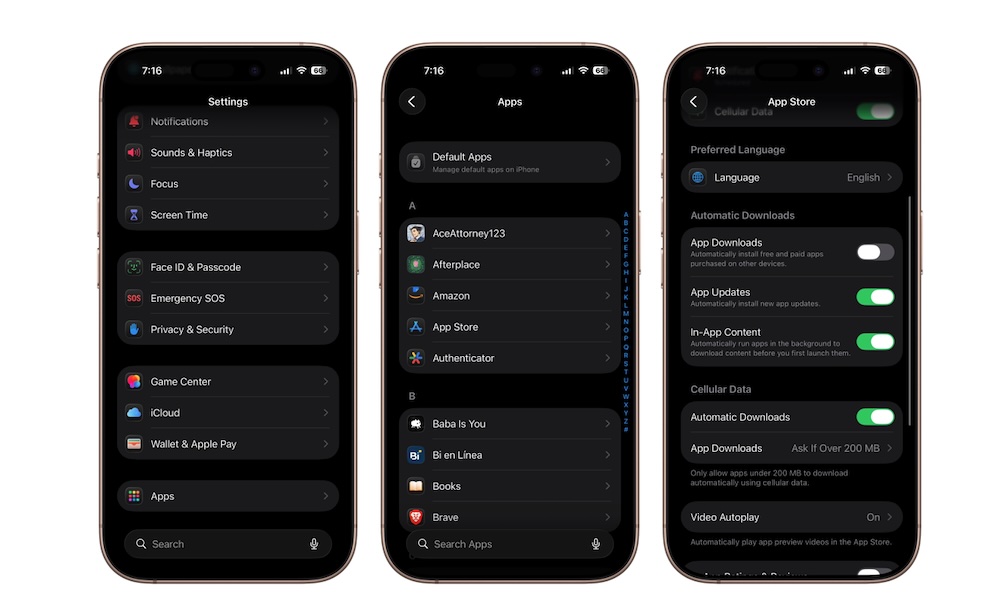
The App Store automatically plays game and app preview videos while you browse, which consumes your data plan and may distract you.
To turn it off or restrict it to Wi-Fi only: Settings ← Apps ← App Store ← Video Autoplay ← Choose “Wi-Fi Only” or “Off”.
Turn Off Automatic Downloads
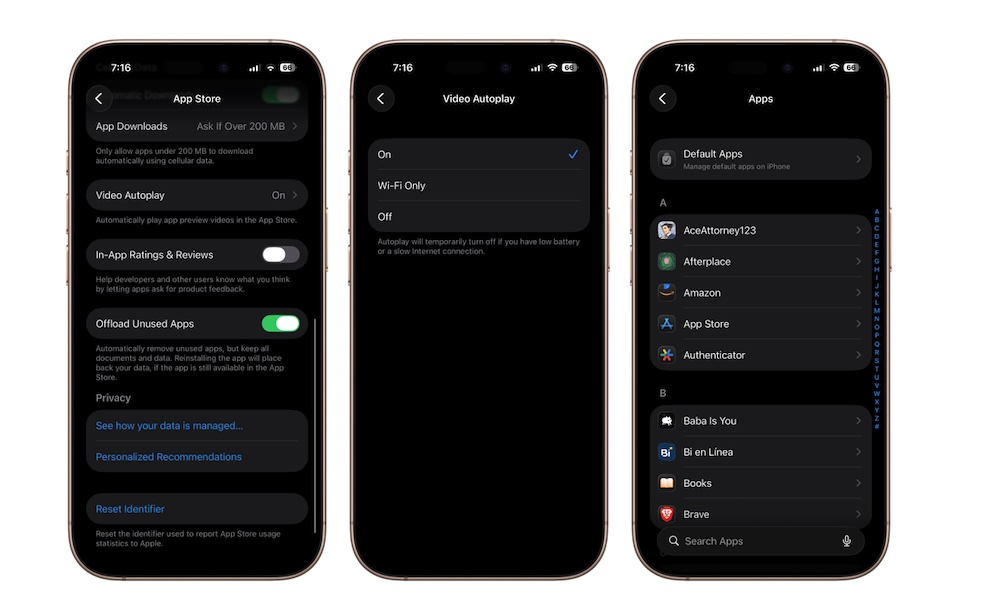
This feature automatically downloads apps and updates on all Apple devices linked to your account, which can drain storage space and your data plan without you noticing.
To turn it off: Settings ← Apps ← App Store ← Turn off “App Downloads”, “App Updates”, and “In-App Content”.
Remember to update your apps manually from time to time to get security patches.
Turn Off Scheduled Notification Summaries If You Don’t Use Them
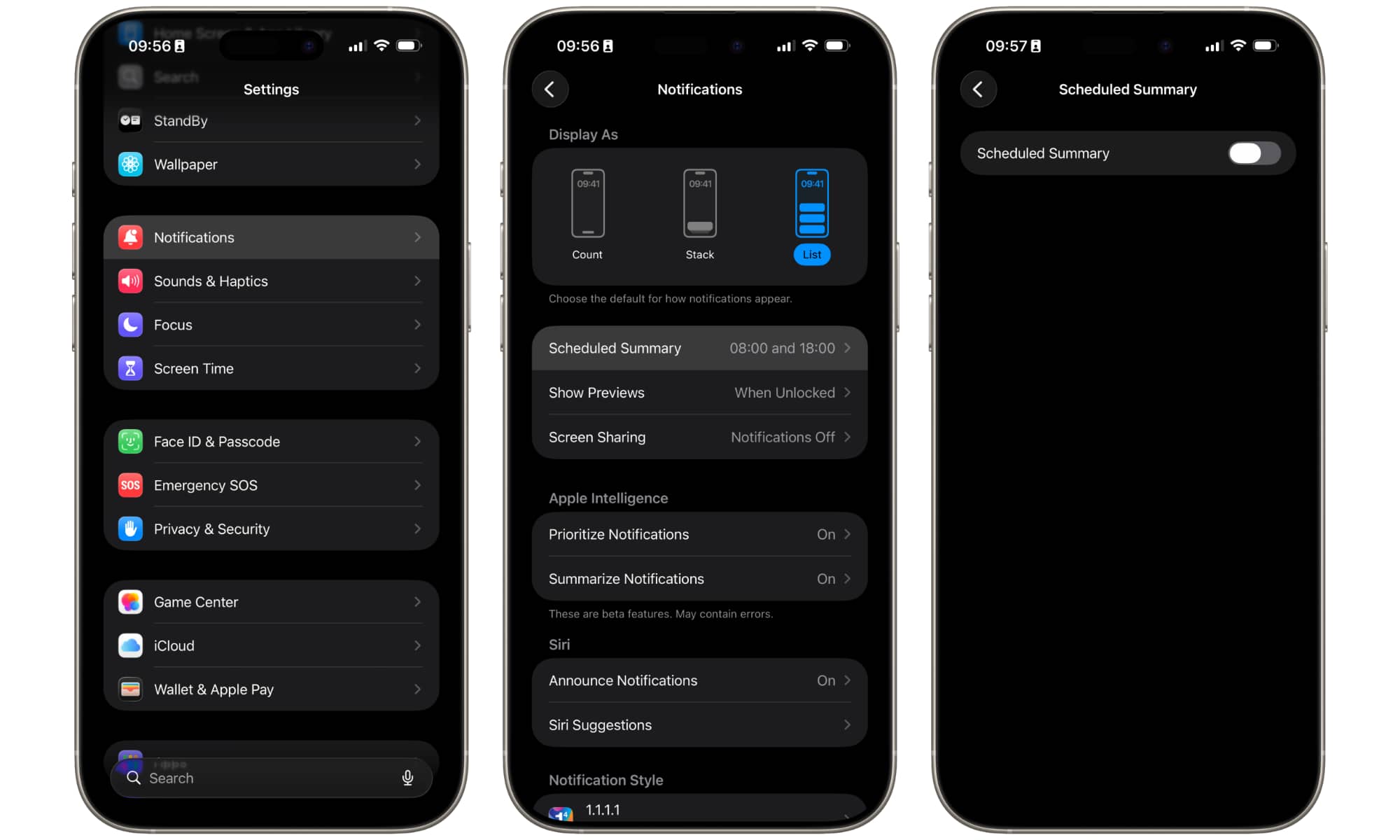
This feature was designed to group notifications and deliver them at specific times instead of constantly interrupting you. In practice, however, many users find the feature unreliable; some important alerts arrive late, while less important notifications are sometimes prioritized.
To turn it off: Settings ← Notifications ← Scheduled Summary ← Turn off the feature.
You don’t need to turn off all these settings at once, but reviewing them is a smart step that is worth a few minutes of your time. Some protect your privacy, some extend battery life, and some save you from daily annoyance. Most importantly, your phone will feel more controlled and better suited to your actual usage style.
Source:
Leave a Reply