With every new update, Apple proves that small, smart details are what make the real difference in the daily user experience. In the iOS 27.2 update, the company didn’t just stop at the usual technical improvements; it introduced a highly practical addition to the Messages app known as “Suggested Actions.” The feature aims to turn interactive messages into tangible steps with a single tap, without any clutter in the conversation interface. The pleasant surprise is that Apple has given users complete freedom to customize these suggestions according to their preferences with unusual precision.

What is the “Suggested Actions” feature and how does it work?
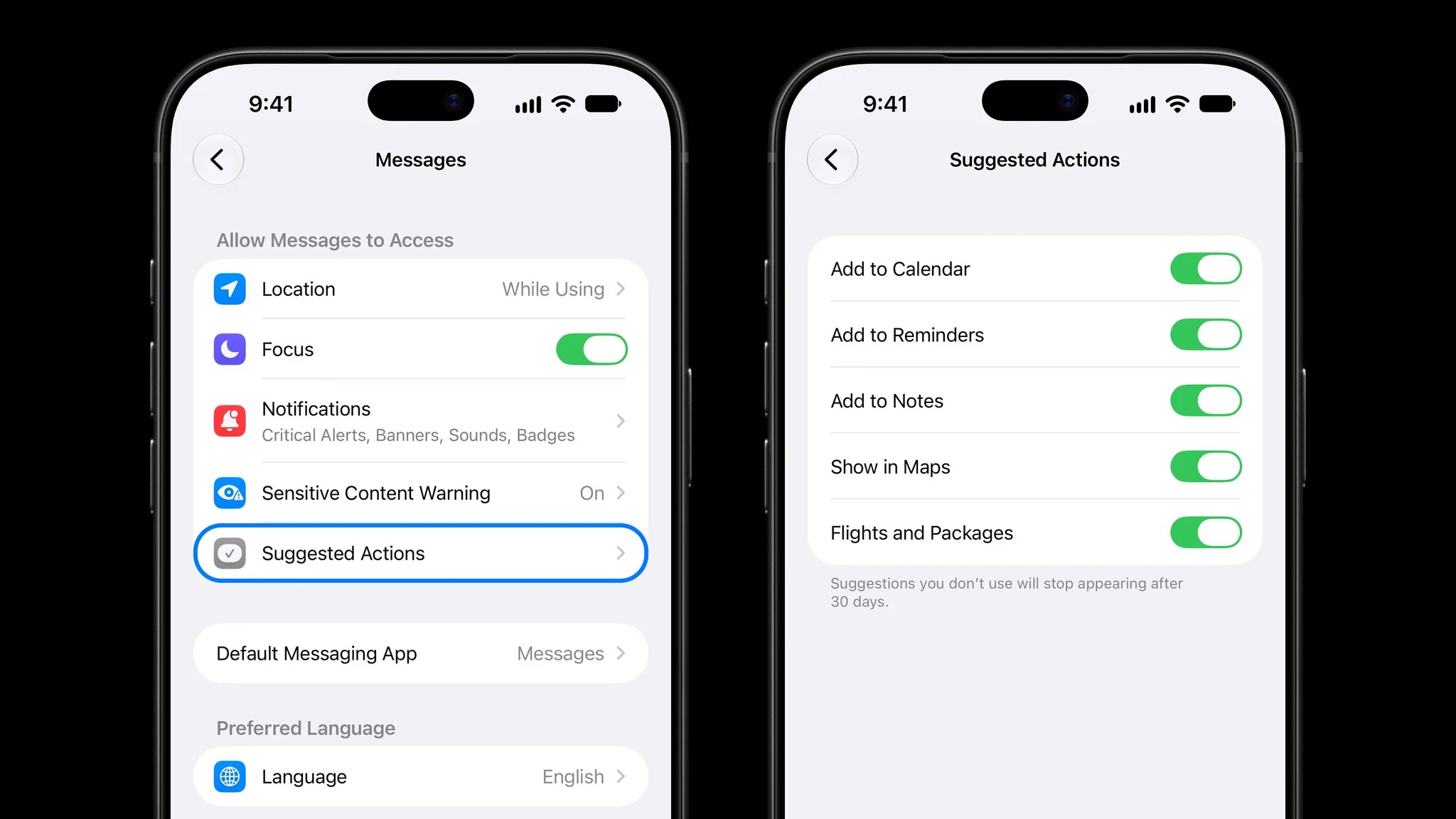
If you are using iOS 27.2 on your iPhone, you may have already noticed this useful change within conversations. The idea is simply based on understanding the context of the conversation; when someone sends you a message containing practical details—such as an appointment you want to add to the calendar, a task they want you to remember, or a meeting address—the Messages app places a small, elegant button containing the “Suggested Action” directly below that message.
With a quick tap on this integrated button, the text is immediately converted into an executed task, without the need to copy text or leave the app and switch between multiple programs. The design of these suggestions is quiet and non-intrusive, maintaining the simplicity and elegance of the usual Messages app interface without any visual clutter.
Full control: How to customize suggestions to suit your needs?
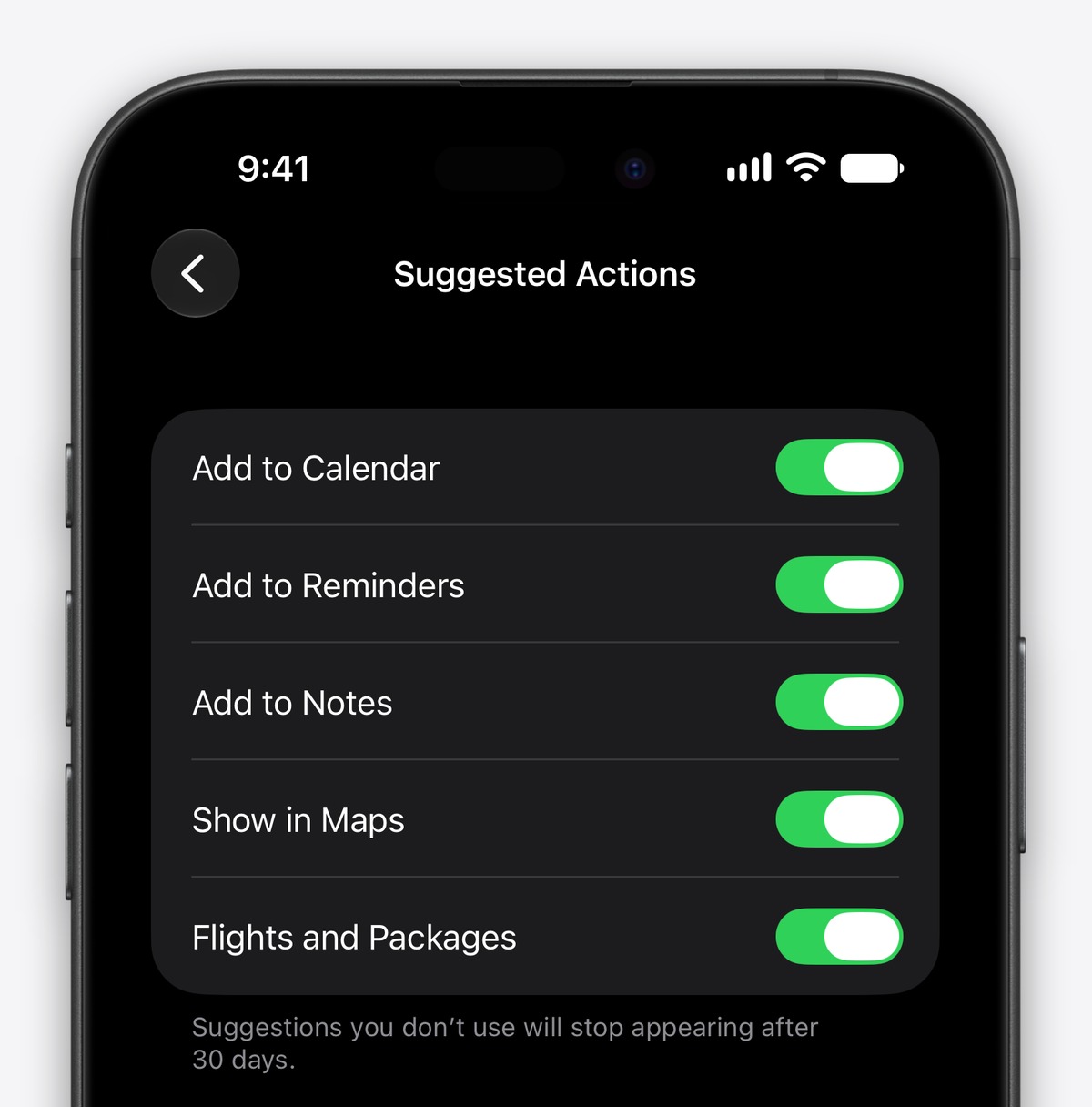
It is great to see Apple giving the user the initiative instead of imposing AI features as a single, indivisible package. If you are someone who likes to organize the calendar but doesn’t want to track shipments within messages, you can easily turn off what you don’t need and keep only what is useful to you.
To access these settings and adjust them according to your usage pattern, you can follow these steps through the Settings app on your device, then scroll to the Apps section, select Messages, and then enter Suggested Actions. You will find five main categories enabled by default, and you can disable any of them independently:
- Add to Calendar: For automatic recognition and scheduling of appointments without effort.
- Add to Reminders: To create new tasks as soon as they are suggested in the conversation.
- Add to Notes: To save important information directly in the Notes app.
- Show in Maps: To open addresses and geographical locations with a single tap.
- Flights and Packages: To track flight numbers and incoming shipments immediately.
Apple Intelligence and system requirements

This smart feature relies entirely on the capabilities of the “Apple Intelligence” system, which means it doesn’t just look for random keywords, but understands the general context and the intended meaning behind each message to provide the most appropriate suggestion. Given its direct reliance on generative AI processing, taking advantage of the Suggested Actions feature requires using a compatible iPhone model that supports Apple Intelligence features.
This approach to integration represents a successful step in employing artificial intelligence to serve the user practically and quietly, as the system remains a smart assistant in the background that provides the solution only when needed without any annoyance.
Source:



Post Comment