Did you know that the way you use your iPhone plays a critical role in determining its lifespan, performance, and long-term battery health? The problem is that many users unconsciously develop unhealthy habits that can shorten the iPhone’s lifespan or slow it down over time. The question here is: are you unknowingly practicing habits that could harm the iPhone you rely on every day? In the following lines, we review the most prominent mistakes that are better avoided before you pay the price later.

Installing apps from outside the App Store
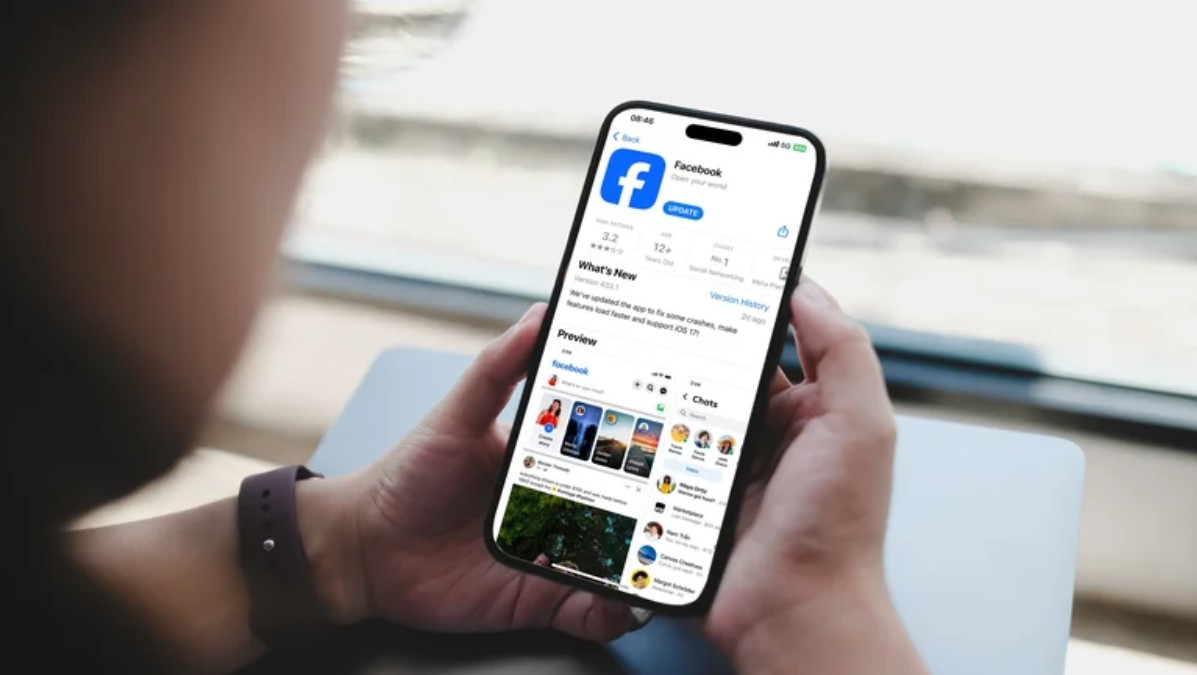
For a long time, the App Store was the primary way to download apps on the iPhone, but the situation changed due to the Digital Markets Act (DMA), as Apple was forced to allow sideloading, which enables users to install apps from outside the store. While this move gave users more options, it opened the door to security concerns. Untrusted apps may contain spyware or malicious code that can monitor your activity or access personal and financial information, and they may also cause system stability issues. Apple indicates that in 2024 alone, it blocked fraudulent transactions exceeding $2 billion and prevented nearly two million submissions of risky apps from reaching users.
Tip: Make sure to download only from official developer websites or trusted alternative stores, and stay away from random download pages. If you experience battery drain or a decline in performance after installing an untrusted app, remove it immediately.
Saving sensitive data in the Notes app
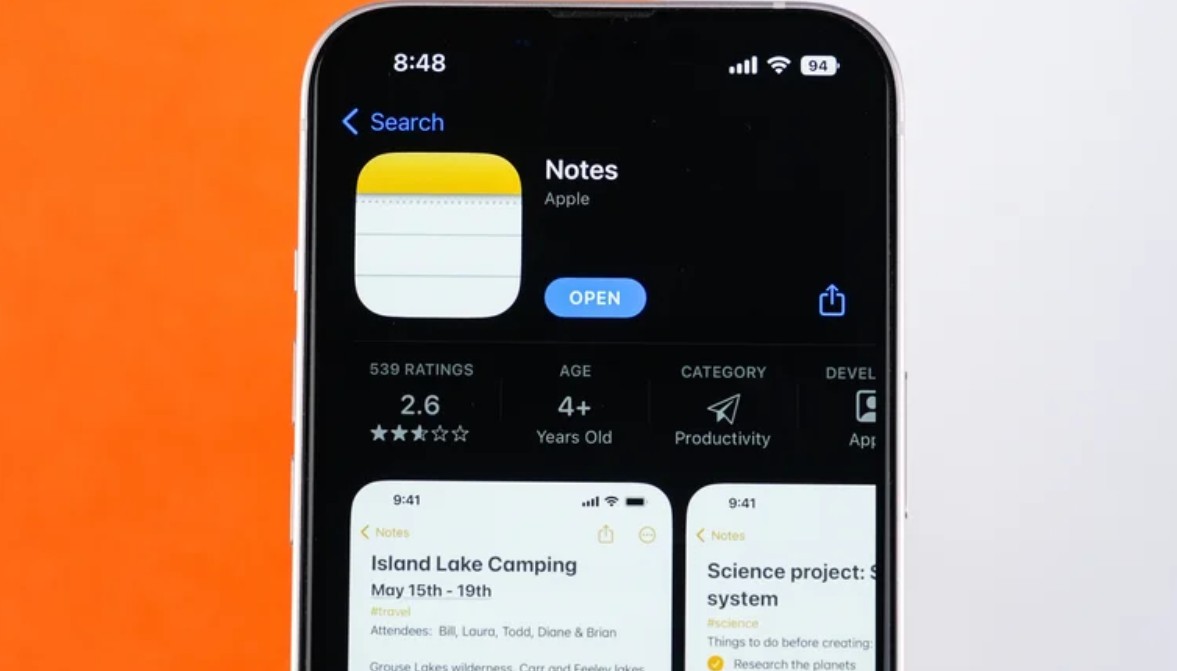
The Notes app might seem like a convenient place to store a password, bank account details, or personal information, but it is not the ideal substitute for a password manager. If someone manages to unlock your phone or knows your passcode, they could easily access this information if it is saved in a regular note. Furthermore, storing sensitive data in a way not intended for this purpose increases the risks of exposure if the device or apps are compromised.
Tip: Use specialized password management apps, and if you use the default Apple Notes app, be sure to lock important notes with a password different from your screen lock passcode.
Using Low Power Mode all the time
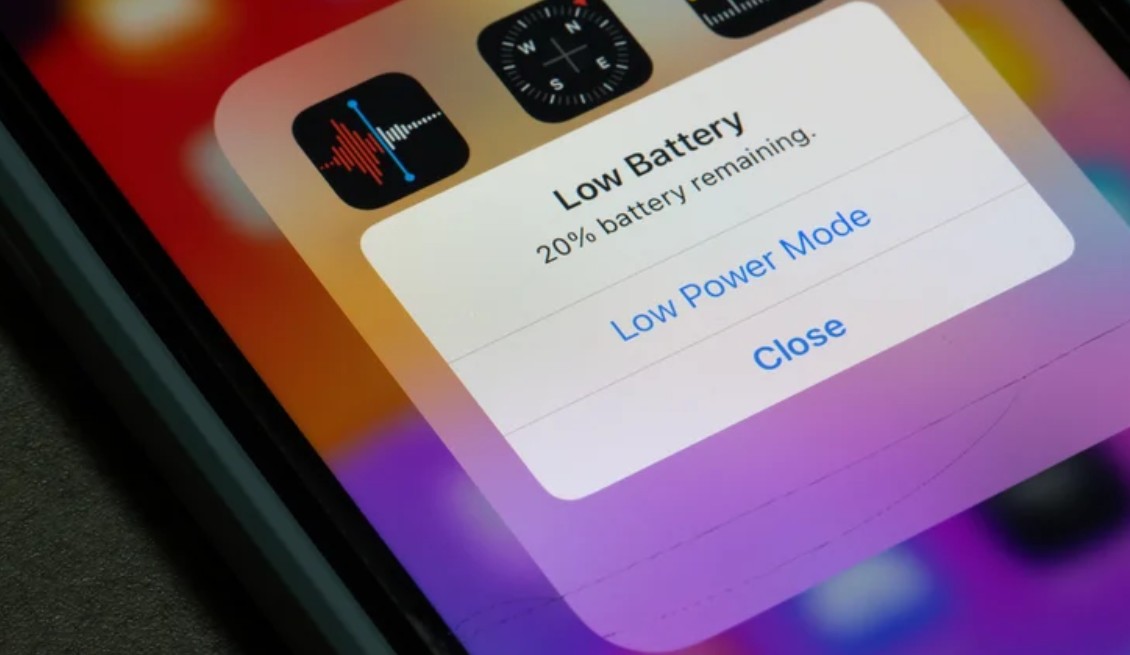
Low Power Mode is an excellent solution when the battery is about to run out and no charger is available, but using it all the time means sacrificing some phone functions and experience to save power. When enabled, some background activities are paused or slowed down, and features like iCloud sync and AirDrop may be affected, along with reduced screen brightness, refresh rate, and some animations. Performance is also affected, dropping by up to 40% while running heavy apps and games.
Tip: Use Low Power Mode only when you really need to extend battery life, rather than considering it the default setting for the phone all day.
Ignoring app permissions and authorizations
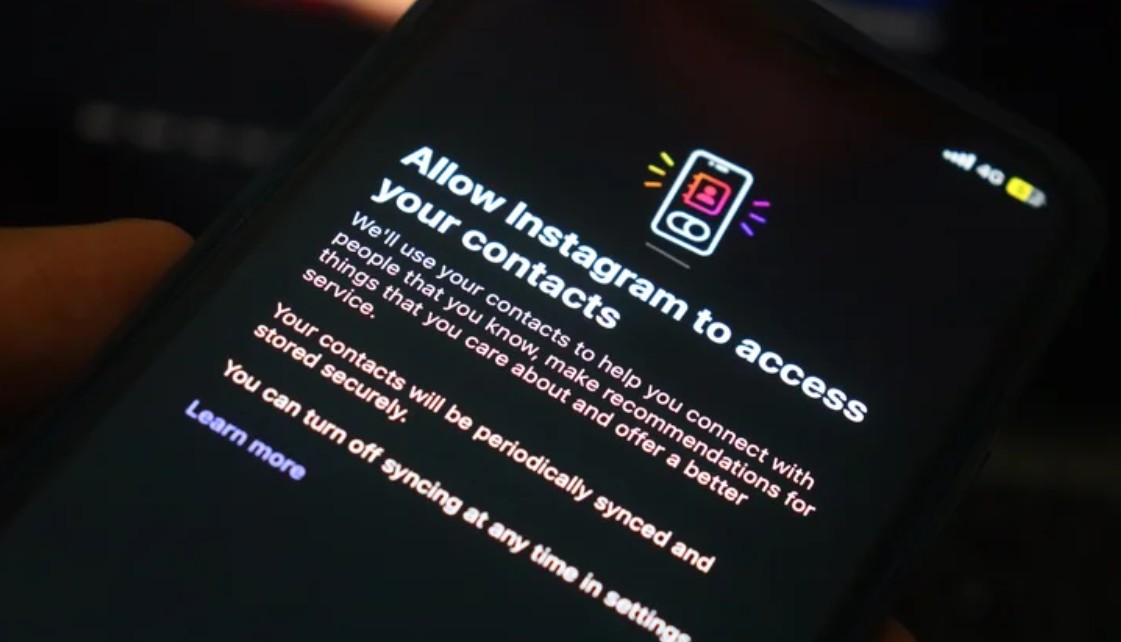
If you notice ads for products you previously searched for on platforms like Instagram or Facebook, this is due to “App Tracking,” which collects your data and shares it between companies. You can stop this by going to Settings, then Privacy & Security, and then Tracking to adjust options for each app or disable the ability for apps to request tracking entirely.
The problem doesn’t stop at tracking. Some apps request permissions and authorizations that don’t seem logical for their nature of work. For example, if a calculator app requests access to the camera or location, it is better to stop and think about why it needs this data. Permissions can be adjusted from the app settings, and access to the camera, microphone, or location can be disabled when not needed.
Force closing apps
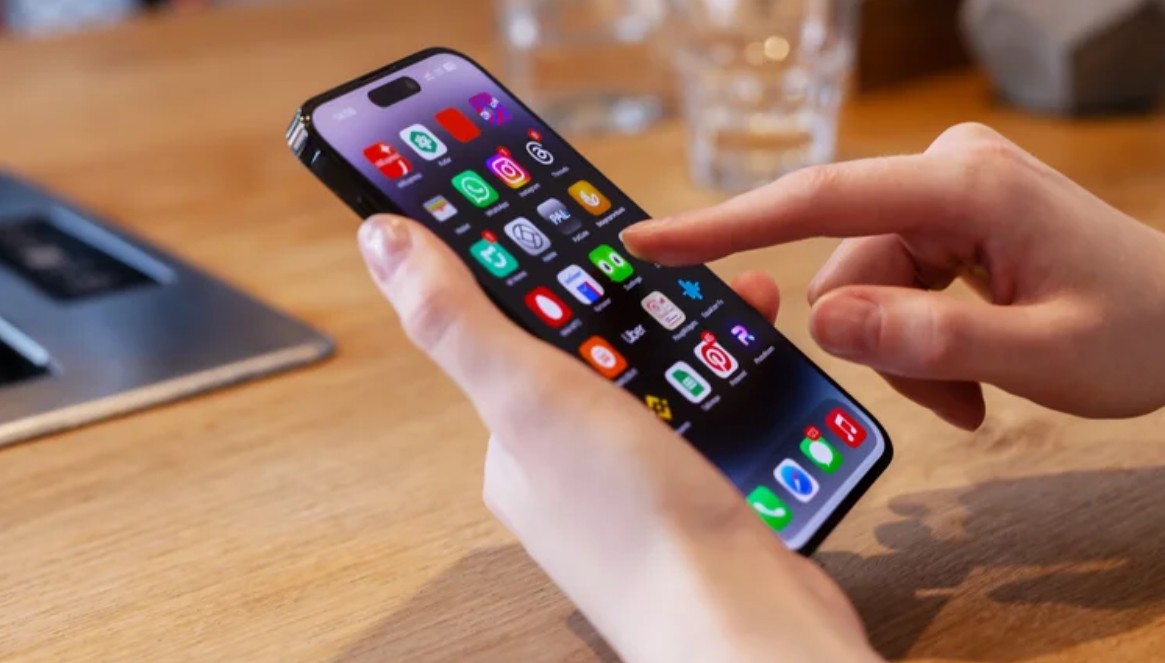
Many people believe that closing all apps from the App Switcher interface saves battery, but this belief is incorrect. iOS automatically manages background apps. When you are not using an app, it enters a “Suspended” state that prevents it from consuming system resources. Force closing an app forces the iPhone to reload it completely from scratch when opened again, which consumes more power and resources compared to resuming it from the suspended state.
Tip: Apple recommends not force closing an app unless it stops working and becomes unresponsive.
Enabling Background App Refresh
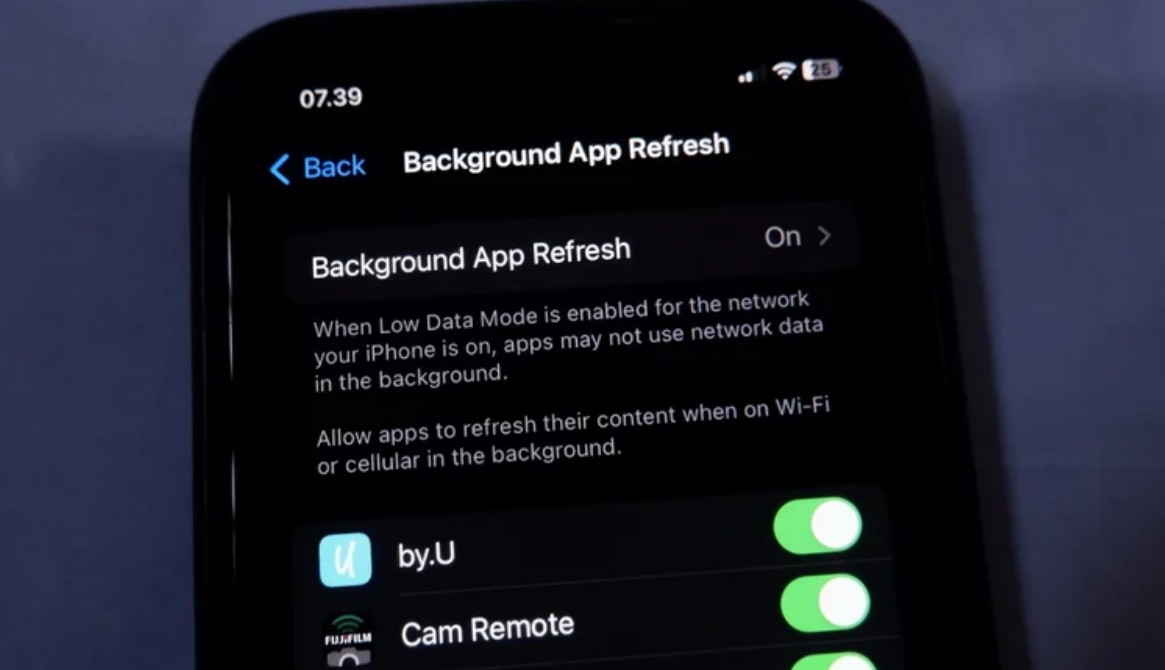
Background App Refresh allows apps to update their content even when you are not using them. Despite its usefulness, it consumes data and battery unnecessarily, especially with video games and photo editing apps that do not need constant updates.
Tip: Customize the feature and enable it only for essential apps like email and messaging by going to Settings > General > Background App Refresh and turning it off for other unnecessary apps.
Ignoring system and app updates
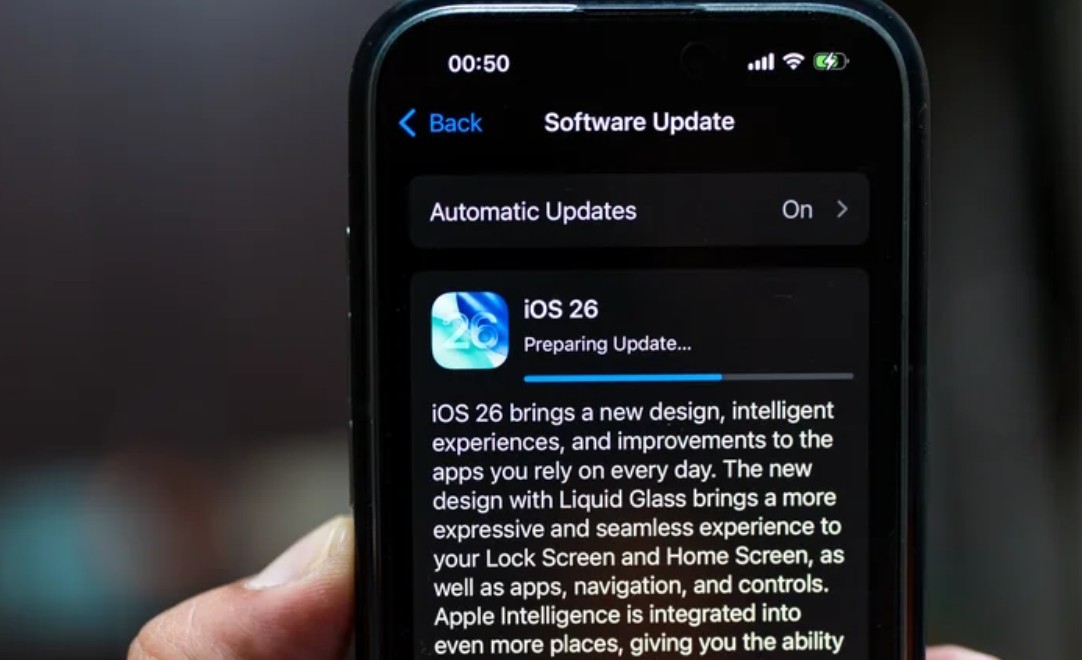
iOS updates provide new features, security patches, bug fixes, and performance and battery improvements. Neglecting these updates may lead to incompatibility with modern apps or malfunctioning, and more importantly, it leaves your phone vulnerable to exploits and malware.
Tip: You should not ignore these updates to improve, secure, and protect your iPhone. To update the operating system: go to Settings > General > Software Update. To update apps: open the App Store, tap your profile icon, and download the available updates.
Forgetting to restart the iPhone
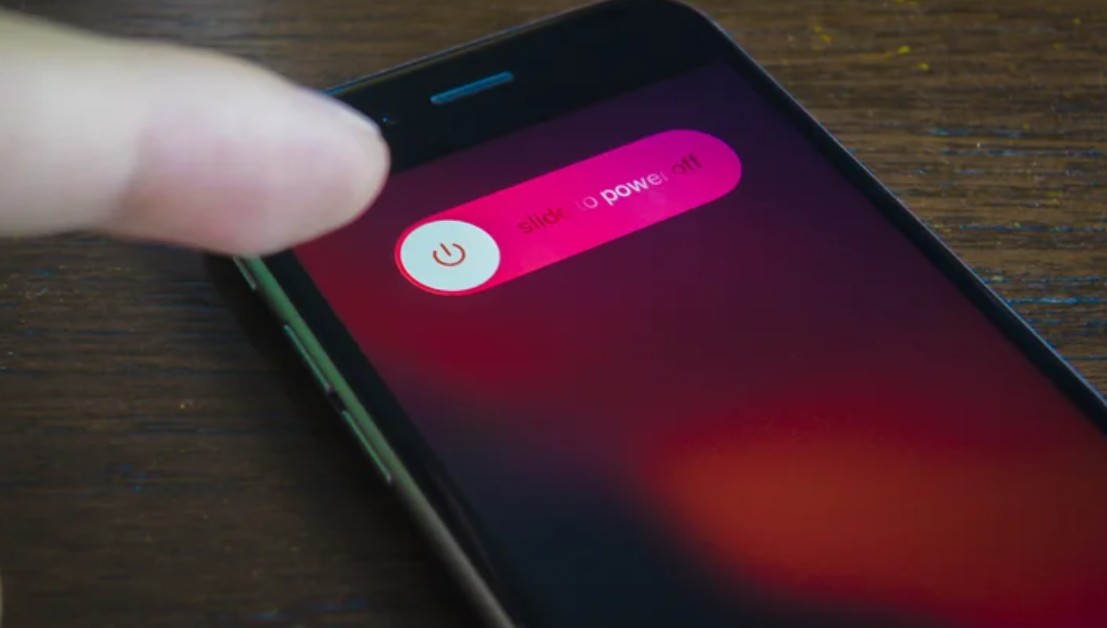
Most users only restart their iPhone when they encounter a technical problem, but regular restarts clear temporary files, close background processes, and clean the cache, giving the phone faster response and greater smoothness. Additionally, the U.S. National Security Agency (NSA) recommends turning off iPhones and Android phones at least once a week. This process helps protect against phishing attacks and hacks by clearing any malicious code planted in the device.
Tip: To restart an iPhone X and later models, press and hold the power/lock button and one of the volume buttons simultaneously, then drag the power-off slider to the right. Once the iPhone is completely turned off, press and hold the power/lock button to turn it back on. Alternatively, you can use Siri or go to Settings > General > Shut Down to restart the iPhone without using the power button.
Ignoring backups
The longer you use your iPhone, the more photos, videos, files, conversations, and important data are stored on it. Imagine losing all of that due to losing the phone, damage, or theft. For this reason, backing up is one of the most important habits to maintain. Apple provides the iCloud service for backup and syncing, with 5GB of free storage, while paid plans offer larger capacities currently reaching up to 12TB.
Tip: To enable automatic backup, go to Settings > Apple Account > iCloud > iCloud Backup, then enable the option to back up this iPhone. You can also keep a full copy of the phone’s data using a Mac or a Windows PC.
Exposing the iPhone to extreme heat or cold
Temperature is one of the factors that can most affect battery life and phone performance. Apple explains that its phone is designed to operate in temperatures between 0 and 35 degrees Celsius, while very high heat can permanently shorten battery life. The company also recommends not leaving the phone inside a parked car, as the heat inside can exceed safe limits. Therefore, do not leave the phone in direct sunlight for long periods, and do not use the camera or navigation system in extremely hot conditions without paying attention to the device’s temperature.
Tip: If a temperature warning appears, or the phone becomes unusually hot, stop using it and place it in a dry, cool place away from the sun. Also, do not try to cool it by putting it in the refrigerator. Just leave it until its temperature drops gradually or place it next to the car’s air conditioner.
Turning off Find My
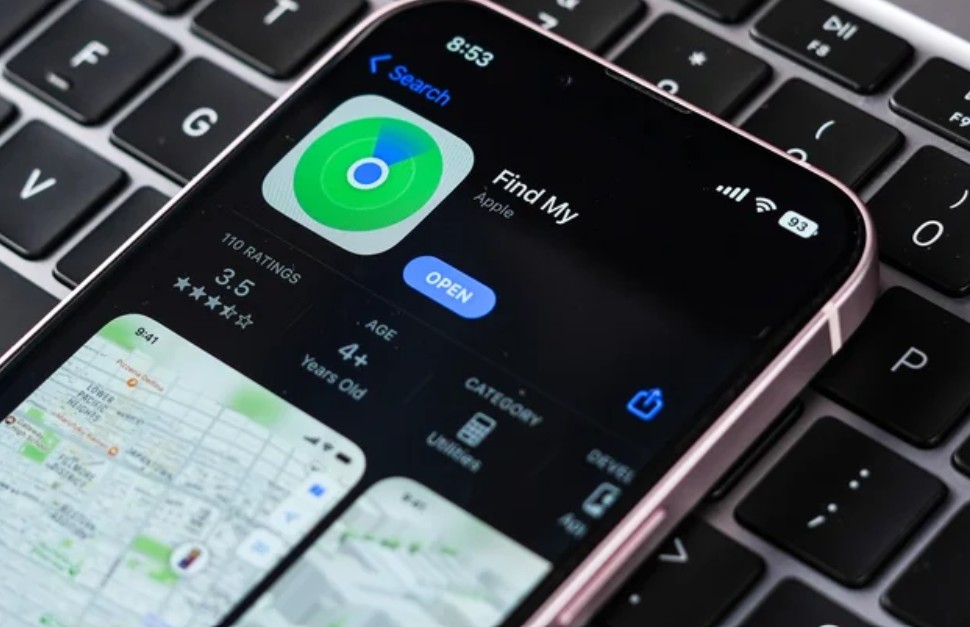
Everyone hopes they never need to use the Find My feature. But even if you don’t need it, you must ensure that this important feature is enabled on your phone. It helps locate a lost device and provides additional capabilities to protect it, such as locking the device and erasing its data remotely. It is also linked to Activation Lock, which makes it much harder for someone else to use the device. Furthermore, the Stolen Device Protection feature also requires Find My to be enabled, adding an extra layer of security when the phone is away from familiar locations.
Tip: Do not disable Find My under any circumstances unless you are selling, giving away, or trading in the phone. To enable the feature, go to Settings > Apple Account > Find My > Find My iPhone, then make sure it is turned on.
Neglecting Medical ID and emergency contacts
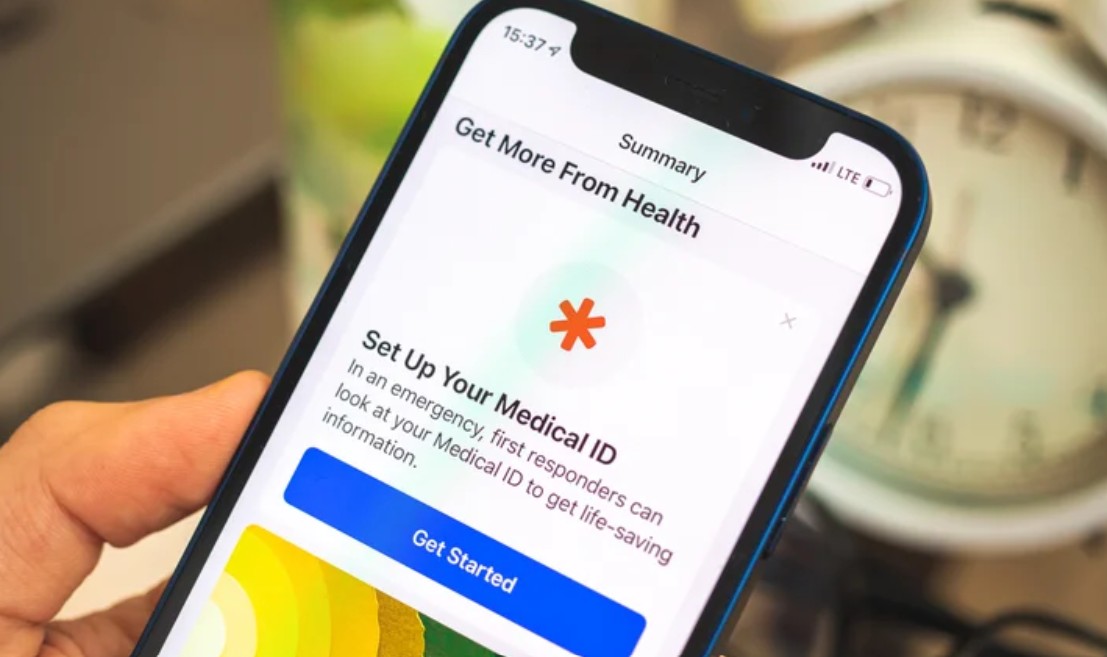
There is information you hope you never need, but it could become critical in a life-or-death moment. For this reason, the iPhone allows you to create a Medical ID that contains your personal health information, along with emergency contacts. When allowed to be displayed from the lock screen, paramedics can access it without needing to know the phone’s passcode. The data can include your name, date of birth, and primary language, in addition to information such as medications, allergies, and contacts to reach in case of an emergency.
Tip: To create a Medical ID and emergency contacts, open the Health app, tap your profile picture, then choose Medical ID and tap Get Started. The next step is to enter the required data; make sure to enable the ‘Show When Locked’ and ‘Emergency Call’ options so the information appears from the lock screen. Additionally, the Emergency SOS feature can notify emergency contacts along with sharing your current location.
In the end, the mistakes we make with the iPhone may not be obvious enough for us to realize their impact, but they accumulate over time to leave an effect on performance, battery, and security. Therefore, maintaining your device does not always require complex steps; it starts with changing some simple daily habits. The more consciously you treat your iPhone, the greater the chances of it remaining fast, secure, and reliable for many more years, and you might discover that the problem was not with your phone in the first place, but in the way you were using it.
Are you making any of these mistakes with your iPhone? Tell us in the comments!
Source:



Leave a Reply