If you are a tech enthusiast who has installed the new macOS 27 Golden Gate developer beta, you were surely excited to try out the all-new AI-powered personal assistant, Siri AI. However, as is typical with Apple’s major features, you might run into the dreaded “waitlist” that forces you to wait your turn while others show off their experience on social media. Fortunately, thanks to the flexibility of the Mac system, there is a clever and simple trick using the Terminal app that allows you to skip this waitlist and activate Siri AI on your Mac immediately and without any delay!

Important warning before starting and regional availability
Before we dive into the depths of the command line, let’s agree on a few basic points. Since you are running the first developer beta of macOS 27, we assume you are using a secondary device dedicated to experiments and testing, not your primary Mac that you rely on for your livelihood! Applying these tricks requires using the Terminal app, and although initial reports confirm that this step is completely safe and does not lead to data loss, we at Phonegram disclaim responsibility for any errors that may occur, and we always advise you to keep a full backup of your device via Time Machine before starting.
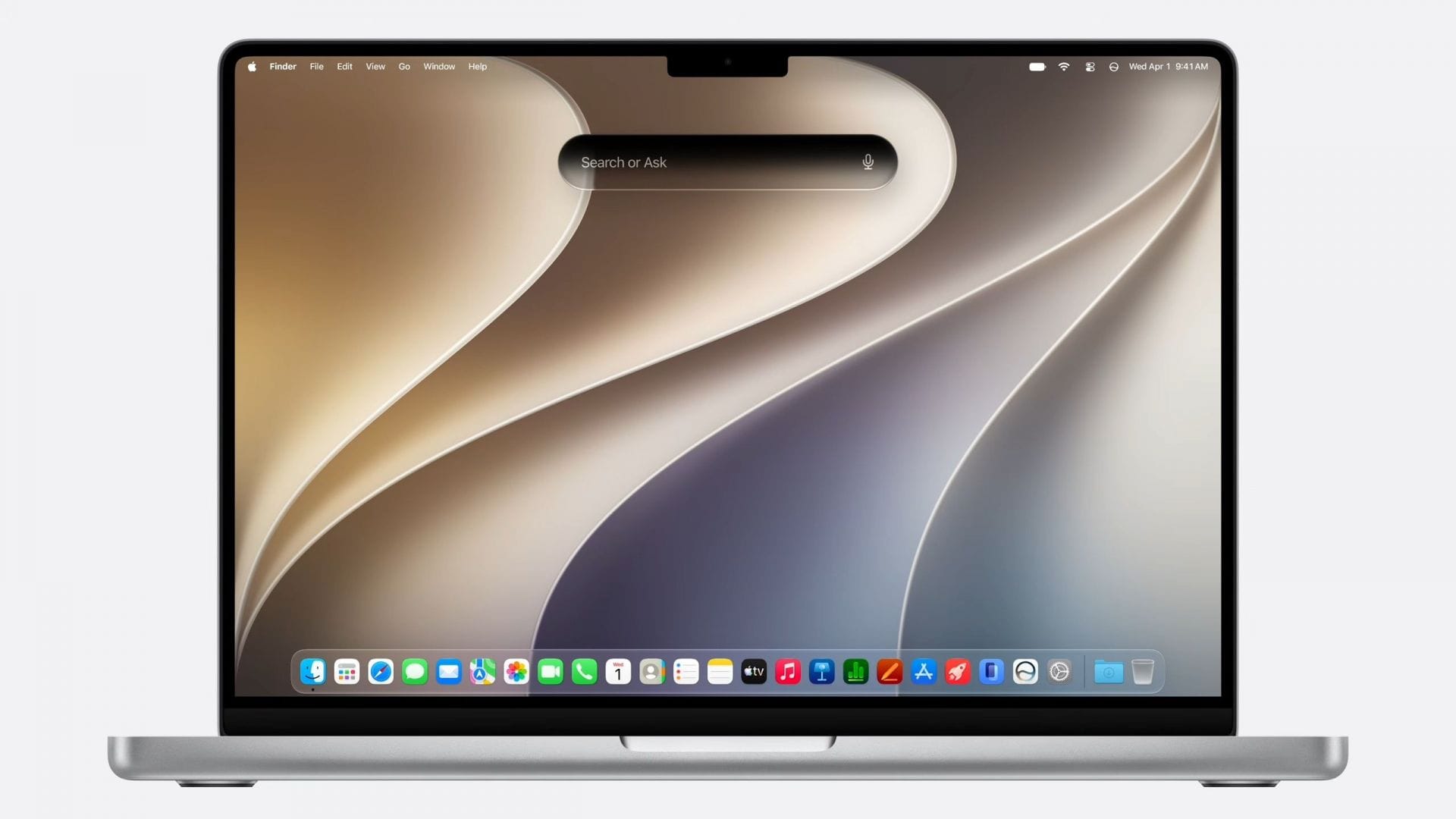
The good news here is that the strict restrictions imposed by the EU’s Digital Markets Act, which prevent Siri AI features on iPhone and iPad devices in European countries, do not apply to Macs or Vision Pro headsets. Therefore, if you live in the European Union and use a Mac, you can enjoy this experience without geographical obstacles, noting that Siri AI currently supports English only.
Steps to skip the waitlist in seconds

The process is very simple and does not require advanced programming skills; all you have to do is follow these steps carefully:
- Step 1: Open the Terminal app on your Mac running the macOS 27 beta.
- Step 2: Copy the following command in its entirety, paste it into the Terminal window, and press Enter:
sudo defaults write “/Library/Preferences/FeatureFlags/Domain/GenerativeModels.plist” “EnhancedSiriWaitlist” -dict-add Enabled -bool NO
(Note: The system will ask you to enter your Mac password; type it and press Enter, keeping in mind that the characters will not appear while typing as a security measure).
- Step 3: Restart your Mac to apply the changes.
Once restarted, you will find that the waitlist has vanished as if it never existed, and you can open the new Siri app and start exploring its smart features immediately!
What awaits you after activating Siri AI?
When you activate the new assistant, you will notice a qualitative leap in how you interact with your Mac. Through the dedicated Siri app, you can have sequential and continuous conversations with Siri, whether by text or voice, with the feature of syncing your entire conversation history across your various devices via iCloud.
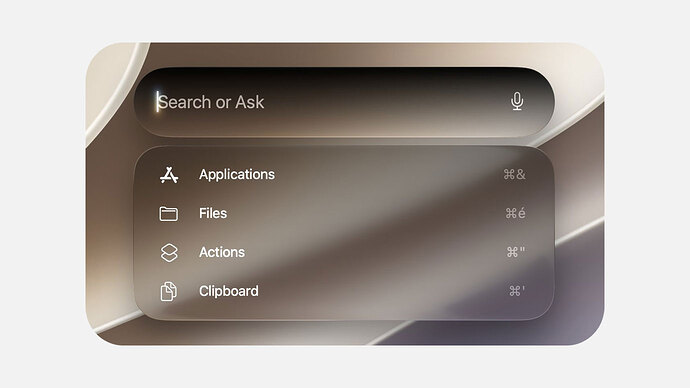
Siri AI is distinguished by its superior ability to understand your personal context; it can perform smart searches in your messages, emails, and photos, and even perform complex actions within various apps at the system level. Additionally, Siri has been deeply integrated into the Spotlight search feature and is now available directly through the right-click menu on any file or open window to facilitate and enhance your daily productivity.
The developer community’s perspective on this trick

Of course, discussions in developer communities have not been without some warnings. Some point out that the waitlist was primarily put in place to prevent sudden pressure on Apple’s servers and data centers, and that bypassing this list through unofficial methods could expose your developer account or Apple account to some risks if Apple decides to take strict measures against those who circumvent the system. However, many veteran users believe that the number of people who will apply this trick is negligible and will not affect the overall system performance, especially since the modification is done locally on the system’s feature preferences file without the need for harmful external tools.
Source:

Leave a Reply