Apple has released the iOS 15 update, which brought many improvements to FaceTime, Safari, and several other new features. Aside from the new settings in iOS 15, there are many features that have been around for a while that you might not have known about, and you may wonder if enabling or disabling them is beneficial to you. In this article, we will take a tour of some settings on the iPhone, whether it is important to enable them or not, and which ones improve your iPhone experience and make it more productive.
Reset incoming calls to full-screen alerts
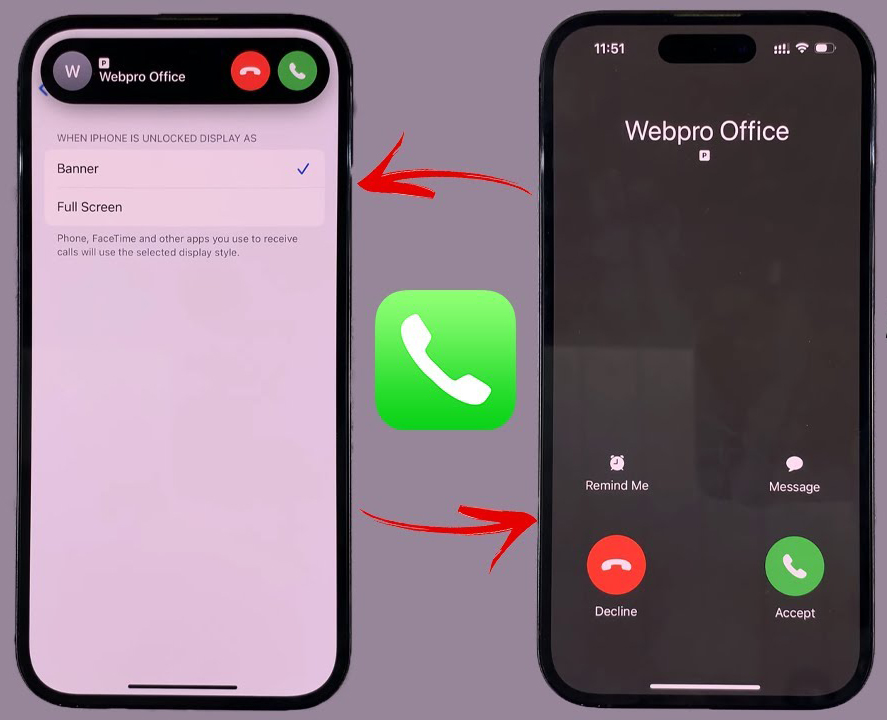
We have long complained about this method of announcing incoming calls. Before the iOS 14 update, the incoming call screen would take over your entire display and interrupt the tasks you were performing on your device. Starting with iOS 14, Apple changed the method to a notification banner at the top of the screen. Because of this notification method, you might miss some important calls. If you want to restore the full-screen view, go to Settings – Phone – Incoming Calls – and tap Full Screen.
Turn off 5G if you don’t want it or it’s not available in your area
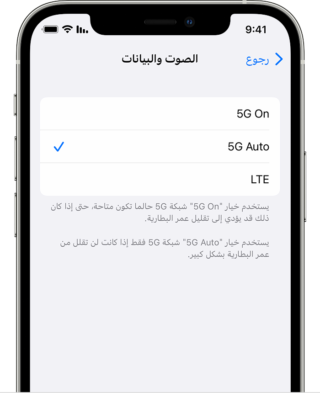
Apple promotes the Smart Data feature for 5G iPhone 12 and iPhone 13 models, which automatically switches between 4G and 5G networks. While this appears to save power, it actually drains the battery faster because there are background processes searching for available networks to activate them. If you don’t need 5G, turn it off until it improves or becomes available in your country.
To turn off 5G and force the iPhone to always use 4G even if you have 5G coverage, follow these steps:
Go to Settings – Cellular – Cellular Data Options – Voice & Data – and tap LTE.
If you want the iPhone to use 5G only when available, you can select 5G.
Adjust the amount of data used on 5G
Go to the Cellular Data Options settings, where you will find three different options: Allow More Data on 5G, Standard, and Low Data Mode.
Although there are brief descriptions under the three different settings, they do not paint a complete picture of the first option. According to an Apple support document, “Allow More Data on 5G” will give you higher-quality video calls and FaceTime. This also means your phone can download system updates over cellular data without Wi-Fi and stream high-definition content.
The default setting on this page will depend on your carrier and data plan, so it is a good idea to check your iPhone and ensure it is set according to your preferences.
Move the address bar in Safari to its original place
Apple moved the address bar in Safari to the bottom of the screen by default in the iOS 15 update. This seems logical because it is closer to the keyboard and where you usually place your thumb. However, it can be undesirable since many people are accustomed to seeing the address bar at the top.
You can change this by going to Settings – tapping Safari – and selecting the “Single Tab” option under the Tabs subheading.
Organize notifications with Notification Summary
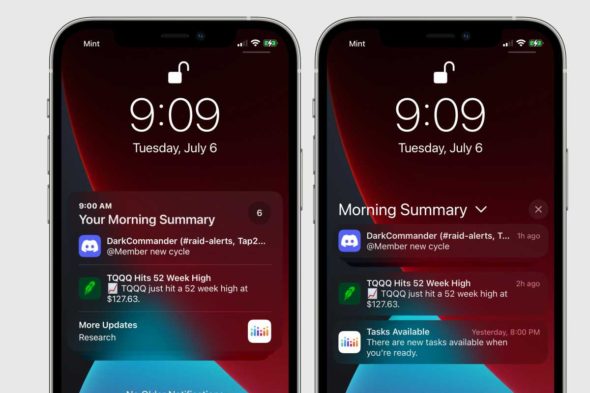
Apple wants to help you manage your notifications in the iOS 15 update. Instead of letting notifications pile up on your home screen, you can schedule non-urgent alerts to arrive in a bundled summary at a specific time of the day. Important notifications, such as calls, direct messages, and other time-sensitive alerts, will still arrive on time. To try this, open Settings, tap Notifications, and tap Scheduled Summary.
Features you can use when the iPhone is locked
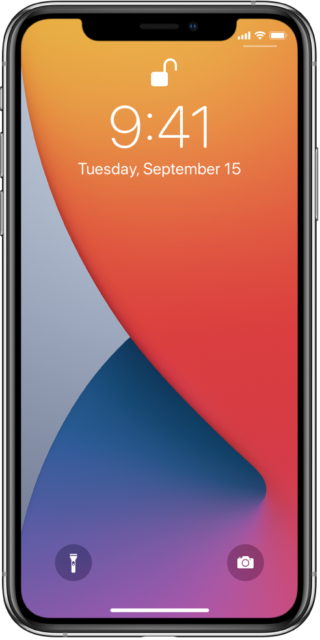
There are times when you may need to access certain information even when your phone is locked. That is why Apple allows you to enable some features without needing to unlock your device. This includes Notification Center, Control Center, the ability to reply to messages, and the Wallet app, among others.
Customize the features you want to access on the Lock Screen by:
Settings – then Face ID & Passcode, enter your passcode when prompted, then scroll down until you see the “Allow Access When Locked” section, and toggle the sliders based on your preferences.
You may want to turn off the following camera features
iPhone 12 and iPhone 13 can record HDR video with Dolby Vision for brighter video with more accurate colors and improved contrast. But there is a problem: not all apps or services will work with HDR video.
Developers will need to update their apps to accept HDR video, and even then, the person watching the video will need a device capable of seeing the HDR difference. For Apple devices, this includes iPhone 8 or later, iPad Air 2020, second-generation iPad Pro, and some Macs.
You can turn off HDR video by going to Settings – Camera – Record Video and disabling HDR Video. All videos will be captured in standard dynamic range, and you won’t face any issues sharing or editing them.
Leave HDR video turned on, but when you want to share the video to Facebook, for example, use the Photos app instead of going into the Facebook app and uploading it there. By using the Photos app, the iPhone will automatically convert the video to SDR and upload it. When you send the video to another iPhone user, Apple will detect if their iPhone, iPad, or Mac is compatible with HDR Dolby Vision. If it is not, Apple will automatically convert the video.
If you leave HDR video turned on and need to edit your video, you can use Apple’s iMovie app or the built-in Photos app in iOS, and you can even use iMovie to export the video in SDR format if necessary.
Source:
Leave a Reply