With every major new operating system launch, the same familiar cycle repeats among Apple enthusiasts: overwhelming excitement to try out the new features, followed the next day by a tidal wave of familiar complaints: the iPhone has become sluggish, it has suddenly heated up as if it were in a frantic race, the battery is draining at an alarming rate, not to mention apps that worked perfectly yesterday are now crashing suddenly on their own. Even worse, some may check the updates page and find the system isn’t available at all! If you are facing any of these annoyances, rest assured; these problems are not a permanent defect and do not mean your phone is broken. Rather, they are a temporary software “tax” that devices pay in the first few hours after an upgrade, and the fix is much simpler than you might imagine.
Why is the iOS 27 update not appearing in Settings?
You go with great enthusiasm to Settings, then General, then Software Update, only to be surprised that the option to upgrade to iOS 27 is completely missing! The first intuitive step is to ensure that your device model supports the new update; although the system usually supports the phones covered by the previous version, reviewing the official compatibility list remains indispensable.
If your device is definitely supported but the update refuses to appear, there are practical steps to force the system to respond:
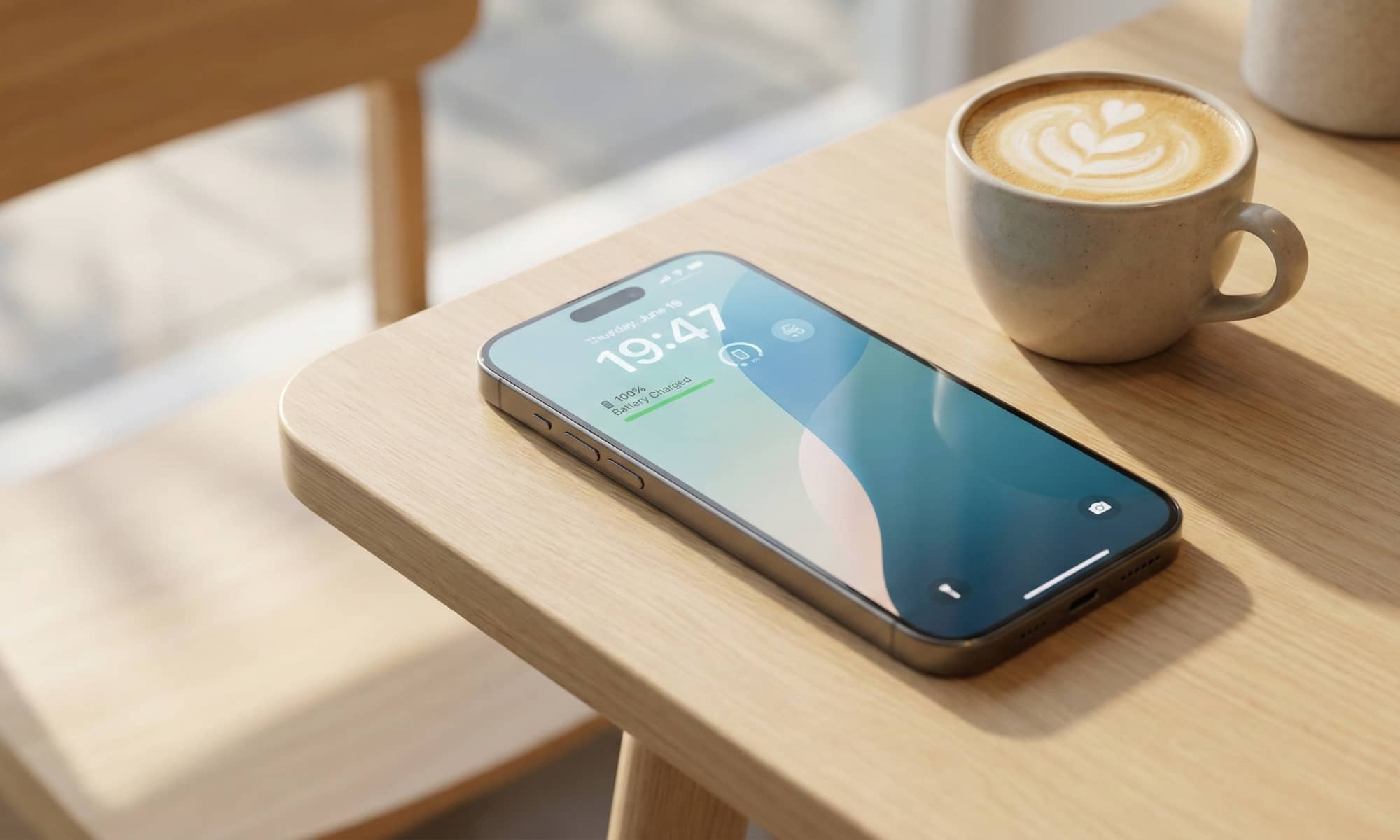
- Scroll down: When major systems are launched, Apple usually releases a security update for the older version, such as iOS 26.7, by default for those who do not want to take risks immediately, and places iOS 27 as an optional upgrade at the very bottom of the page.
- Turn off Beta Updates: If you are using a beta version, go to Settings > General > Software Update > Beta Updates, and disable them to activate the reception of the stable version intended for general users.
- Ensure sufficient storage space: The update file itself requires only 5 to 7 GB to download, but the iPhone system needs additional free space between 10 to 20 GB to decompress and install the files. Therefore, the golden rule is to clear at least 25 GB through Settings > General > iPhone Storage to ensure the process runs smoothly.
- Rely on a stable Wi-Fi network: Avoid downloading massive updates over 5G networks while on the go; signal fluctuations or network congestion may lead to a corrupted download package.
- Restart and wait: Apple’s servers are hit with a flood of simultaneous requests around the world, and restarting your device or waiting a few hours is enough to resolve the crisis without any effort.
Overheating, performance lag, and rapid battery drain
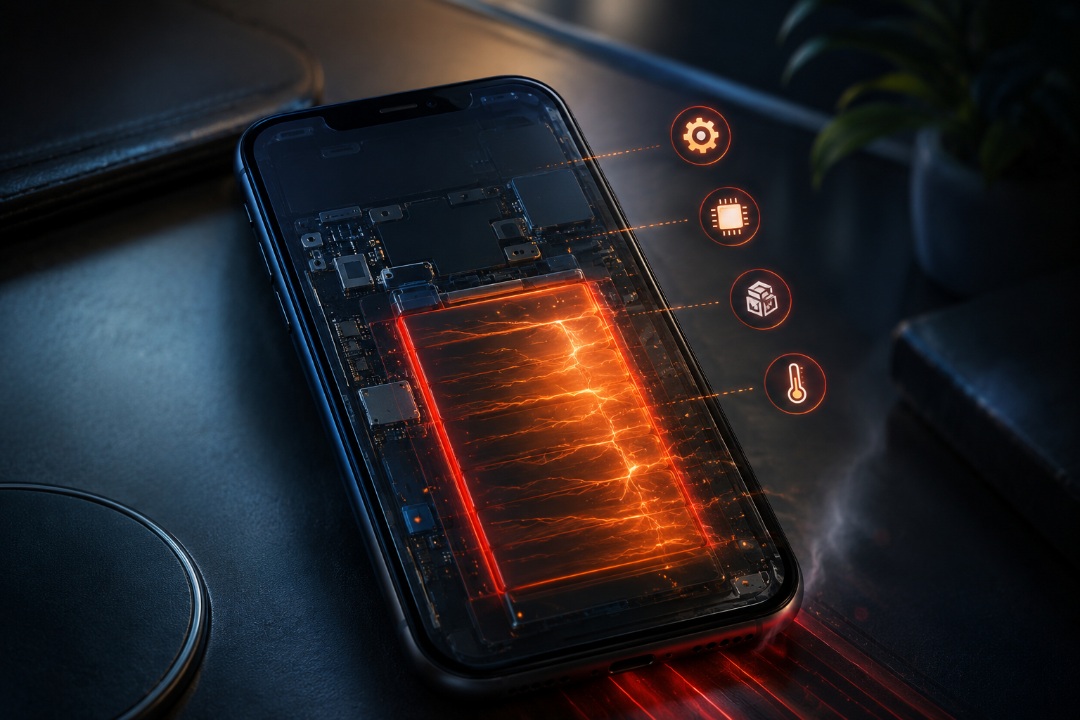
It is completely normal to feel a slight increase in your device’s temperature or a decline in smoothness after installing a new system the size of iOS 27; in fact, some iPhone 15 Pro Max users noticed a noticeable drop in scrolling smoothness immediately after installation, as if the device had forcibly entered power-saving mode. The logical reason behind this is that the iPhone is working at full capacity in the background to re-index files, sync cloud databases, and process faces in the Photos library, which consumes a huge amount of processor resources.
These symptoms disappear automatically after background processes are completed within a short period, but if the problem persists, here is what you should do:
- Check app activity: Go to Settings > Battery, monitor the apps showing abnormal power consumption in the background, and temporarily stop their activity.
- Postpone intensive tasks: Avoid stressing the phone with heavy games or video editing apps immediately after the update to allow the system to finish its indexing.
- Remove thick cases: If you have a thick protective case on the phone, remove it for a while so that the device’s internal heat can dissipate easily.
- Restart the phone: Restarting stops any stuck software processes that are stressing the hardware, but be very careful not to restart the phone during installation so as not to cause your device to stop working completely.
- Look for corrective updates: Apple usually rushes to release quick, small updates to fix bugs that appear with the initial launch, so be sure to keep an eye on Settings.
App crashes and Wi-Fi/Bluetooth connection disturbances
If you notice that your favorite third-party apps are suddenly stopping and crashing, the reason is often due to developers being late in sending updates that are fully compatible with iOS 27, as many of them wait for the official launch to release their modified versions. The immediate solution here is to open the App Store and update all installed apps without exception.
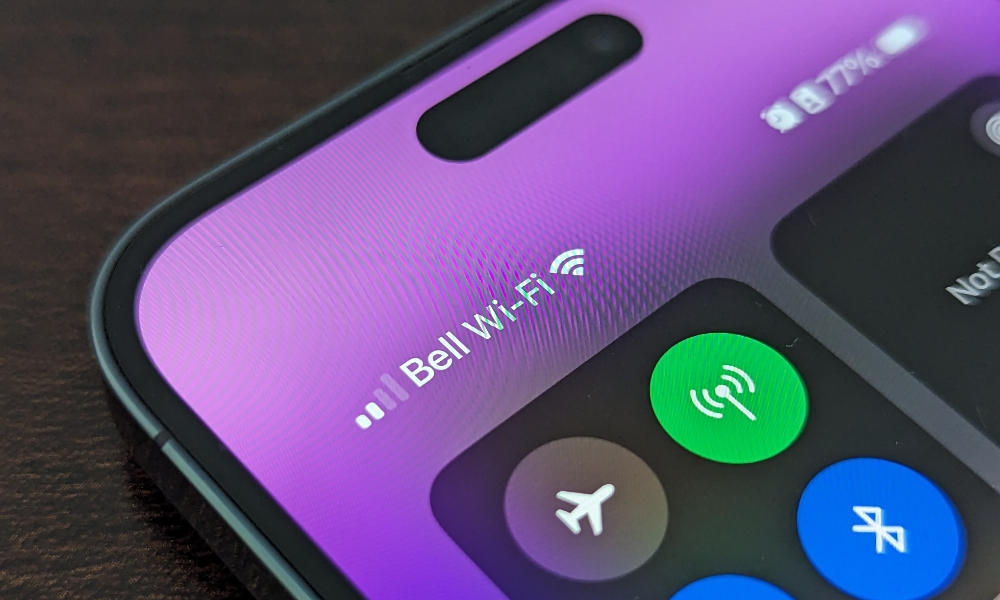
If you encounter Wi-Fi network interruptions, Bluetooth pairing failures, or confusion with AirDrop and CarPlay features, try the following sequential steps:
- Enable Airplane Mode for 10 to 30 seconds, then turn it off to reset the connection circuits.
- Restart the iPhone along with the accessory device or the paired car system.
- Delete the Wi-Fi network or Bluetooth device from memory, then log in and pair again.
- As a final radical solution for complex network problems, you can reset network settings via Settings > General > Transfer or Reset iPhone > Reset > Reset Network Settings. Remember that this action will erase saved Wi-Fi passwords and VPN subscriptions, so be sure to save them before starting.
Source:

Leave a Reply