For many years, we treated Siri as that hurried assistant who appears for a few fleeting seconds to execute a simple command—like setting an alarm or checking the weather—only to vanish in the blink of an eye without leaving a trace. However, with the complete reconstruction of Siri under the umbrella of Siri AI, Apple has decided to take the experience to a new level by launching a dedicated Siri app; an independent space that provides complex and long conversations with a stable and persistent environment. This shift means the assistant is no longer just a transient voice window, but an interactive space you can return to later, follow up on what you started on any other device, and pin important dialogues to revisit whenever you wish. The real secret to benefiting from this leap lies in knowing when you should open the app and when a voice command remains the optimal solution.
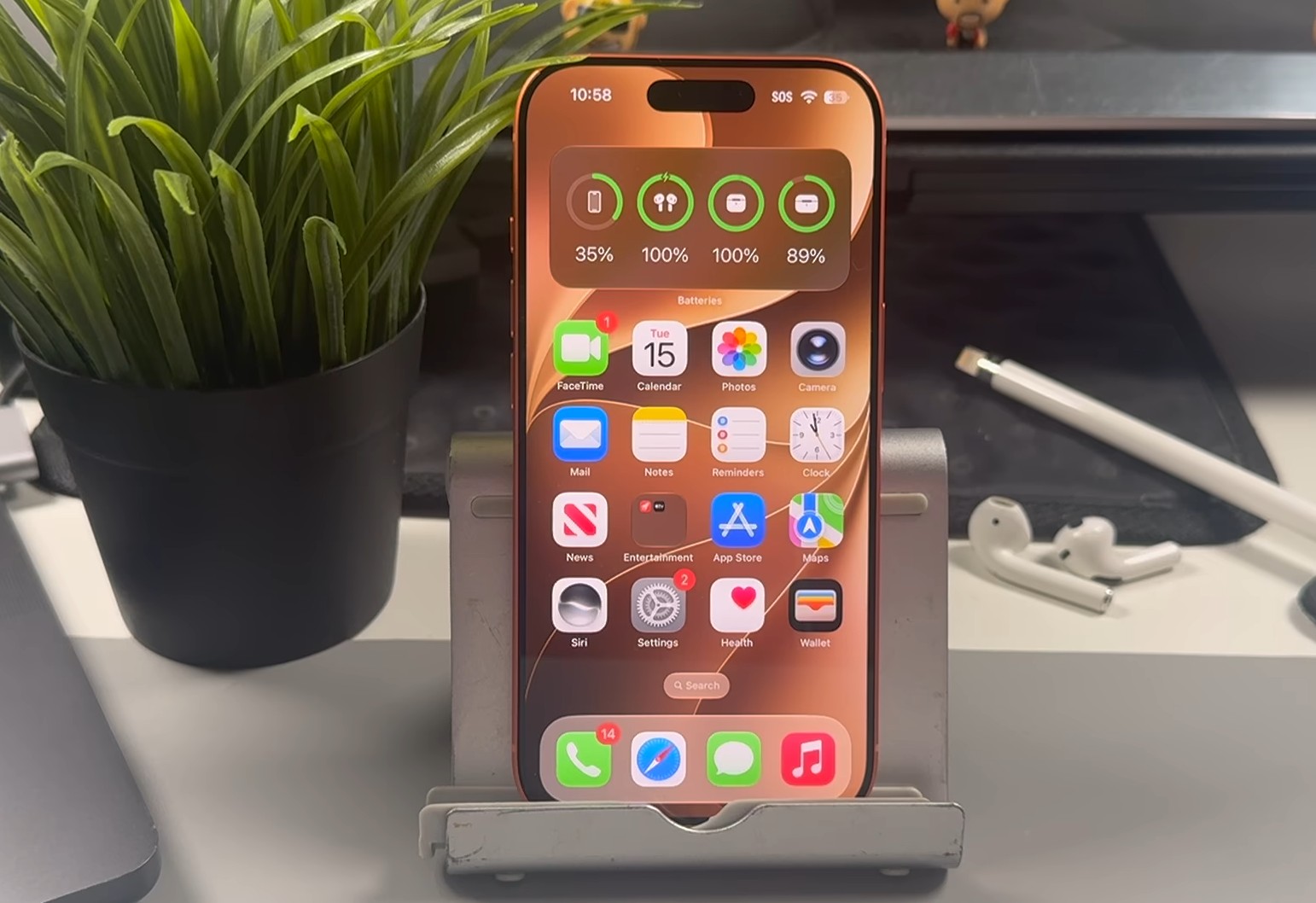
The Siri app is not a new assistant, but a space for ongoing conversations
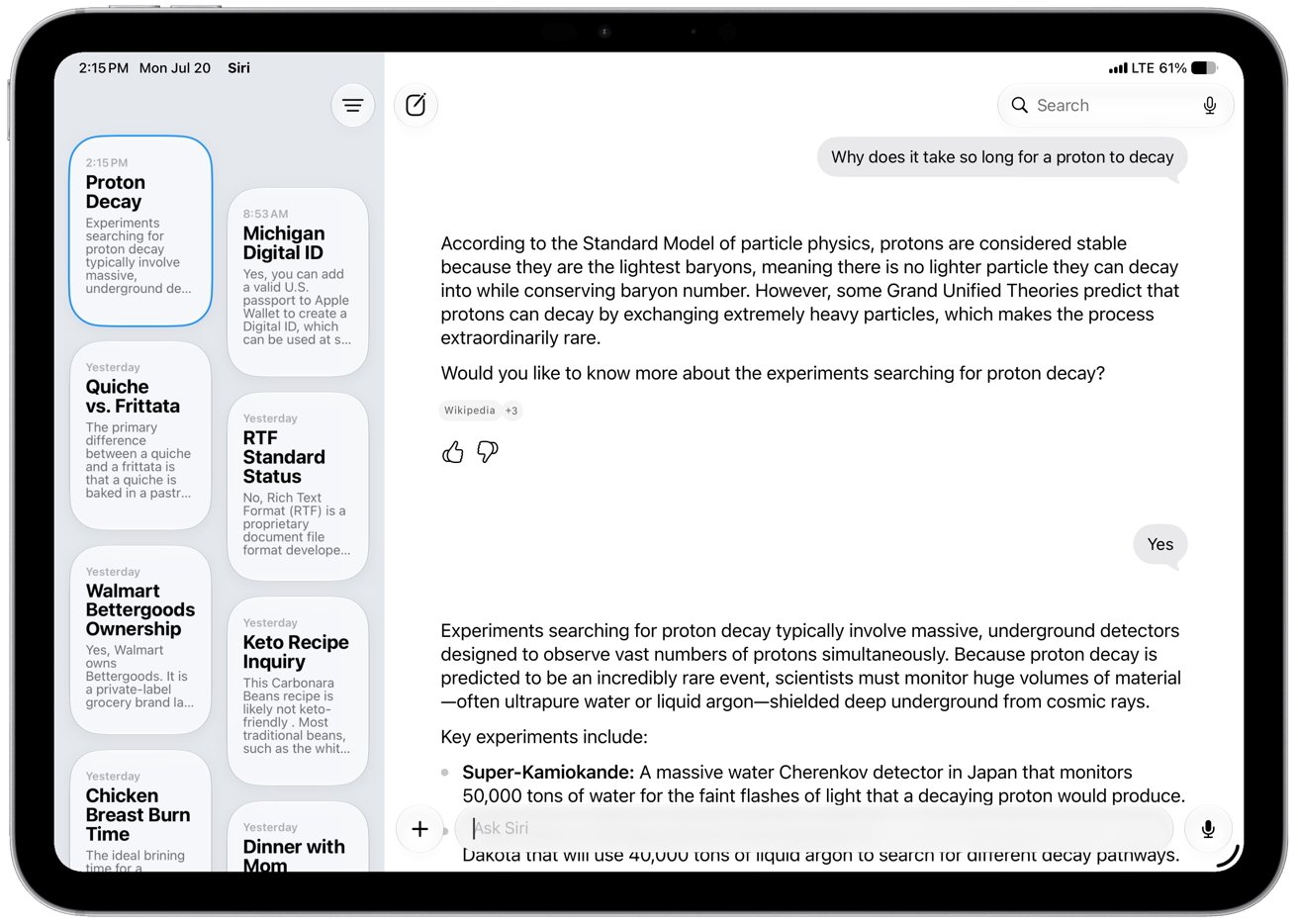
It is essential to realize that opening the Siri app does not mean invoking a separate AI entity with different capabilities than the usual Siri; the mastermind is the same, which is the all-new Siri AI.
The app, the voice activation phrase, physical buttons, the “Type to Siri” feature, Spotlight search, and contextual menus are all just different windows leading to the same intelligent system.
Features such as personal context awareness, on-screen awareness, web knowledge, and in-app control remain available whether you use the app or not.
The fundamental difference lies in ending the era of temporary, instantaneous responses; the app gathers the threads of your conversations into a coherent and organized log instead of erasing them as soon as the interface is closed. Thanks to private and encrypted synchronization via iCloud, you can now start a detailed discussion to plan a project or a trip on your Mac while working at your desk, then leave and continue the same conversation with a single tap on your iPhone or iPad, with the ability to pin priority conversations to the top of the list so they are always within reach.
Compatible devices and hardware requirements to run Siri AI
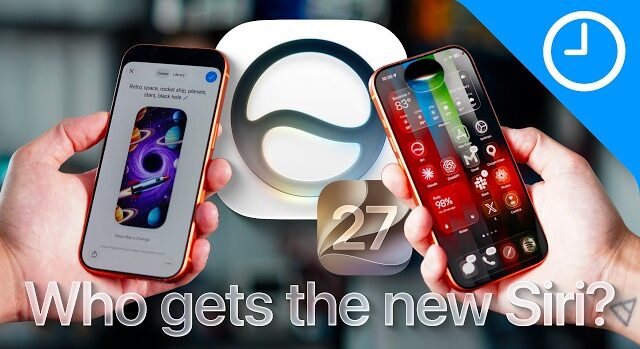
Siri AI is currently available in the developer testing phase via iOS 27, iPadOS 27, macOS 27 Golden Gate, and visionOS 27, with watchOS 27 testing starting later in preparation for the English beta release for users. Running the core experience requires compatible devices with the hardware capacity to process these models, and the list includes:
- iPhone 15 Pro and iPhone 15 Pro Max models, and all iPhone 16 devices and later.
- iPad mini with A17 Pro chip, and all iPad models with an M1 chip or later.
- MacBook Neo with A18 Pro chip, and all Mac devices with M1 chips and above.
- Apple Vision Pro with M2 chip or later.
- Apple Watch Series 9 and later, Apple Watch Ultra 2 or later, and Apple Watch SE 3 (provided there is a paired iPhone that supports Apple Intelligence to handle the processing).
As for more advanced features, such as more powerful smart models running entirely on-device, new expressive voices, and advanced voice dictation, Apple has set higher hardware requirements including iPhone Air, iPhone 17 Pro and iPhone 17 Pro Max, iPads with M4 or later and at least 12GB of unified memory, and Macs with M3 or later with a minimum of 12GB of unified memory. The Apple Vision Pro with M5 chip also supports these voices and the advanced model, with the exception of the improved voice dictation feature.
The system requires at least 7GB of available storage space, and setting the device and Siri language to a supported language. It is important to note that Siri AI will not be available initially on iPhone, iPad, and Apple Watch within the European Union, while it will be available on Mac and Apple Vision Pro there, with its absence from China continuing pending a launch date after regulatory approvals are met.
When should you open the app and when should you stick to voice commands or typing?
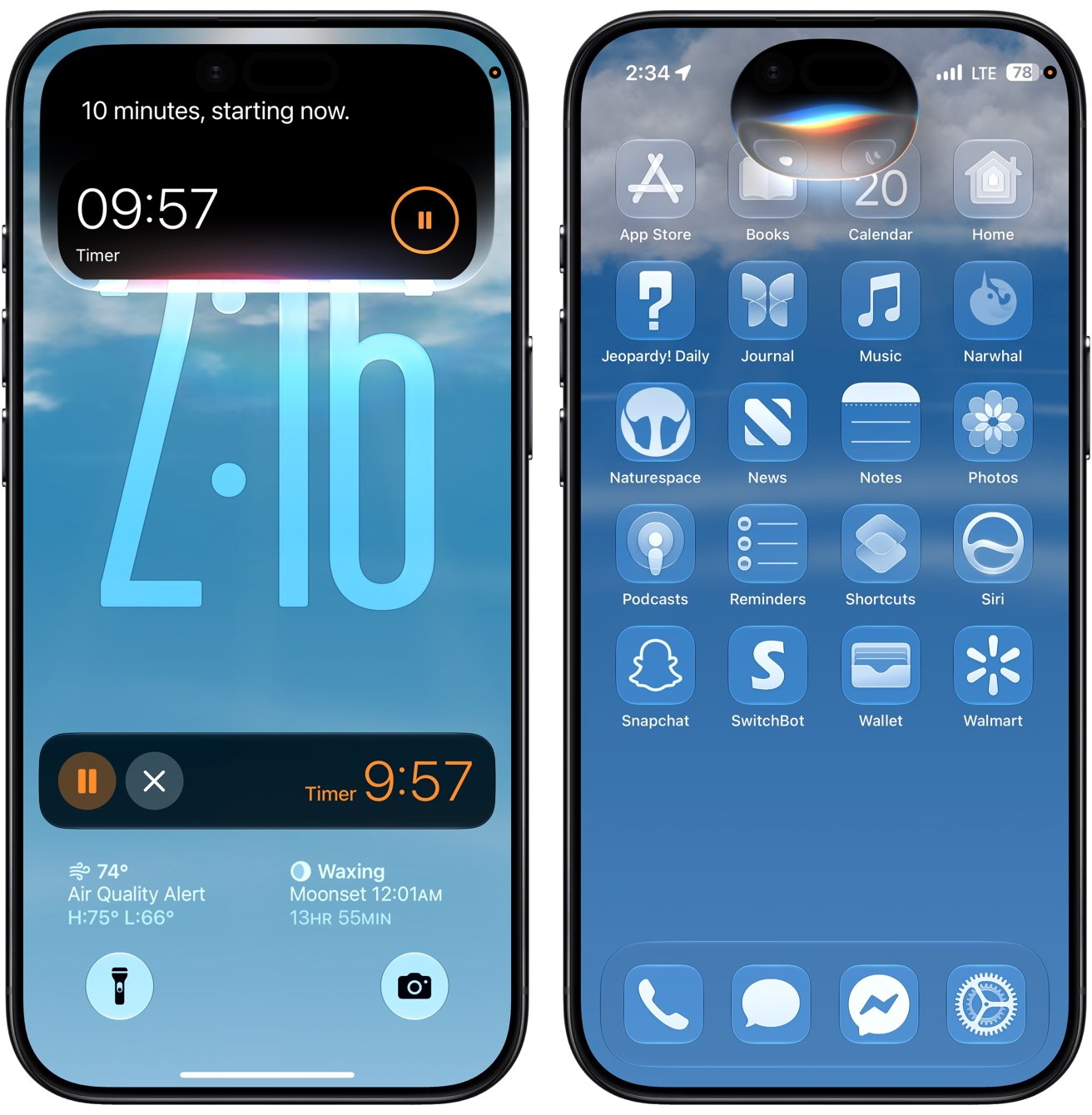
The true criterion for choosing does not depend on what Siri can do, but on the time you need to retain this interaction. Instant commands and intuitive tasks do not require the hassle of unlocking the device and searching for the app icon; saying “Hey Siri, set a timer for ten minutes” or asking for directions, playing audio clips, and sending a quick message remains much faster via the voice phrase, especially while driving, cooking, or carrying items, and specifically with HomePod speakers that handle automatic home responses without needing to touch any screen.
On the other hand, if you are in a business meeting, a quiet hall, or on public transport, the “Type to Siri” feature provides the perfect solution by double-tapping the bottom of the iPhone screen to type your query silently. This method also saves you when you want to enter strange names, precise addresses, or technical terms that voice recognition might misinterpret.
Conversely, open the dedicated Siri app when the conversation becomes an essential part of a complex task; such as drafting an article, analyzing a document, planning to purchase devices, or reviewing a recipe rich in details. Here, the app gives you a wide window to read long answers, ask multiple follow-up questions, and return to the discussion at any later time without having to rebuild the context from scratch.
Integration with the ecosystem: Mac, iPad, Car, and Vision Pro
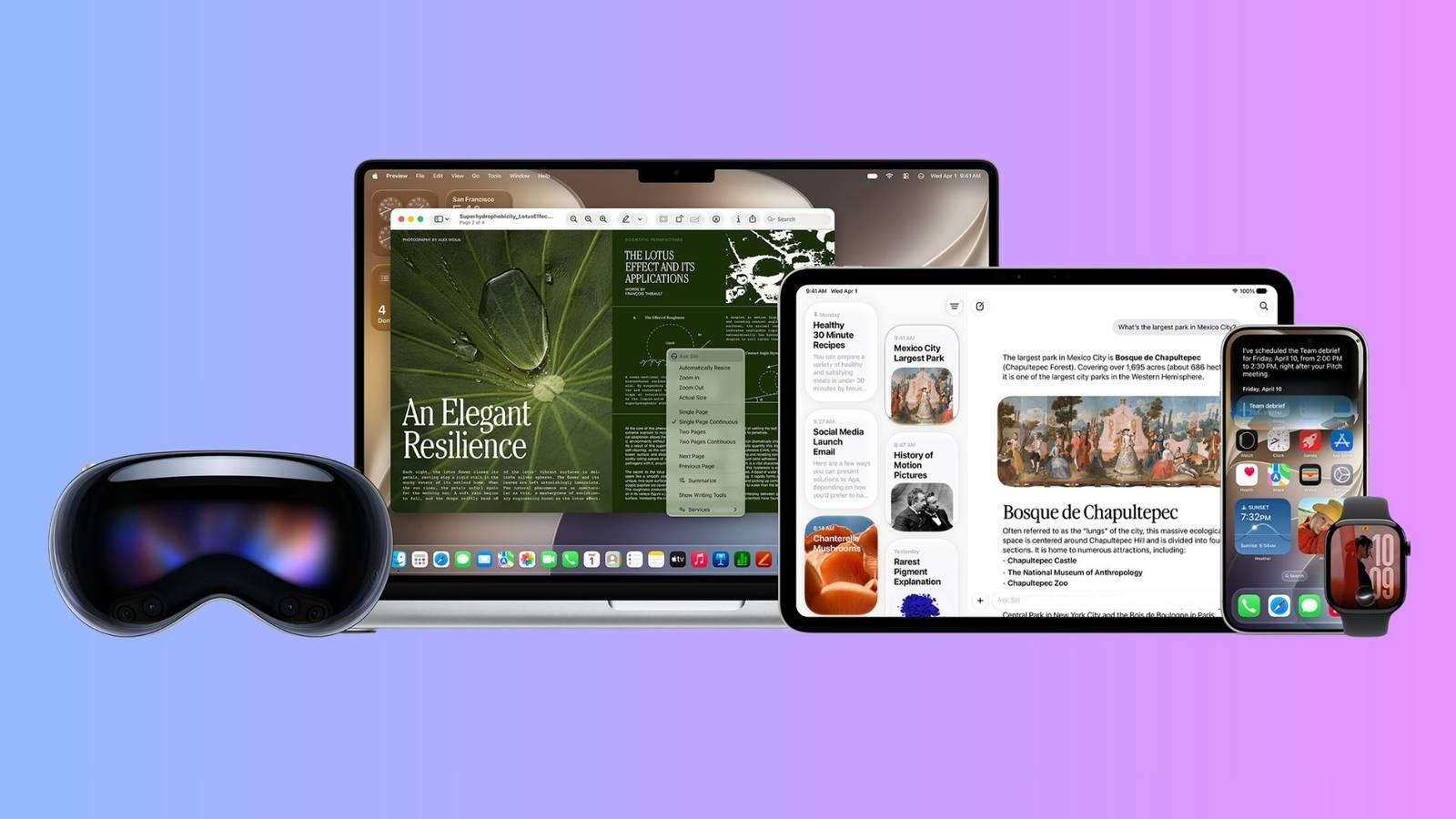
As for in the vehicle via the CarPlay system, the principle of safety is paramount; it is always better to resort to the voice button on the steering wheel or call the assistant by voice, and avoid engaging in lengthy visual conversations until you park your car safely. AirPods and Apple Watch play a similar audio role for urgent tasks, with the feature of reviewing recent conversations from the wrist via the Smart Stack and following up on them whenever you sit in front of your iPhone or Mac.
In the Apple Vision Pro, the assistant gains two different dimensions; the traditional app window for reviewing texts and detailed responses, or a 3D model that you can pin in your room and look at and talk to directly to interact quickly with windows and apps open in your spatial environment.
Setting up the assistant, privacy considerations, and beta warnings
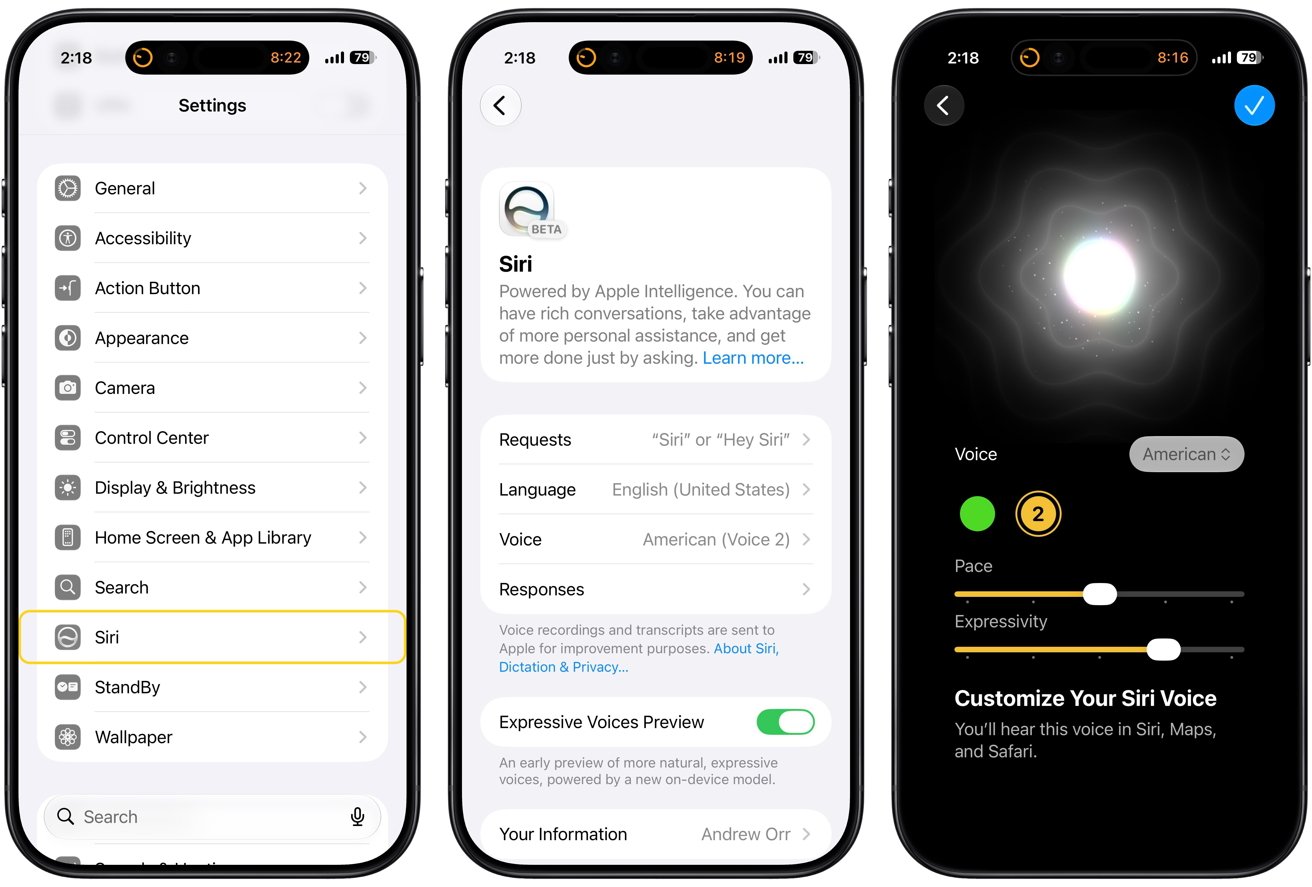
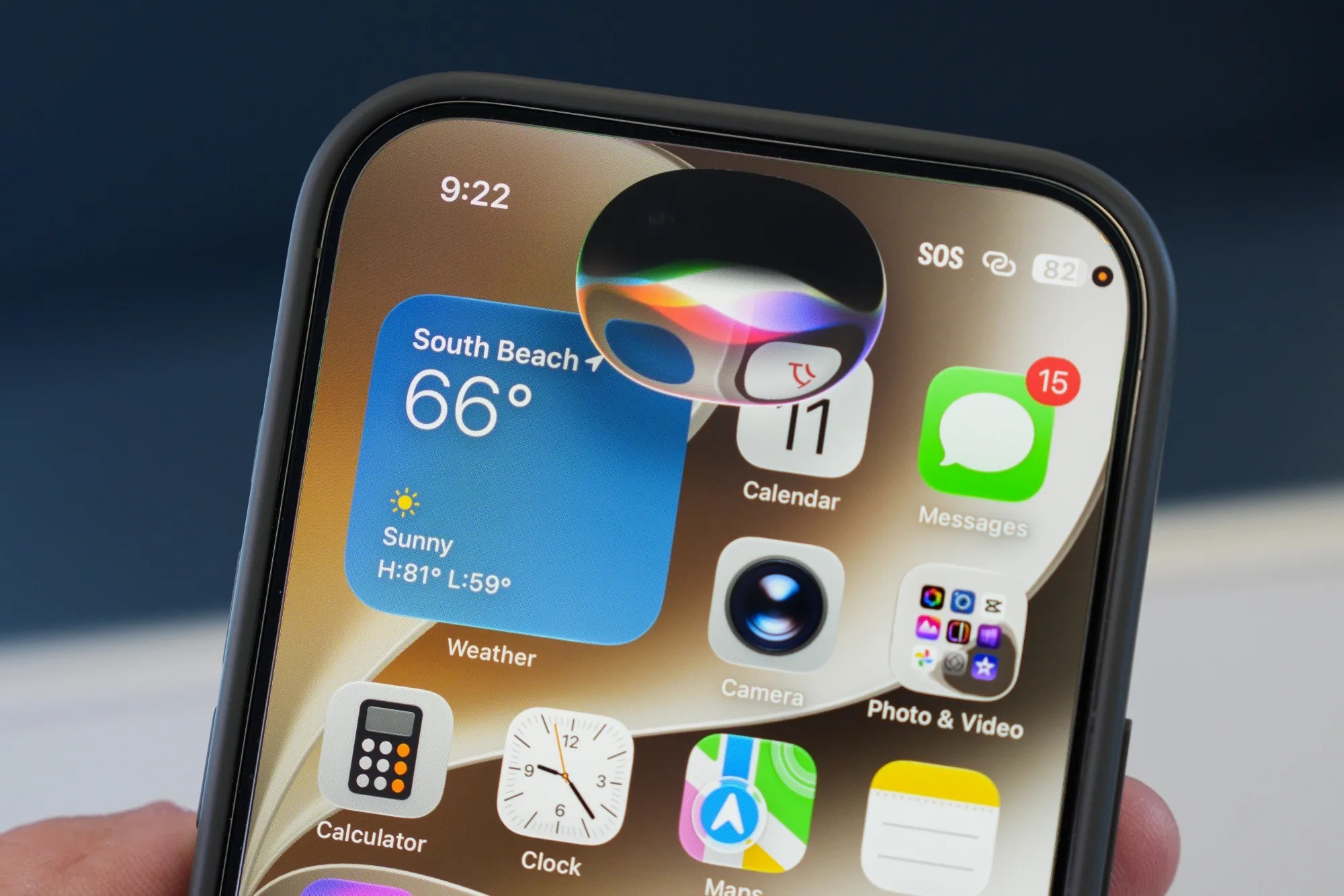
To activate the experience after installing the compatible update, go to Settings then head to the Apple Intelligence & Siri section to turn on the features and choose the calling method, with the possibility of turning off voice activation entirely and relying only on buttons and the app. On supported iPhone devices, Apple provides a clever shortcut by swiping down from the Dynamic Island to start a smart conversation session immediately and without returning to the home screen.
From a privacy perspective, the app’s complex requests rely on Private Cloud Compute, which ensures that data is not stored or accessed by Apple, while direct tasks remain the responsibility of the device’s local processing. However, the app’s retention of conversation history imposes additional security awareness; as this log turns into something like your private inbox or browsing history, requiring caution about leaving your device unlocked and accessible to others if your conversations include sensitive personal data.
In conclusion, since the system is still in beta development, some bugs may occur in the assistant’s performance; a bug was detected in the third beta version in searching within photos that makes a command like “send this” send the entire search results instead of the photos the user selected. Such vulnerabilities always remind us that the linguistic confidence of AI does not mean its actions are 100% accurate, and human verification before authorizing any sensitive action remains the safest step always.
Source:

Leave a Reply