With every release of a major new iOS version, the same familiar scene repeats: widespread complaints from users about the battery draining faster than usual. As always, Apple issues its famous statement that this drain is normal and temporary for a few days, as the iPhone is busy in the background re-indexing data and optimizing system performance. But what if weeks have passed and you still feel your battery percentage is plummeting like a stone? If you are facing this situation, there is a hidden setting enabled by default in iOS 27 called Connectivity Assist, and it appears to be the primary culprit behind this problem.

What is the Connectivity Assist feature?
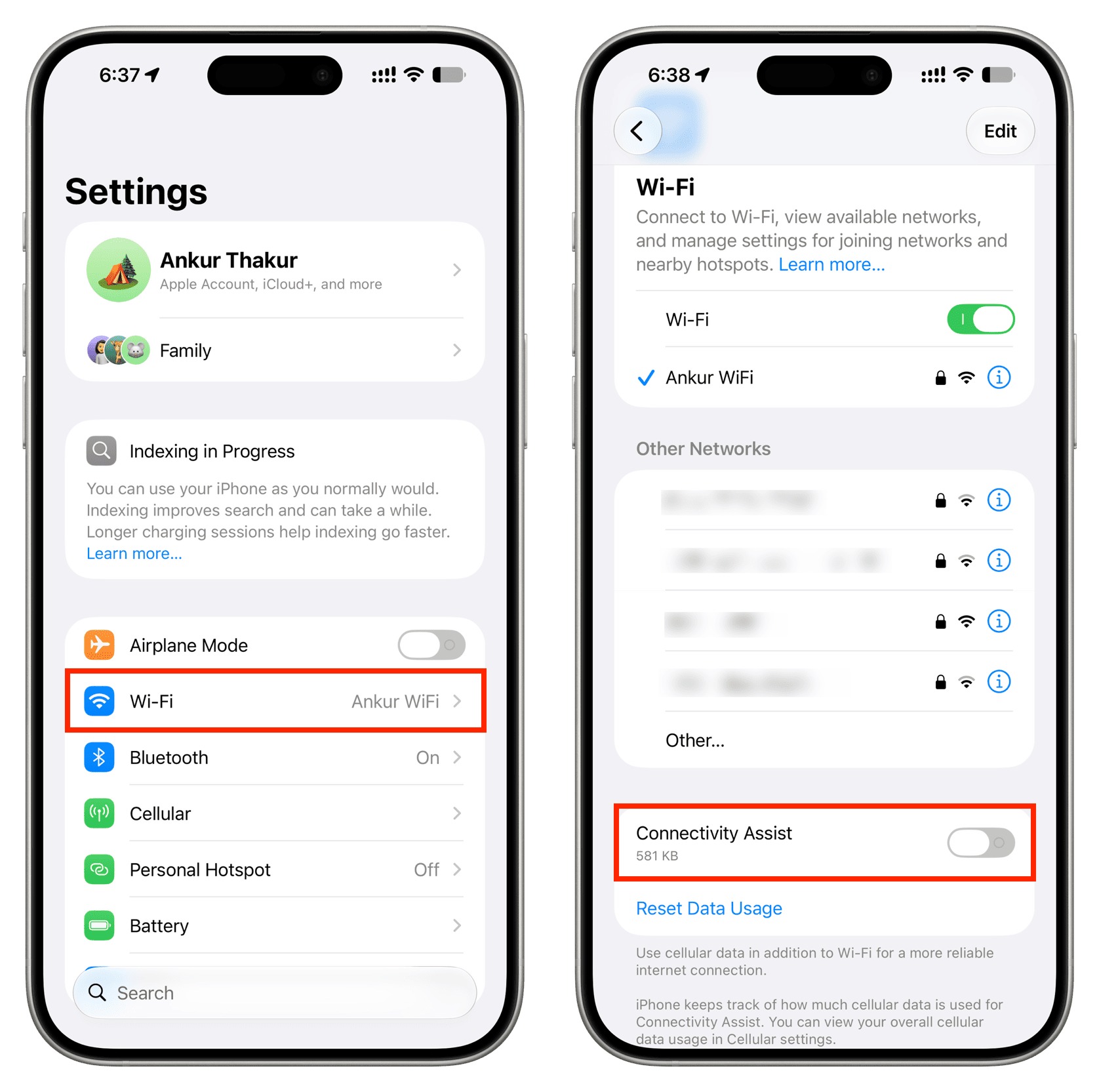
The Connectivity Assist feature is not entirely new in concept; it is the official successor to an old feature that has been with us since iOS 9, known as Wi-Fi Assist. The function of this feature theoretically seems very useful; when a Wi-Fi network becomes weak or unresponsive, the iPhone automatically intervenes to rely on cellular data to ensure that pages and apps continue to load without interruption, then seamlessly switches back to Wi-Fi once the signal recovers.
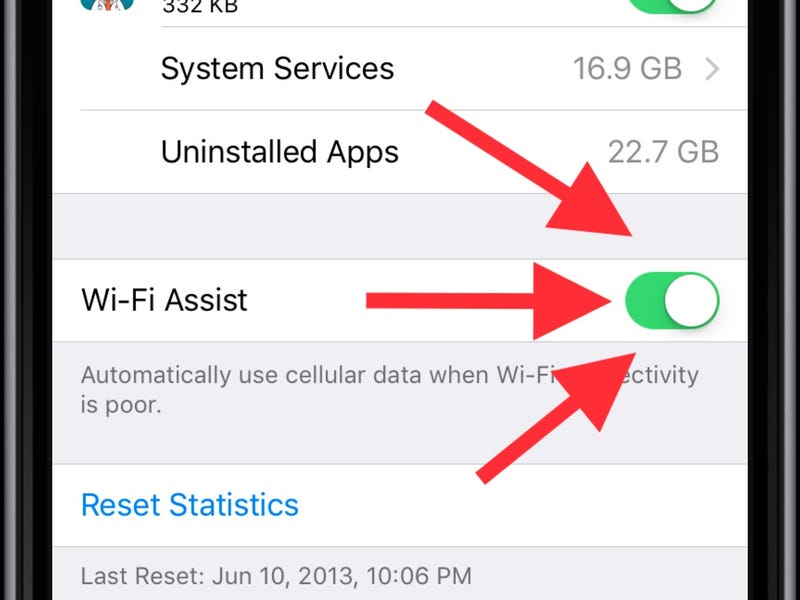
Apple explains that the purpose of this feature is to provide a more stable and reliable connection, specifically in places with fluctuating wireless coverage such as far corners of homes, crowded airports, or cafes. However, what has changed in iOS 27 is the location of this feature and how aggressively it operates; instead of sitting at the end of cellular data settings as before, it has now moved directly to the bottom of the Wi-Fi settings screen. And if Wi-Fi Assist was enabled on your device before the upgrade—which is the default for everyone—the new Connectivity Assist feature is now running on your phone without you knowing.
Why does Connectivity Assist greedily drain battery power and data?

Although Apple has not officially acknowledged a software bug associated with this feature, an increasing number of iOS 27 users have confirmed that turning it off led to an immediate and noticeable improvement in battery life that exceeds any other measure they have tried. The engineering reason behind this is clear and logical; when Connectivity Assist is active, the iPhone is forced to keep the cellular modem in a constant state of operation in parallel with the Wi-Fi chip instead of leaving it in idle mode to save power. Running two connection chips simultaneously consumes a significant amount of power, especially since the cellular modem works twice as hard when coverage is low, which is often the same time and place where the Wi-Fi network also weakens.
The issue does not stop at power alone, but extends to aggressive internet data consumption; reports indicate that the feature has become more aggressive than it was previously. One specialized tester revealed that the feature consumed more than 800 MB of cellular data in just two days despite being constantly connected to a home Wi-Fi network, while another reviewer recorded 174 MB of consumption on the first day alone while staying at a hotel with a medium-quality internet network. All these background packets devour both charge and data without any prior warning.
Not only that, but security experts have observed that Connectivity Assist bypasses DNS-based ad blockers, some VPN connections, and parental control filters; the reason is that the system interprets the blocking of an ad or link as a Wi-Fi connection failure, so it automatically retries via the cellular network, bypassing the block entirely, to the point that Apple’s support page recommends turning off the feature if you rely on ad blockers.
How to turn off the Connectivity Assist feature
iOS 27 gives you two options for dealing with this feature: either turn it off permanently across the entire system, or turn it off for specific Wi-Fi networks only.
First: Turn off the feature globally for all networks:
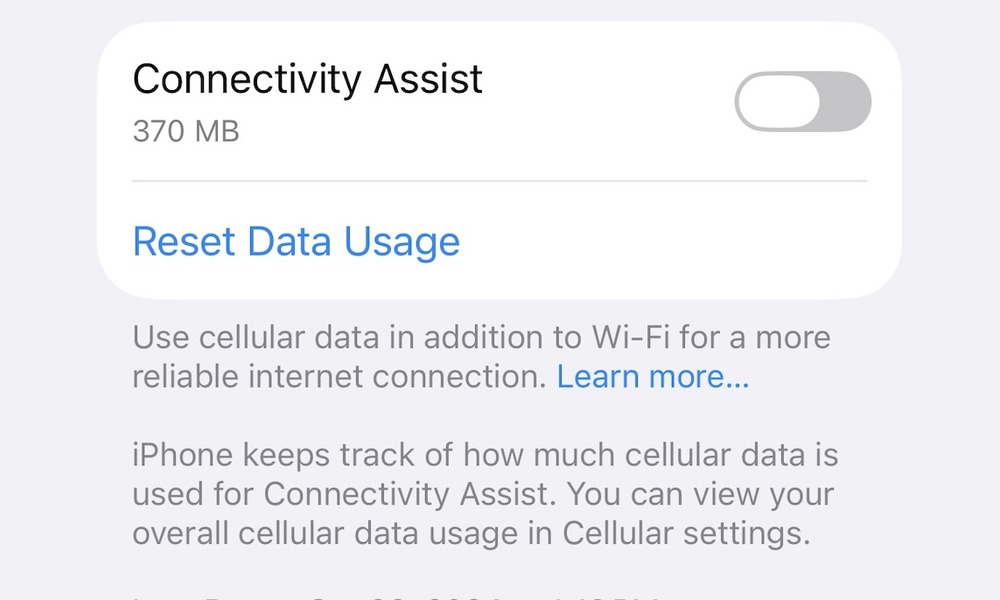
To turn it off completely on your phone, follow these steps:
- Open the Settings app on your iPhone.
- Tap on the Wi-Fi option and ensure it is enabled.
- Scroll all the way to the bottom, then toggle off the Connectivity Assist option.
Below this option, you will see a number showing the amount of cellular data the feature has already consumed; this number is enough to reveal to you whether the feature has been running in the background and draining your data plan and battery over the past period.
Second: Turn off the feature for a specific network only:
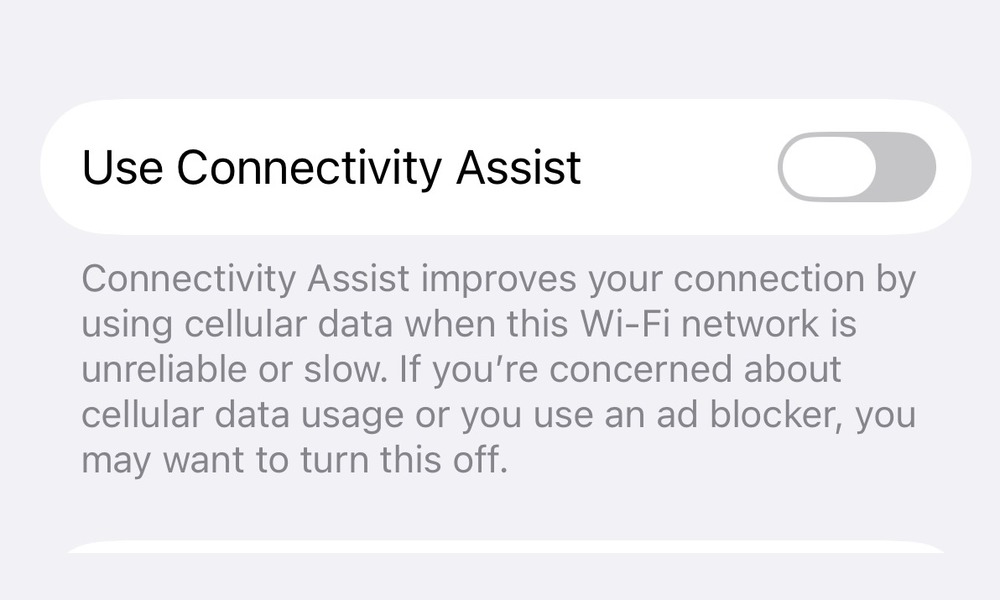
If you prefer a middle ground, you can disable the feature for your home or office network that you trust for its stability, while leaving it on in cafes and public places:
- Open the Settings app and go to Wi-Fi.
- Tap the information icon (i) next to the name of the network you want to modify.
- Turn off the Use Connectivity Assist option specifically for that network.
This solution is considered excellent for those who want to conserve their device’s power at home where they do not need cellular support, while retaining a rescue method in places with shaky networks. It is worth noting that some users have reported the need to turn it off globally and for each home network individually to ensure the drain stops completely.
Should you turn off this feature?
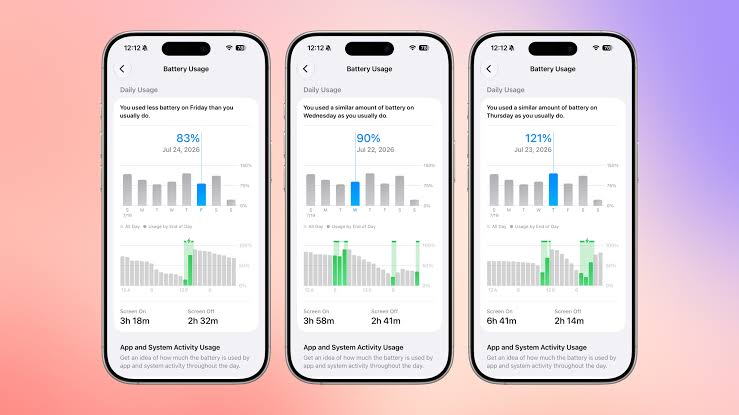
The decision depends primarily on the nature of your data plan and daily usage; if you have an unlimited data plan and move between places with fluctuating Wi-Fi networks, sacrificing some battery power might be an acceptable price to ensure your browsing does not stop. However, if your monthly plan is limited, or you rely on stable Wi-Fi networks most of your day, or you use ad blockers and VPNs, or you simply want to squeeze every possible minute out of your battery life, then turning off Connectivity Assist is the optimal choice without any hesitation.
Always remember that Apple automatically disables this feature when international roaming is enabled or when Low Data Mode is turned on. If you have turned it off and still feel an abnormal weakness in the battery, go to Settings > Battery to review the apps that consume the most charge in the background and take appropriate action with them.
Source:

Leave a Reply