Macs don’t like clutter, and when storage space nears its maximum limit, things start to collapse dramatically. The problem is that macOS doesn’t always provide sufficient safeguards or smart rollback options to handle this situation, which could turn your device into a paperweight requiring a full disk restore! It might seem simple at first, but reaching maximum storage levels can mean the system is unable to even boot up properly.
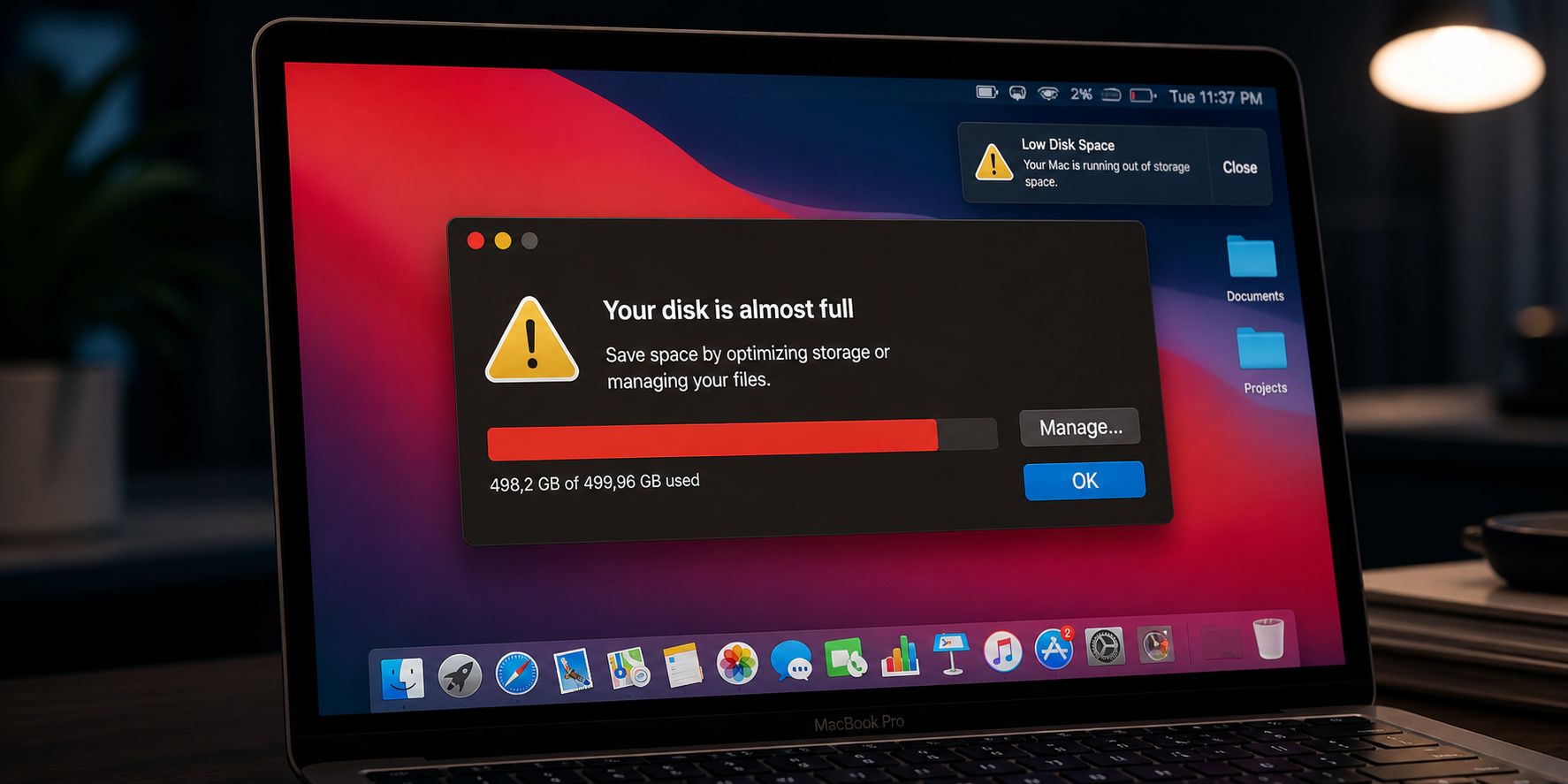
Why does storage fill up mysteriously?
There are several reasons why storage space disappears even if you haven’t downloaded huge files recently. One of the most prominent reasons is the delay in the iCloud “Eviction” process, where the system keeps local copies of files despite there being a cloud version, and it doesn’t delete them immediately to free up space. Also, aggressive syncing via iCloud Photos can fill up the disk even with the “Optimize Mac Storage” option enabled, especially for those with photo libraries exceeding one hundred thousand items.
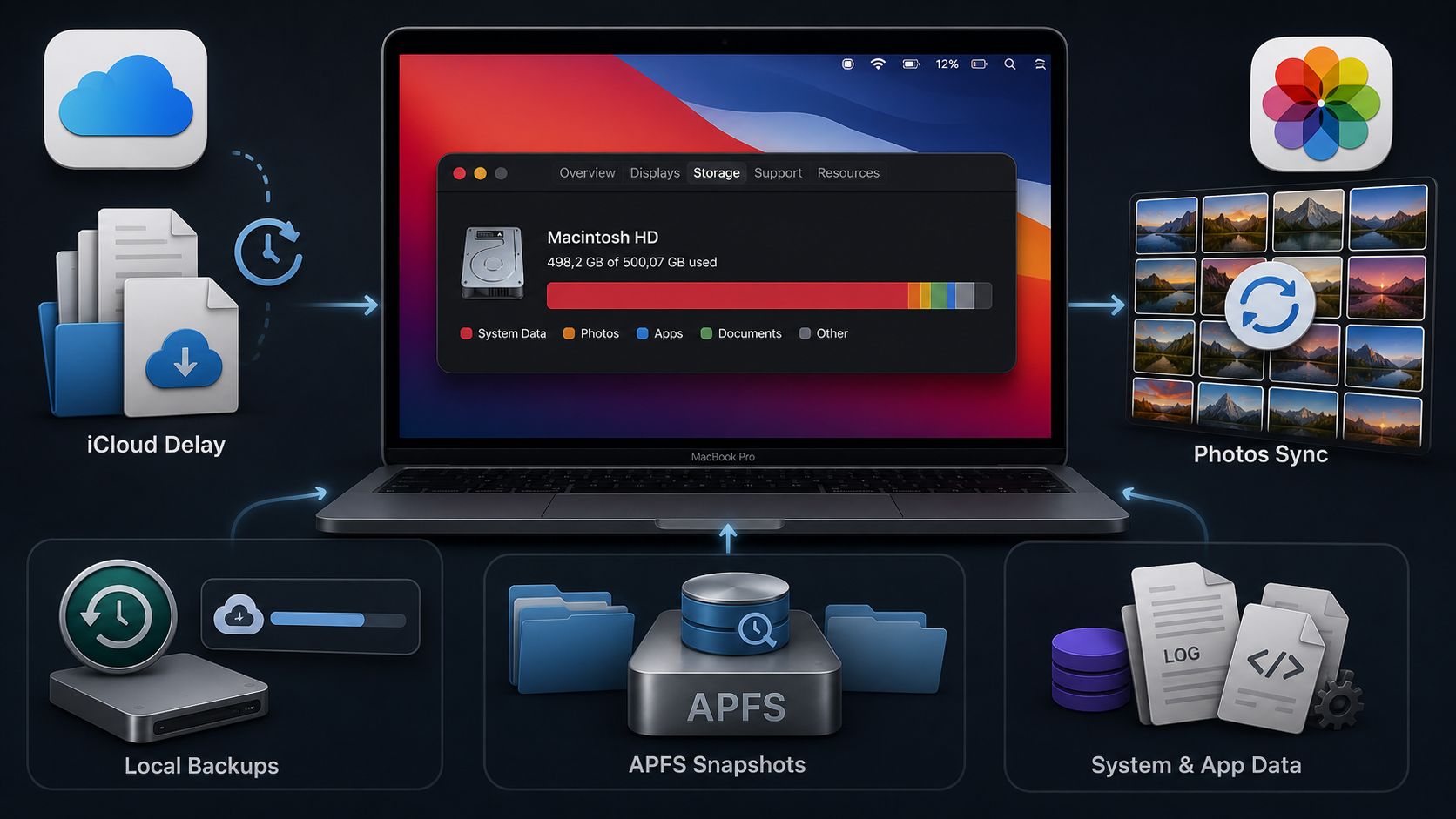
There are also “local backup stores” used by applications like Time Machine or Backblaze; data is temporarily stored on the disk before being uploaded or moved, and if you haven’t connected your backup disk for a while, these stores can swell alarmingly. And let’s not forget APFS Snapshots, which can take up a large amount of space without you noticing; these are snapshots linked to backup processes that the system is supposed to delete automatically but sometimes fails to do so.
Diagnosing storage using professional tools
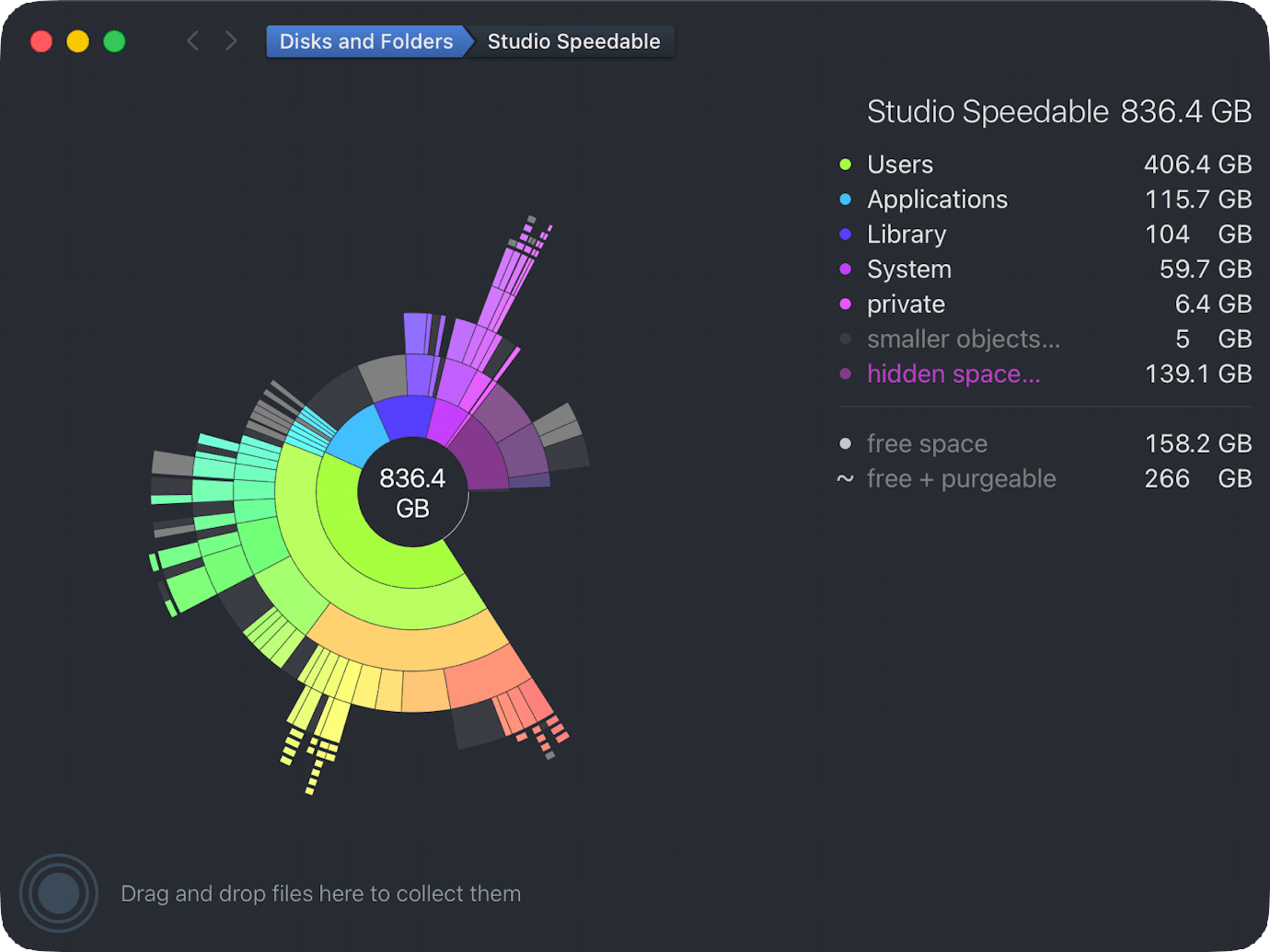
While macOS system settings provide an overview of used space, they lack the required precision and often crash when trying to analyze deep data. This is where professional third-party tools come in, led by the DaisyDisk application. This app is not just a cleaning tool; it is a radar that scans your disk and reveals the secrets of your data via a colorful, easy-to-understand graph, including the “Hidden Space” section, which remains a mystery to many.
DaisyDisk allows you to dive deep into folders and drag items you want to get rid of into a special “collector” and then delete them all at once. This method is very useful for dealing with massive APFS snapshots or temporary files that the system has forgotten. It is a simple investment that could save your device from a full format.
Manual iCloud management and system monitoring
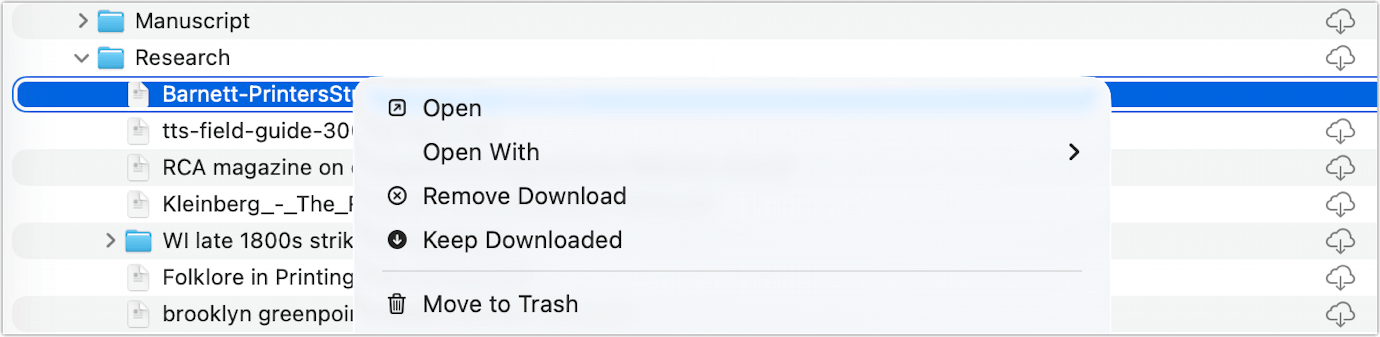
If you are suffering from iCloud’s slowness in freeing up space, you can intervene manually. Via the Finder app, you can right-click (or Control + Click) on any file or folder inside iCloud Drive and choose “Remove Download.” This will delete only the local copy while keeping it safe in the cloud, which is a quick way to reclaim precious gigabytes in seconds.

To prevent disk-full surprises, we recommend using live monitoring tools. The iStat Menus application provides you with instant notifications when used space exceeds a certain percentage that you define. Monitoring the system continuously allows you to act before the Mac reaches a state of freeze where it becomes difficult to perform any repair operation.
New applications for monitoring and alerts
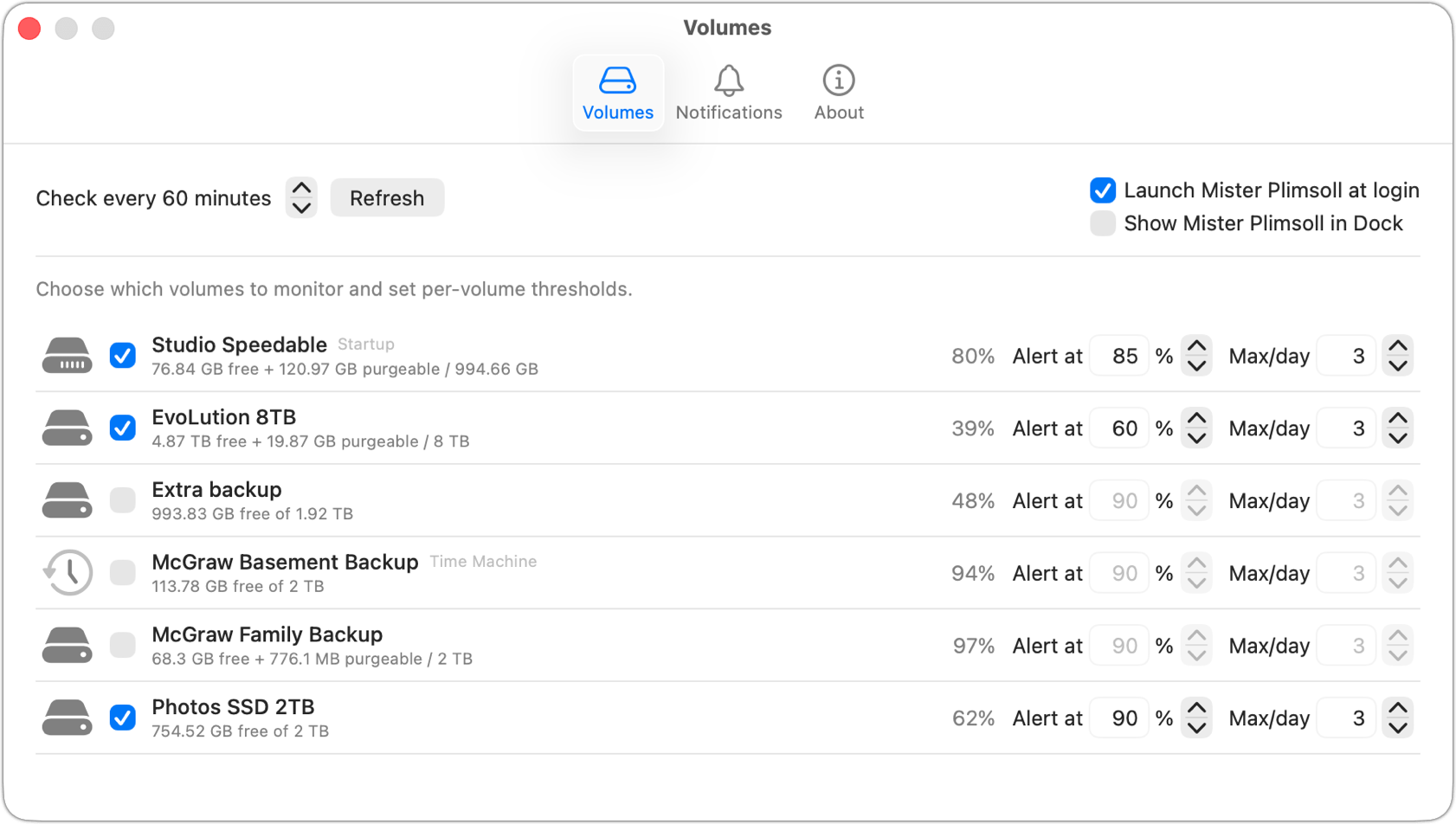
Given the gap in system alerts, apps like Mister Plimsoll have emerged. It is a simple app (currently in beta) that focuses primarily on monitoring internal and external disks. The app allows you to set a specific percentage, and if it is exceeded, it sends you an alert on your Mac, an email, or even an iMessage. This type of tool is very necessary for users who deal with massive amounts of data and fear the system stopping suddenly.
Source:



Leave a Reply