Your iPhone can be one of the biggest sources of distraction in your day, or it can be the most powerful productivity tool you own; it all depends on how you use it. If you leave all notifications enabled, let your apps scatter everywhere, and rely solely on your memory to track your daily tasks, your iPhone is likely making your life more difficult and distracting. However, by enabling the right features, your device can help you focus, remember tasks, scan documents, and organize your important files with ease and without distraction.

1. Setting Up Focus Modes
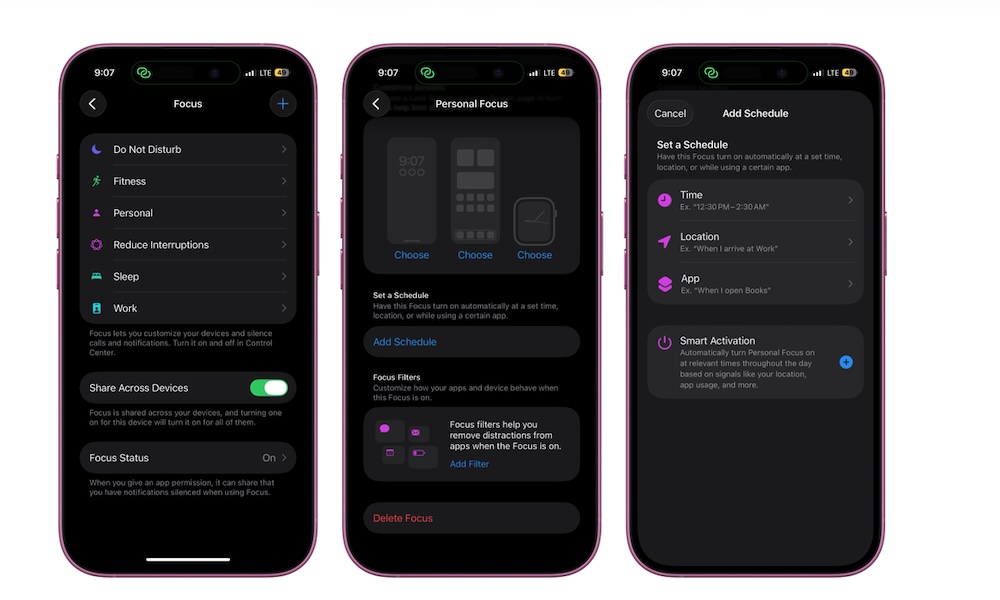
Focus modes are one of the best features to start with if your iPhone constantly distracts you with an endless stream of notifications. This feature allows you to choose which people and apps can send you notifications based on what you are doing, whether you are working, sleeping, driving, exercising, or even spending private time away from work stress.
As we all know, most notifications do not require your immediate attention; random app alerts, group messages, sales offers, or social media interactions are not truly important in the moment, but they are enough to distract you and ruin your focus. Focus mode allows you to set clear boundaries without having to turn off your phone completely.
To increase effectiveness, you can link a specific Focus mode to a custom Lock Screen or Home Screen. For example, a “Work” focus can show you a clean Home Screen containing only productivity apps like Calendar, Reminders, Notes, and Email, while completely hiding entertainment and gaming apps.
To create a new Focus mode:
- Open the Settings app.
- Scroll down and tap Focus.
- Choose one of the existing modes or tap the + button and follow the on-screen instructions.
- Select the people and apps allowed to send alerts.
- Customize your Lock Screen or Home Screen as you wish.
Once the mode is set up, you can schedule it to run automatically or activate it manually via the Control Center, turning your iPhone into a tool that supports your productivity without annoyance.
2. Using Shortcuts for Repetitive Tasks
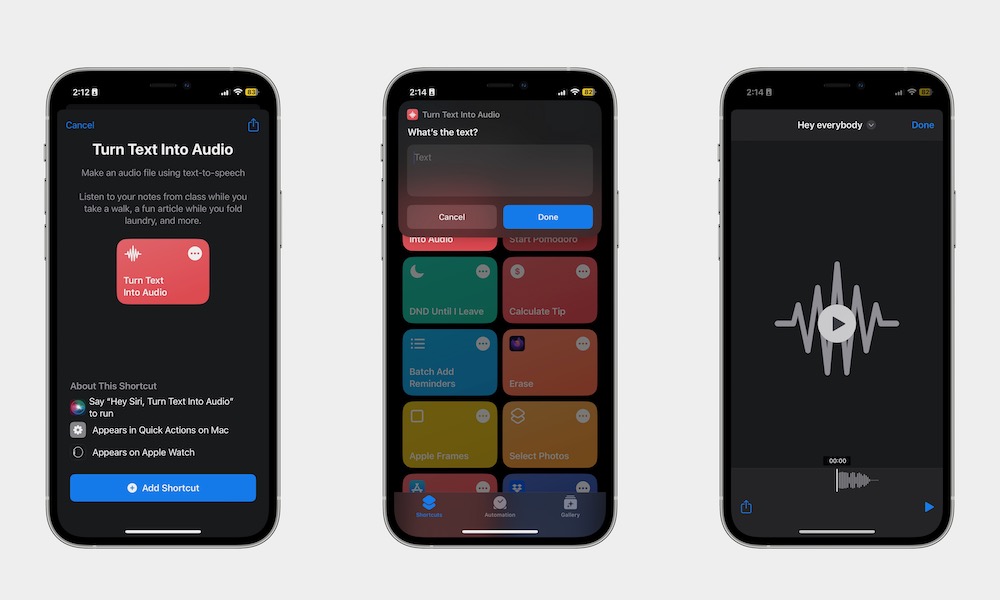
The Shortcuts app can save you a lot of time and effort once you start using it to execute the small tasks you repeat daily. A shortcut allows you to run several consecutive actions with a single tap or via a Siri voice command, making it perfect for streamlining your daily routine.
You don’t need to build anything complex from scratch at first; you can start with simple shortcuts like sending a text message to a friend, opening your favorite app directly, or playing a specific music playlist. As you get more accustomed to the app, you can move on to creating more complex shortcuts tailored to your personal needs.
If you find the idea of building shortcuts confusing, the Gallery section inside the app is the perfect place to start; Apple provides a wide range of shortcuts ready to use with a single tap, and you can try them and easily edit them later as follows:
- Open the Shortcuts app.
- Tap the Gallery tab.
- Browse different categories or search for a specific task you want to simplify.
- Tap the shortcut you want to try.
- Tap Add Shortcut.
Now, the shortcut is ready to use, and you can add it to your Home Screen for quick access, or simply ask Siri to run it when you need it.
3. Scanning Documents in the Notes App
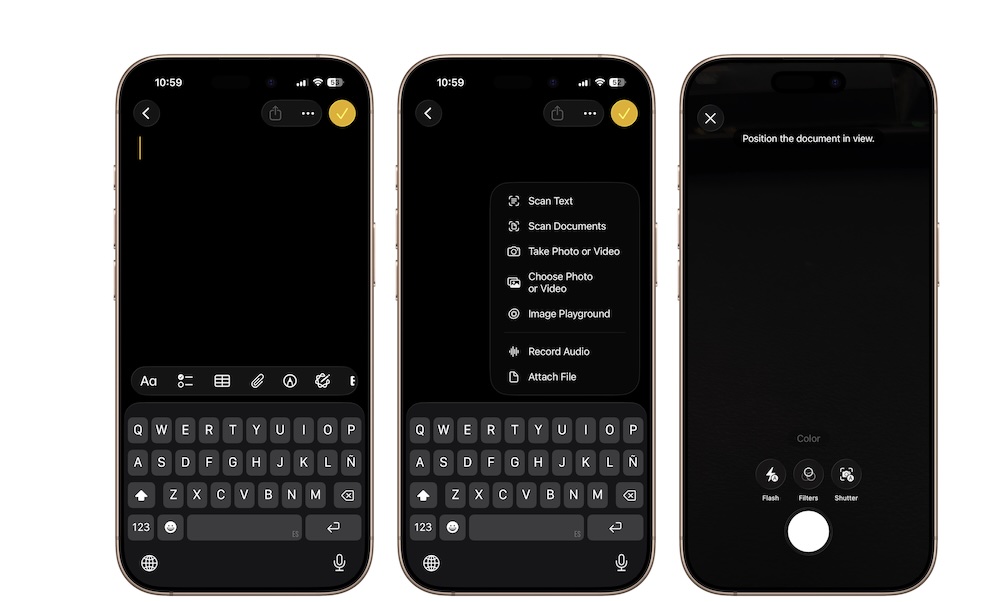
The built-in Notes app in iOS hides one of the best productivity tools: the Scan Documents feature. This tool allows you to turn any paper, contract, receipt, or handwritten note into a clear digital copy in seconds, without the need to download third-party apps full of ads.
This tool is distinguished by making the document look clean, organized, and perfectly flat as if it were scanned with a professional desktop scanner, rather than a regular photo that might show unwanted shadows. The scanned copy is saved directly inside the note for easy sharing or storage.
Here are the steps to scan a document simply:
- Open the Notes app.
- Create a new note or open an existing one.
- Tap the Attachments button (which looks like a paperclip).
- Choose Scan Documents.
- Point the iPhone camera at the document, and the phone will capture the scan automatically.
- If you need to adjust the corners, tap the preview in the bottom left corner and edit, then tap the checkmark to finish or continue scanning to add more pages.
4. Using “Quick Notes” for Fleeting Ideas
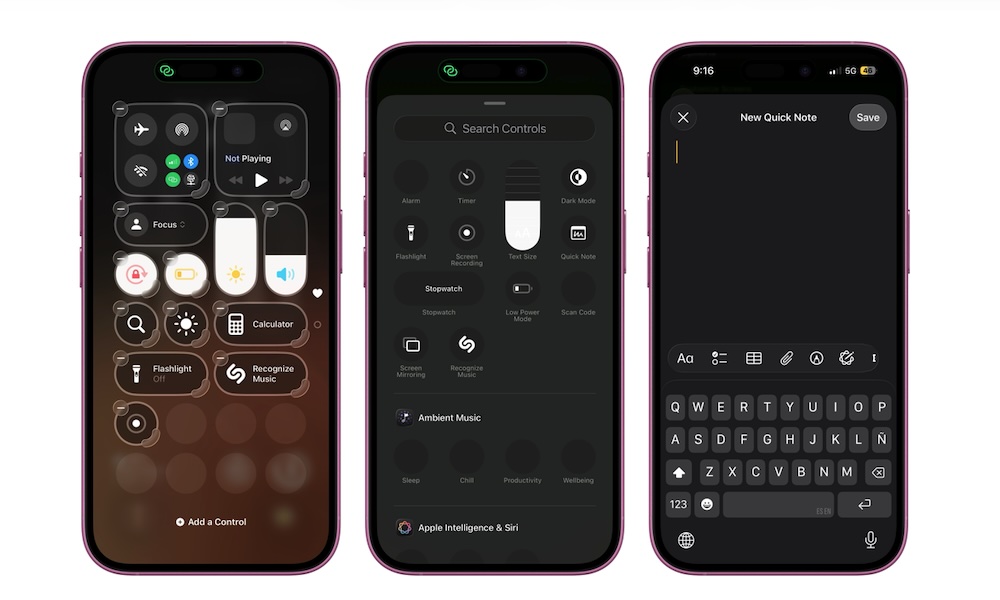
The Quick Notes feature is perfect for capturing fleeting creative ideas or jotting down a quick piece of information before it evaporates from your memory. Instead of wasting time unlocking your iPhone, searching for the Notes app, and then choosing the right folder to create a new note, you can write it down immediately with a single tap from the Control Center.
This feature is very useful for noting down important phone numbers, urgent to-do lists, or an inspiring idea you want to return to and develop later. You can always reorganize the note and categorize it later; the most important thing here is not to miss the idea at its critical moment.
To enable this feature and make it easier to access, start by adding the “Quick Note” tool to the Control Center:
- Open the Control Center on your phone and tap the + button in the top left corner of the screen.
- Tap Add a Control, search for Quick Note, and add it.
After adding it, you will be able to pull down the Control Center from anywhere on the phone and open a new note, saving it directly to a dedicated folder for quick notes that is easy to refer back to at any time.
5. Relying on Voice Dictation Instead of Typing
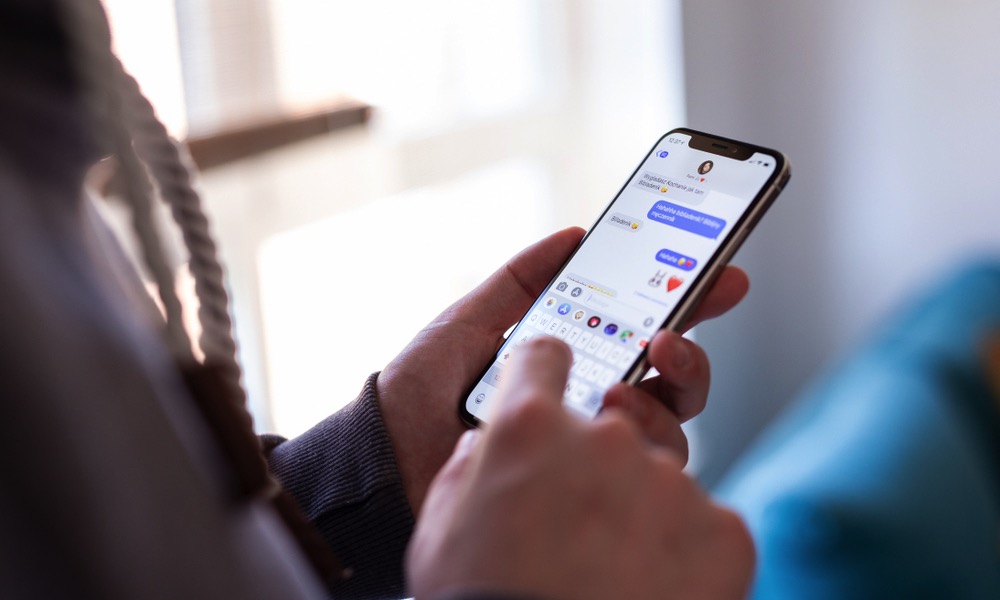
The Dictation feature allows you to speak directly to your iPhone, which will convert your voice into written text with amazing accuracy and speed. This method is much faster than traditional manual typing and is a real lifesaver when your hands are busy or when you feel tired from constant tapping on the small keyboard.
You can use Dictation in any app that supports typing and where the keyboard appears, such as Notes, Messages, Reminders, Email, Safari, and other daily apps.
Of course, the feature may not be 100% perfect, so we always recommend reviewing and proofreading the text quickly before sending or saving it to correct any words that might be misunderstood, while being careful to speak clearly and avoid surrounding noise. Even so, editing text written by dictation is much faster than typing it entirely from scratch.
To use the feature, open any app and tap the text field to bring up the keyboard, then tap the microphone icon on the keyboard and start speaking directly. When finished, tap the same icon again for the iPhone to finish converting your voice into fixed text.
6. Scheduling Notification Summary
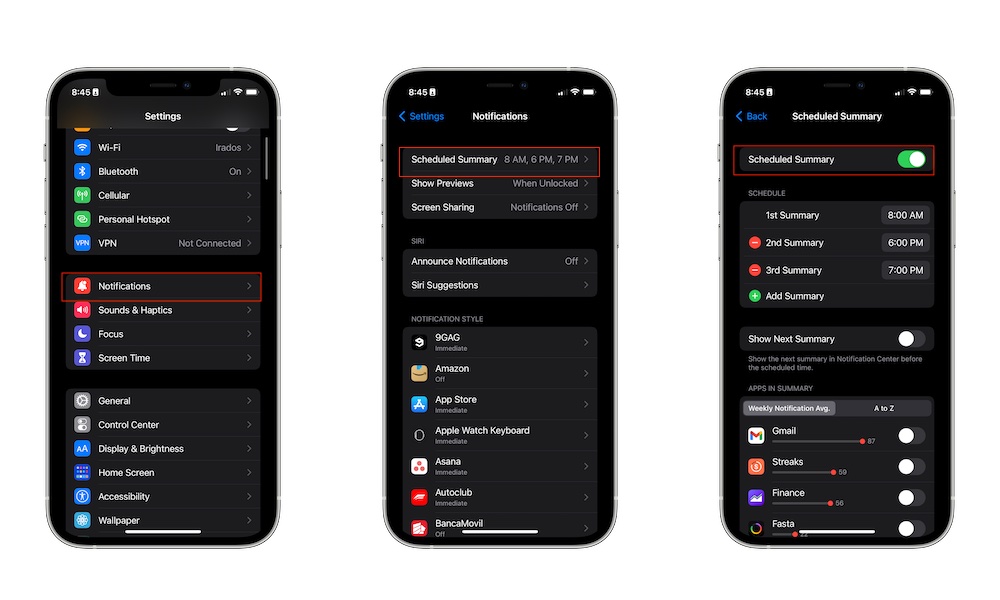
The Scheduled Summary feature gathers less important notifications and delivers them to you at specific times you choose throughout the day. Instead of distracting you with constant vibrations from apps that don’t require an immediate response, you can schedule them to be received all at once during your break times or after your working hours end.
This feature helps you significantly reduce daily interruptions without having to turn off notifications completely and lose track. You will still receive important calls, direct messaging app messages, and time-sensitive alerts immediately, while news, offers, and social media notifications are delayed for later.
You can choose the apps you want to move to the summary and determine how many times you want to receive the summary throughout the day to ensure you stay informed without drowning in distractions. To enable this feature:
- Open the Settings app.
- Tap Notifications.
- Choose Scheduled Summary and enable the option.
- Tap Add Summary to set your preferred delivery times, then select the apps you want to include in the summary.
If you want to take a quick look at what you missed before the next summary time, you can enable the Show Next Summary option to see them whenever you want with complete flexibility.
7. Automatically Transcribing Audio Recordings in Notes
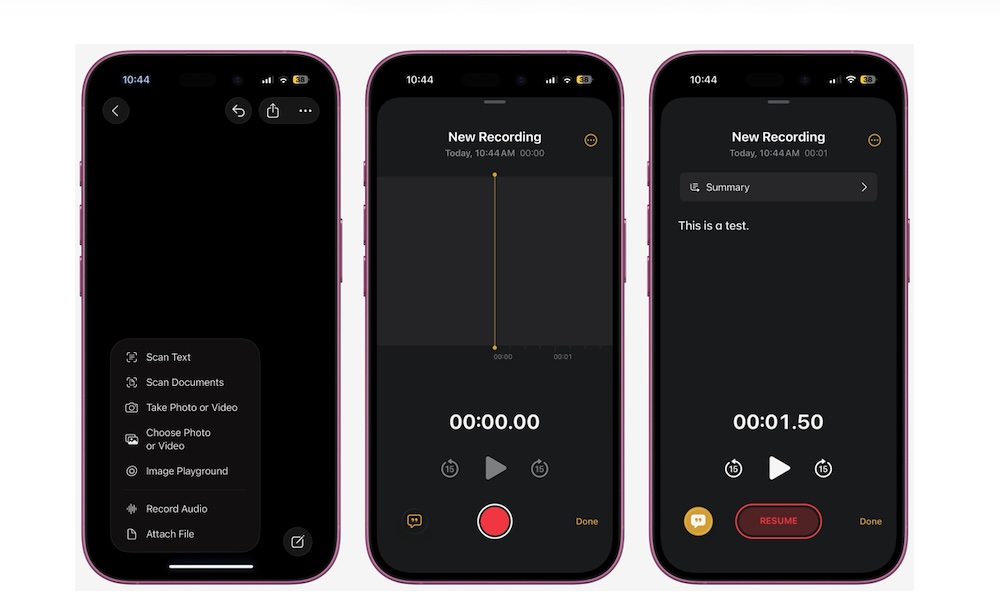
The Notes app can now transcribe audio recordings and convert them into written text automatically and directly on your iPhone, making it an exceptional and very practical tool for recording meetings, brainstorming sessions, lectures, interviews, or even for recording your quick thoughts. Instead of wasting time transcribing speech manually, let your phone handle this arduous task for you.
This feature gives you the ability to keep written summaries of every important conversation or lecture while maintaining your full focus on the actual dialogue and delaying note-taking and formatting for later.
What makes this feature truly amazing is that the transcribed texts inside the Notes app become fully searchable; this means you can search for a specific keyword later and jump directly to the specific segment of the audio recording where the word was mentioned, instead of replaying the entire audio file to reach it. To start using it:
- Open the Notes app.
- Create a new note or open an existing one.
- Tap the Attachments button (paperclip icon).
- Choose Record Audio.
- Tap the red record button to start recording immediately.
While recording, the iPhone will generate a live transcription on the screen. Once finished, tap the checkmark in the top right corner, and you can review the full text by tapping the dedicated button in the bottom left corner of the screen smoothly.
Conclusion: The iPhone as a True Success Partner in Your Day

Your iPhone doesn’t have to be a constant source of anxiety and distraction; thanks to these smart built-in features, you can turn it into an effective personal assistant that pushes you toward productivity and daily achievement without annoying interruptions.
Applying these ideas will make your phone usage smoother and calmer, allowing you to focus fully on your work or studies when required. We recommend choosing two or three features that address the biggest challenges you face in your day and start applying them gradually to notice the difference yourself.
Source:
Leave a Reply