How many times have you been listening to your favorite audio tracks in total harmony, only for it to suddenly stop just because your finger slipped a few millimeters while sending a text message in the Messages app? This small button, dedicated to voice dictation or audio recording and located right next to the send button, has been and remains a recurring nightmare for millions of iPhone users. But the good news is that in iOS 27, Apple has decided to abandon its usual stubbornness and give us the solution we have long awaited.
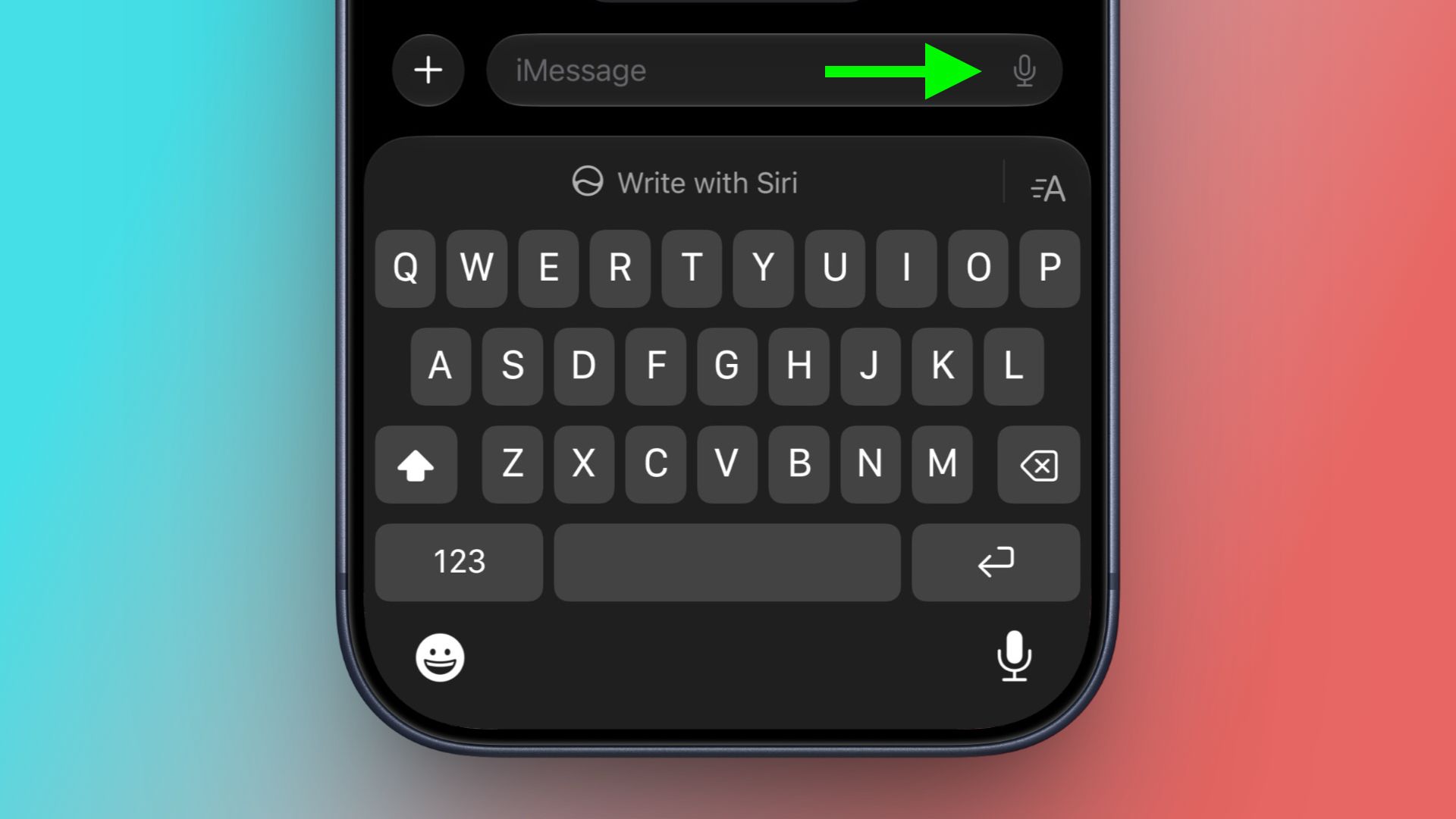
When changing the user interface requires external intervention!
This frustrating problem was not limited to ordinary users; it even reached the point of objection from famous singer Justin Bieber, who publicly expressed his annoyance on Instagram, questioning the logic behind placing two adjacent buttons that perform completely different functions, susceptible to a single accidental touch.
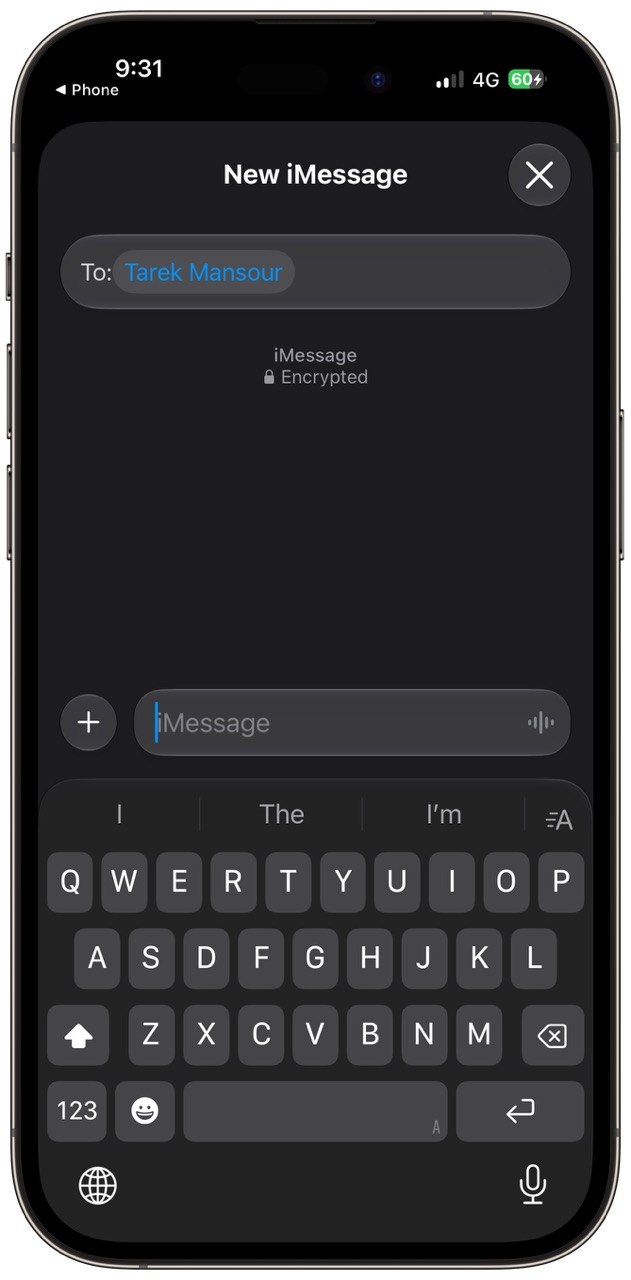
Bieber’s post received massive engagement and spread like wildfire across social media, and it seems his voice finally reached Apple’s headquarters in Cupertino. In iOS 27 and iPadOS 27, the company responded to this persistent complaint and provided an official option to customize the text field and eliminate the distraction caused by accidental presses.
How to hide or change the annoying button step-by-step
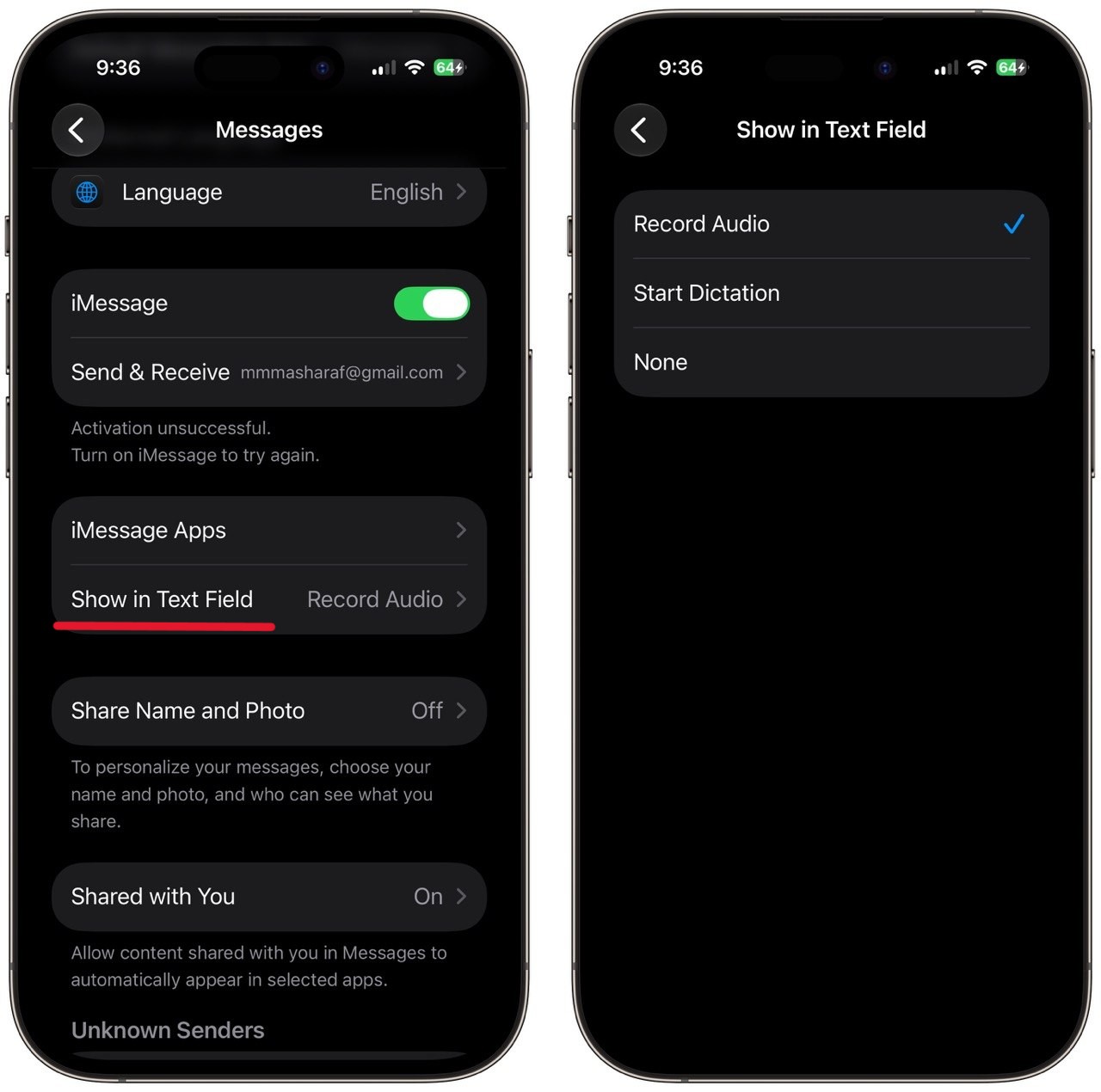
Apple has added an entirely new setting within the Messages app section that gives you full control over this icon. You are no longer forced to accept the audio icon next to the send button permanently; instead, you can customize it via the following simple settings:
First, open the Settings app on your iPhone or iPad, then scroll down and tap on the Apps tab. Next, select the Messages app, then tap on the new option labeled Show in Text Field.
Three main options will appear: the first option is Record Audio, the second is Start Dictation, while the third and most important for many of us is None. By choosing “None,” the audio button will completely disappear from the text box, and you will no longer suffer from interrupted audio or sudden recordings.
How do audio features work after hiding the button?
You might be wondering: If I set the option to “None,” do I lose the ability to send audio messages or use voice dictation entirely? The answer is absolutely not, as Apple has ensured that easily accessible alternative paths are provided.
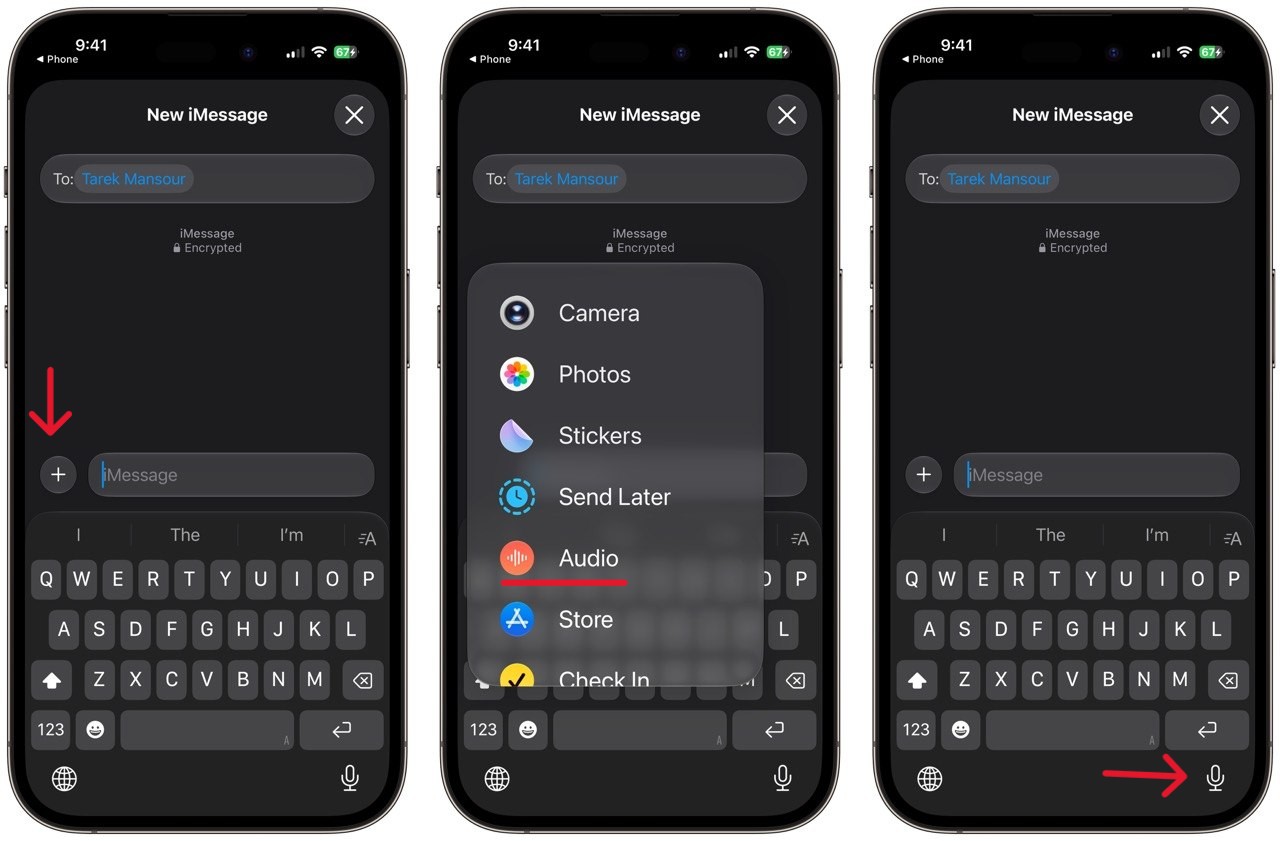
If you want to record an audio message later, you can simply tap the plus (+) button located to the left of the text field and select the “Audio” option. If you wish to use voice dictation, you can tap the microphone icon already available in the bottom corner of the keyboard (which can be enabled by going to Settings ⬅ General ⬅ Keyboard ⬅ Enable Dictation).
It is worth noting that iOS 27 is currently still in its beta version for developers and testers, and the final, stable update is expected to be released to all users this coming September.
Source:



Leave a Reply