There is no feeling more annoying for an iPhone user than seeing the battery indicator turn red in the middle of the day while you are completely away from the nearest power outlet. You charge your phone fully in the morning, and by the time lunch hour approaches, you find yourself nervously searching for a charger or a power bank to save the day. The good news is that a decline in battery life does not necessarily mean your device has become junk or that the battery needs immediate replacement; there are features and tools built into the iOS system capable of stopping unjustified power drain, and more importantly, they do not require you to turn your highly advanced smartphone into a useless, outdated phone.
1. Let the Adaptive Power feature do the work for you
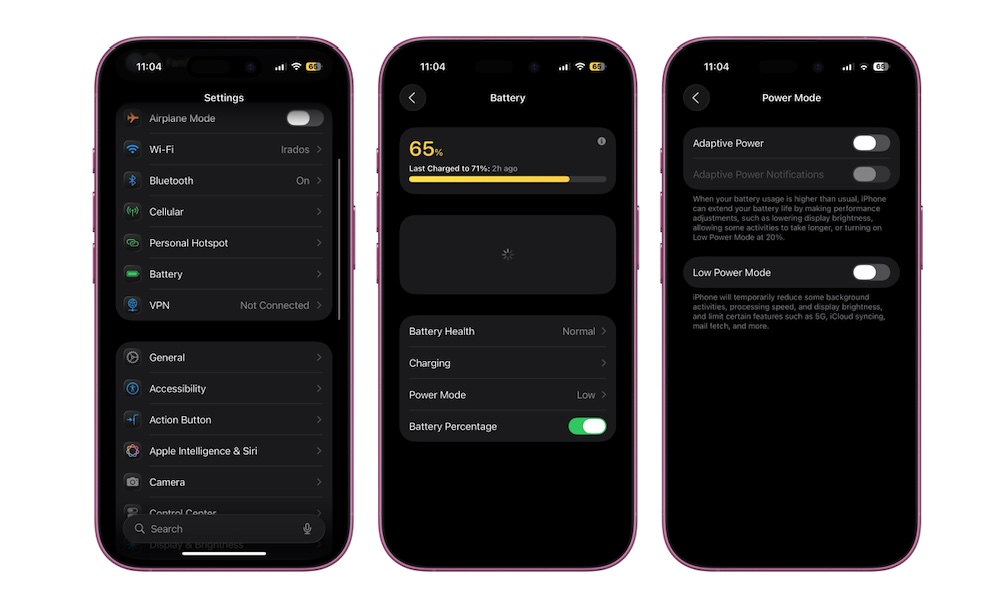
If your device supports the Adaptive Power feature, it is undoubtedly the first feature you should enable immediately. Instead of waiting until the battery breathes its last to start managing it manually, this feature intelligently monitors your typical usage pattern and learns the times when you consume more power than usual throughout your day.
When the system predicts you need extra power to get through your day, it begins making subtle, unnoticeable adjustments in the background; such as imperceptibly lowering screen brightness or reducing background app activity, while intelligently adjusting performance so that heavy tasks like using the camera or playing games in gaming mode are not affected. Furthermore, the feature automatically activates Low Power Mode when the charge reaches 20%, so you can completely forget about monitoring the percentage.
To enable the feature, go to Settings, then tap Battery, choose Power Mode, and enable the Adaptive Power option. It is worth noting that the feature is enabled by default on the iPhone 17 series and the iPhone Air, while it requires manual activation on compatible iPhone 15 Pro and iPhone 16 models, keeping in mind that it needs about seven days at least to study your habits before it begins applying its magical improvements.
2. Deny curious apps background updates
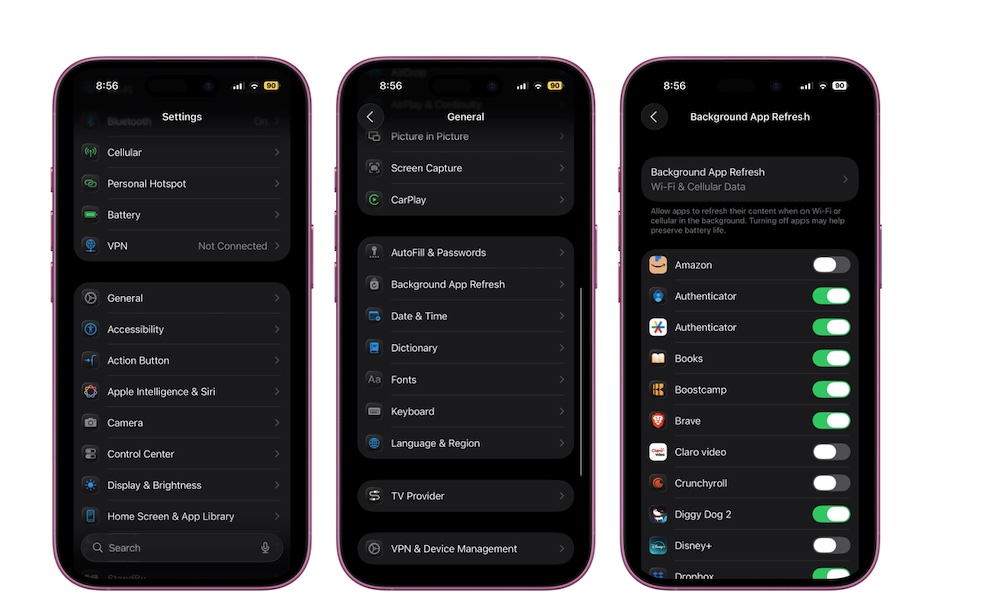
The Background App Refresh feature is a way that allows apps to constantly fetch the latest data and content even when you are not using them. Although this is useful for social media apps where you want to follow updates moment by moment, it makes the iPhone processor work with constant extra effort and wastes battery power non-stop without logical justification.
Of course, some essential apps may need this feature to work efficiently, but the vast majority of apps do not need to run 24 hours a day in the background at all. The smartest solution is to customize this permission by going to Settings, then General, choosing Background App Refresh, and then turning off the feature for unnecessary apps, or even turning it off completely if you prefer maximum battery savings.
3. Switch to Auto 5G mode
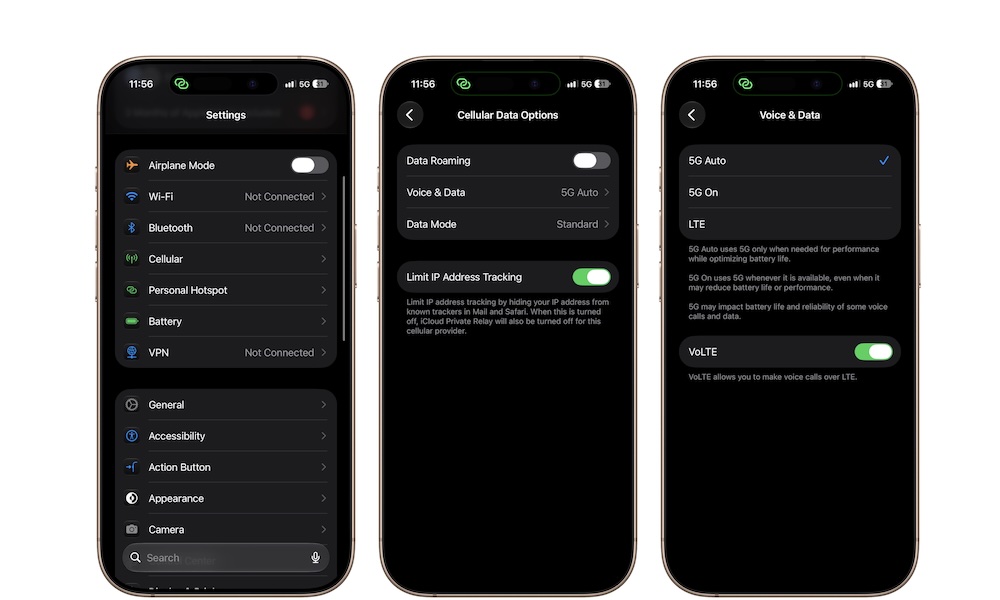
5G networks provide ultra-fast connection speeds, but wait, do you really need record speeds while browsing emails or reading a news article? Certainly not. And if your phone is set to “5G On,” the device will constantly search for this network and consume massive power even for simple tasks that do not benefit at all from those super speeds.
The ideal option for most users is to adopt 5G Auto, where the phone uses the 5G network only when high speed is actually useful, then immediately returns to less power-consuming LTE networks when the need for data decreases. You can enable this from Settings, then Cellular, Cellular Data Options, then Voice & Data, and choose 5G Auto or even switch to LTE if your focus is on extending charge life at any cost.
4. Give the Always-On display a break on tough days
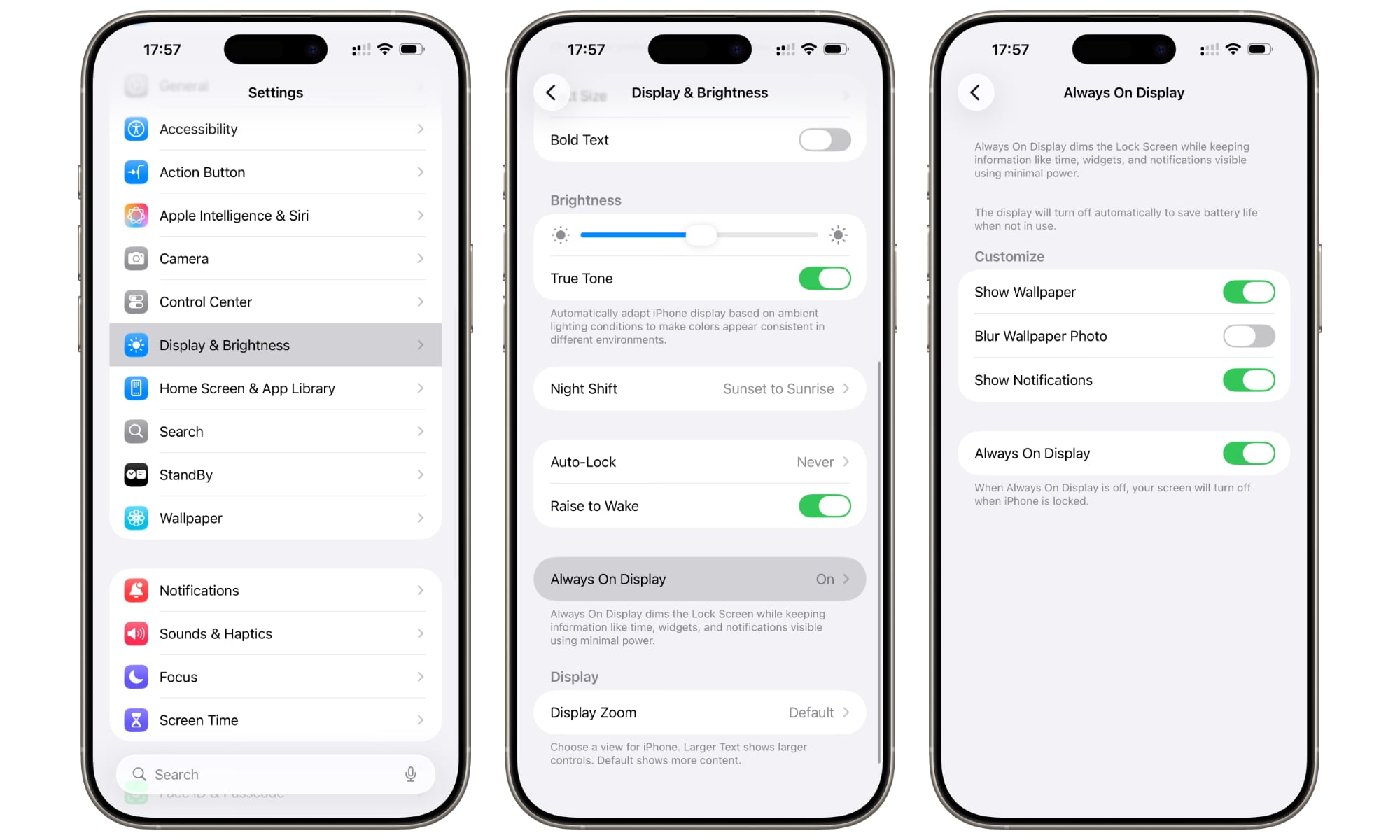
The Always-On Display feature on modern iPhone models provides a great way to view the time and notifications at a quick glance. Although Apple designed the screen to operate at very low refresh rates to save power, it still consumes a portion of the battery balance over long hours.
If you are facing a long, tough day outside the house or while traveling without access to a charger, disabling this Always-On display will give you a very precious extra percentage, which is precisely why Low Power Mode disables it automatically. You can turn it off manually by going to Settings, then Display & Brightness, choosing Always On Display, and then turning it off, provided you turn it back on later once you return to your safe base next to the charger.
5. Turn on Low Power Mode in advance at 40%
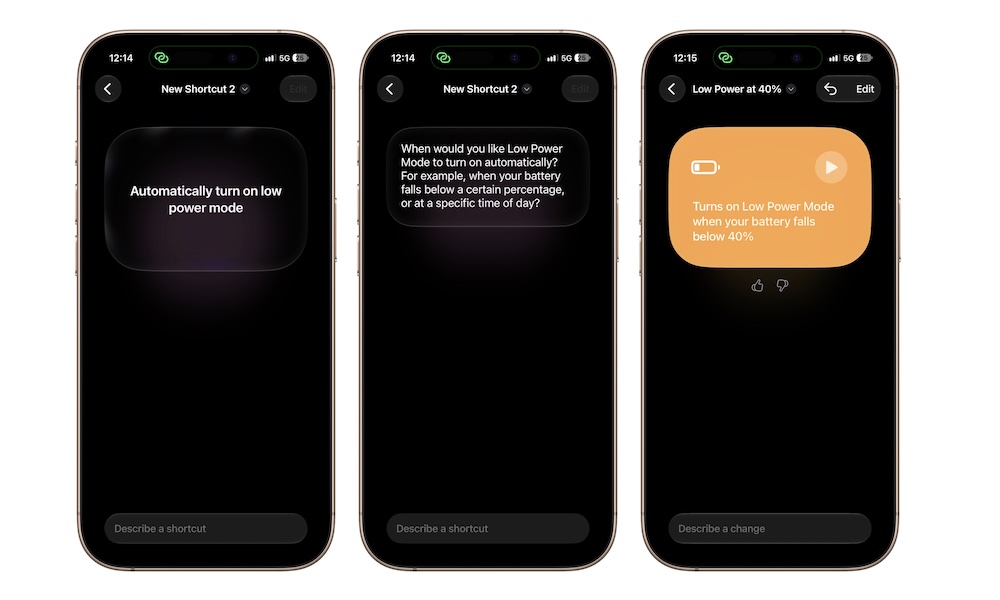
Who said you have to wait for the battery to reach the critical 20% level to turn on Low Power Mode? You can anticipate the problem and make the iPhone activate this mode automatically as soon as the charge level drops to 40% via the Shortcuts app, to ensure a smooth and slow battery decline throughout the afternoon hours.
If your device is running a recent update that supports Apple Intelligence, you can simply open the Shortcuts app, press the add button, and write a simple request such as: “Create an automation to turn on Low Power Mode automatically when the battery drops below 40%,” so the AI can build the automation accurately within a few seconds.
As for doing it manually via traditional steps, follow these:
- Open the Shortcuts app and go to the Automation tab.
- Press the add button (+) to create a new personal automation.
- Choose Battery Level from the list.
- Move the slider to 40% and select the “Falls Below 40%” option.
- Enable the “Run Immediately” option.
- Search in actions for “Set Low Power Mode” and make sure it is set to “Turn On,” then press Done.
Get the most out of your battery without giving up the brilliance of your device
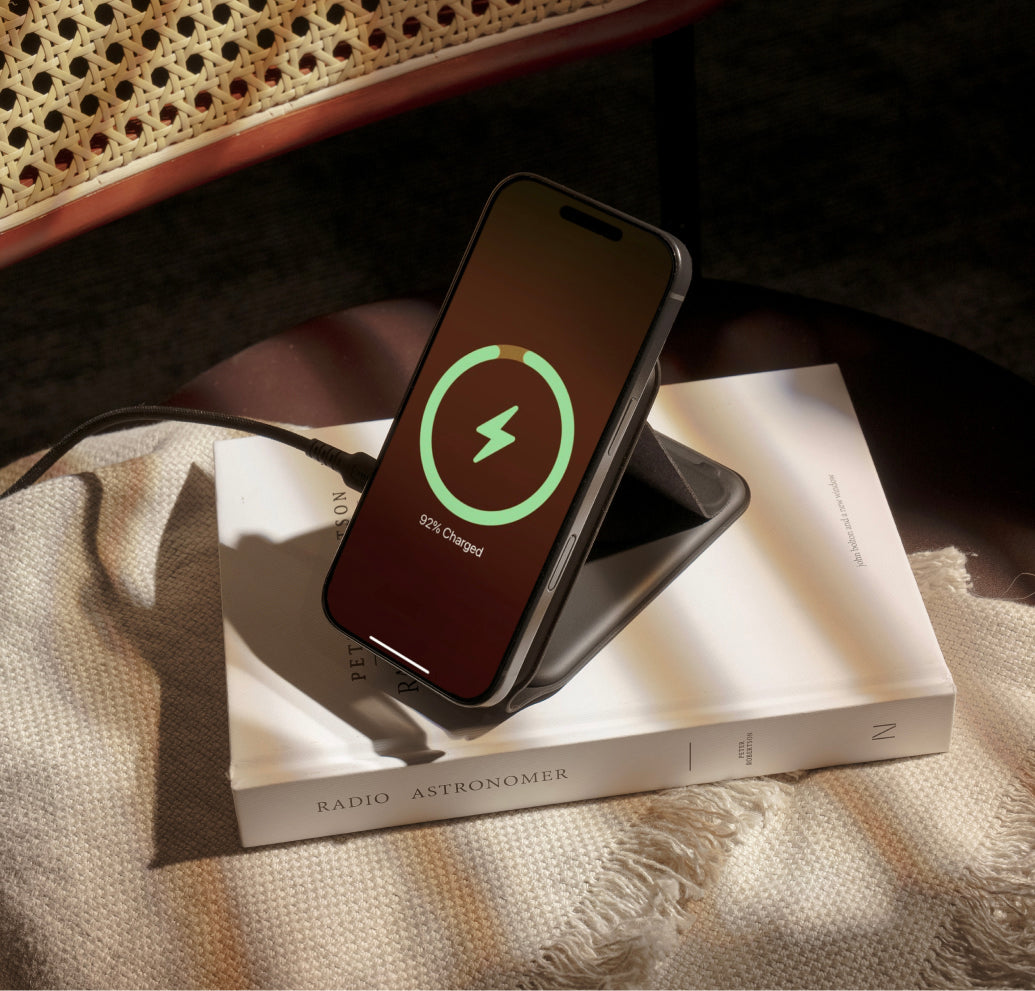
Maintaining battery life does not mean turning off all the features you paid for so that your wonderful screen turns into a dull device. Even if you have an older iPhone model, these smart adjustments give you the perfect balance between smooth performance and rational power consumption without the slightest compromise.
Certainly, a moment will come when the chemical health of the battery is depleted and requires a change at authorized service centers, or perhaps upgrading the entire device, but until that time comes, these steps will ensure you extract every possible drop of energy from your device’s battery to continue your day with confidence and peace of mind.
Source:


Post Comment