I don’t know of any file format that combines such widespread use with as much annoyance as PDF. Everyone sends you their contracts, reports, and research in this format because it preserves the layout across all devices. But the moment you need to edit a single sentence inside the file, you find yourself hitting a wall.
I have faced these situations many times in my daily work. A while ago, I needed to correct a figure in a price quote in PDF format minutes before sending it. All the methods I tried either ruined the formatting and scattered the paragraphs, or required me to rewrite the entire file. Another time, I received scanned documents from which I couldn’t copy a single word, and I had to extract the text and convert it into a Word file.
That is when I started looking for a tool that could solve these problems without complexity or excessive cost, and I arrived at UPDF. In this review, I will tell you about my experience, what I liked, and who I think it is suitable for.
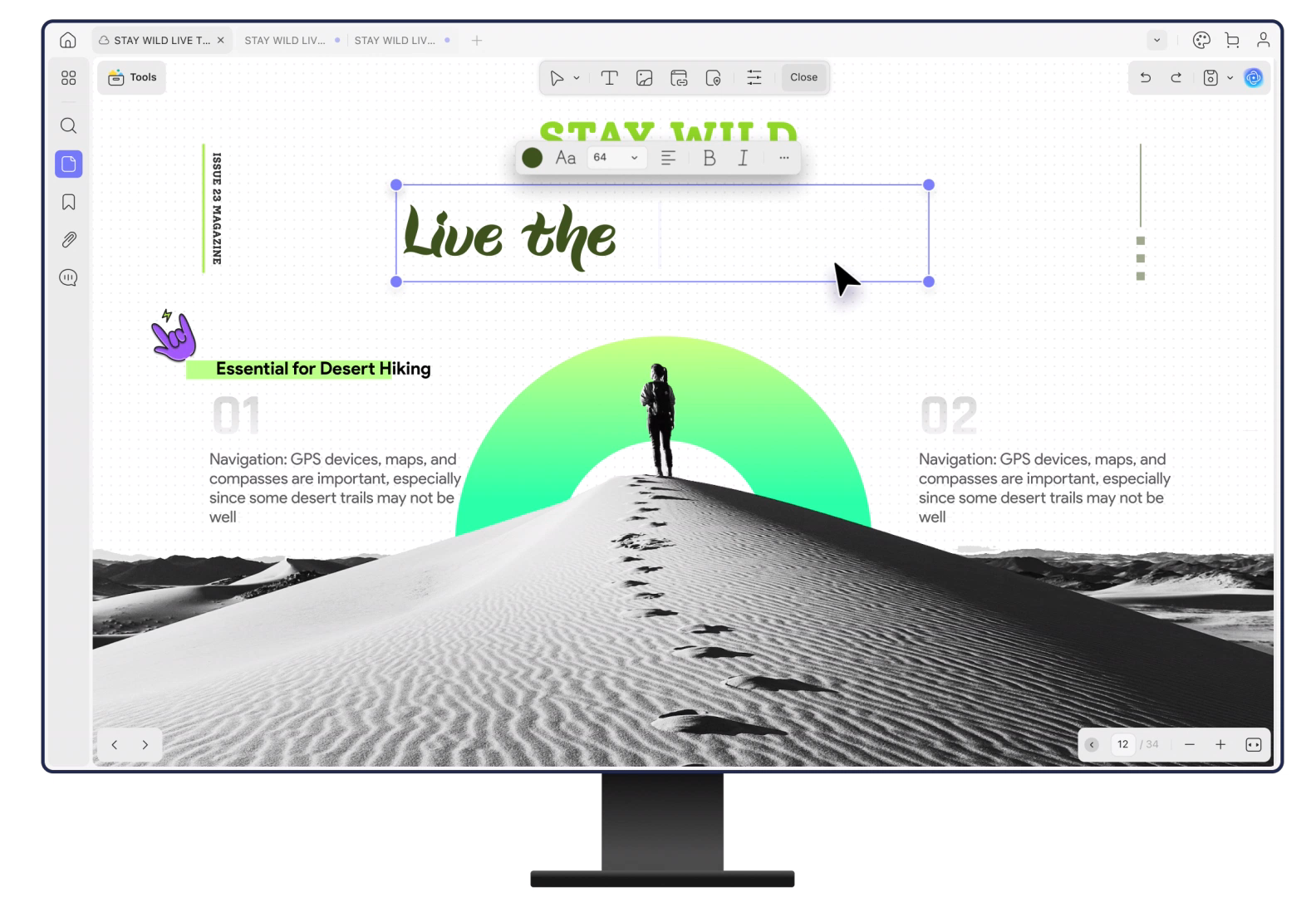
Problem One: Editing PDF text without ruining the formatting
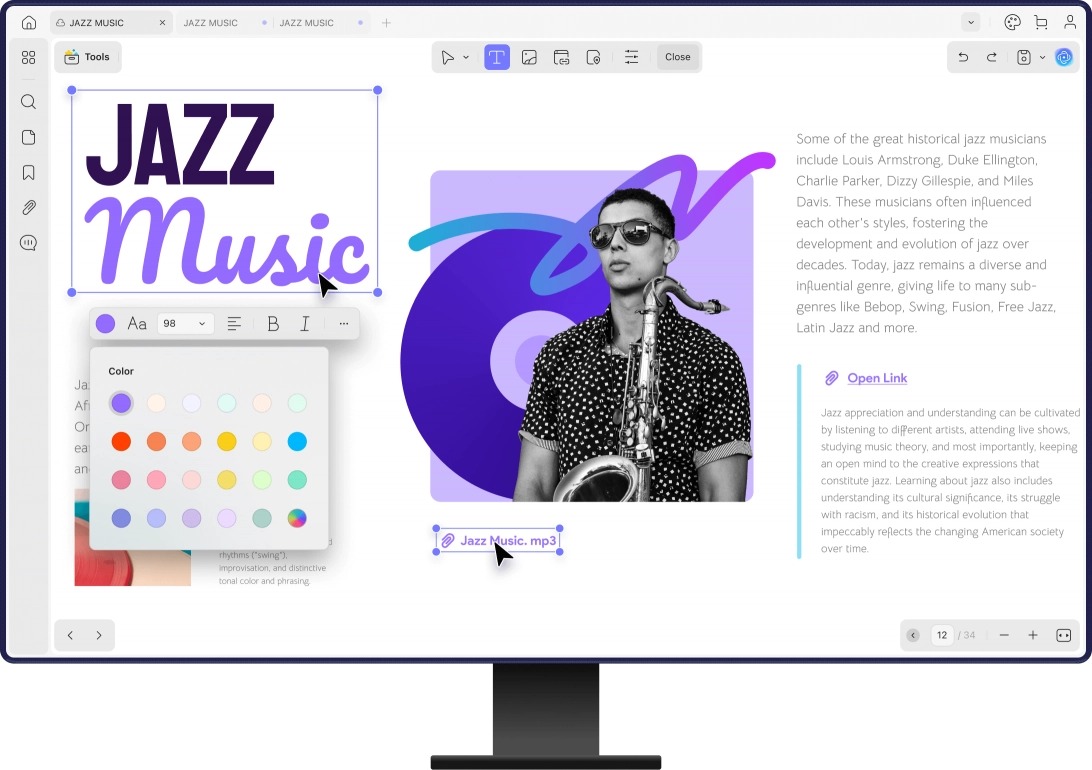
What provokes me most about dealing with PDFs is that a simple edit turns into an adventure. You change a word, and the lines shift, the font changes, or paragraphs overlap with images.
With UPDF, it was different. You open the file and switch to Edit mode, and the program identifies each text block individually. You click on the text you want and edit it directly, as if you were inside a regular document editor. You can also change the font, size, and color, and add, replace, or move images, as well as add links.
In my experience with the price quote I mentioned, I edited the number and changed a line in the terms, and the rest of the design stayed in place. I accomplished in two minutes what would have taken me half an hour using the old methods.
Artificial intelligence within Edit mode
In Edit mode, UPDF provides an AI writing tool. You select a paragraph and ask to rewrite, improve, or change its style, then replace the original text with the new one with a single click. I find it very useful when editing a report or a resume and you want to improve the phrasing without copying the text to another program and then bringing it back.
Problem Two: Scanned files and PDF conversion
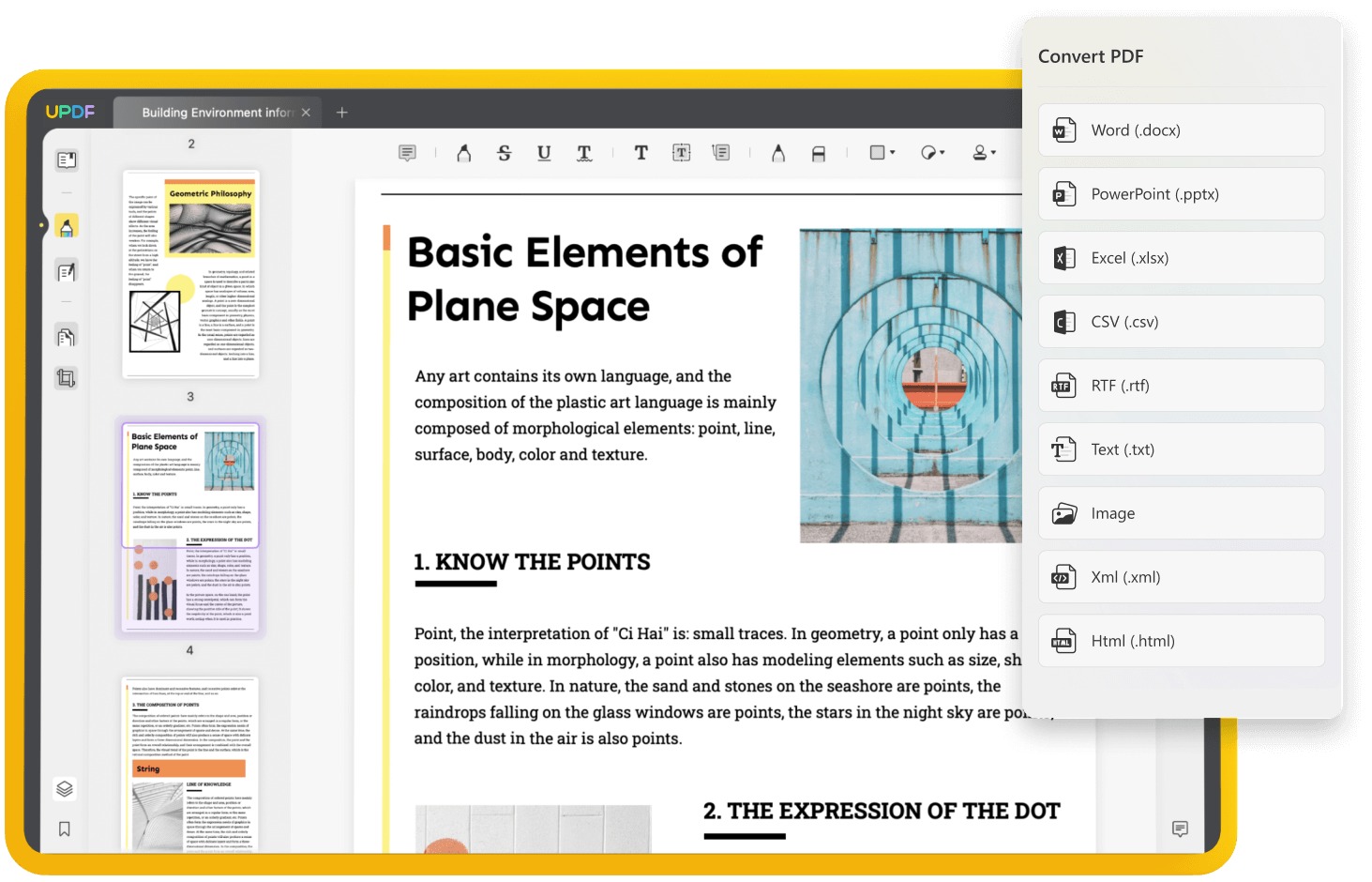
The second problem is even more frustrating. Scanned files are essentially images, so you cannot search them, copy their text, or convert them to Word or Excel.
This is where Optical Character Recognition (OCR) technology comes in. UPDF converts scanned pages into editable and searchable files, then allows exporting the result to Word, Excel, PowerPoint, images, or plain text. After conversion, you can search within the document and copy the sections you need.
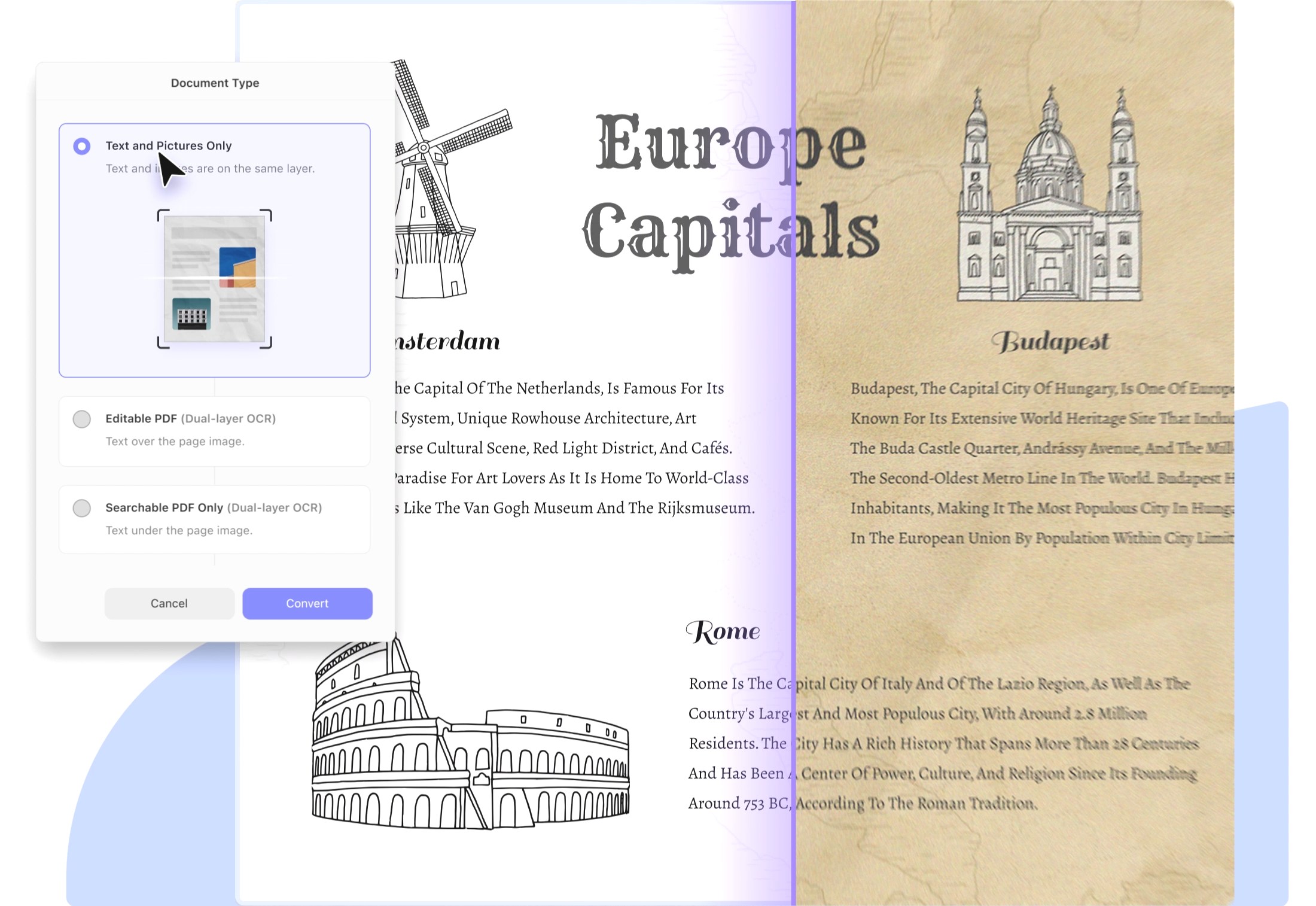
And conversion has another advantage more important than speed: maintaining the layout. Tables remain tables, headings remain headings, and you don’t end up with a messy Word file that you spend an hour organizing.
Artificial intelligence with PDF files: Real time-saving
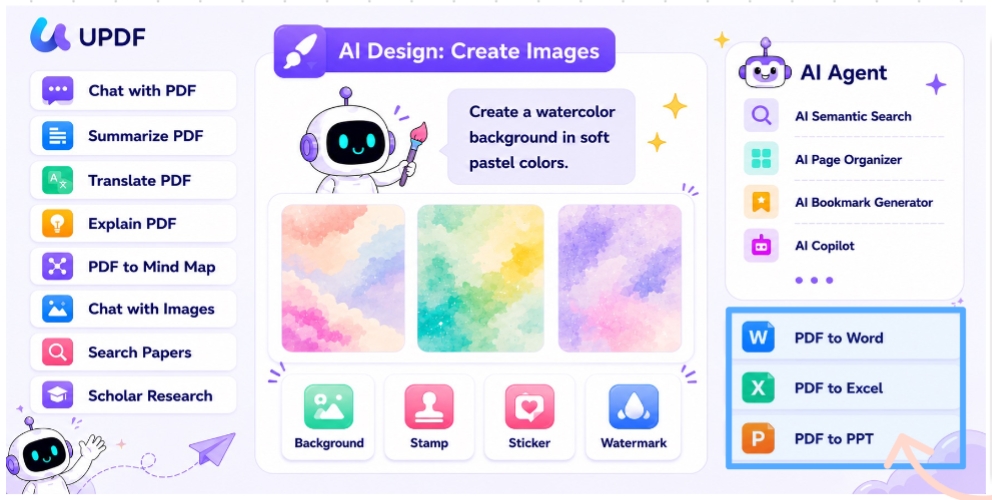
One of the things that changed the way I work is UPDF AI. Long documents used to consume a lot of time in reading before I knew if they were relevant to me at all. Now, I open the file, switch to Comment mode, select what I want, and then choose:
Summarizing the selected part into focused points.
Translating paragraphs into my language, which is very useful for English research and reports.
Explaining complex terms or passages in simple language.
You can also chat with the file itself and ask it questions like “What are the most important conclusions in this report?” and get an answer based on the content. The program supports multiple AI models, including Deepseek R1, and you can choose the output language from the top menu on mobile.
Page Management Agent
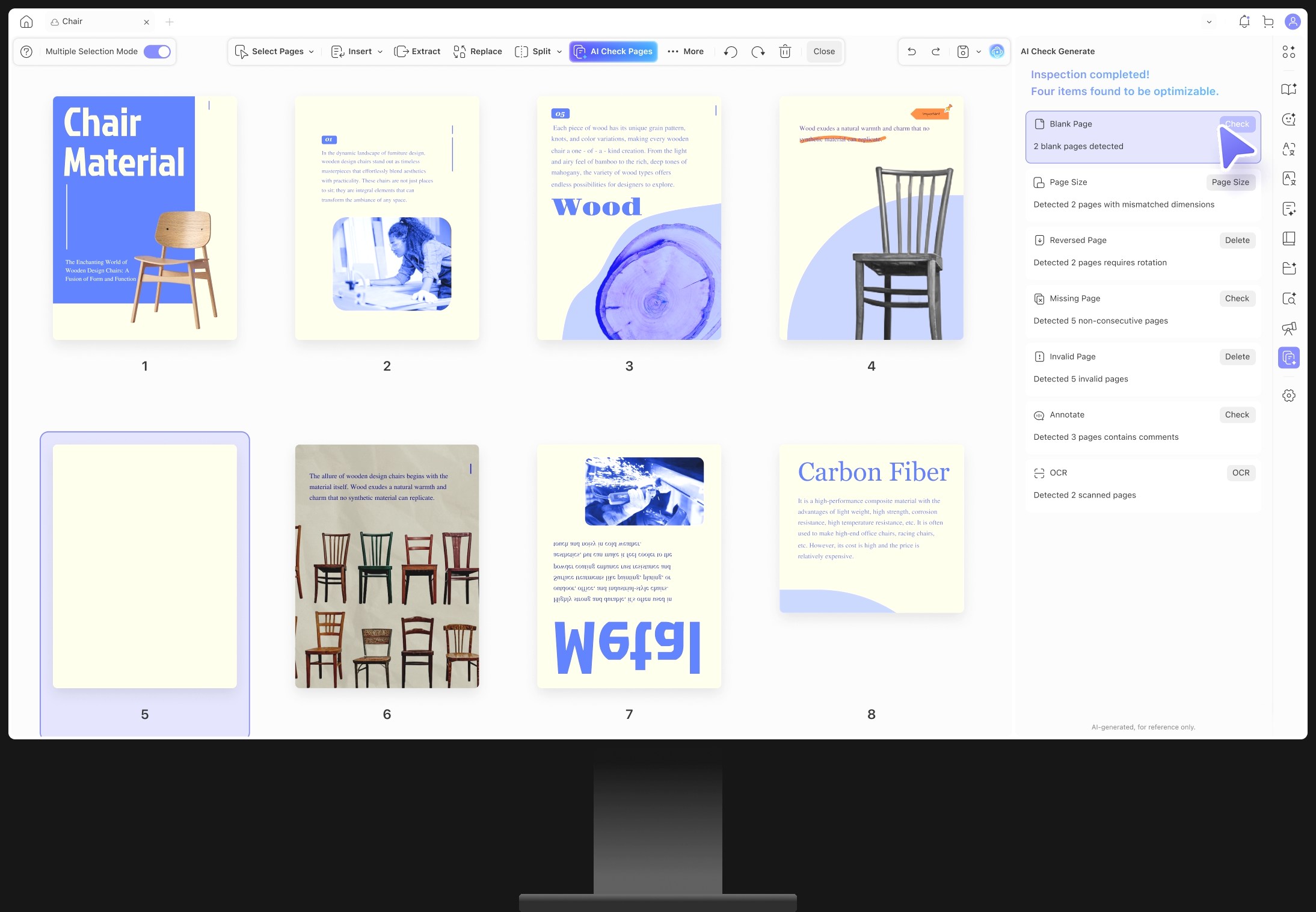
One of the new features that caught my attention is the AI agent for page management. It analyzes the file itself and detects scattered, misplaced, or duplicate pages. I know how much time is wasted in organizing a long file page by page, which is why I see it as a practical addition for those who deal with huge contracts and documents.
Creative AI touches
In Comment mode, the AI can generate stickers and stamps, and it can also generate backgrounds and watermarks. These might seem like secondary features, but they are useful for those preparing presentations or documents that require a visual identity.
Other useful tools for daily use
Beyond the two main problems, UPDF includes a set of tools that I use constantly:
Merge and Split: Combining multiple files into one, or extracting specific pages from a large file.
Organize Pages: Deleting, rotating, reordering pages, and inserting new pages.
Redact: Hiding sensitive data like names and numbers before sharing the file.
Compare: Comparing two versions of a document and showing the differences between them, which is very useful in reviewing contracts.
Comments and Highlighting: Commenting on the file, highlighting text, and adding notes for review and study.
Batch Processing: Executing one operation on multiple files at once, which saves a lot of time with large numbers.
Cloud: Uploading files to UPDF Cloud to sync them between the computer and mobile.
Support for all platforms with one account
One of the most important strengths of UPDF is that it works on Windows, Mac, iOS, and Android, and with one account, it can be used on four devices. I start editing a file on the computer, and continue reviewing it on the phone while I’m on the road, and everything is synchronized. Many similar tools force you to buy separate subscriptions for each platform, but here, it’s a unified experience.
UPDF vs. Adobe Acrobat: Prices and Ease
You cannot talk about PDF programs without mentioning Adobe Acrobat, as it is the known standard in this field. But it relies on relatively high subscriptions, its interface is crowded, and the average user needs time to learn it.
In contrast, UPDF offers almost all the same features at a much lower price, with a simpler interface that doesn’t require training. One of the important advantages is that updates are free for life, meaning you pay once and get every new update without additional fees. UPDF releases updates every month, so development is continuous.
To check current prices and available offers, check the official pricing page, as they change from time to time.
Customer Service and Warranty
One of the things I appreciate in any software product is the ease of access to support. UPDF provides responsive customer service throughout the week except for one day (24/6), and it also offers a 30-day money-back guarantee, so you can try it without worry. For companies, there is simplified and professional license management that suits teams and organizations.
Disadvantages and Notes
It is fair to mention that some advanced features, such as AI, require a paid subscription (Pro) and are not fully available in the free version. With any tool that relies on AI, I advise reviewing the results, especially translation and summarization in official and legal documents.
Conclusion: Is UPDF worth buying?
After testing, I see that UPDF solves the real problems that most of us face with PDF: editing text without ruining the formatting, converting scanned files, and summarizing and translating long documents, all at a reasonable price and on all your devices.
If you deal with PDF files on a daily basis, whether you are an employee, a student, or a freelancer, I recommend you try it. And thanks to the 30-day money-back guarantee, you won’t lose anything if it doesn’t suit you.
Please note that the current promotional offer provides a discount of up to 66%, and includes two free months of UPDF AI.


Leave a Reply