How many times have you left your home and gotten into your car to start navigation or listen to an audio clip, only to be surprised that your phone is still clinging to the last weak signal of your home Wi-Fi and refusing to load? This annoying situation happens to all of us when the phone gets stuck in a gray area between losing Wi-Fi and switching to cellular data. Fortunately, it seems Apple has finally decided to address this in a very smart and practical way.

Connectivity Assist feature: Goodbye to sudden internet drops
Apple explained in a technical support document that the Connectivity Assist feature was specifically designed to utilize cellular data when the Wi-Fi network becomes slow or unusable. Apple provides familiar examples, such as being in the backyard of a house, a driveway, cafes, airports, or sports stadiums.
The core idea is very simple and smart; the iPhone automatically detects when the Wi-Fi signal is weak and unable to transfer data, and it immediately integrates or uses cellular data seamlessly to ensure your connection continues without interruption or the need to wait until the network disconnects completely.
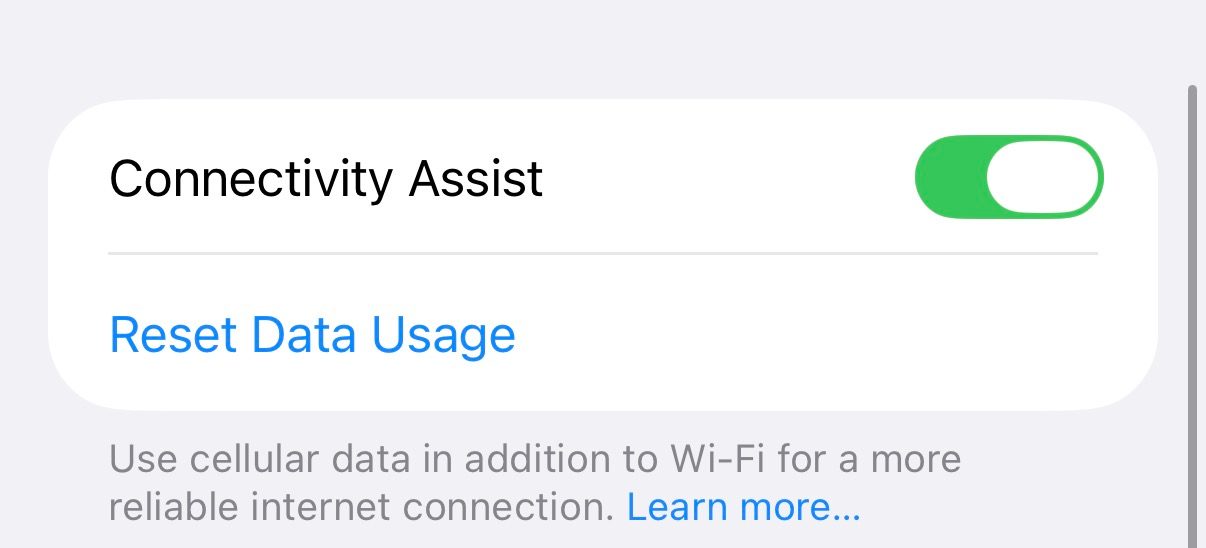
This simple improvement solves a real daily crisis that most of us face while leaving our homes or offices, making it one of the excellent daily user experience improvements we have been waiting for for years.
How to enable and important notes on usage
To enable or disable this feature, all you have to do is follow these simple steps:
- Open the Settings app on your iPhone.
- Go to the Wi-Fi section.
- Scroll down and toggle the Connectivity Assist option on or off.
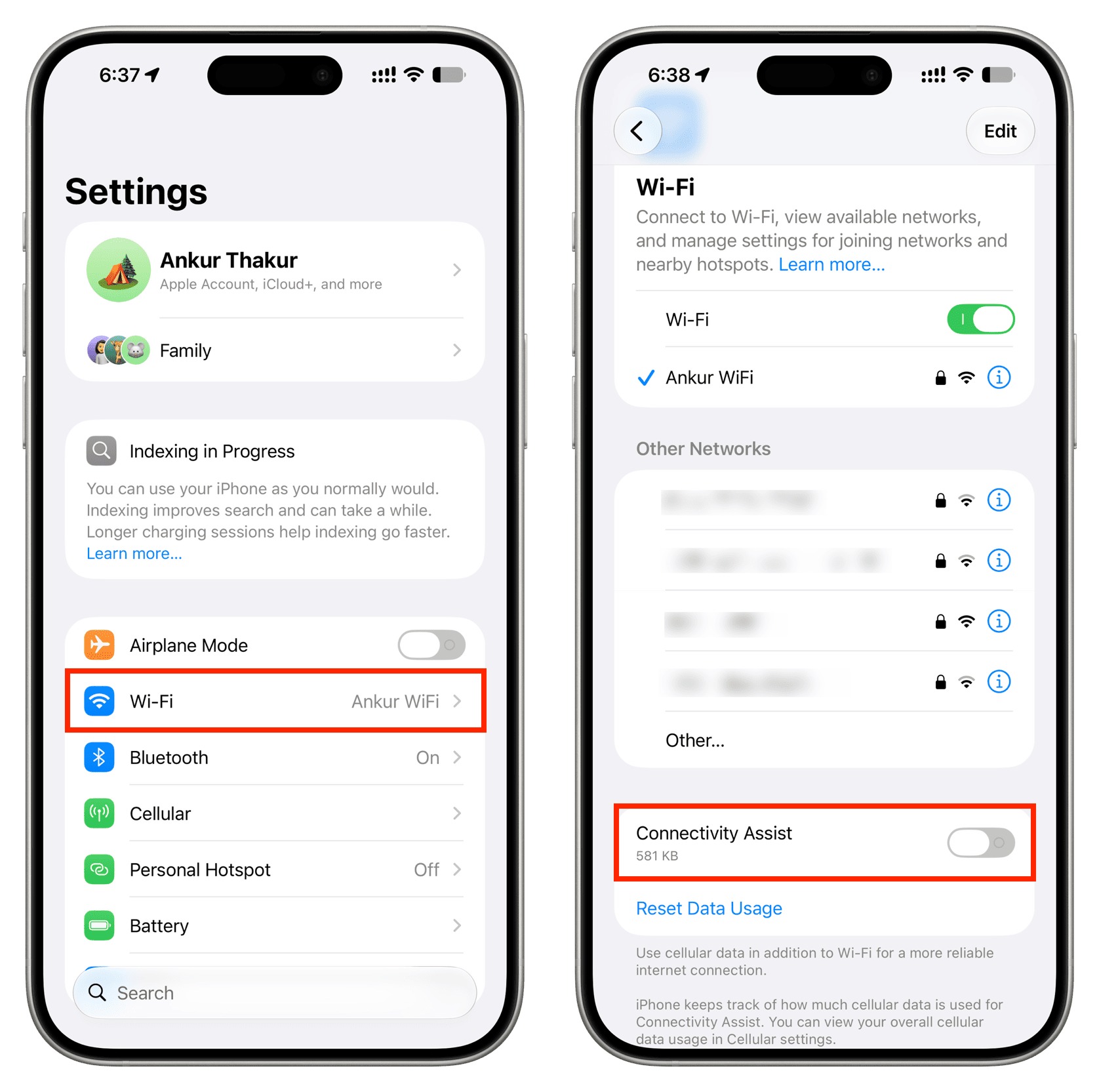
There are some important details that Apple has clarified regarding how this feature works, most notably:
- If you prefer to stay connected to a specific Wi-Fi network regardless of its quality, you can turn off the feature for that specific network.
- The feature does not work automatically while using international roaming, when Low Data Mode is enabled, or with some third-party video and audio streaming apps.
- Using this feature may consume more of your cellular data plan, so it is recommended to monitor your usage via your carrier’s app or phone settings if your plan is limited.
Source:
Post Comment