You may discover that the storage space on your iPhone is gradually evaporating, even though you haven’t downloaded new apps or added new files! When you look for the reason, you will find a mysterious section called “System Data” consuming many gigabytes without knowing what it stores or why it needs all that space. If you are suffering from a lack of space on your smartphone, keep reading this article because we will soon learn how to reduce the System Data that consumes a lot of space on the iPhone to gain extra storage space without needing to upgrade or delete your important files.
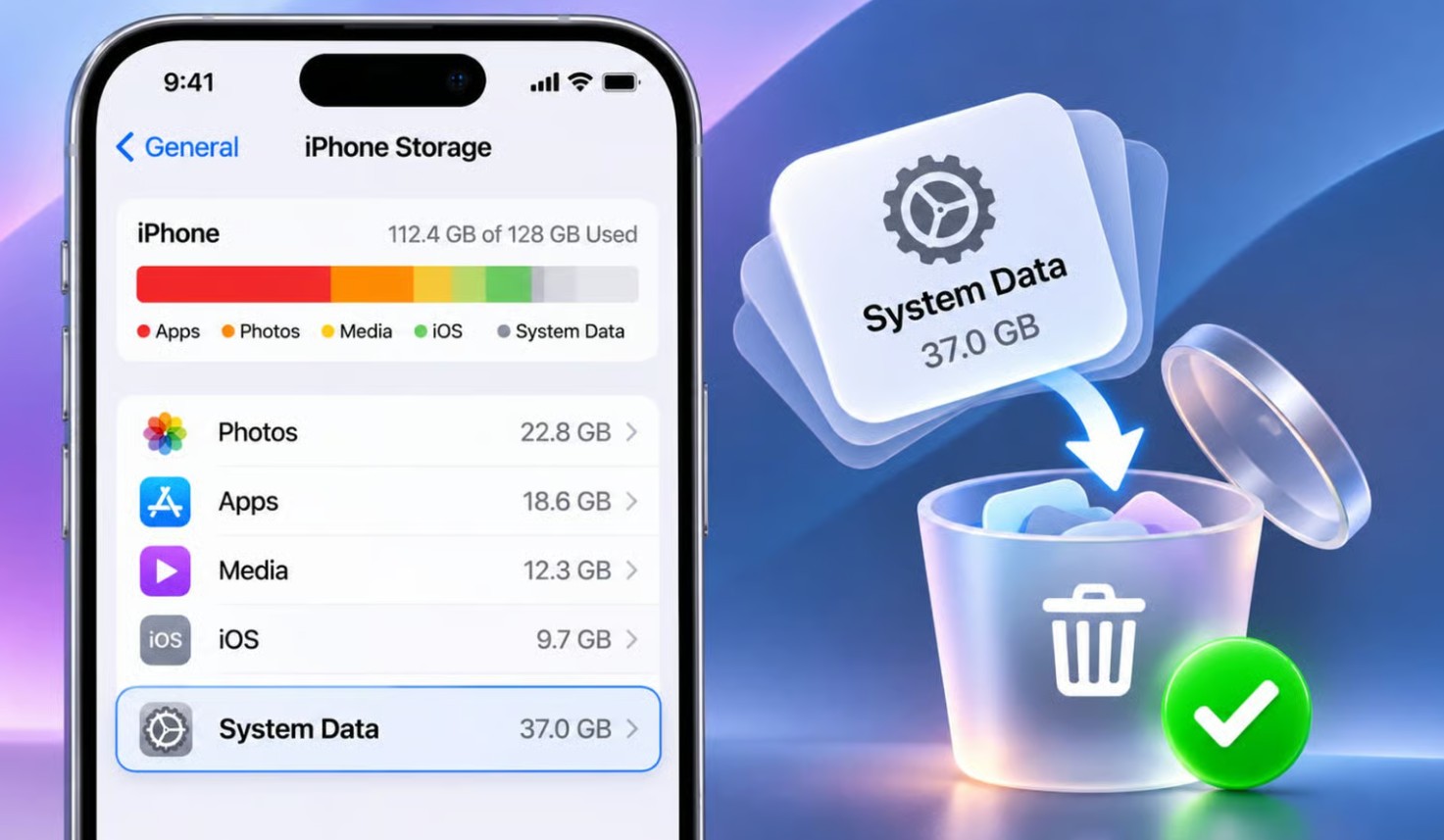
What is meant by System Data on the iPhone?
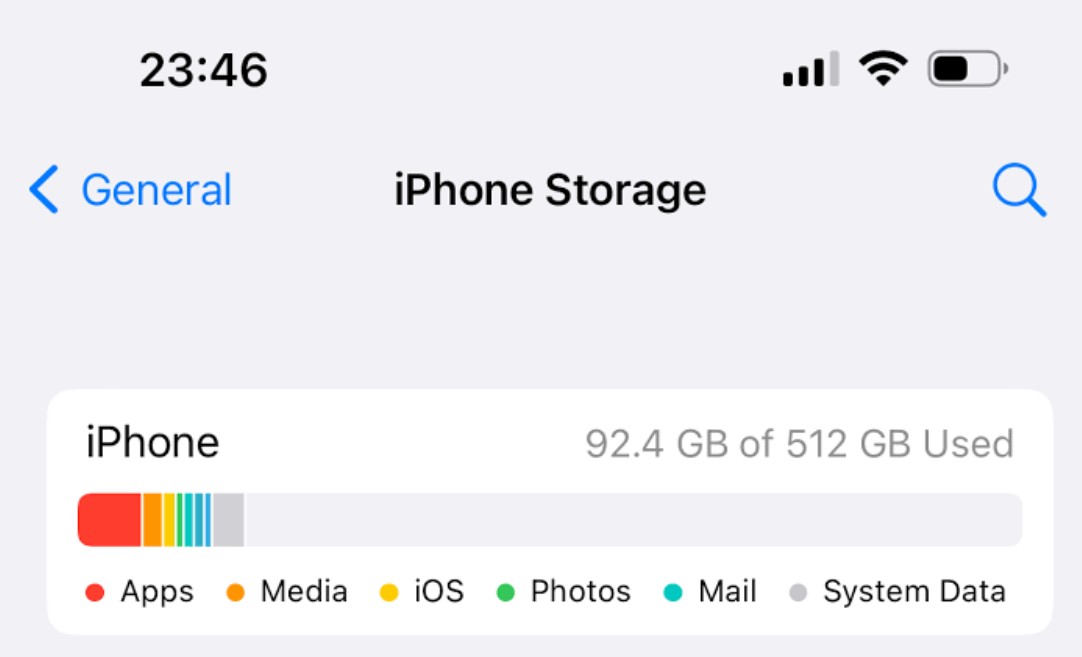
When you buy a new iPhone and before installing anything, you will find that a large amount of space is consumed by two elements. The first is the operating system (iOS) and the second is System Data, which you can see by going to Settings, then General, and then iPhone Storage. It can be said that System Data (known as “Other” in iOS 14 and earlier versions) is a collection of various files that the iPhone needs to work smoothly, including the following:
- Cache files.
- System logs.
- Credentials and login data.
- Fonts, keyboards, and additional Siri voices downloaded by the user.
- iOS update files that have been downloaded but not yet installed.
There is no fixed size that can be considered normal for System Data. The consumed space changes according to how the phone is customized, the apps used, and the nature of the activity within them. Also, the iOS system performs automatic cleaning operations from time to time to free up storage space without affecting the device’s performance. This is why the size of System Data on the iPhone may reach a few gigabytes at one time, then rise to tens of gigabytes (sometimes reaching more than 100 GB), which may leave limited space for downloading new apps and files.
Why is the increase in System Data size a problem?
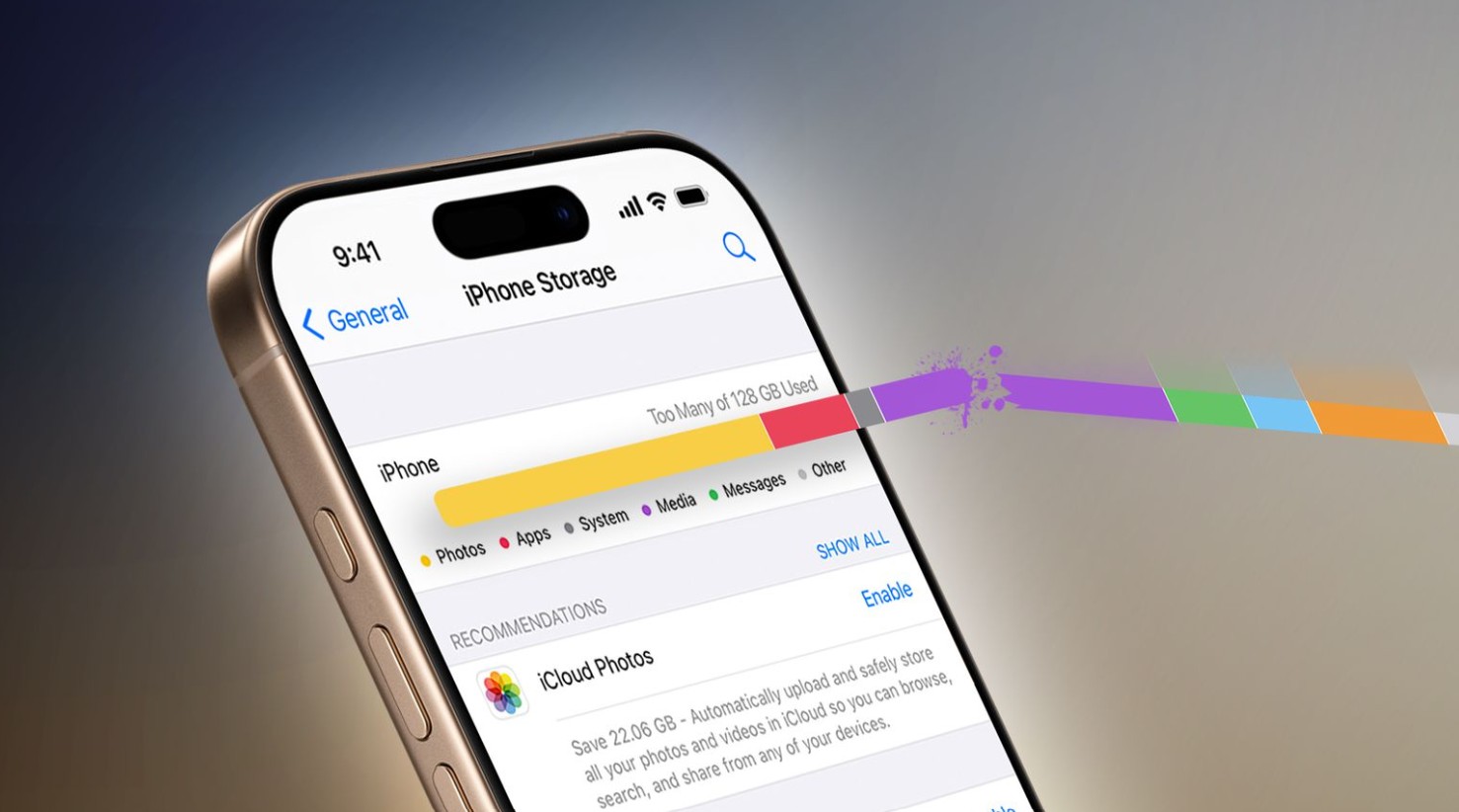
When the iPhone’s memory nears capacity, iOS may not find enough space to install updates or create the temporary files it needs. In this case, the system may be forced to close apps running in the background, instead of keeping them idle to return to work quickly when opened again. Deleting System Data entirely might seem like a tempting solution to recover lost space (the system does not provide an official way, but some may try using unauthorized methods). However, this is not the right choice. These data are not just redundant files that can be dispensed with, but include elements that the phone needs to maintain its performance. Getting rid of them entirely may have the opposite effect, as the system will be forced to reload content again every time you open an app, which will negatively affect the speed of the iPhone and its smoothness of use, causing slow response and frequent unexpected freezes.
How to reduce System Data space?
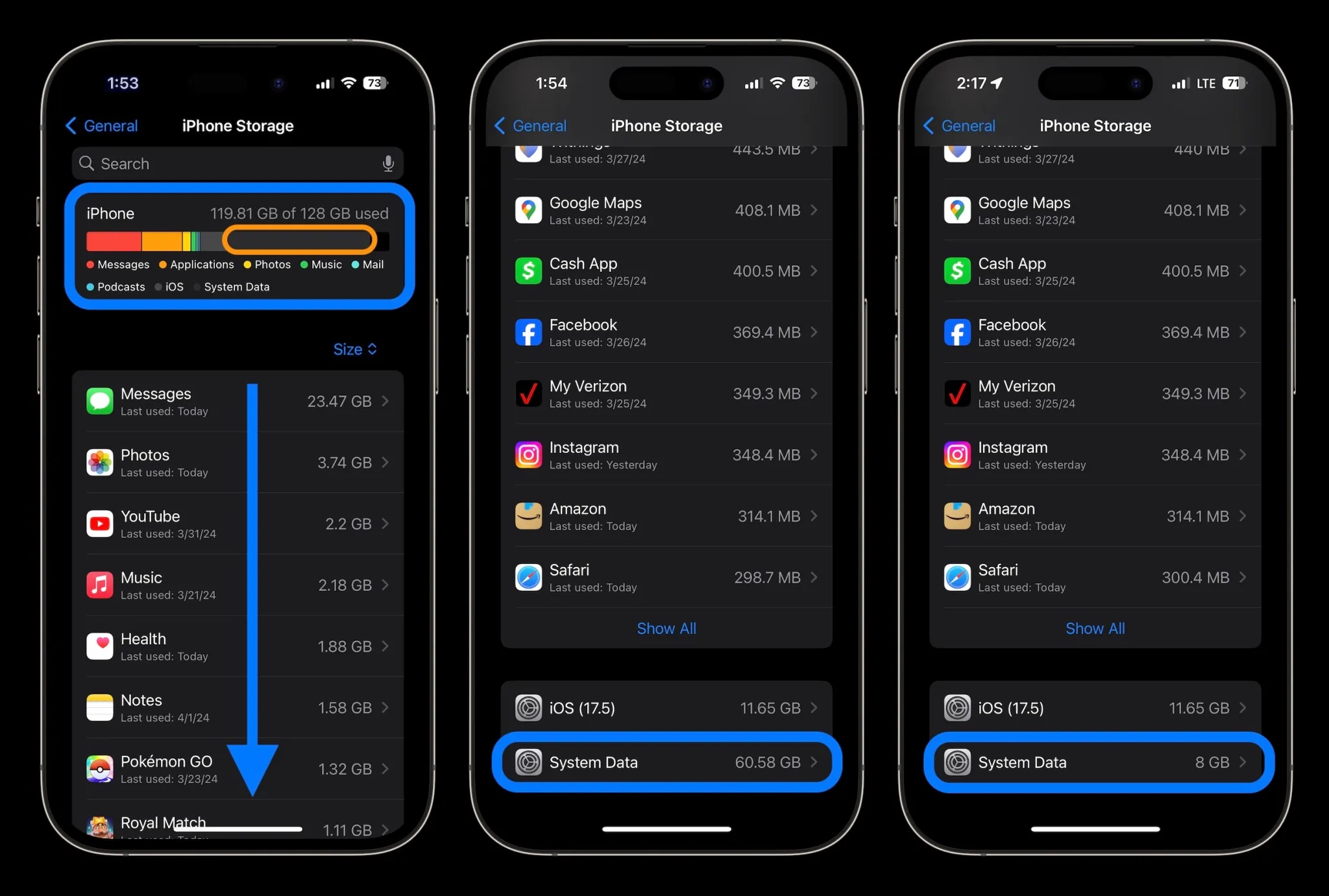
You can try restarting the iPhone by pressing and holding the side button and one of the volume buttons until the power-off slider appears, then dragging the power-off option. After waiting for about a minute, press and hold the side button to turn the phone back on. Of course, this step does not guarantee a size reduction in all cases, but it may help get rid of some cache files and stop or restart processes running in the background, which may lead to shrinking the System Data space.
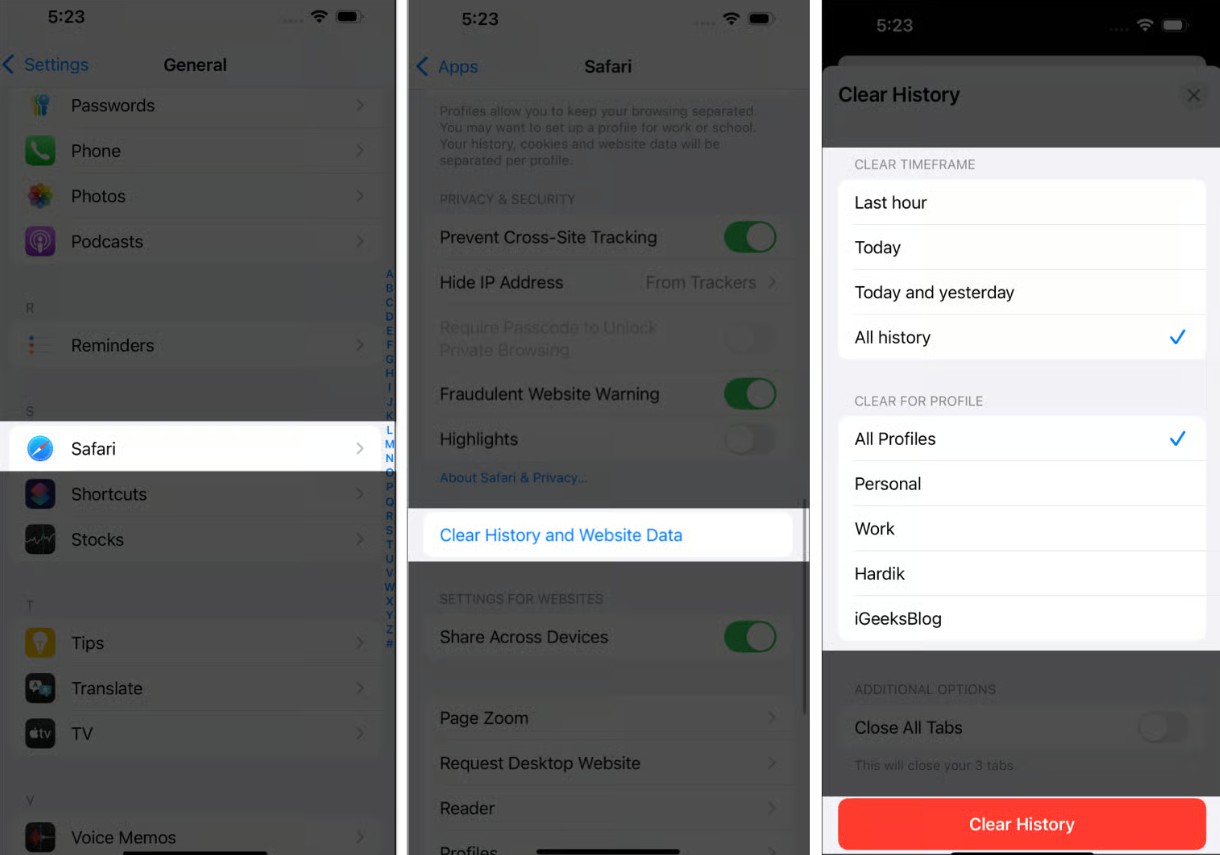
You can also clear the cache in the Safari browser, especially if you browse the web frequently. Because in most cases, the browser cache will be the reason behind a large part of the storage space in System Data (or Other) and may even lead to slowing down your internet connection. To reduce the amount of temporary data taking up your storage space, clear the Safari cache by going to Settings, then Apps, and then Safari. Scroll down and choose Clear History and Website Data.
In the end, the large space occupied by System Data does not mean that the iPhone is malfunctioning or that all files within this section can be safely deleted. Some are necessary to maintain system efficiency and run apps smoothly. Instead of trying to get rid of System Data, be sure to monitor storage space and restart the phone when needed, in addition to deleting unused apps and files, and don’t forget to get rid of duplicate or old photos and videos, as well as reducing playlists and videos that you download from streaming services and keep on the phone.
What is the size of System Data on your iPhone? Tell us in the comments!
Source:


Post Comment