Many believe their relationship with the iPhone reached a professional level simply by taking great photos or browsing apps. But the truth is that the iOS system is like an ocean; what appears on the surface is just the beginning, while the real power lies in the depths. Apple does not put all its winning cards on the table at major conferences, but rather leaves you the pleasure of discovering them. In this article, we will take you on a quick and fun tour where we review 9 iPhone tricks that many users do not know, which will save your time and double your productivity.
Take Advantage of the Action Button
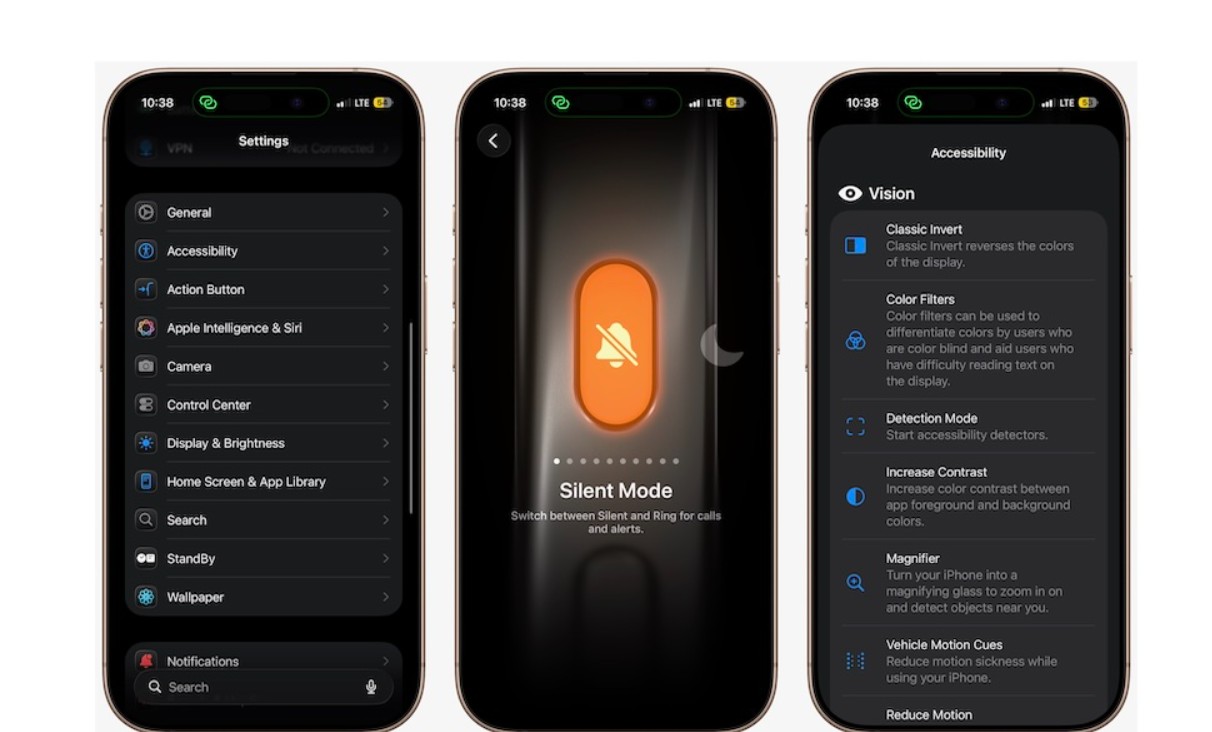
If your iPhone has an Action Button, don’t use it randomly. You can turn it into a smart shortcut for something you use daily, such as launching the camera, flashlight, opening an app, or even activating a specific mode. With the Shortcuts app, you can even make it perform more than one task depending on the time or location. To customize the Action Button, do the following:
◉ Open the Settings app.
◉ Scroll down and tap on Action Button.
◉ Browse the available options.
◉ Then choose the action you want.
Control Your Time Without Deleting Apps
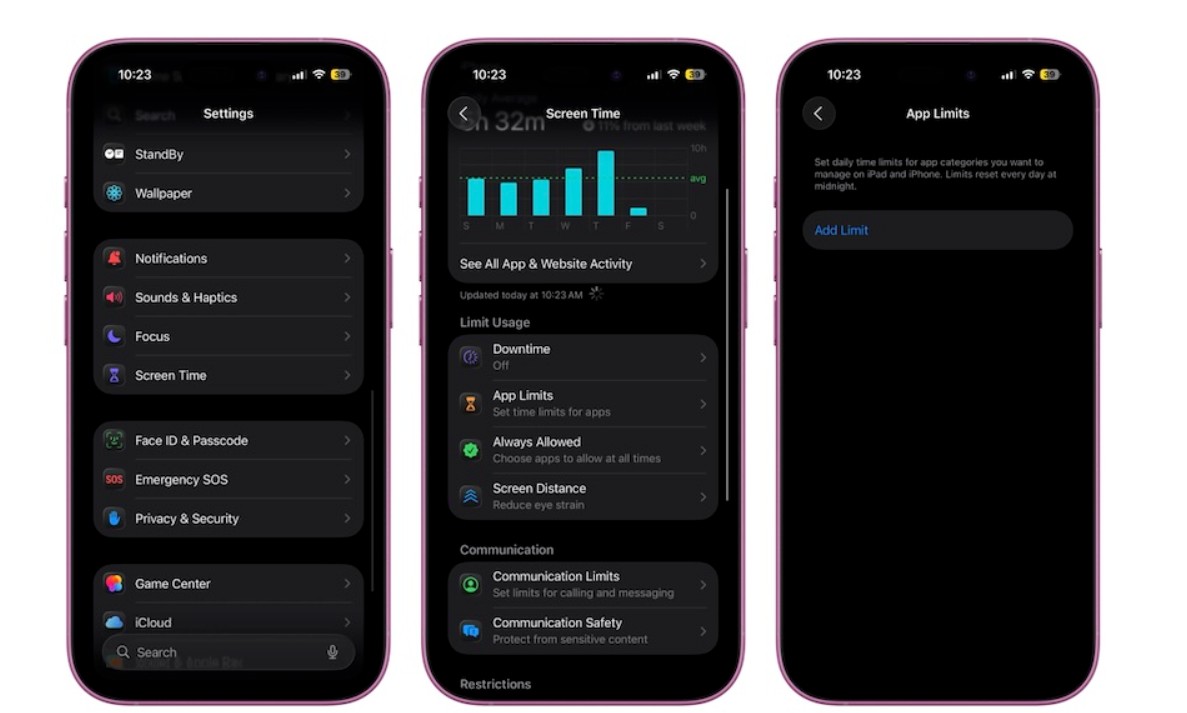
Instead of deleting apps that drain your time, you can control them intelligently via the Screen Time feature. All you have to do is set a daily time for each app, and once that limit is reached, it will be automatically paused. This way, you maintain your focus and reduce distractions without having to resort to the traditional solution of getting rid of those apps entirely. Here are the steps to turn on Screen Time:
◉ Go to Settings.
◉ Scroll down and tap on Screen Time.
◉ Go to App Limits.
◉ Tap on Add Limit.
◉ Choose a single app or an entire category.
◉ Then tap Next.
◉ Set a daily time limit.
Use Drag and Drop Professionally
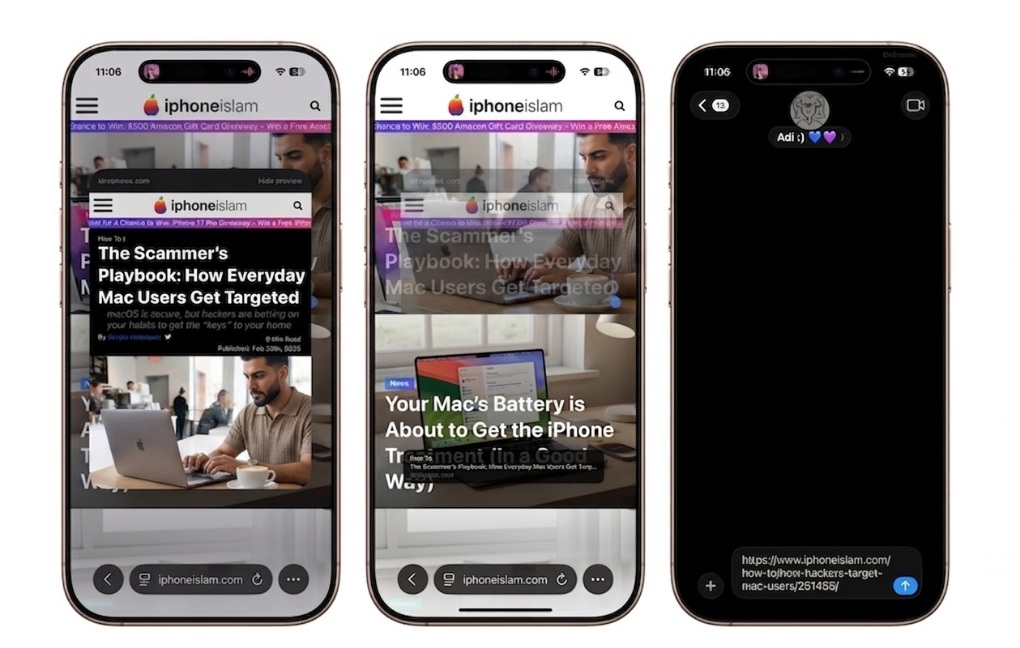
Drag and drop is a feature that doesn’t get enough attention on the iPhone, perhaps because it seems closer to what we are used to on other devices like the iPad and Mac. However, the phone allows you to move photos, files, and even emails between apps easily via drag and drop, without needing to use the traditional share option. Of course, you will need some time to get used to using this feature, but once you master it, you will notice a clear difference in speed and ease of use. To try the drag and drop feature, do the following:
◉ Long-press on the photo or file.
◉ While pressing, drag it slightly to the left or right until you feel a vibration and see the item moving with your finger.
◉ Keep pressing.
◉ Use another finger to switch between apps.
◉ Drop the item where you want it.
Copy Text from Any Photo
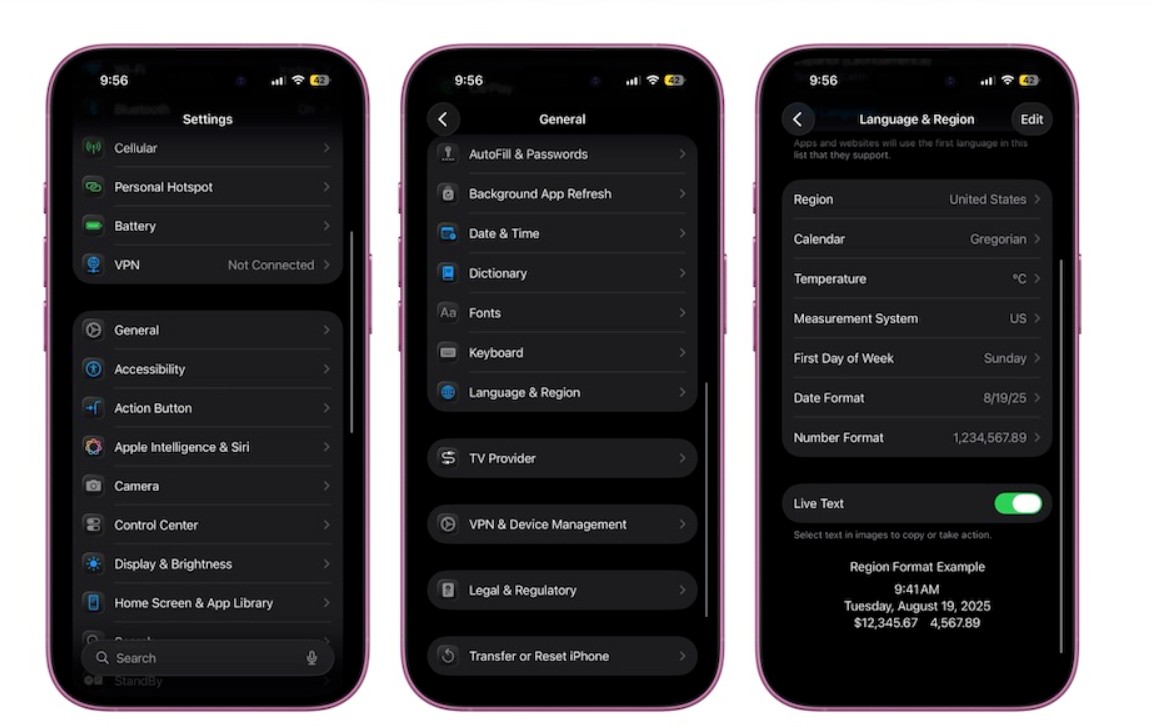
Stop typing phone numbers from cards manually. The Live Text feature allows you to interact with text inside photos as if it were typed text. You can copy a password from a sticker or translate a menu just by pointing the camera or opening the photo. Live Text should be enabled by default. If it is not, you can go to Settings > General > Language & Region and enable it manually. After that, open the photo then long-press on the text in the photo, as if it were normal text, then tap “Copy”, “Look Up”, “Share”, or any other option.
Use Spotlight as Your Main Search Tool
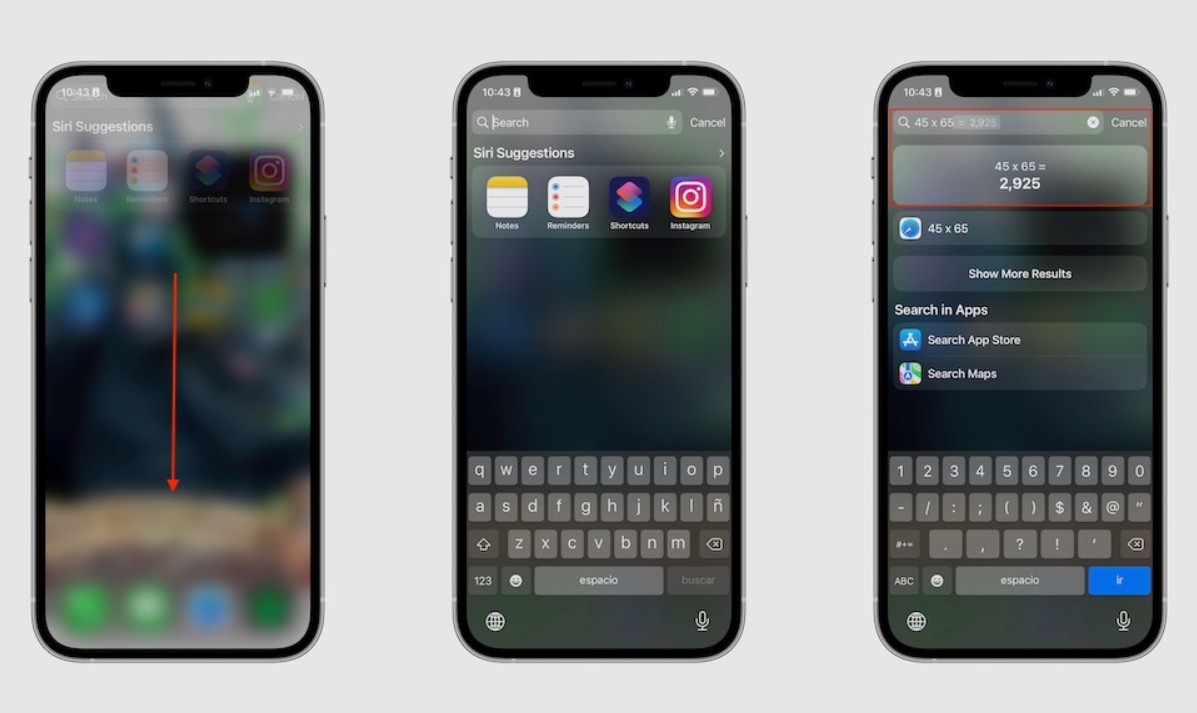
Searching on the iPhone is not just for finding a missing app. The Spotlight engine (which Apple calls Search) is a comprehensive tool; you can rely on it not only to find your apps, but it can also find contacts, messages, files, settings, and even content within apps. Furthermore, you can even type the name of a place or a person, and the iPhone will show you the photos you have of them.
Goodbye to Third-Party Scanner Apps
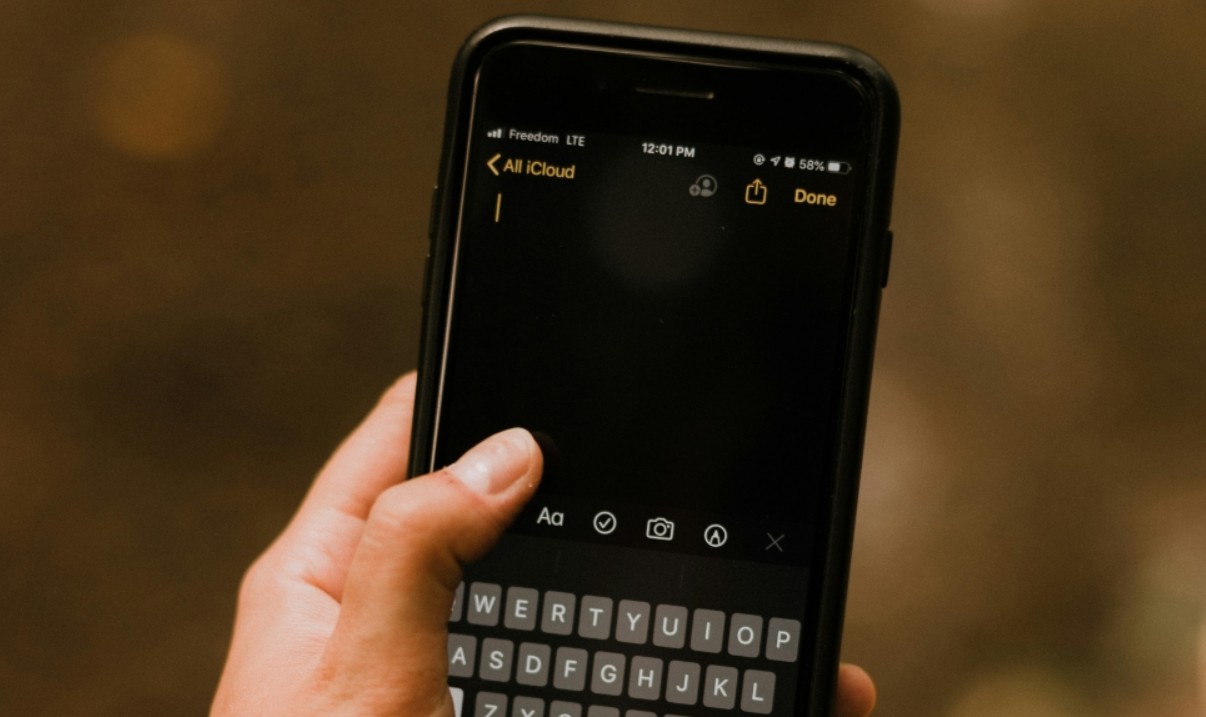
Don’t fill your phone’s memory with third-party “Scanner” apps. Why? Because the built-in Notes app has a professional scanner that flattens papers, removes shadows, and converts them into high-quality PDFs in seconds. It is the hidden treasure that saves you from installing external apps or paying additional subscriptions. Here is how to use the scanner on the iPhone:
◉ Open the Notes app.
◉ Create a new note or open any note you want.
◉ Tap the paperclip icon at the bottom of the screen.
◉ Tap Scan Documents.
◉ Capture the document and save it.
Undo Typing with a Simple Gesture
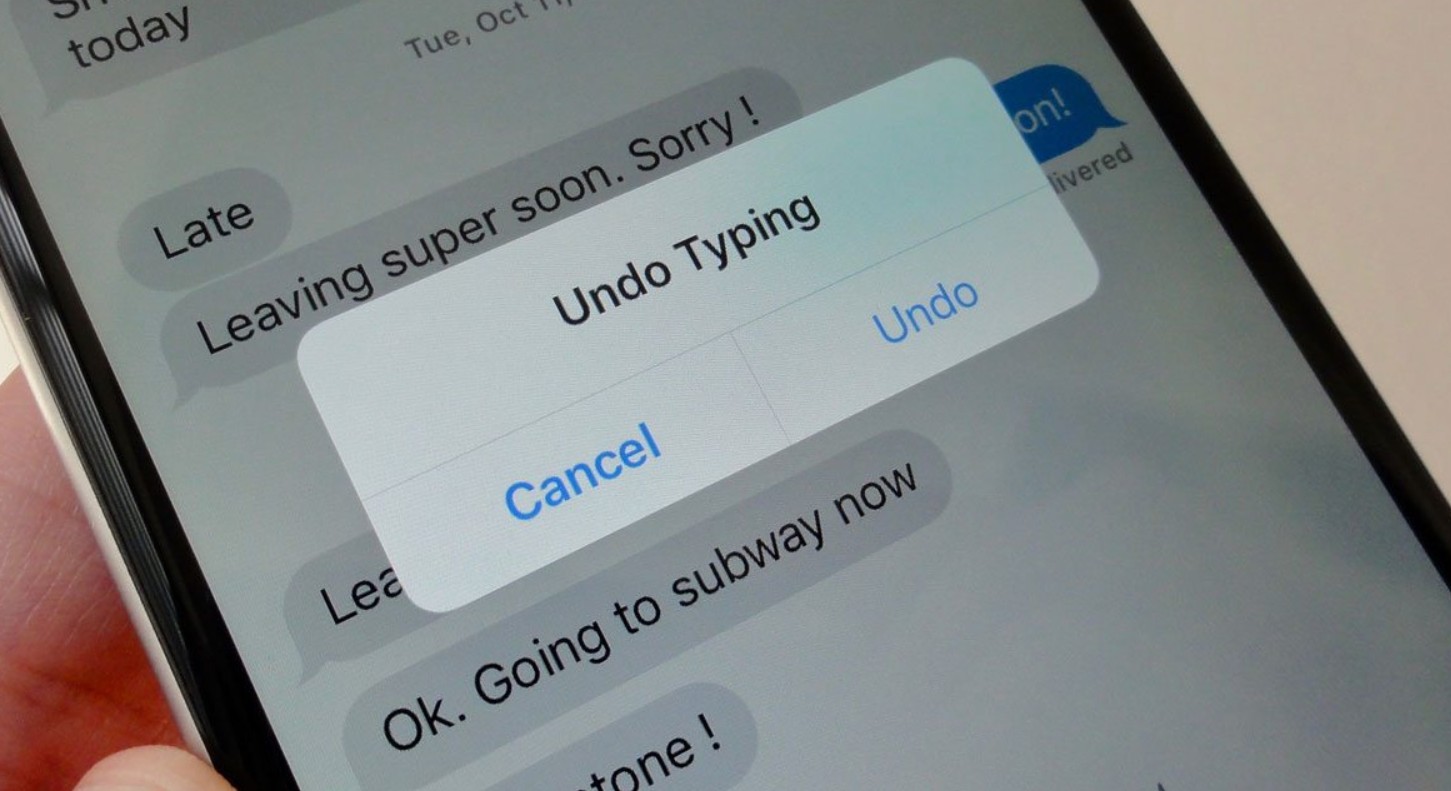
The undo typing feature has been available on the iPhone for years, but many still rely on the shake-to-undo method. It is true that it is useful, but perhaps there is an easier way, which is swiping with three fingers. To undo the last step you took, place three fingers on the screen and swipe them to the left. And if you want to redo what was undone, just move three fingers in the opposite direction to the right.
Share Wi-Fi Password in Seconds
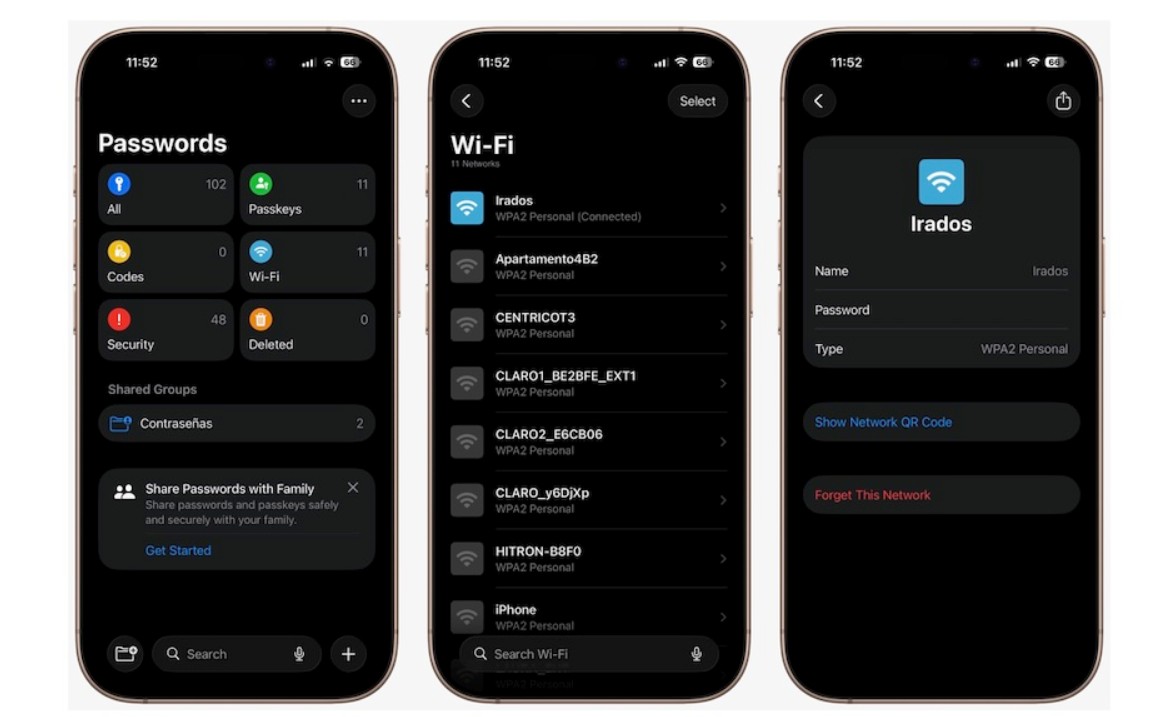
The Wi-Fi sharing feature on the iPhone is one of the smart tricks that saves a lot of time. Instead of typing the password, you can share it automatically with any Apple device near you within seconds in two ways: either via a QR code from password settings or directly when the two devices are close with Wi-Fi and Bluetooth enabled, so an instant sharing window appears and connection is made immediately without any complexity.
Hide Your Email
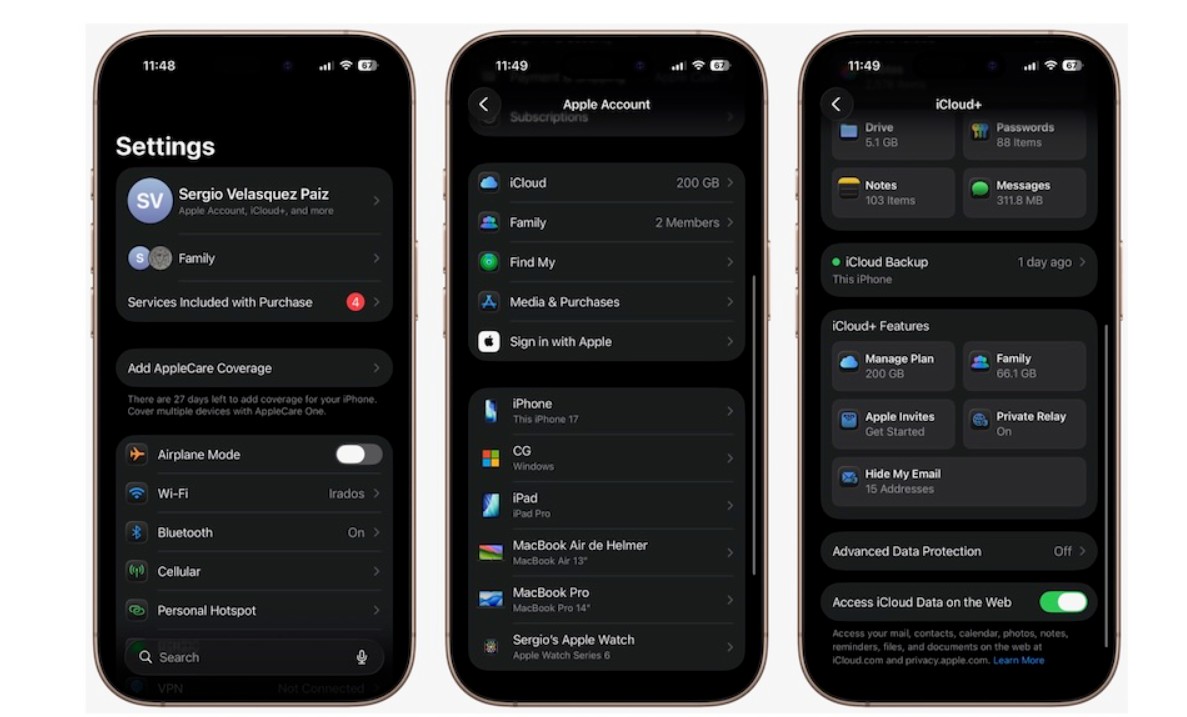
Privacy is the essence of the iPhone. Via iCloud+, you can create fake emails when signing up for sites you don’t trust. Messages will arrive in your real inbox, but the site will never know your original address. And if the site starts sending spam? You can simply cancel that fake address with one click.
We have reached the end of our article after learning about a comprehensive guide that explains 9 iPhone secrets that will save your time and enhance productivity smoothly and quickly. Start today by trying one or two features, and over time you will discover that your phone has become smarter, because you have become more professional in using it.
Have you tried one of these iPhone secrets? Tell us in the comments which feature surprised you the most, or share another trick you know!
Source:

1 comment