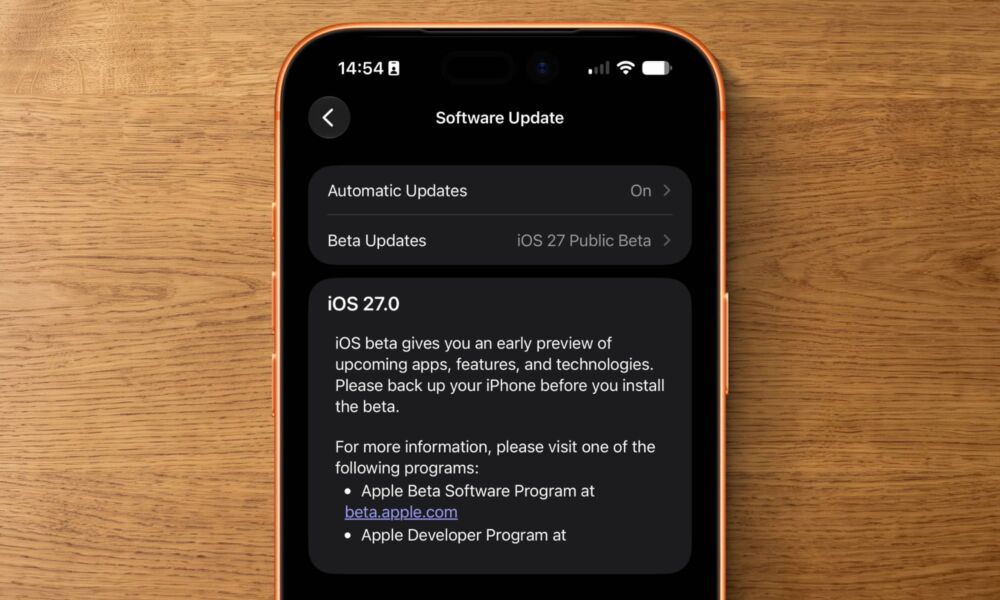
If iOS 26 introduced one of the biggest visual changes to the iPhone in years with the “Liquid Glass” design, Apple is taking a more focused approach in iOS 27 to refine the look and improve performance. Apple is also giving Apple Intelligence a much larger role throughout the entire operating system. Although the final version has not been released yet, the public beta is available for the adventurous and runs surprisingly smoothly.
Whether you have already installed the beta on your iPhone or are still considering it, there are plenty of new and fun things you can do right now.
1. Edit photos with professional AI tools
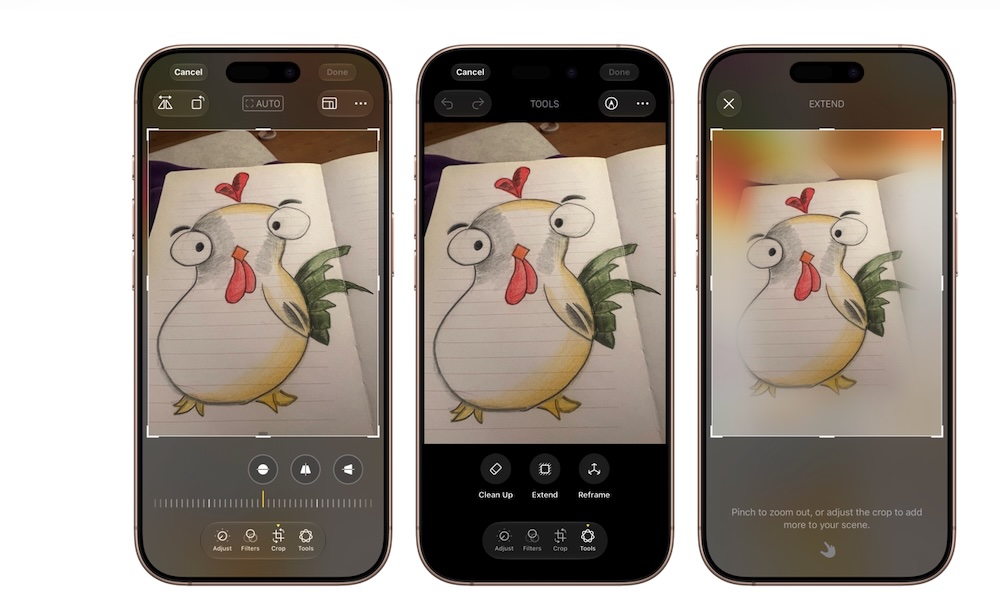
Since the introduction of the Clean Up tool, the Photos app has been constantly evolving. Now, iOS 27 expands AI photo editing capabilities by improving the accuracy of the Clean Up tool and adding more powerful tools to change the composition of a shot after it has been taken.
The Extend tool allows for generating extra space around the edges of an image, which is excellent if the original shot was cropped too tightly. Meanwhile, the Reframe tool allows you to change the perspective angle as if the photo were taken from the side instead of head-on. You can try this by opening the Photos app, selecting Edit, then Tools, and choosing the appropriate tool for the AI to process.
2. Monitor web pages via the Notify Me feature in Safari
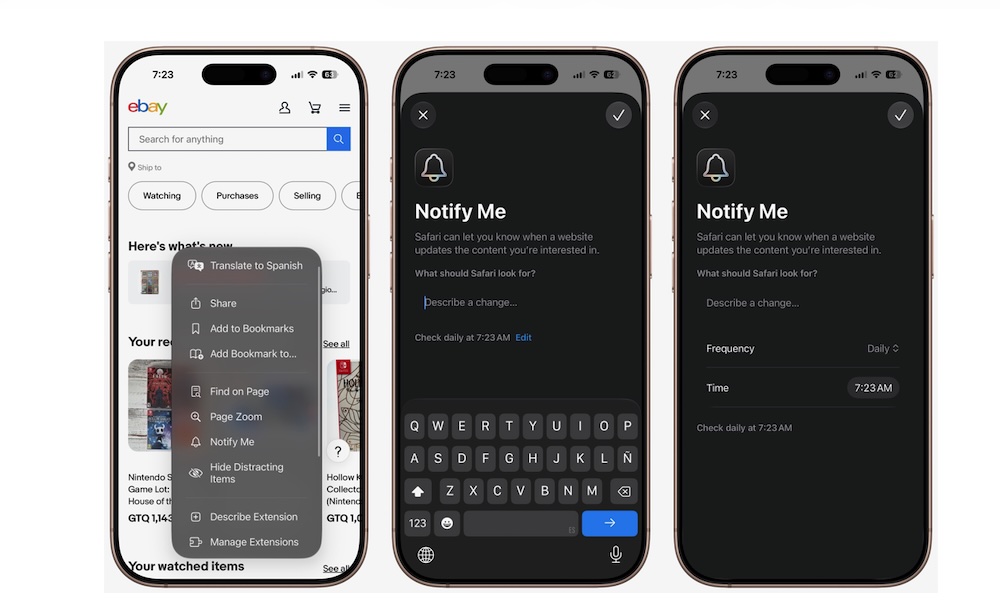
How many times have you found yourself refreshing a web page over and over, waiting for concert tickets or a specific product to become available? Constant website monitoring can be exhausting, but iOS 27 solves this problem via the Safari browser.
The Notify Me feature can monitor supported pages and send an alert as soon as the change you are waiting for occurs. All you have to do is open the page in Safari, tap the page menu to the left of the address bar, select Notify Me, and specify the change and the desired check frequency.
3. Automatically fix insecure passwords
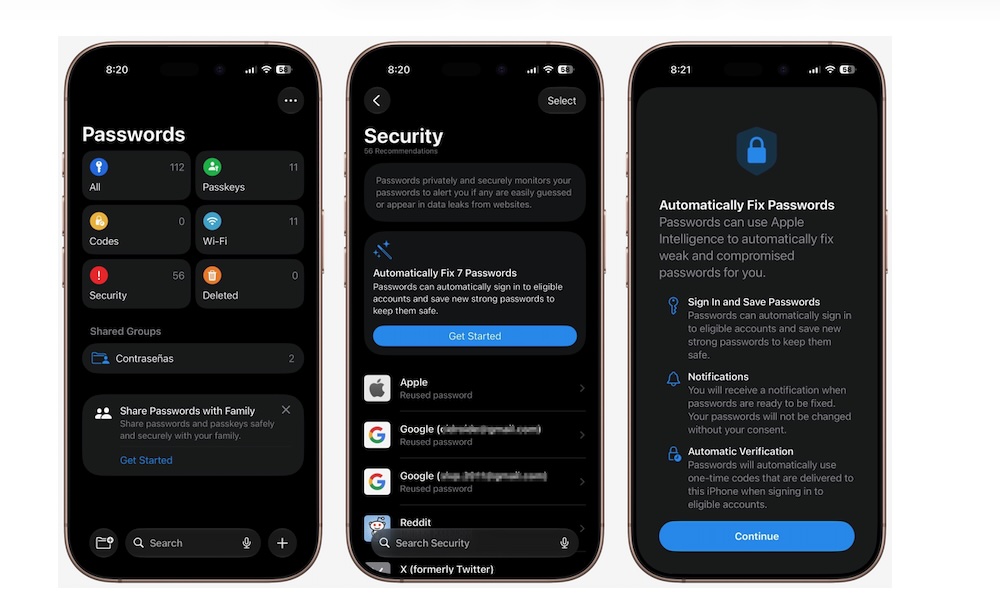
The Passwords app always warns you about compromised accounts or weak passwords, but responding to those warnings requires visiting each site and changing the password manually, which often leads you to postpone the process.
In iOS 27, the Passwords app can now update insecure credentials on your behalf on supported sites. You can select an insecure password and allow the app to make the change and save the new, strong password automatically with a single tap.
4. Create shortcuts via direct text description
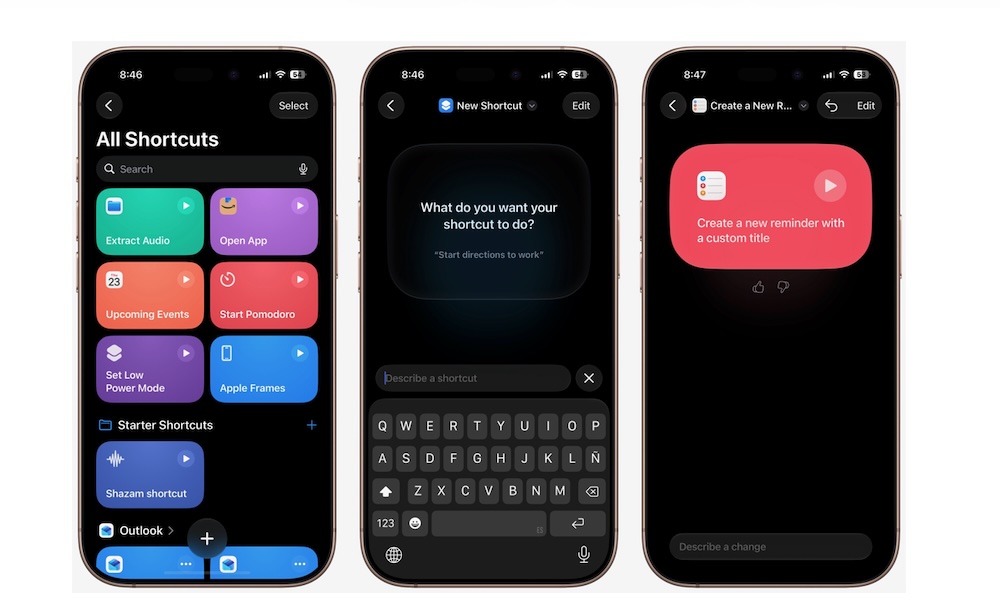
The Shortcuts app is one of the most powerful built-in apps on the iPhone, but building a complex workflow used to require some technical knowledge. What is exciting about iOS 27 is the ability to describe the shortcut you want to build in simple, natural language.
Apple Intelligence automatically assembles the required steps and actions from various apps. You can request a shortcut that starts a timer and opens a writing app, or a shortcut that saves specific photos to a designated folder, then review the result and test it before saving.
5. Customize the Liquid Glass appearance
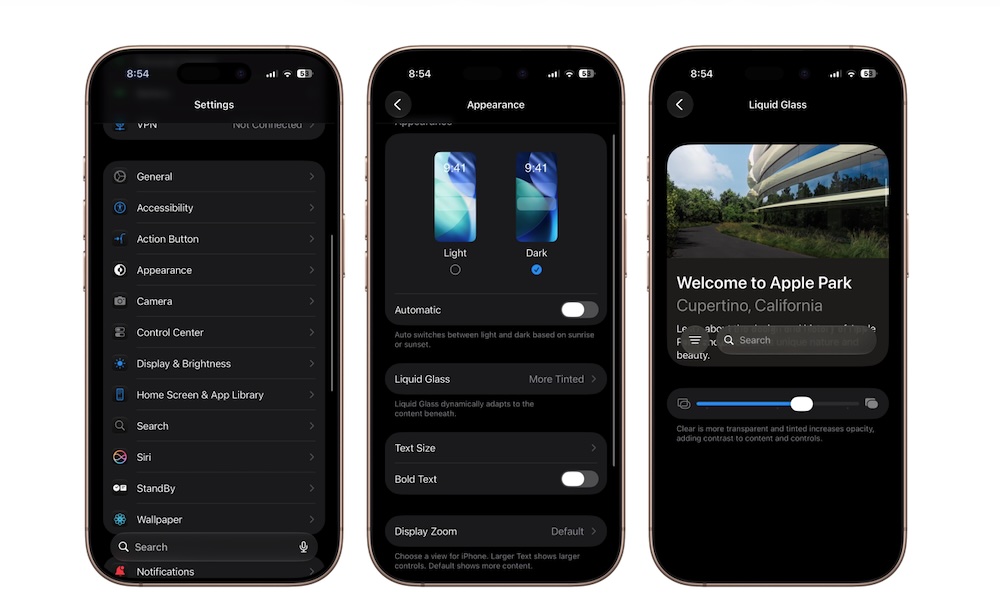
The Liquid Glass design in iOS 26 provided a transparent and attractive look, but some users found it difficult to read or deal with the contrast. iOS 27 addresses this by adding a dedicated control bar for the interface appearance.
By going to Settings, then Appearance, then Liquid Glass, you can move the slider toward “Clear” to maintain the glass look, or toward “Tinted” to increase contrast and opacity to suit your taste and eye comfort.
Source:

Leave a Reply