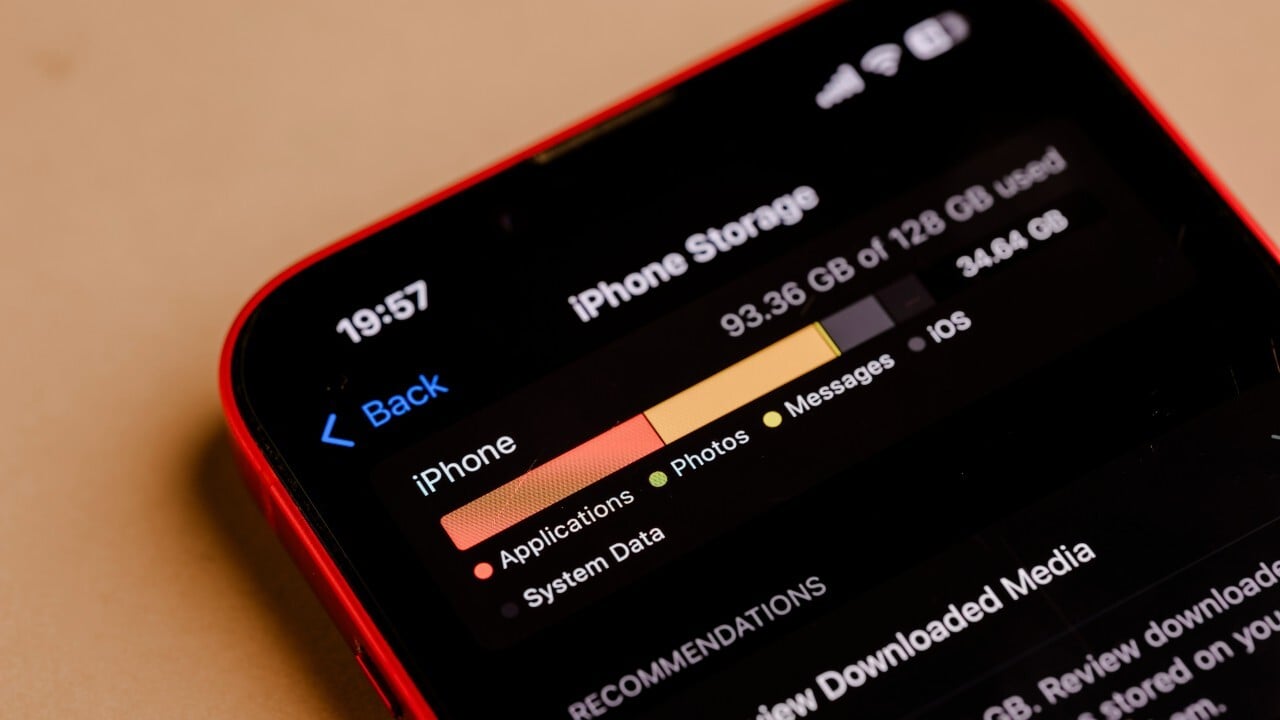
Over time, you may notice that the storage space on your iPhone is running out quickly, even though you have deleted many photos or apps. This is often due to cached files, data, and deleted items that are still stored within some apps in hidden folders or in the “Recently Deleted” section. This consumes a large portion of your device’s available space, causing the performance to feel slower and your phone to stop running as smoothly as it once did. If you are facing this problem, don’t worry, as we will explore in the following lines how to find junk files in iPhone apps and how to delete them permanently.
Delete App Cache Data
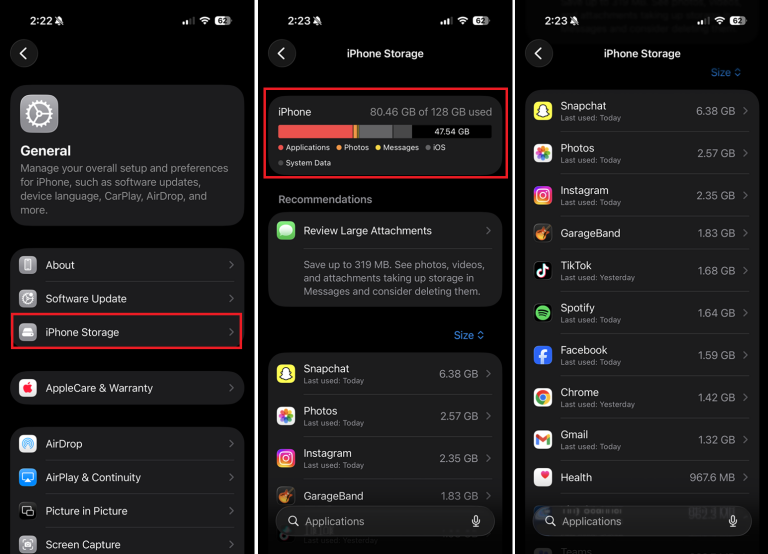
Many apps keep temporary files to speed up their operation, but this data can accumulate over time and consume a significant amount of storage. To see which apps are using the most space, go to:
- Settings > General > iPhone Storage
After that, check the size of each app. If you notice that an app is taking up a lot of space due to temporary data, you can delete it and then reinstall it, which often gets rid of cache files without affecting most of the account data associated with it.
Furthermore, you can delete personalized recommendation data for the App Store via:
- Going to Settings > App Store > Personalized Recommendations
This way, you will be able to delete any data or files you don’t need from your device, which will free up space and speed up your iPhone’s performance.
Manage Safari Data
The Safari browser keeps browsing history, cookies, and data from websites you visit frequently, which leads to consuming extra space over time.
To delete this data all at once, do the following:
- Go to Settings > Safari > Clear History and Website Data
If you only want to delete data for specific websites, go to:
- Settings > Safari > Advanced > Website Data
Then delete the data for the sites you no longer need.
These steps help save storage space on your iPhone, as well as enhance privacy and improve browser performance.
Empty the Email Trash
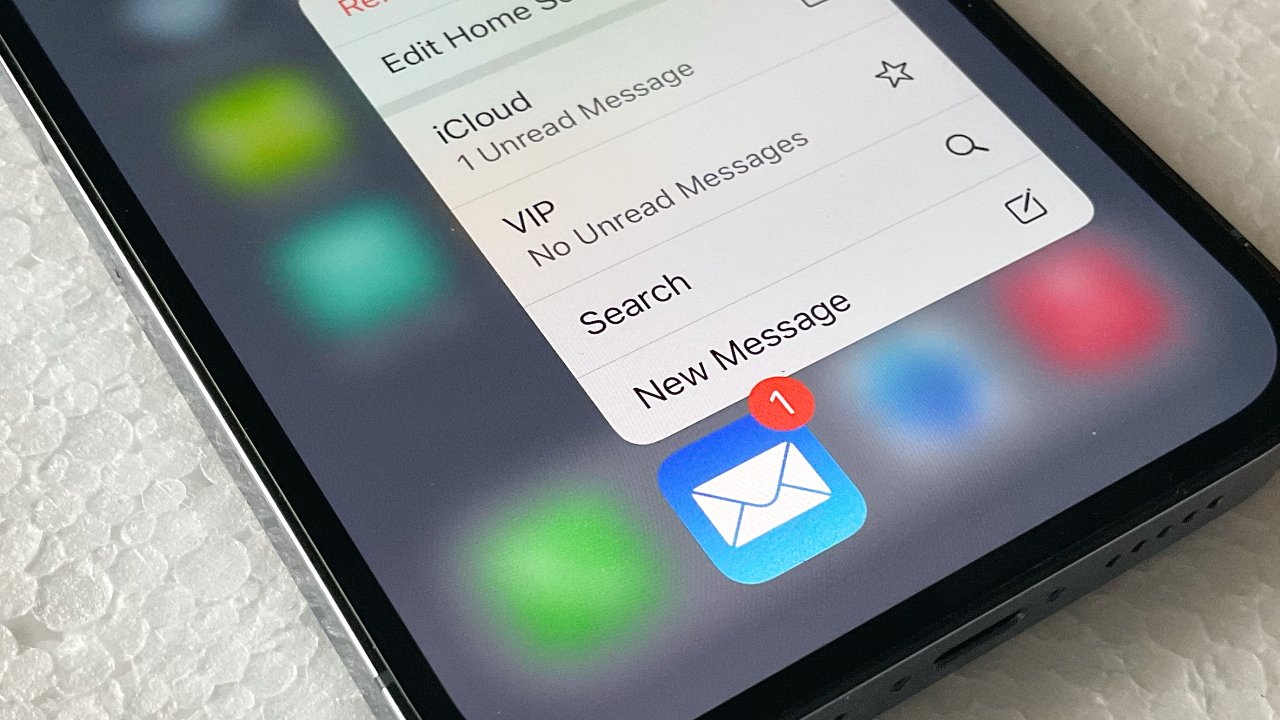
Many iPhone users think that deleting emails is enough to get rid of them, but messages first move to the Trash folder and remain saved for a while before being permanently deleted.
Therefore, you need to open the Mail app, go to the Trash folder, and delete the messages permanently, while also reviewing large attachments you no longer need, as they may be consuming storage space without you noticing.
Delete Attachments in iMessage
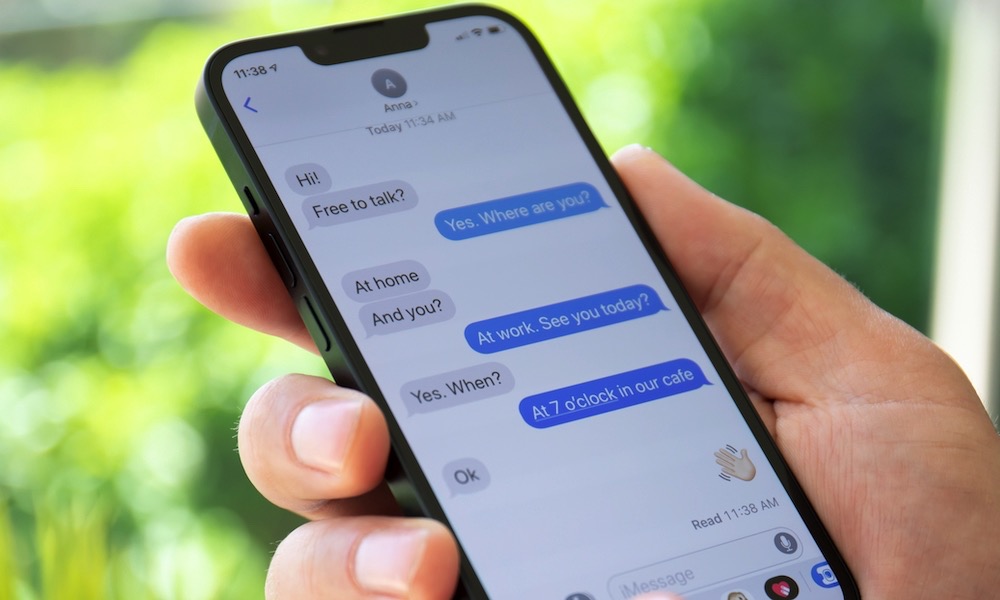
Photos, videos, and files exchanged via the Messages app can take up several gigabytes of storage space, and even after deleting them, they remain in the “Recently Deleted” folder for up to 30 days.
To free up this space, open Messages settings, then go to the “Recently Deleted” section and delete the files permanently instead of waiting for them to be deleted automatically.
Don’t Forget the Recently Deleted Folder
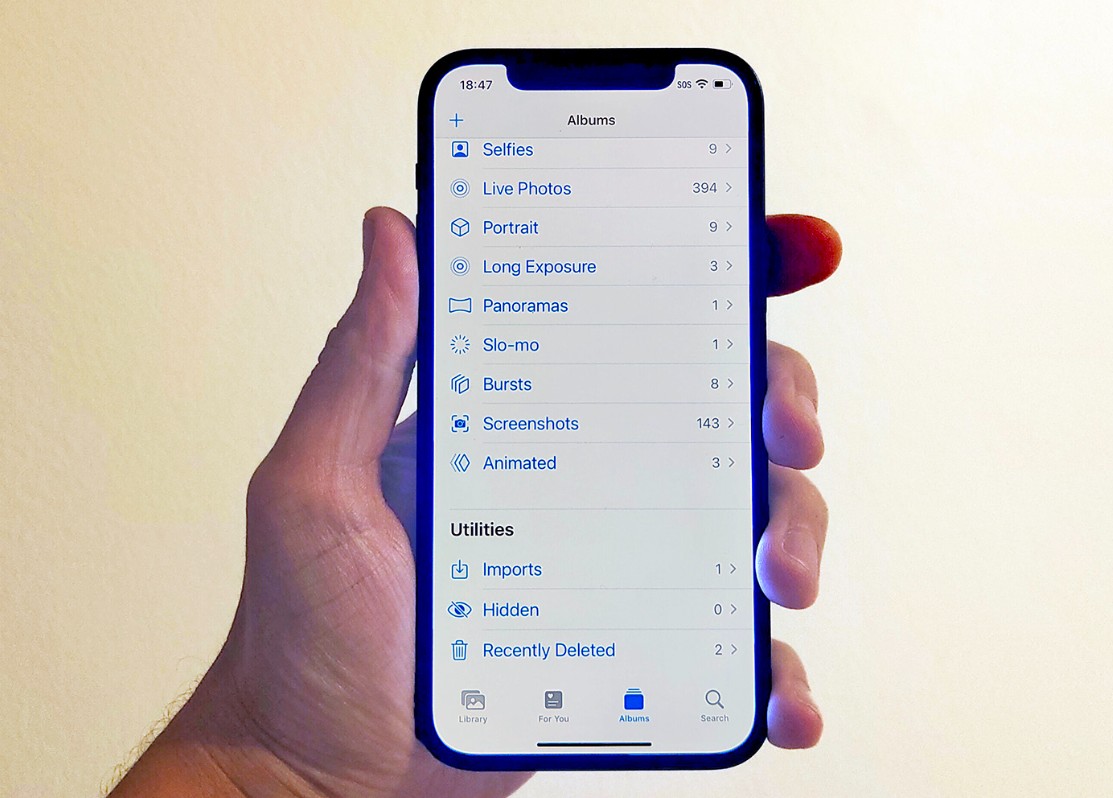
Many apps like Photos, Notes, and Voice Memos rely on “Recently Deleted” folders, which keep files before they are permanently removed. Although these files appear deleted, they continue to consume storage space until you remove them manually.
Therefore, you need to open each app, go to the “Recently Deleted” folder, and get rid of the files you do not wish to restore.
Offload Unused Apps
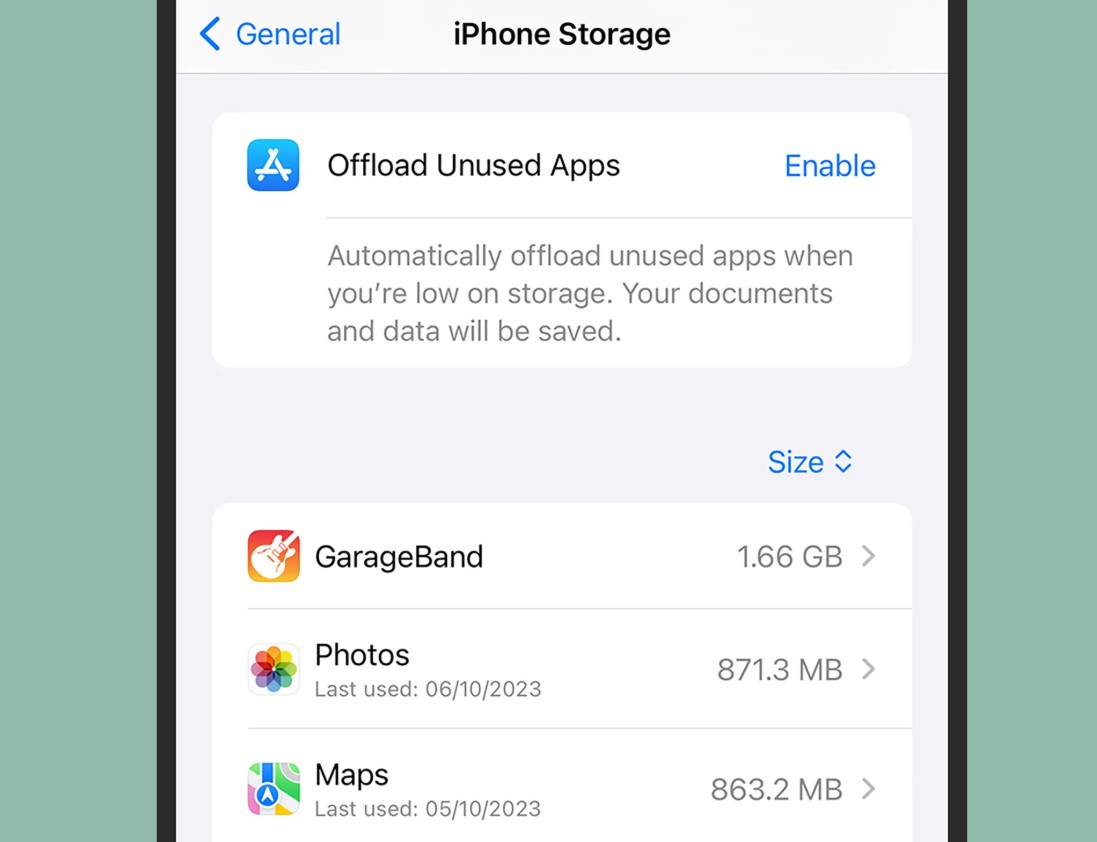
If you have apps that you don’t use often but don’t want to lose their data, take advantage of the “Offload App” feature. This feature removes the app from the iPhone while keeping all its data and settings, so you can reinstall it later without starting from scratch. To enable the feature, go to:
- Settings > General > iPhone Storage
- Then select the app and tap “Offload App.”
Move Your Files to iCloud
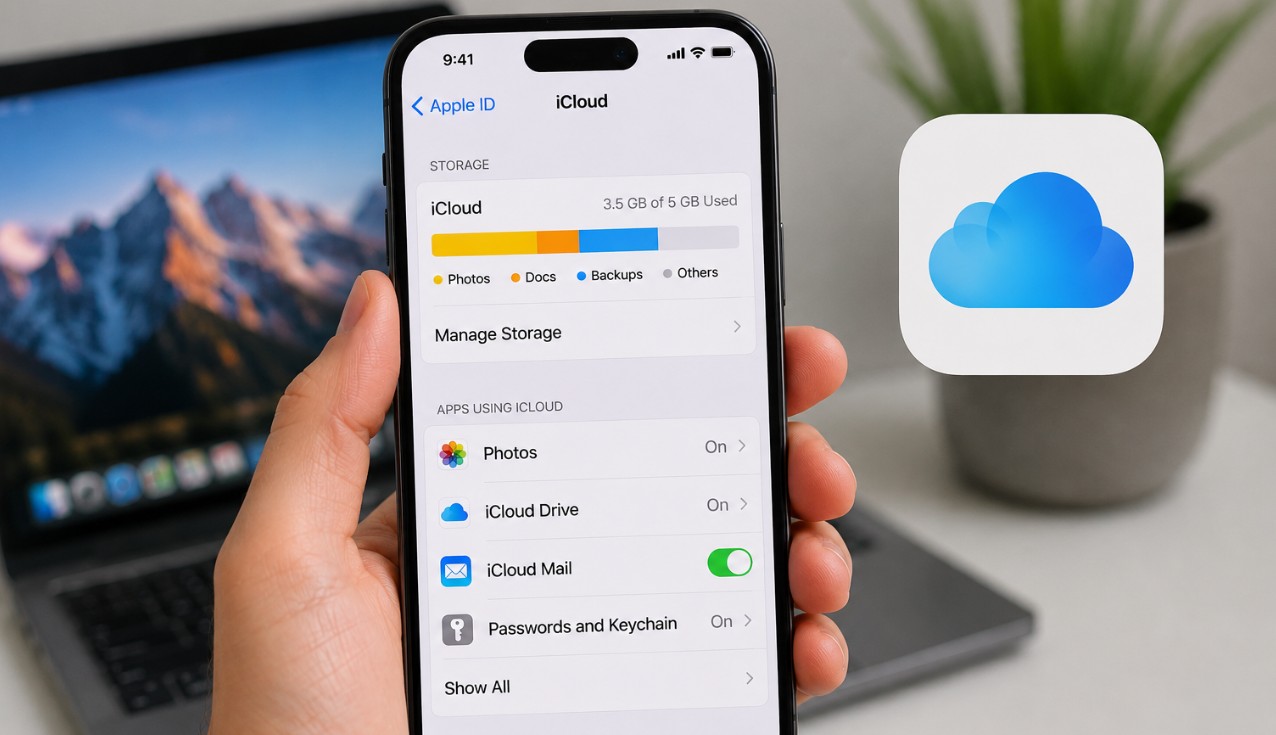
If photos and videos are taking up most of your iPhone’s space, iCloud might be the perfect solution. Once you enable iCloud Photos, the original versions are kept in the cloud, while the phone keeps smaller, optimized versions, which saves a lot of space without losing access to your files. You can also use iCloud Drive to store documents and files instead of keeping them in the phone’s memory.
Clean Your iPhone Periodically
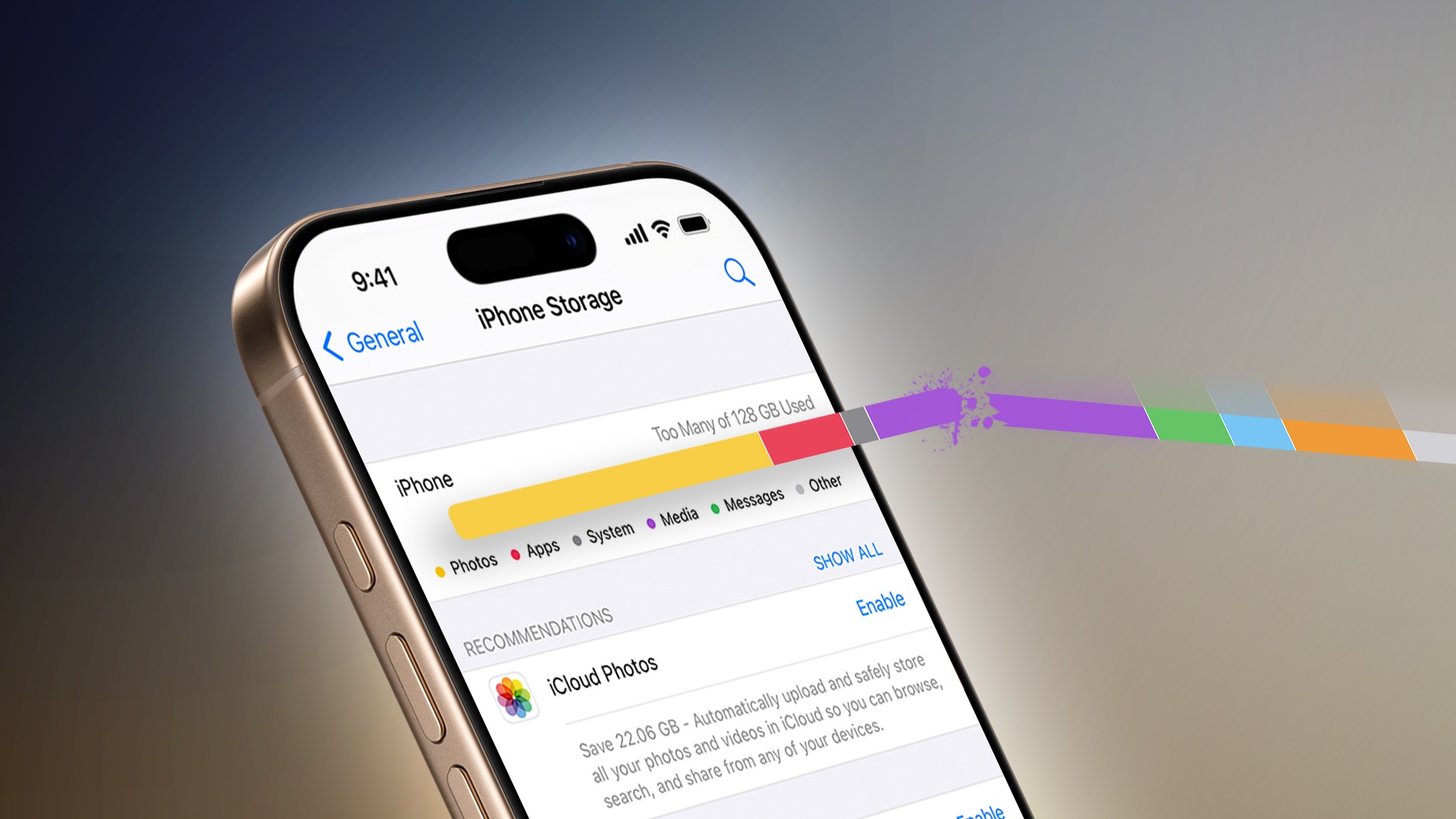
The best way to avoid running out of storage space is to review it regularly. For this, you need to do the following periodically:
- Go to Settings > General > Storage
Check which apps and files are taking up a lot of space, then delete old files, unused apps, and data you no longer need. This process should be done periodically so you can maintain the phone’s speed and stability and prevent “storage full” messages from appearing all the time.
In the end, it can be said that cleaning up storage space on an iPhone is not just about deleting photos or apps; there are many hidden files and temporary data that continue to consume memory without most users noticing. By reviewing “Recently Deleted” folders, cleaning app and browser data, and taking advantage of features like “Offload App” and iCloud, you can reclaim a significant amount of space and keep your phone performing at its best without needing to delete your important files.
What is the first step you will take to save space on your device? Tell us in the comments!
Source:


Post Comment