The iPhone lock screen is no longer just a fleeting interface that displays the time and notifications before entering the system; it has transformed into a comprehensive personal space that reflects your style and gives you quick access to what truly matters to you. After years of adhering to rigid templates, Apple has given users broad freedom to reshape the lock screen, from replacing the bottom shortcuts that remained fixed for years, to formatting fonts and arranging interactive widgets. If you want to turn your phone screen into a productive and aesthetically consistent dashboard, there are essential tools you should start adjusting to completely change your daily usage experience.
Goodbye Accidental Flashlight: Replacing Bottom Shortcut Buttons
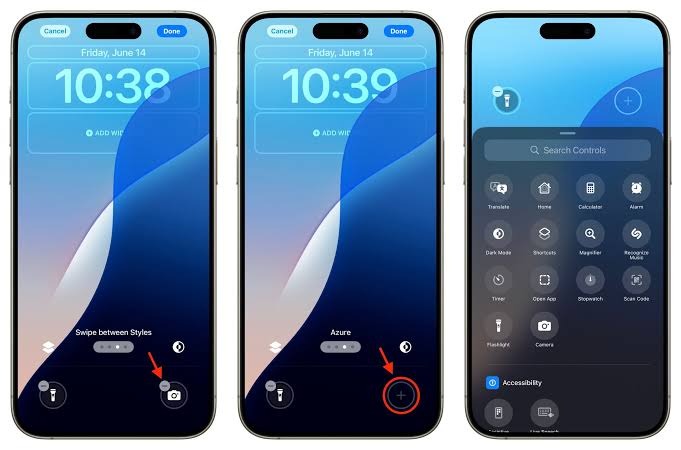
For many years, iPhone users suffered from accidentally turning on the flashlight just by putting the phone in their pocket, or having a camera shortcut when it could be opened just by swiping the screen to the left. Apple has finally provided a practical feature that allows you to remove these two buttons entirely or replace them with any other tools you prefer to access quickly, such as launching the calculator, opening notes, setting a timer, or even running a custom shortcut from the Shortcuts app with a single touch.
To do this, simply long-press on the lock screen, then select customize, press the minus sign to remove the old button, and then tap the plus sign to choose any tool from the list of available controls. This simple step not only avoids embarrassing situations but also puts your most useful system functions right under your thumb without needing to unlock the device.
Clock Redesign: New Fonts and Distinctive Color Gradients
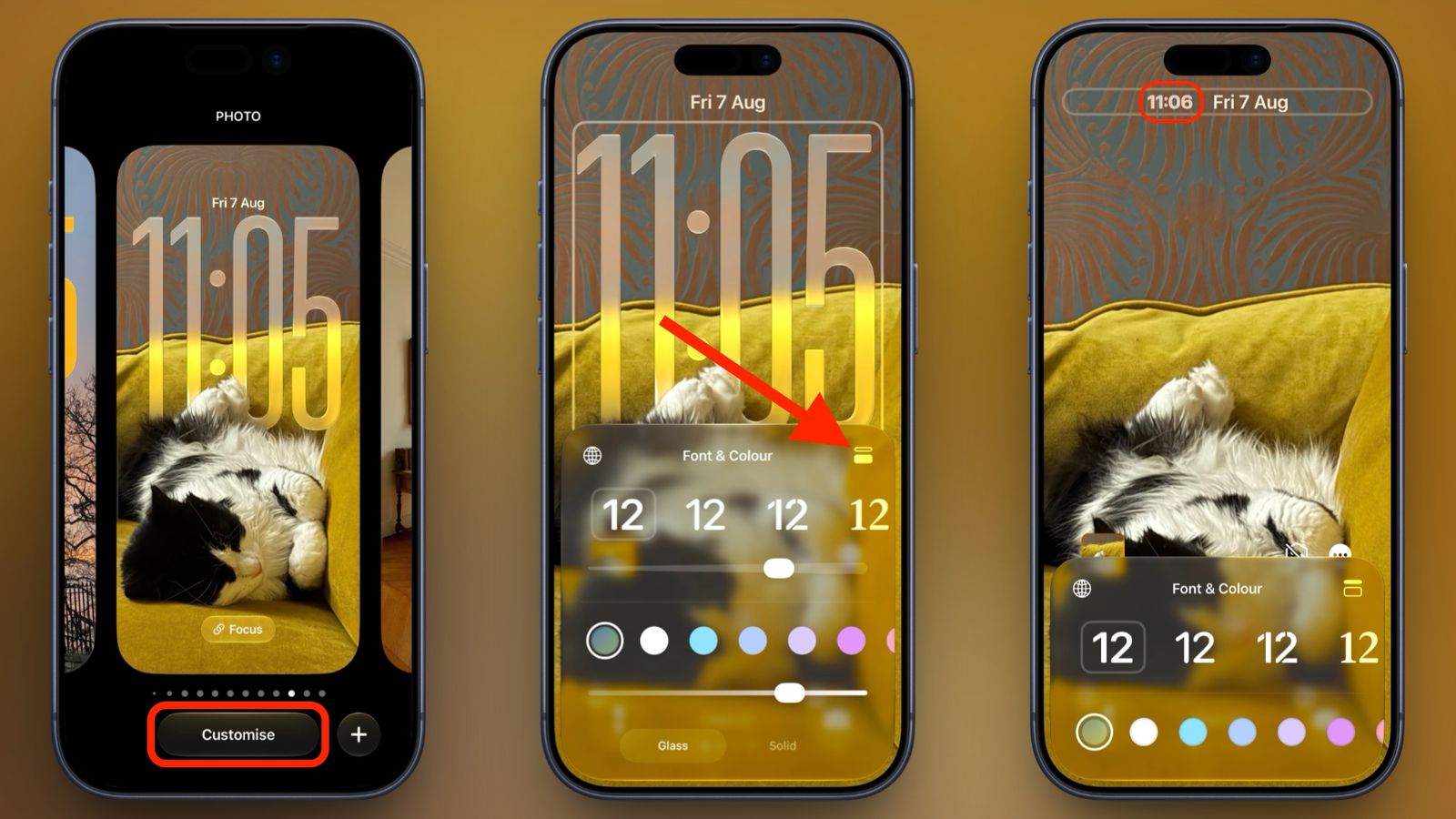
The digital clock is the most prominent visual element on the lock screen, so changing its appearance gives you an immediate impact on the phone’s aesthetic character. The system offers multiple options for adjusting the font style and weight, in addition to an expanded color palette that includes monochromatic colors and gradients that blend harmoniously with the shades of the wallpaper you choose.
By tapping the clock box while in edit mode, you can scroll through various font styles and use the precise slider to control the thickness of the numbers. There is also a smart color matching feature, where the system analyzes the image content and suggests a harmonious color shade that ensures the time is easy to read without negatively affecting your favorite wallpaper.
The World of Widgets: Quick and Concise Information at a Glance
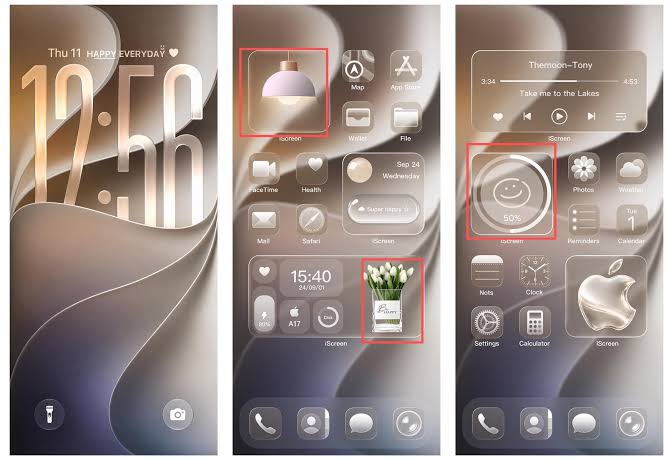
Widgets are the perfect way to make the lock screen a hub for live and useful information. The system allows you to place a full row of widgets below the clock, in addition to the ability to add a small line of text above the clock that combines the date with immediate information such as weather conditions or an upcoming reminder appointment.
These tools vary to include tracking the battery percentage of the Apple Watch and AirPods, monitoring physical activity rings, or keeping up with calendar events and daily tasks. The beauty of these additions is that they are designed to be interactive and light on the processor, which preserves battery life and gives you everything you need without the extra step of opening the phone.
Wallpapers and Depth Effect: 3D Dimensions That Come to Life
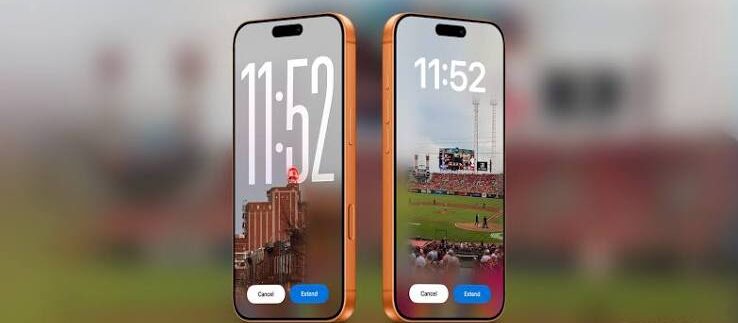
The Depth Effect is one of the most prominent visual touches, as the system employs machine learning algorithms to isolate the main element in the image—whether it is a person, a building, or nature—to appear in front of the clock numbers in an elegant layer that gives a wonderful impression of three-dimensional dimensions.
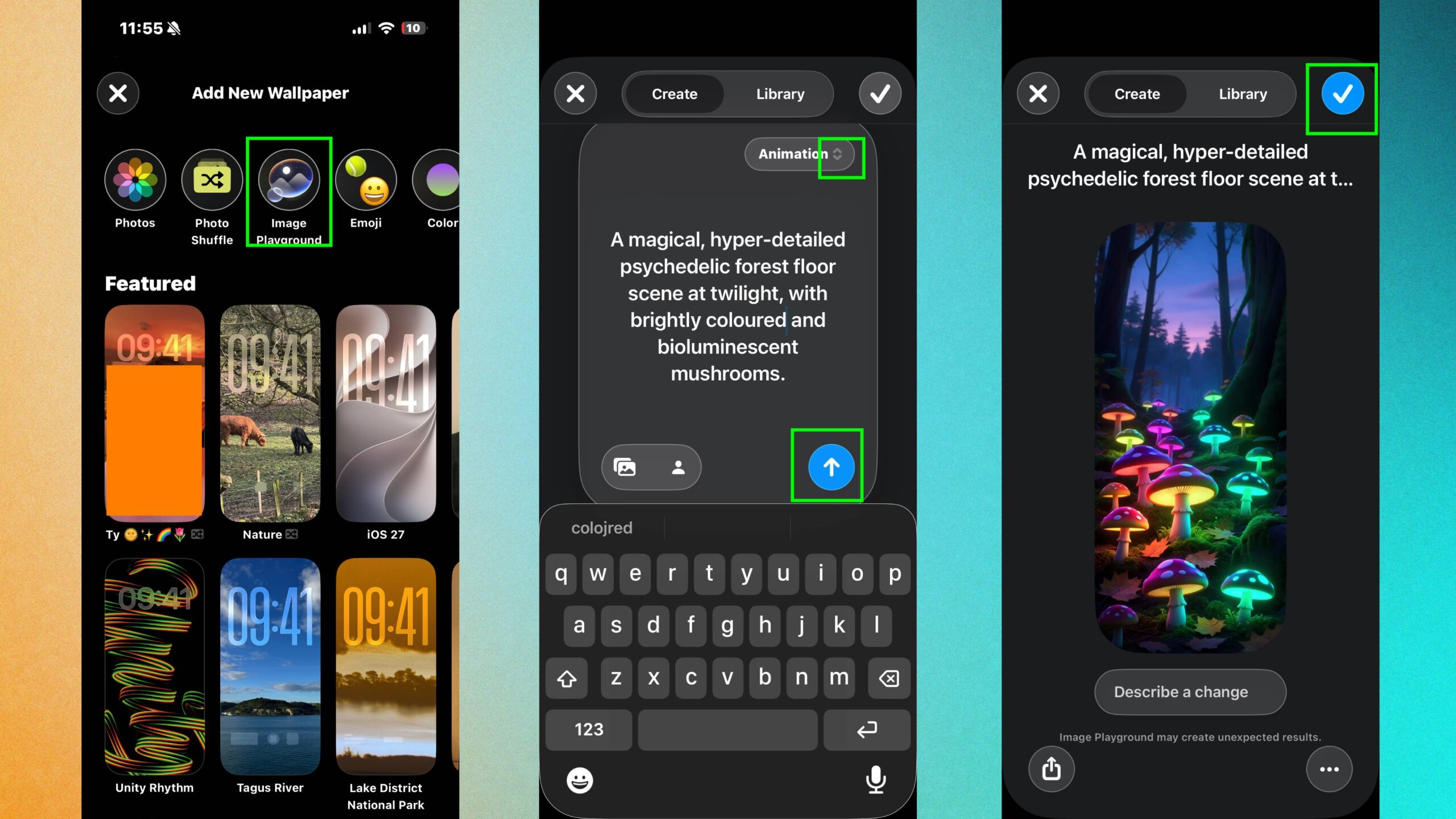
When selecting an image with prominent details, the system automatically activates the depth effect, keeping in mind that adding a row of widgets below the clock may disable the effect to ensure data clarity. You can also take advantage of the automatic photo shuffle feature to display a changing set of photos throughout the day when tapping or with every device lock.
Multiple Lock Screens Linked to Focus Modes
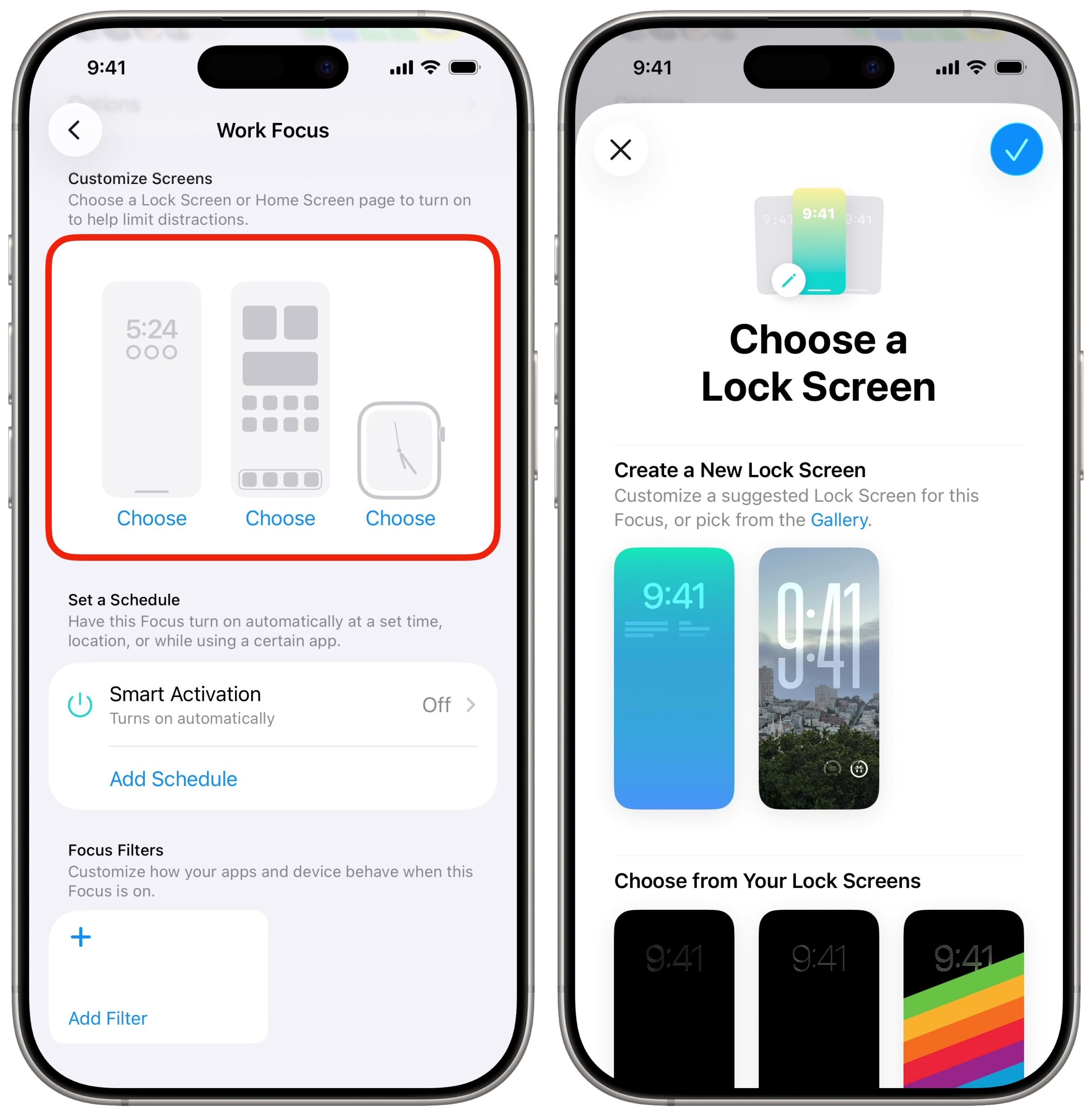
There is no need to settle for a single lock screen for all times of your day, as you can design several custom screens and link each one to a specific Focus Mode to work automatically according to your activity, geographic location, or daily schedule times.
You can, for example, customize a lock screen for work time that displays calendar and task widgets with a calm background, and another screen for evening times adorned with family photos and health and entertainment widgets. This integration between design and system behavior gives the iPhone additional intelligence that adapts seamlessly to your changing lifestyle.
Source:
Leave a Reply