Your internet data plan on your iPhone may run out faster than you expect, even if you don’t spend long hours browsing the internet. Some apps consume data in the background, while other services may continue to update their content or download files automatically without you noticing. The good news is that there are a set of simple settings and tricks that will help you reduce data consumption and thus preserve your plan until the next renewal date.
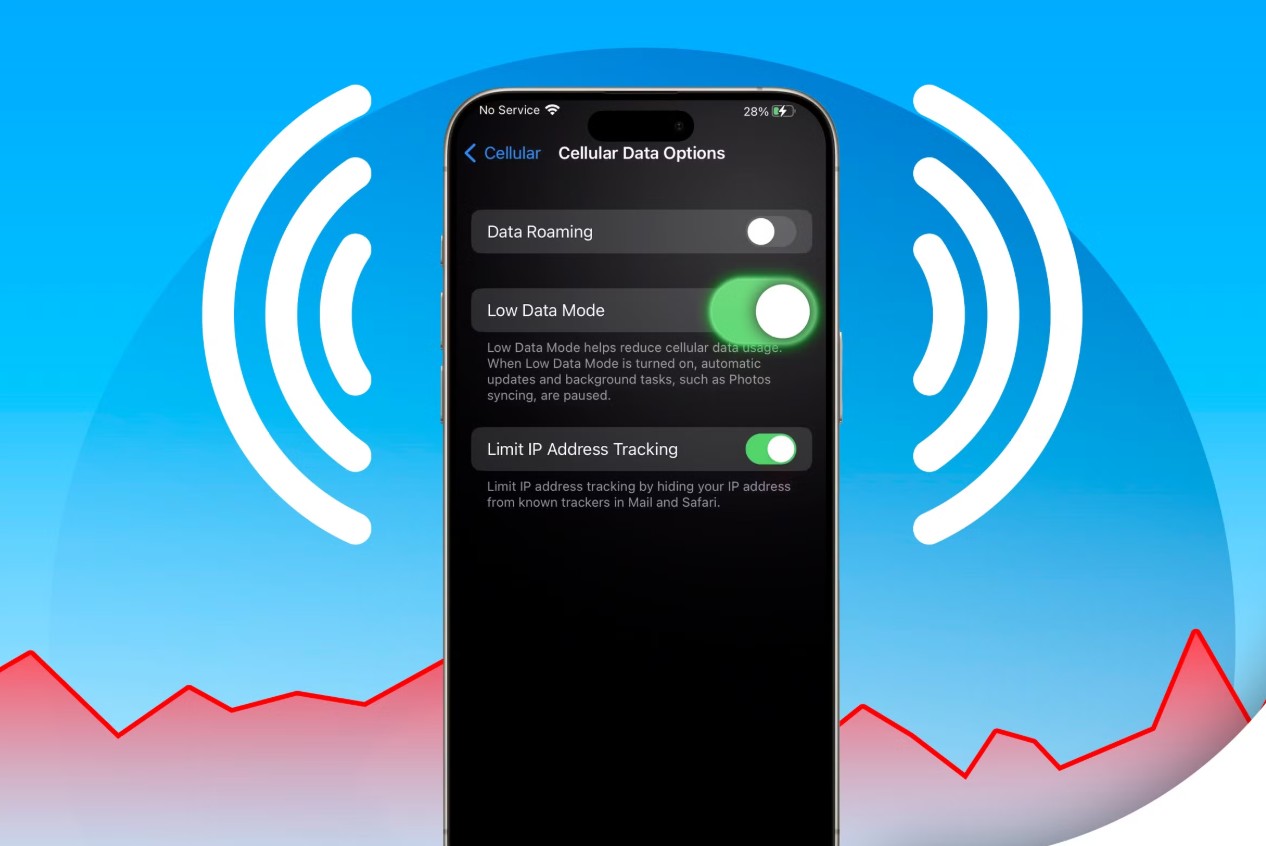
Enable Low Data Mode
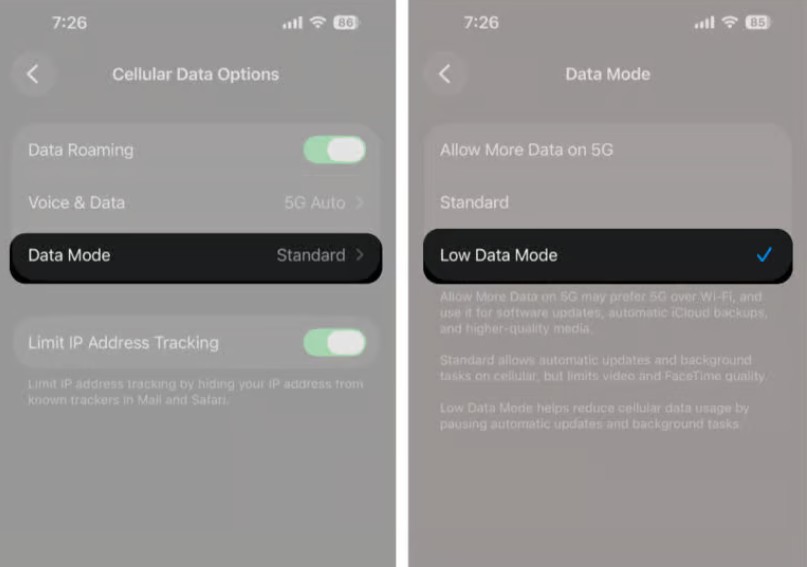
It can be said that this step is one of the easiest ways available to reduce internet consumption on the iPhone. To enable Low Data Mode, go to Settings, then Cellular, and then select the SIM card you want to adjust if you use more than one. The next step is to tap on Data Mode and then enable Low Data Mode. Once Low Data Mode is turned on, your iPhone’s data plan consumption will be reduced by lowering the quality of video streaming and FaceTime calls, in addition to pausing automatic updates and backups. The refresh rate of content within apps will also be reduced.
Disable Background App Refresh
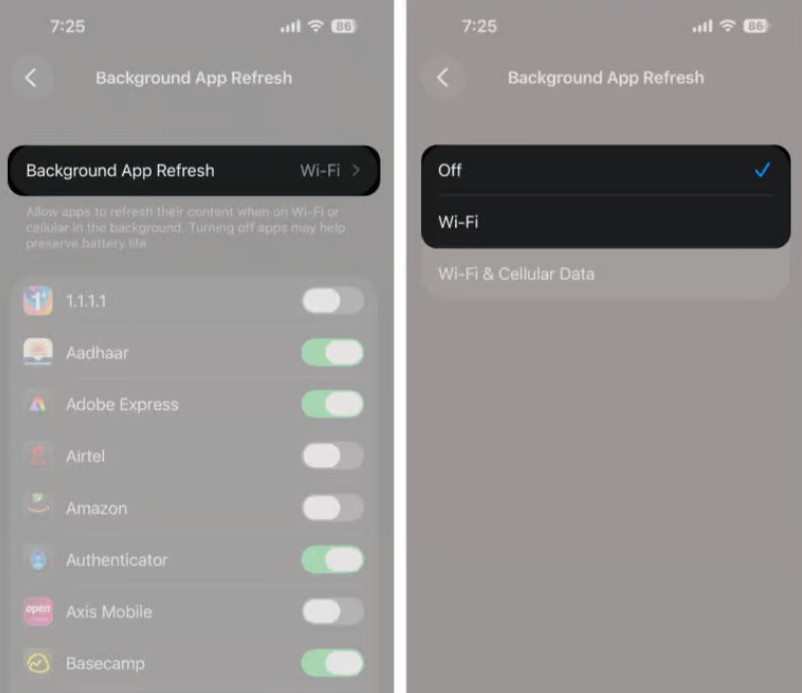
Not all apps need to update their content constantly while you are not using them, so you can disable this feature for apps that you do not need to keep track of in real-time. To turn off Background App Refresh, go to Settings, then General, and then Background App Refresh. Turn this option off while using cellular data, and you can allow apps to update only when the device is connected to Wi-Fi.
Note: If you have activated Low Data Mode, it will automatically disable the Background App Refresh feature.
Prevent Apps from Eating Up Your Data
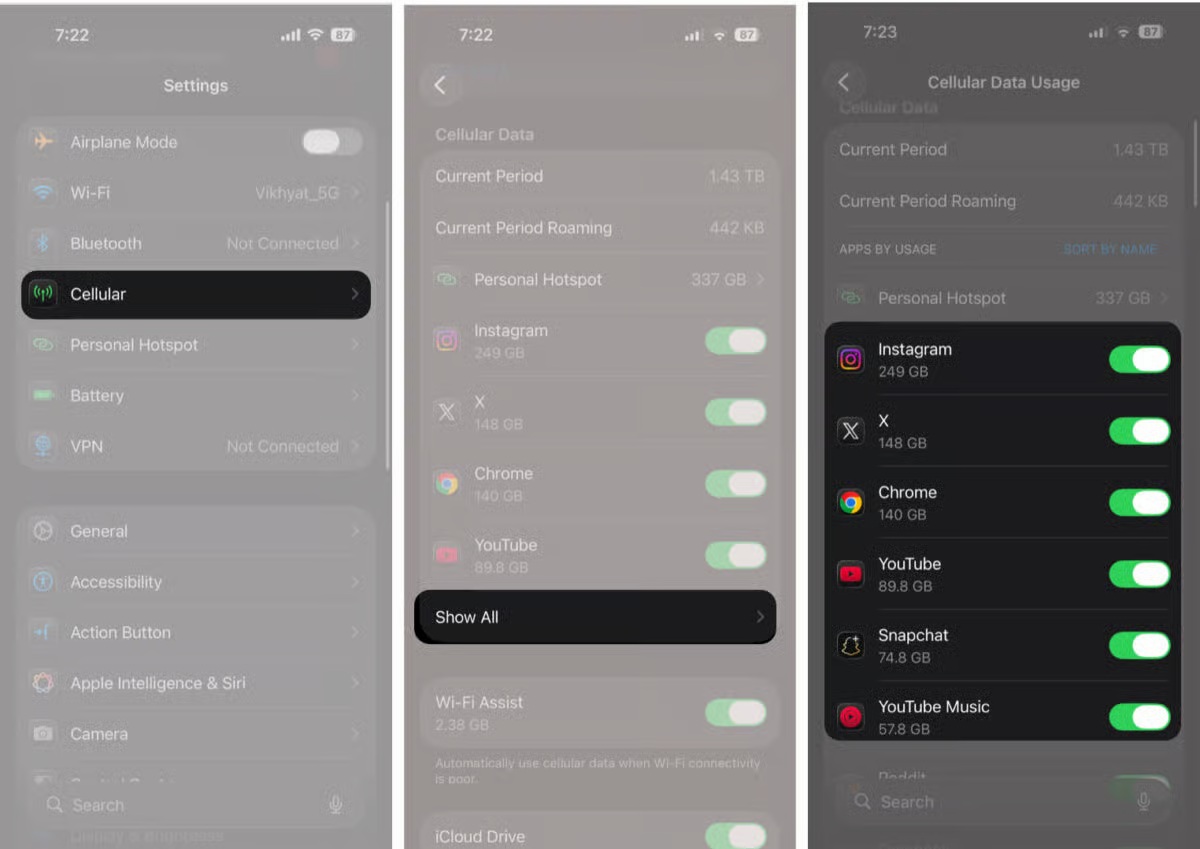
If you notice that an app is consuming a large amount of your data, you can completely prevent it from using cellular data, with the option to use it only when connected to Wi-Fi. To do this, open Settings, then Cellular, and go to the list of apps, then tap Show All. You will then see the amount of data each app has consumed during the current period. The next step is to identify the most data-consuming apps, then disable the app you do not want to use your internet plan. After that, this app will not use data either in the background or while it is running.
Review App Settings
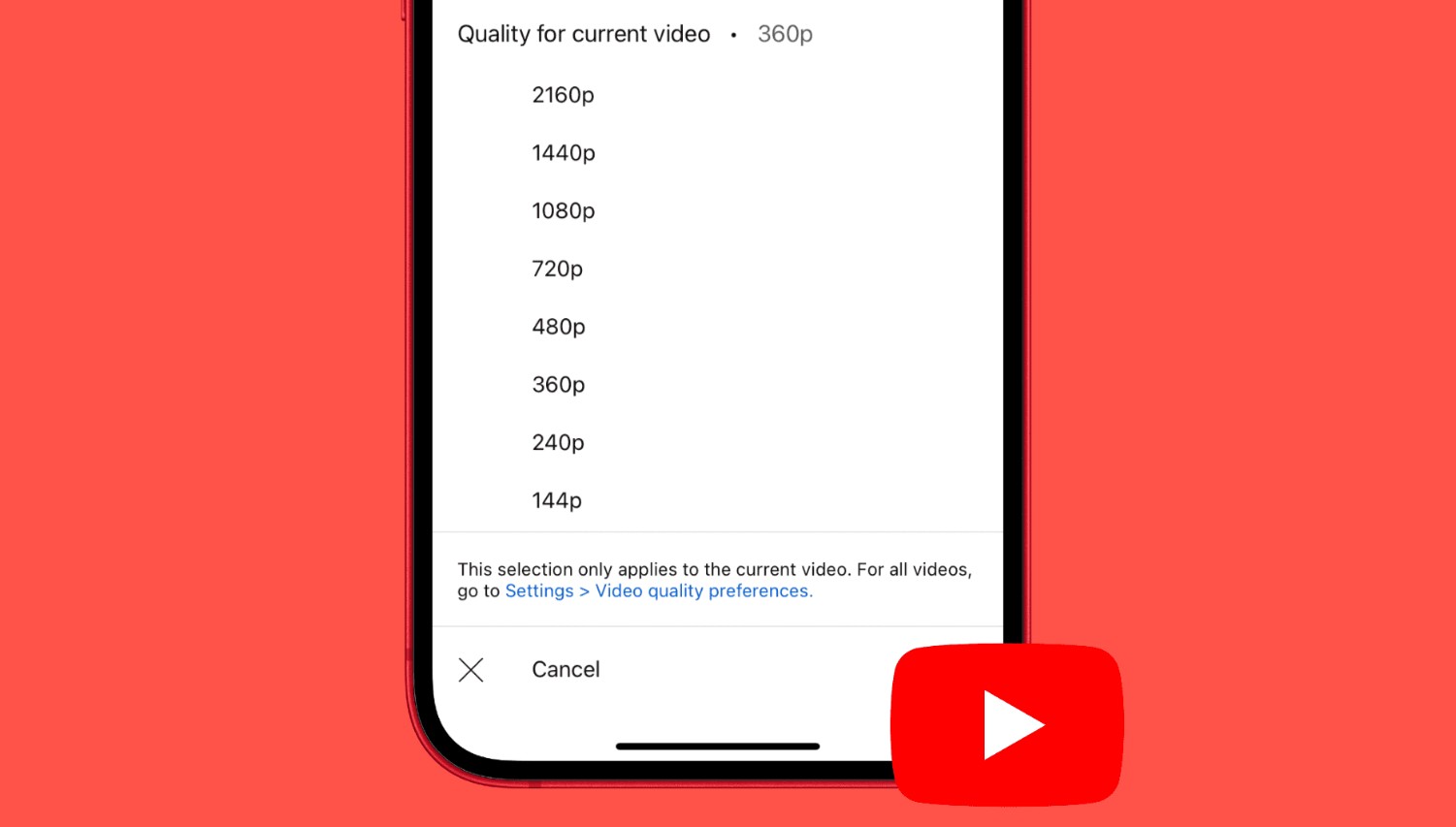
Saving internet is not limited to iOS system settings, as many apps provide their own options to reduce data consumption. For example, video apps like YouTube and social media platforms allow you to turn off auto-play for videos with the ability to lower the default video quality. Music apps like Apple Music allow you to set streaming quality over cellular data separately from streaming quality while connected to Wi-Fi. Furthermore, most podcast apps provide options to control episode downloads over cellular data. While apps like Spotify and Instagram include a data-saving mode that makes a number of changes in one setting to reduce mobile data drain.
Download Content in Advance
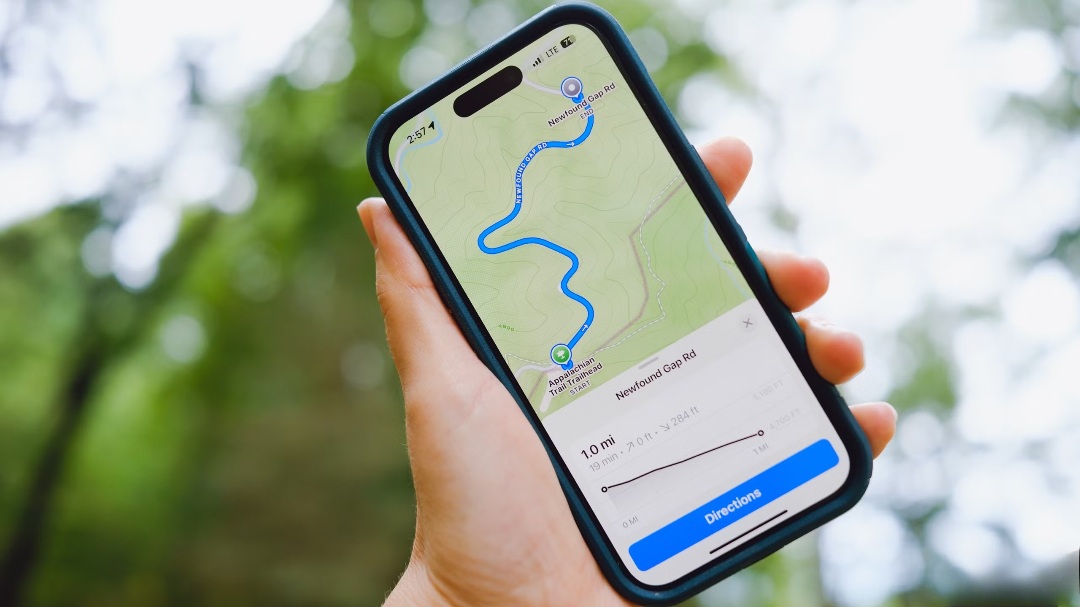
If the available storage space on your iPhone allows, downloading content for offline use is one of the most practical ways to save data. You can download the maps you need before traveling, save movies and series from streaming apps, and download music playlists and podcast episodes to listen to them later without needing to turn on data.
Note: Some downloads expire after a certain period, so check your saved files before you plan to use them, so you don’t have to re-download them using your mobile data plan.
Turn Off Connectivity Assist
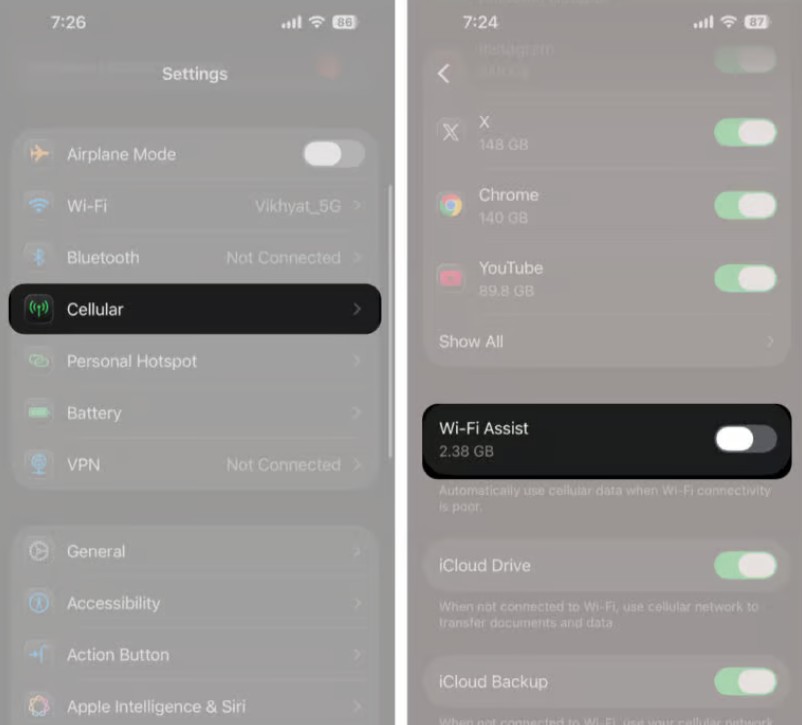
There is a setting that may consume your data without you noticing, known as “Wi-Fi Assist”. When enabled, the iPhone can use cellular data when the Wi-Fi connection is weak or unavailable, in order to improve connectivity and make browsing smoother. To disable this feature, all you have to do is go to Settings, then Wi-Fi, and then disable Wi-Fi Assist.
Note: The feature does not work while international roaming is on or when Low Data Mode is enabled. If you want to disable the feature only when connected to a specific Wi-Fi network, tap the information icon (i) next to the network name, then turn off the Wi-Fi Assist feature.
Disable Automatic Downloads from the Store
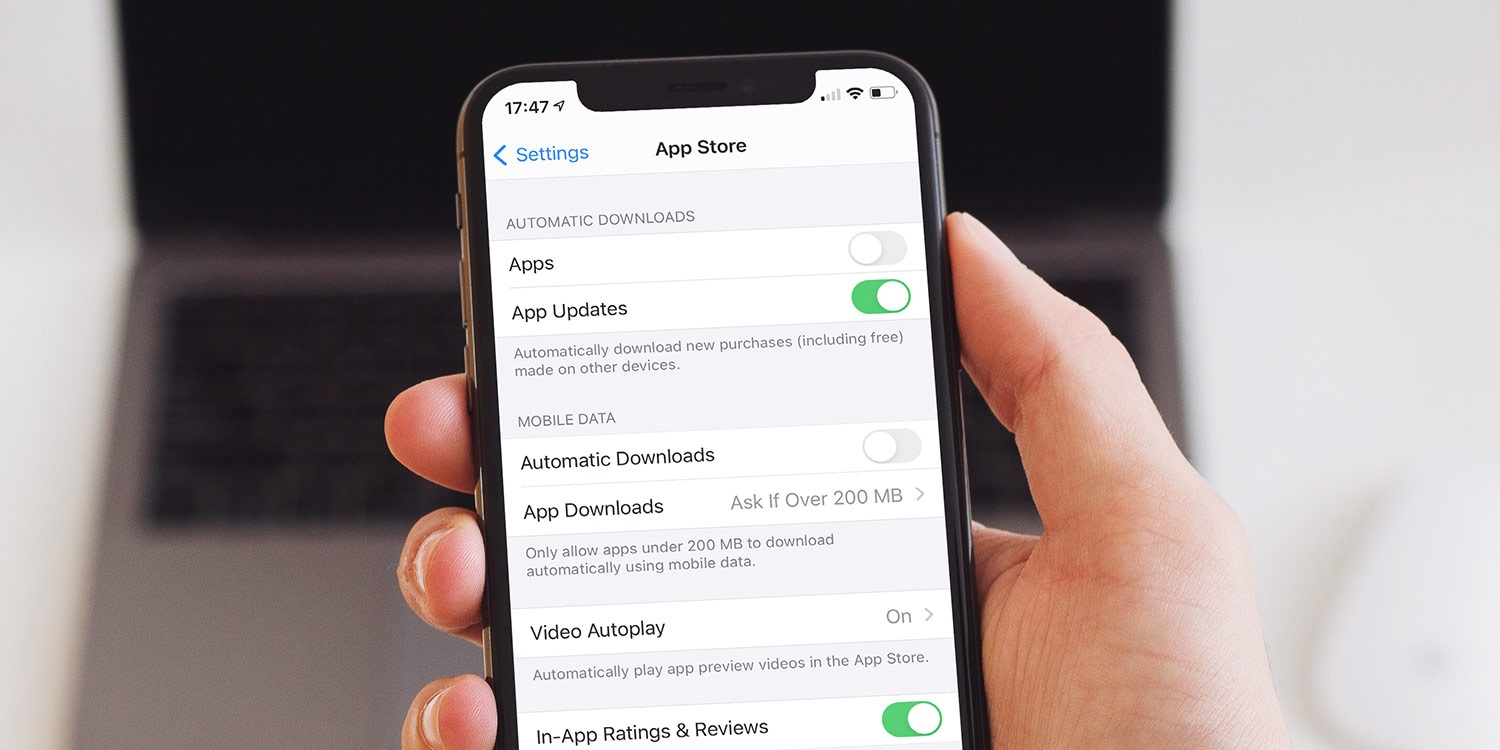
App updates and automatic downloads can consume a large amount of your internet plan, especially when it comes to large apps and games. To avoid this, go to Settings, then Apps, and choose App Store. Then disable the automatic downloads option under the Cellular Data section. Also, you can set the app download option to “Always Ask” or “Ask If Over 200MB”, to avoid accidentally downloading large new apps while you are not connected to Wi-Fi.
Turn Off Backups
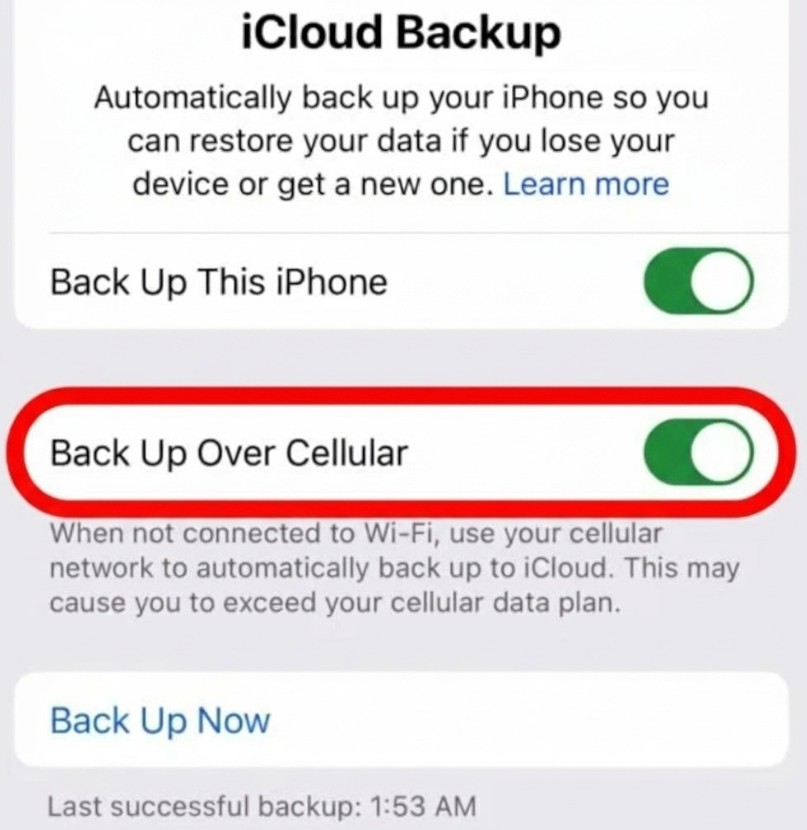
Backups can consume a lot of your iPhone data plan, so it is preferable to make sure to disable the feature while connected to data by going to Settings, then tap on your name, then iCloud, then iCloud Backup. Turn off the “Back Up Over Cellular” option. This way, you will avoid using mobile data for backups, and the device will rely on Wi-Fi during this process.
Reduce Data-Heavy Activities
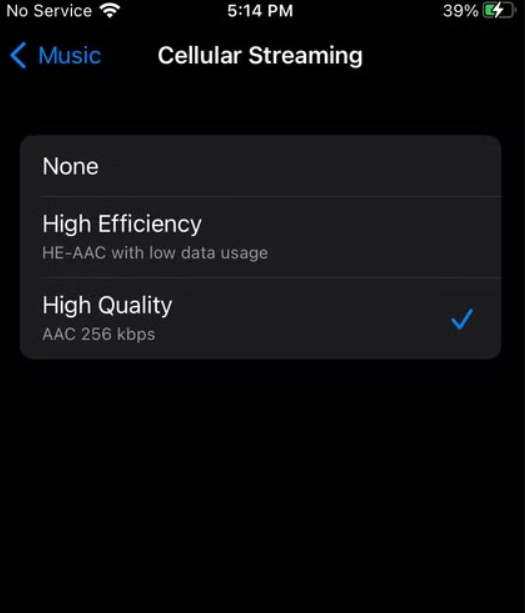
Even after adjusting settings and turning off some features, some activities remain more internet-intensive than others. Watching high-quality video and making video calls can drain your plan quickly, especially when used for long periods. Therefore, try to lower the video quality when using mobile data, and don’t forget to use voice calls instead of video calls when you don’t need to turn on the camera. You can also postpone watching long videos and downloading large files until you are connected to Wi-Fi.
We have reached the end of our article after reviewing a comprehensive guide that explains how to reduce data consumption on the iPhone to preserve your plan. It can be said that the solution does not have to be buying a larger internet plan, but in preventing the iPhone from consuming your data on things you don’t need. By adjusting some settings, disabling a number of features, and reviewing the most consuming apps, you will be able to keep your plan for longer and avoid running out before the renewal date.
What is the thing that drains your internet plan on the iPhone the most in your opinion? Tell us in the comments!
Source:


Leave a Reply