Have you upgraded and downloaded the new iOS version on your iPhone to try out the new features, only to discover that the new version has a bug or that you simply don’t like the new features? You are likely aware that Apple prevents returning to a previous operating system once you have upgraded to a new version. However, we will show you the steps that can help you downgrade your iPhone to a previous operating system after upgrading to a new version.
Important Information

Before we delve into how to return to a previous operating system after upgrading to a new one, you should be aware of some important information. For example, to reinstall a previous version of iOS, you will need to download that version to your computer, set your iPhone to factory settings, load the downloaded operating system onto your iPhone, and then restore your data from a previous backup.
Ensure that the previous iOS version is still signed by Apple, because if it is no longer signed, it means Apple has stopped supporting that version and you cannot return to it, except through complex methods. To check this, go to the ipsw.me website and select your device to see if it is supported by Apple or not.
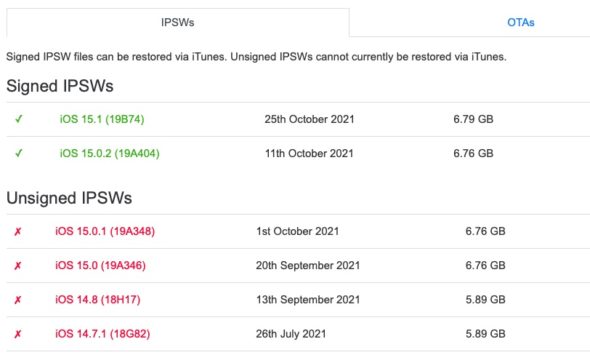
After Apple released iOS 15.1, support for iOS 14 and iOS 15.0 was discontinued, so you can no longer downgrade and install either of these versions.
If you feel that returning to the previous version of the operating system is still the best option for you, follow the instructions below to learn how to downgrade to a previous version of the iPhone operating system.
IPSW File
The next step is to download the iOS copy, which is called an IPSW file. You can download older versions of the iPhone operating system from this link, which provides them for free because Apple does not allow the download of old versions of its operating systems.
Once you go to the site, choose your device model.
The available previous versions will appear.
Select the version you wish to return to.
Click download and then confirm the process.
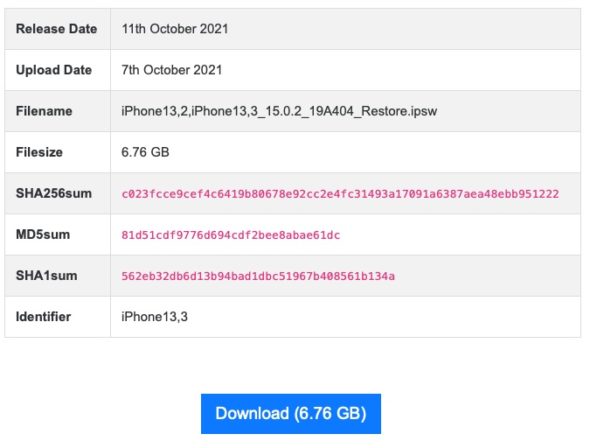
The IPSW file, which contains a copy of the old operating system, will be downloaded to your device.
Setting up the iPhone
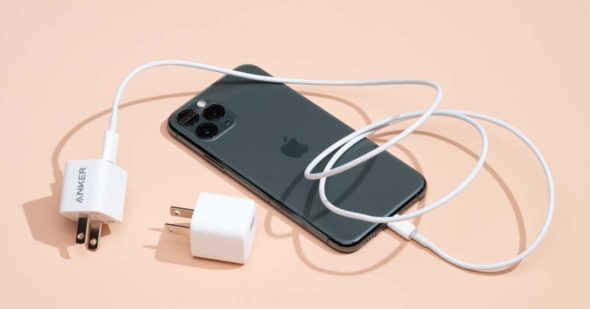
We will now prepare your iPhone to receive the previous version of iOS through the following steps:
Connect your iPhone to a PC or Mac.
Put your iPhone into recovery mode as shown below.
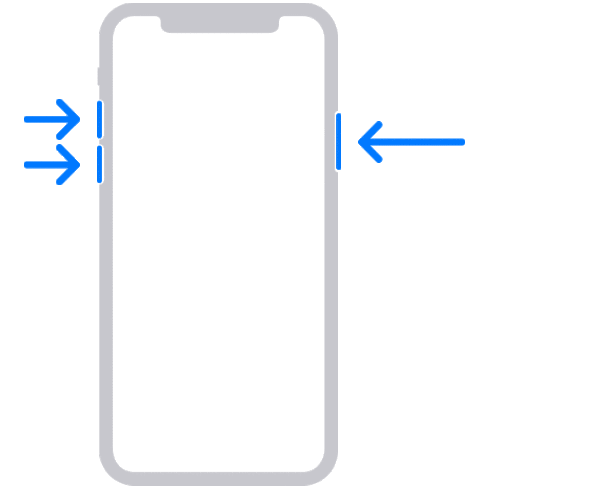
iPhone 8 or later: Press and quickly release the volume up button, then press and quickly release the volume down button. Then, press and hold the side button until you see the recovery mode screen.
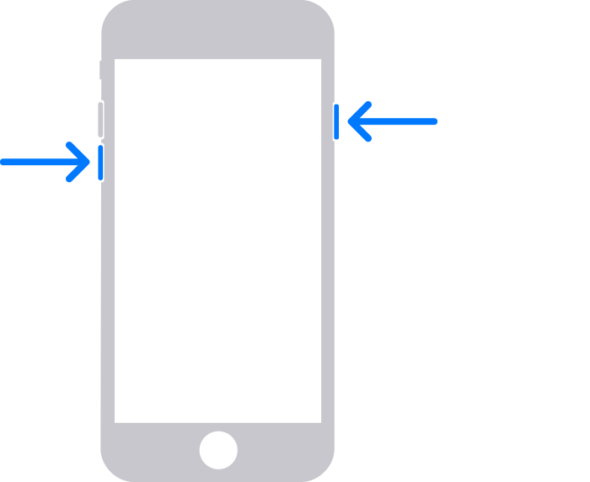
iPhone 7: Press and hold the volume down and power buttons until you reach the recovery mode screen.
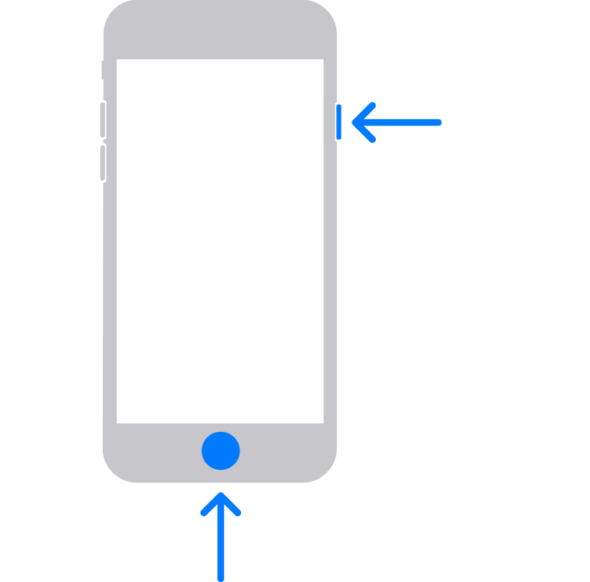
iPhone 6s and earlier: Press and hold the Home button and the power button until you reach the recovery mode screen.
Returning to the previous operating system
Do you remember the IPSW file you downloaded? We are now going to use it while restoring your device to the previous software. With your iPhone still connected to your computer, follow the steps below:
- If you are using macOS Catalina or later, open Finder and click on the iPhone in the sidebar. If you are using an older version of Mac or a Windows PC, open iTunes.
- Press and hold the Shift key (on a Windows PC) or the Option key on your keyboard (on a Mac) and click the Restore button.
- Select the .ipsw file you downloaded earlier.
- Click Open.
- Click Agree to accept Apple’s terms and conditions.
- The process of restoring your device will begin and will take about 15 minutes.
Restoring the backup
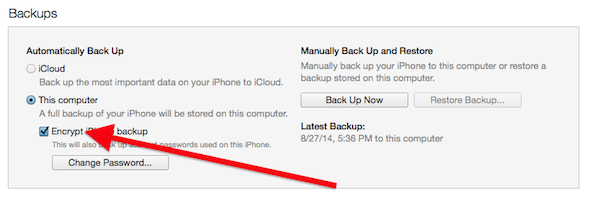
Once the iPhone is restored, it will contain a copy of the previous iOS version you downloaded. To restore your texts, apps, and other data to the device, you will have to restore from a backup.
Note: You cannot restore from a backup created after the latest iOS update, so you will need to use an older backup.
How to restore a backup
If you are using macOS Catalina or later, open Finder and click on the iPhone in the sidebar. If you are using an older version of Mac or a Windows PC, open iTunes.
- Select Restore Backup.
- Select the iOS backup you want to restore.
- Ensure it is the correct version by checking the backup date.
- Keep your device connected to the computer while the restore process finishes.
- When finished, your iPhone will run the selected version of the software and you will have all your data up to the time of the restored update.
Source:
Leave a Reply