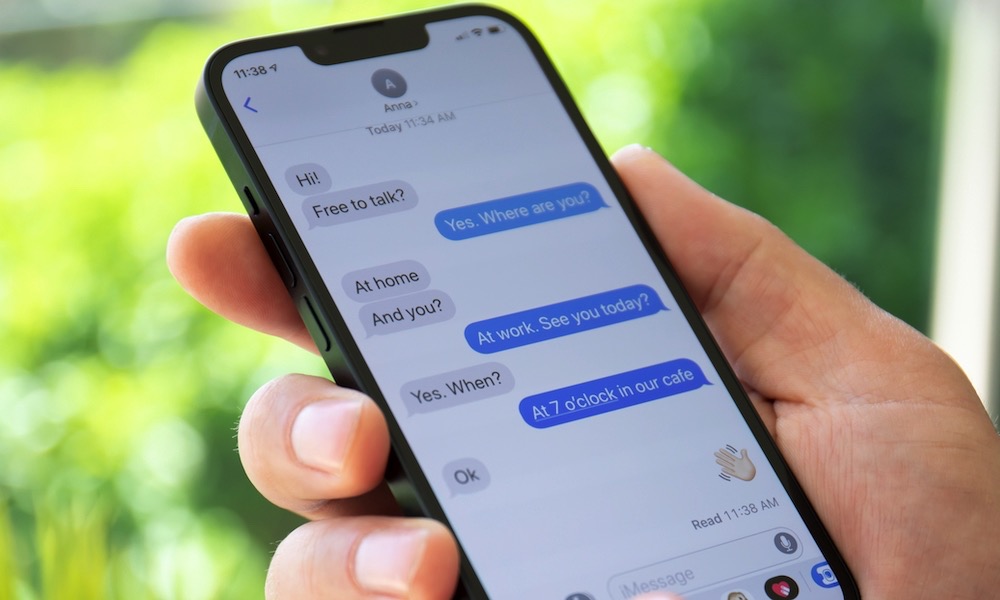
If you use an iPhone, the iMessage app is undoubtedly one of the most active apps on your screen every day. Despite the existence of many alternative messaging apps, Apple’s app remains the preferred and primary choice for millions thanks to its deep integration with the system and its superior smoothness. But are you really taking advantage of everything it offers? The truth is that we often get used to the traditional way of typing and overlook exploring the new and useful features that Apple adds with every update. Today, we will take you on a quick tour to learn about three hidden and underutilized features in iMessage, which will undoubtedly add a touch of humor, practicality, and organization to your daily conversations.
1. Send Later Feature
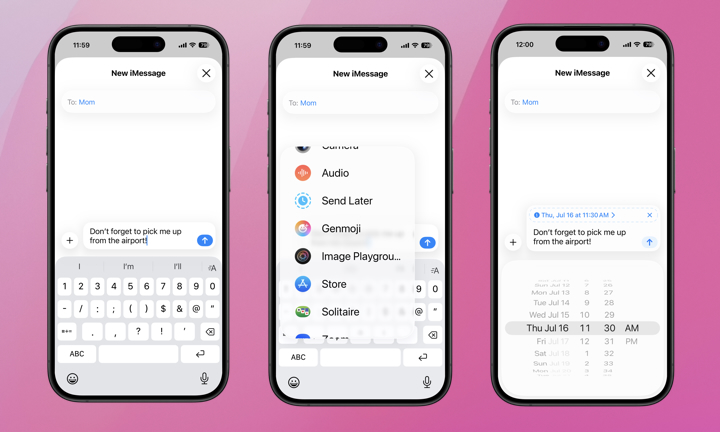
Did you suddenly remember a friend’s birthday in the middle of the night and didn’t want to wake them up? Or perhaps you remembered an important work idea and want to send it to your colleague early in the morning without forgetting it? With the release of iOS 18, iPhone users can now schedule messages to be sent at a specific future time completely automatically, a long-awaited feature that has saved us from a lot of distraction and forgetfulness.
The beauty of this feature is that the scheduled message is saved directly on Apple’s secure servers, meaning it will reach its destination at the exact scheduled time, even if your phone is off, out of coverage, or in airplane mode at that time. To activate it, write your message, then tap the plus (+) sign next to the text field, scroll down, and tap the “Send Later” option. Then, choose the specific date and time you want the message to be sent, and press the blue send button to save it as a scheduled message.
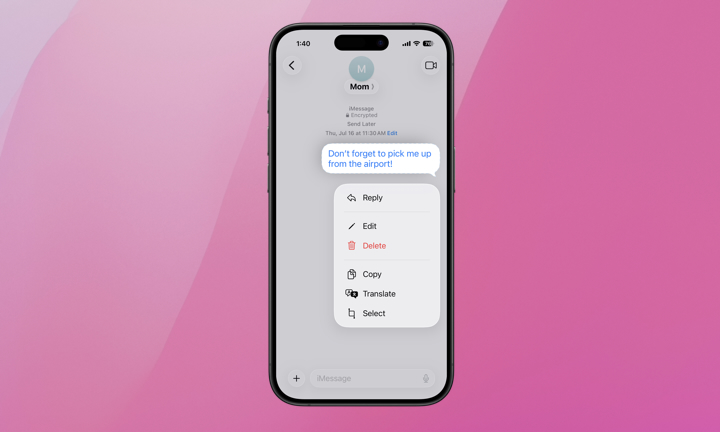
And what if you change your mind later? Don’t worry at all, it’s very flexible. You can always delete or edit the scheduled message before its actual sending time. All you have to do is scroll to the bottom of the conversation where you will find the scheduled message appearing in dashed blue text; long-press on it and then choose “Delete”.
2. Handwriting and Drawing (iMessage Scribble)
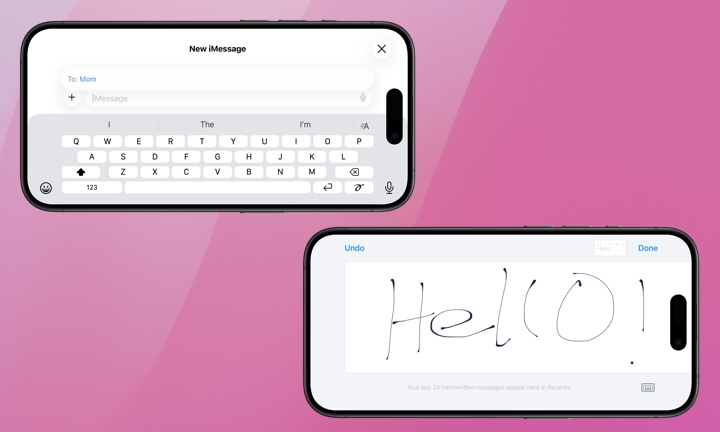
Every now and then, you may want to send a message with a warm, personal touch that ordinary printed text cannot convey. The handwriting feature allows you to send notes written in your own hand or quick and fun sketches, adding a warm and unique human touch to your conversations that feels like a paper note you passed to your friend in class away from the teacher’s eyes.
Whether you are exchanging inside jokes with your close friends, or want to send a simple cartoon drawing to your child to encourage them before an important match, this feature makes a beautiful difference and makes communication fun. All you have to do is open the writing field in any conversation, then rotate your iPhone to landscape mode. You will immediately notice a small drawing icon that looks like a wavy line next to the microphone button in the bottom corner; tap it and start drawing or writing with your fingers freely, then send it.
Despite the brilliance of this feature, which has been available since iOS 10, leaks indicate that Apple may replace it in the upcoming iOS 27 with a more advanced, integrated drawing app. Therefore, we suggest you enjoy it and try it now while it is still smoothly and simply available in direct conversations!
3. Add a Custom Conversation Background
If you are bored with the default white or gray background for conversations, iOS 26 (and iPadOS 26 for iPad) offers a great solution for fans of customization and aesthetics. You can now add a dynamic, colorful background designed by Apple, or choose any favorite photo from your photo library to decorate the chat background and make it reflect the nature of the conversation.
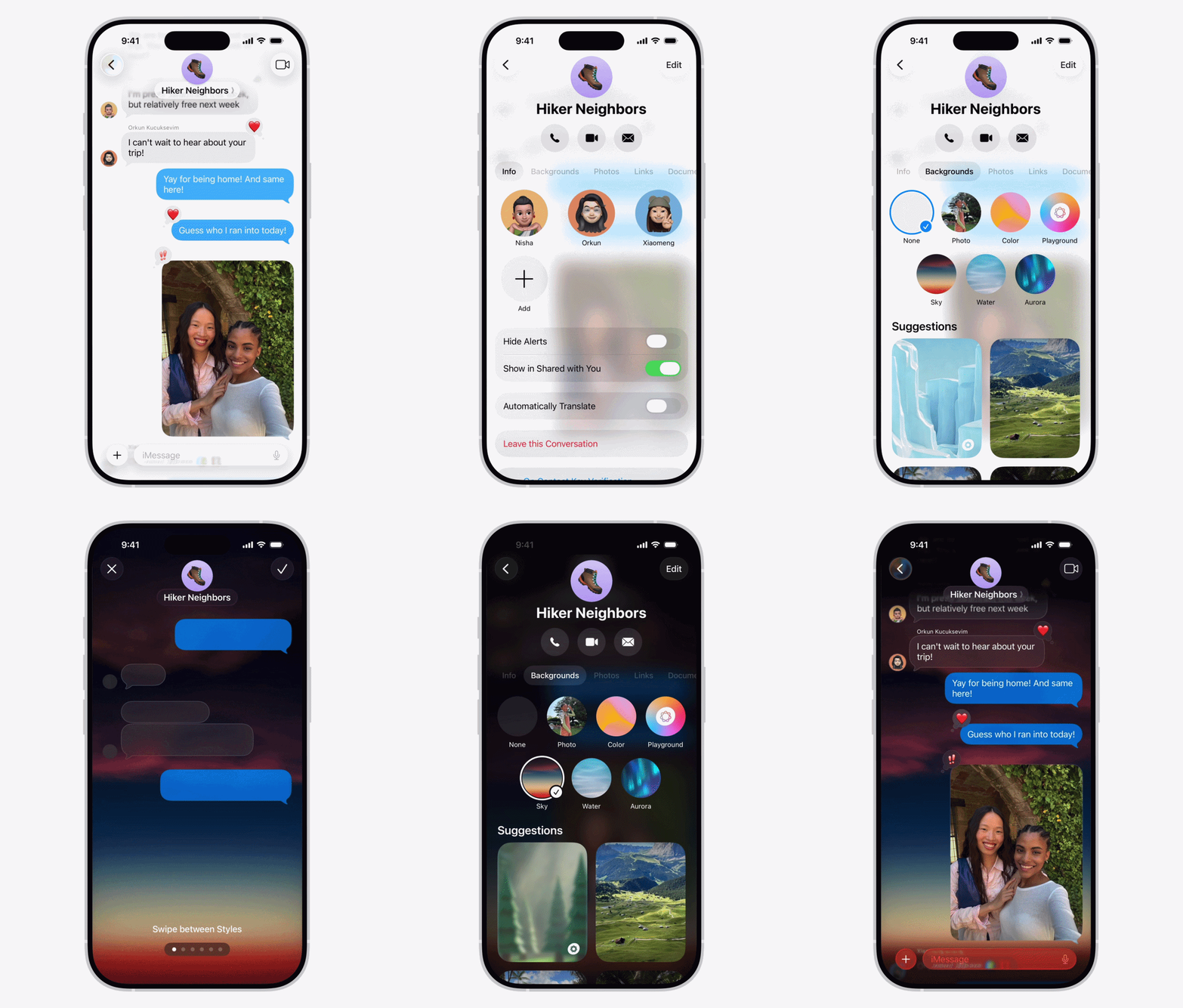
To change the background of any conversation, open the conversation you want to customize, then tap the contact name or group name at the top of the screen, choose the “Backgrounds” option, browse the available backgrounds and choose what suits you, then tap the checkmark to save it. If you prefer a personal photo, tap the “Photos” option and choose any photo from your device to be the conversation background.
It is worth noting that other participants in the conversation will also be able to see and change the background for the group, giving everyone a chance to add a fun theme to the conversation that suits different occasions. If you ever want to return to the default mode, you can simply follow the same steps and choose “None”.
Source:

Leave a Reply