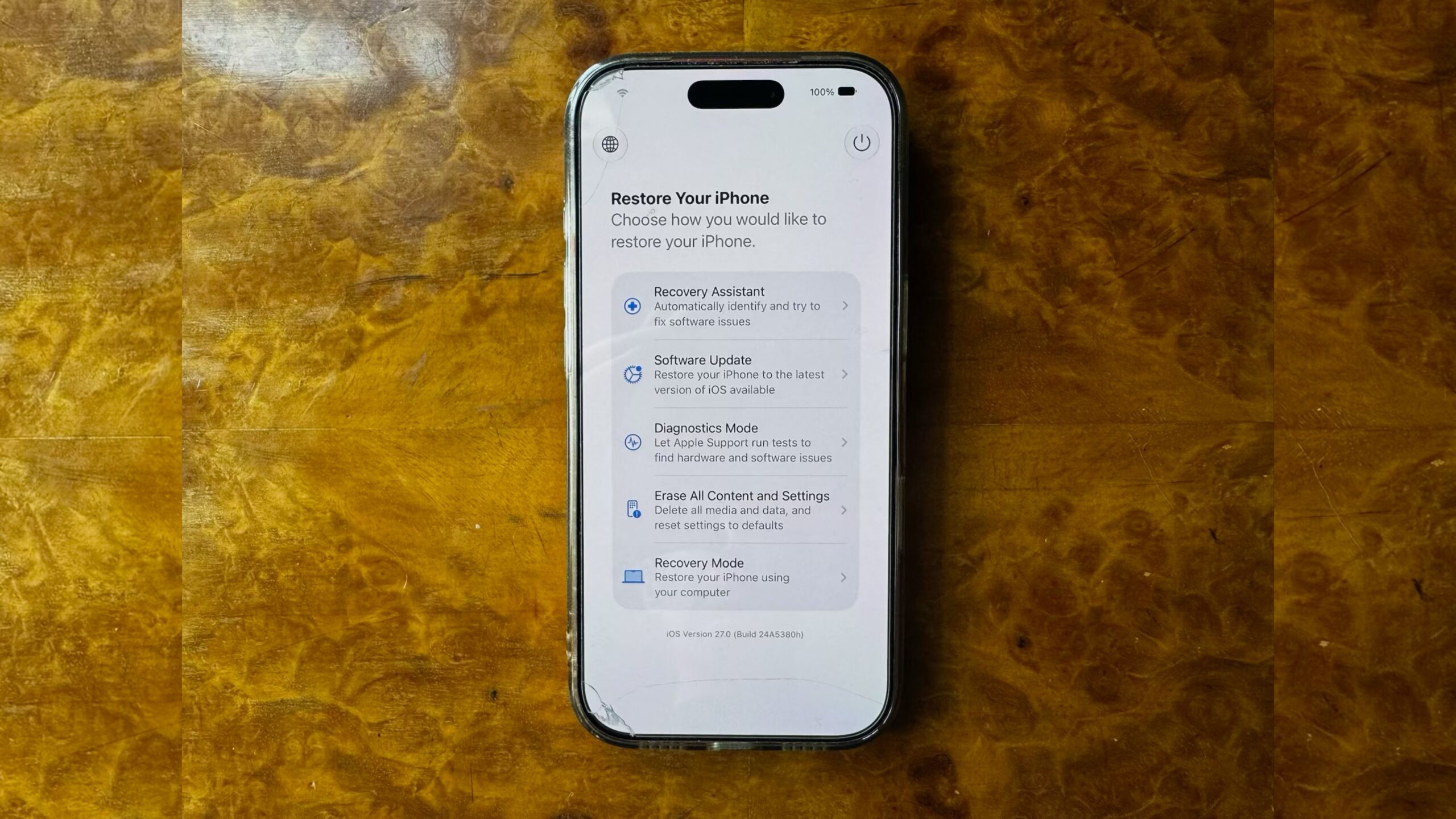
The process of rescuing a dead iPhone or one stuck in an infinite boot loop has long been a nightmare, requiring you to find the right cable, a Mac or Windows PC, and perform acrobatic button-pressing maneuvers with perfect timing. Fortunately, Apple has begun to gradually untangle this knot. After introducing the “Recovery Assistant” feature in the iOS 26 update, which triggers automatically when the system fails to boot, iOS 27 (currently available in beta) now gives us full control, allowing us to enter the all-new recovery screen manually whenever we want, without needing to connect to any other device.
The Self-Rescue Revolution: What’s New in the iOS 27 Recovery Screen?
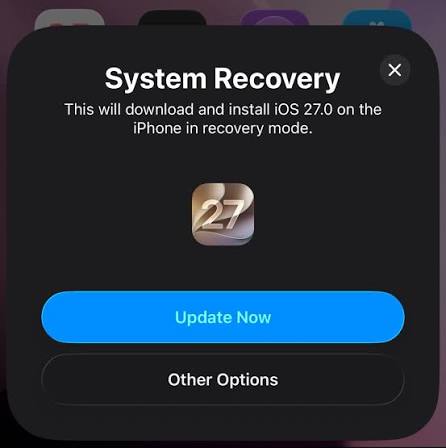
Previously, entering recovery mode required putting the phone into an artificial coma and forcibly connecting it to a computer to run iTunes or Finder. With iOS 27, the iPhone is now capable of helping itself, much like Macs running on Apple Silicon. The new recovery screen features a sleek design inspired by macOS and comes with highly intelligent features; it can automatically connect to known Wi-Fi networks to download updates, and it displays the battery percentage in the corner of the screen to ensure power doesn’t cut out during the rescue process.
This feature makes it very easy to check your iPhone or iPad, resolve software issues, or even wipe it completely anywhere and at any time without needing to hunt for cables or nearby computers. Let’s learn how to access it in a few simple steps.
How to Manually Enter the New Recovery Screen
The process of entering this screen is very easy and requires only your fingers and a few seconds of your time. It works exactly the same way on iPads running iPadOS 27:
- Turn off your iPhone or iPad completely, and wait for a full minute to ensure all background processes have closed.
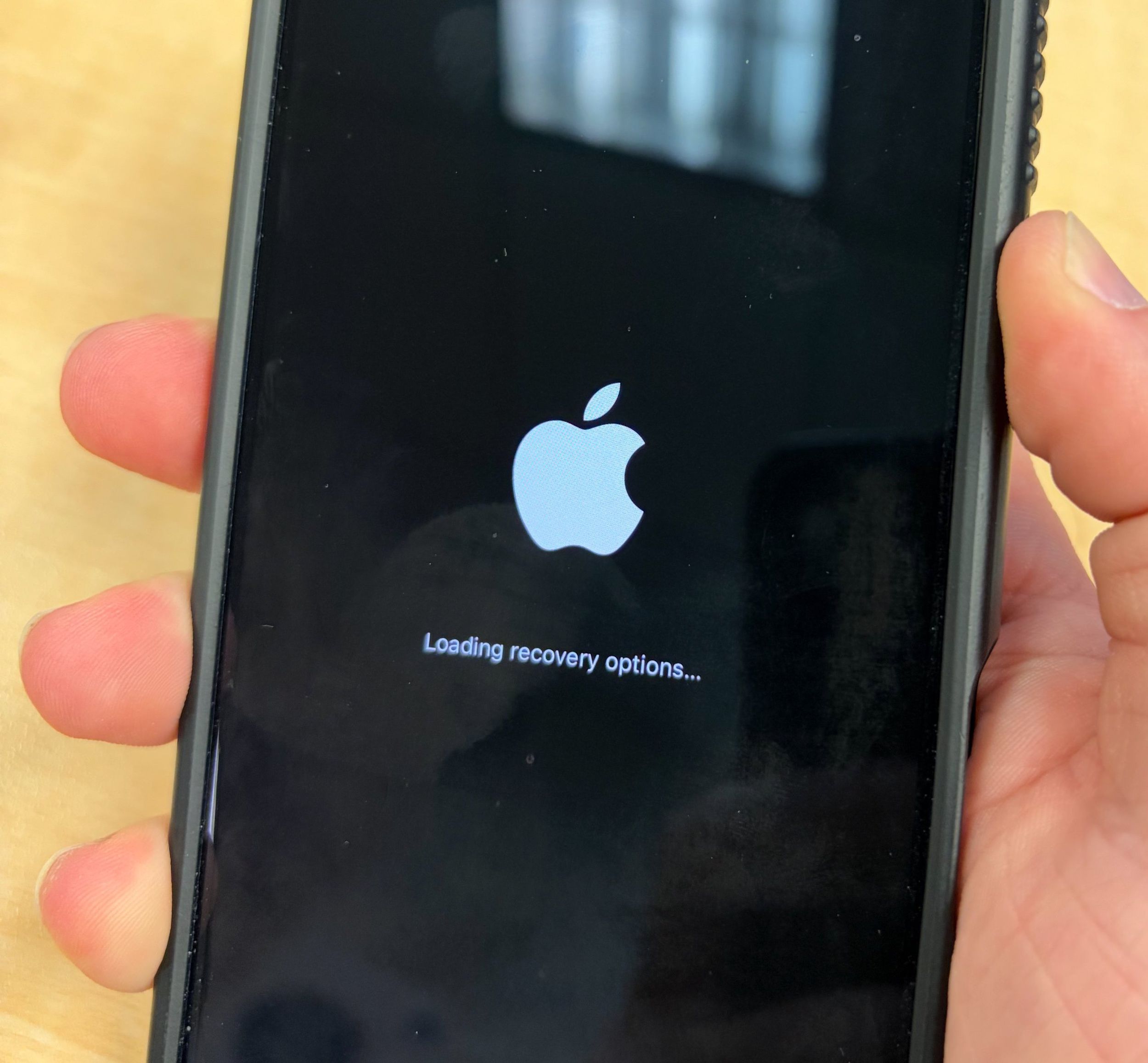
- Press and hold the Side button (power button). The Apple logo will appear as usual during startup; do not let go of the button and keep holding until you see the phrase “Continue holding for recovery…”.
- Release the button immediately when you see the phrase “Loading recovery options…”.
Immediately after, the iPhone will boot into the all-new recovery screen instead of loading the regular operating system, presenting you with a complete rescue interface.
Explanation of Available Options in the Recovery Interface
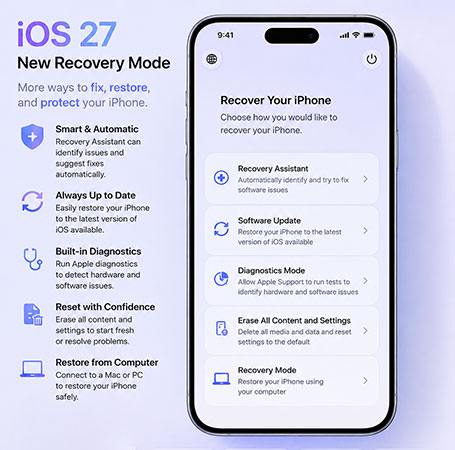
Upon entering this screen, you will find five main options specifically designed to handle various software scenarios and technical issues you might face:
- Recovery Assistant: This option automatically scans the operating system for errors and corrupted software, attempting to repair them autonomously without your intervention.
- Software Update: Allows you to install the latest available version of iOS on your device via Wi-Fi. This is a magical and ideal solution if you encounter an issue that caused your device to get stuck in a boot loop after a failed update.
- Diagnostics Mode: Performs a comprehensive and immediate check of the device’s hardware and software to ensure they are functioning correctly and provides a detailed report on any faults or components requiring maintenance.
- Erase All Content and Settings: Resets the device and wipes all data completely, returning it to factory-new state, just like the option found within the traditional Settings app.
- Traditional Recovery Mode: Puts the iPhone into the classic mode that allows you to connect it to a Mac or PC and restore it via Finder or iTunes, without needing to remember the usual complex button combinations.
But wait, there is a sixth secret and amazing option that Apple has provided for modern iPhones!
The Secret Option: Nearby Device Recovery
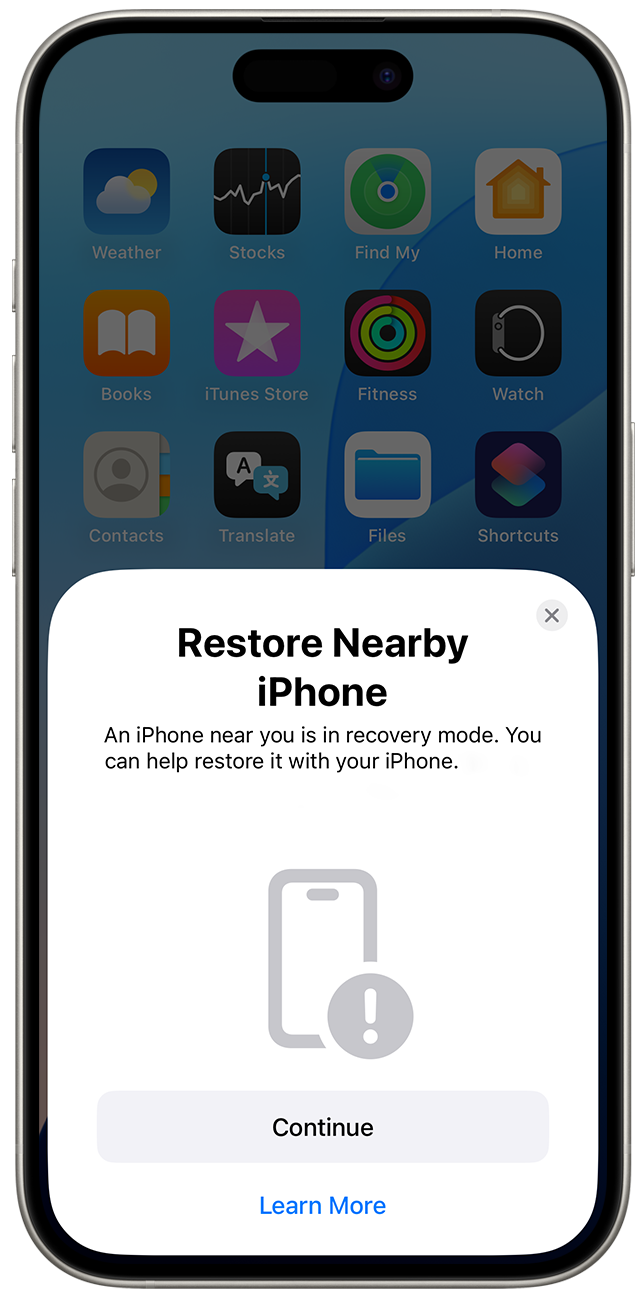
If you have a modern iPhone model, you can activate this secret option; while inside the recovery screen, press and hold the Side button again to see a pop-up menu containing the Nearby Device Recovery option. This incredible feature allows you to restore and repair your iPhone wirelessly using another nearby Apple device (such as another iPhone or iPad). It is a fantastic feature inspired by the Apple Watch and Apple TV recovery features that previously appeared with the iPhone 16 family.
How to Exit the Recovery Screen and Return to Normal Mode
If you entered the recovery screen by mistake or have finished checking your device and want to return to the normal system, it is very simple. All you need to do is tap the power button shown in the top right corner of the screen and confirm your desire to restart.
Alternatively, you can press and hold the physical side button of the device and select “Restart” or “Shut Down”. You may not need to use this screen frequently in your daily life, but keeping these simple steps in your memory now will save you a lot of stress in the future if an update fails or the operating system suddenly freezes.
Source:


Leave a Reply