With the release of iOS 26, organizing your iPhone has become smarter and more appealing than ever. Apple introduced advanced customization tools in this update, allowing you to balance aesthetics with ease of use. Whether you prefer a minimalist, clean design or meticulous organization, these five strategies will help you transform your home screen into a well-organized space that reflects your personality and boosts your productivity.
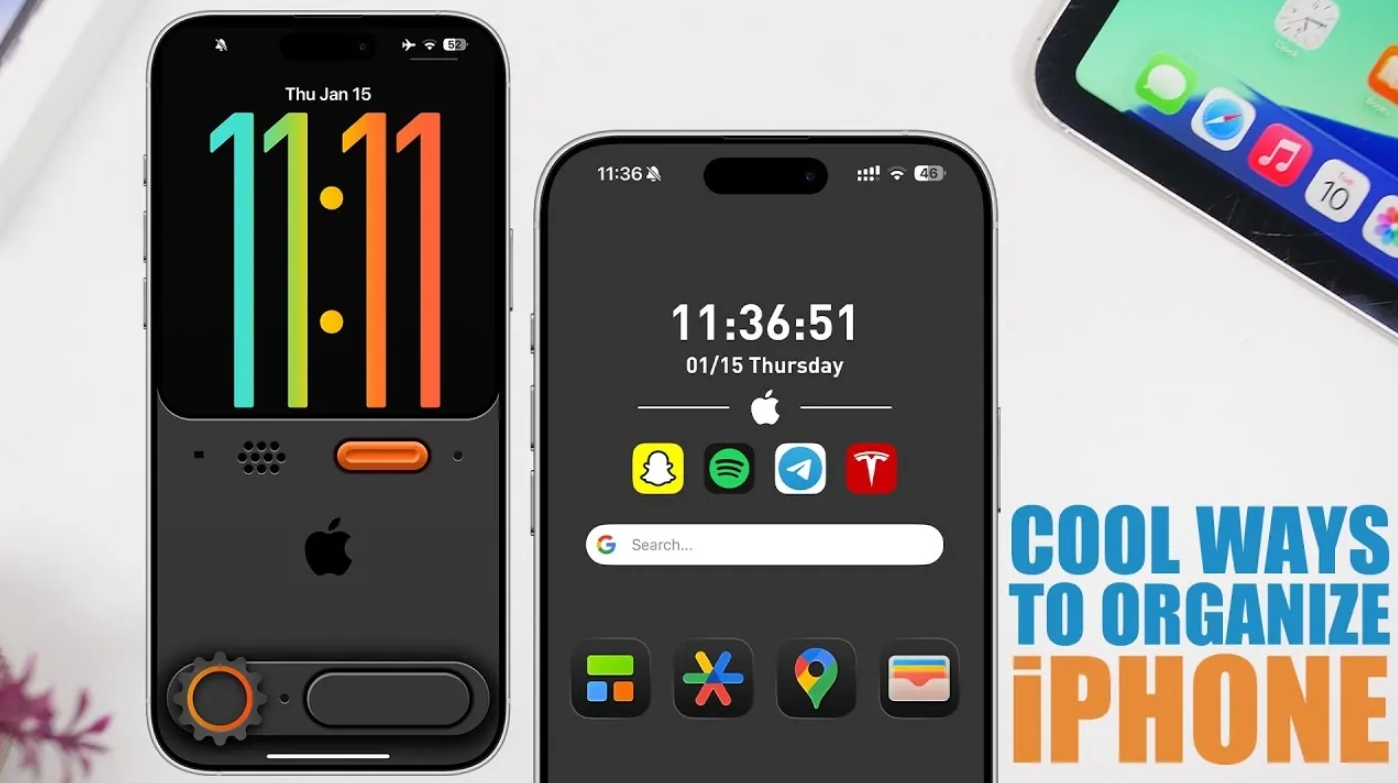
Use folders to organize your screen and reduce clutter.
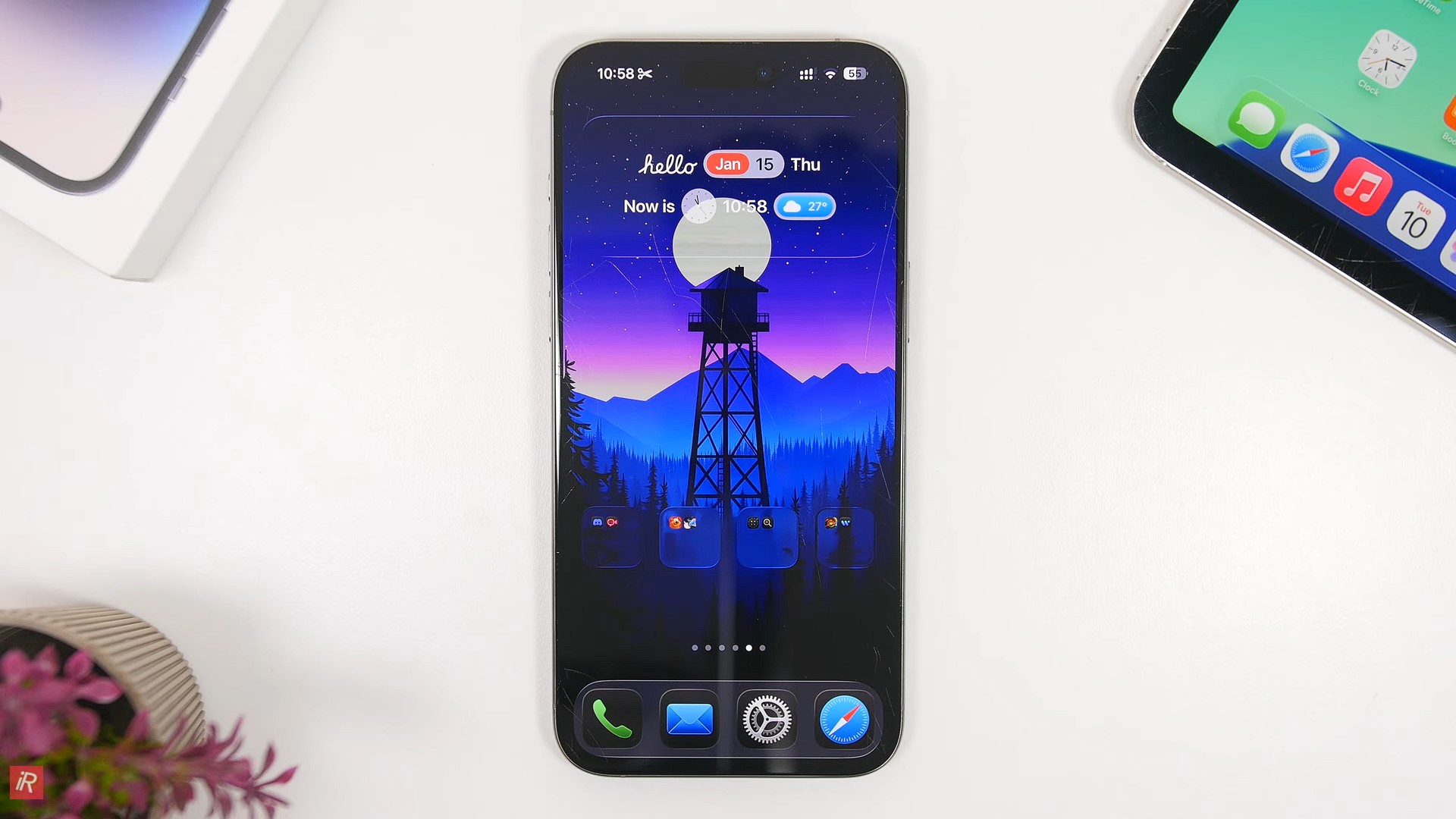
Organizing apps into folders remains the best way to declutter your home screen, but iOS 26 takes it a step further. You can now categorize your apps into clear groups like "Social," "Work," or "Entertainment" for quick access. New is the ability to integrate these folders with widgets that complement their functionality; imagine, for example, a fitness app folder with a widget that displays your daily step count, or a productivity folder with a calendar.
To add a touch of beauty, try activating Night Mode to link folders and tools together with a modern and eye-friendly look, making navigation easier and reducing visual distractions.
Minimalist design adopted
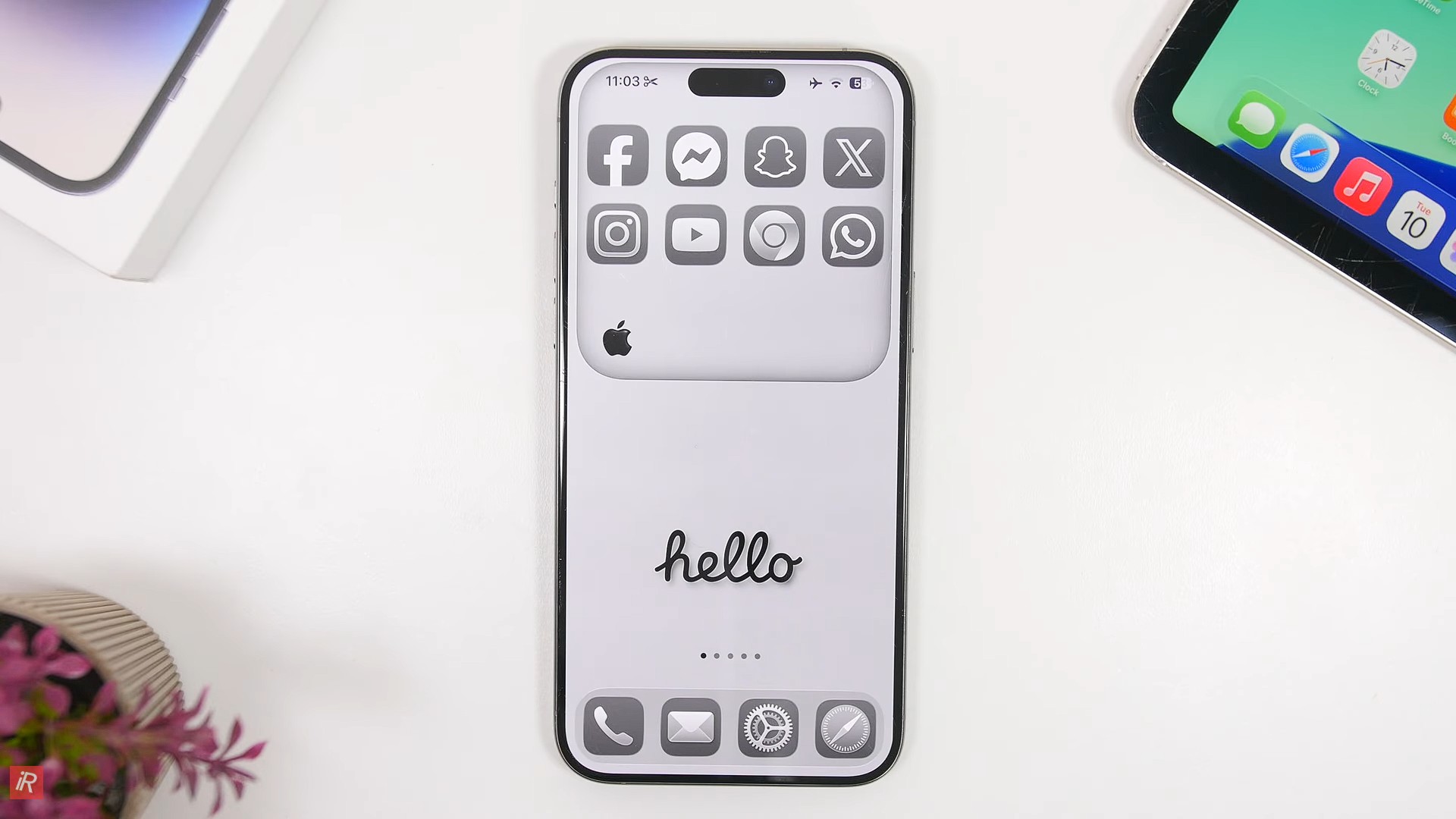
If you prefer a calm and uncluttered look, the minimalist design is the perfect choice. The new system offers tools to help you arrange your apps seamlessly with your wallpaper, and you can even remove app names from under the icons for a cleaner, more streamlined appearance. You can also unify the icon colors to match the overall iPhone theme. To maintain this uncluttered look, you can move widgets to the sidebar, keeping your home screen dedicated to only what's essential, creating a peaceful environment conducive to focus.
Coordinate the backgrounds to unify the phone's appearance.
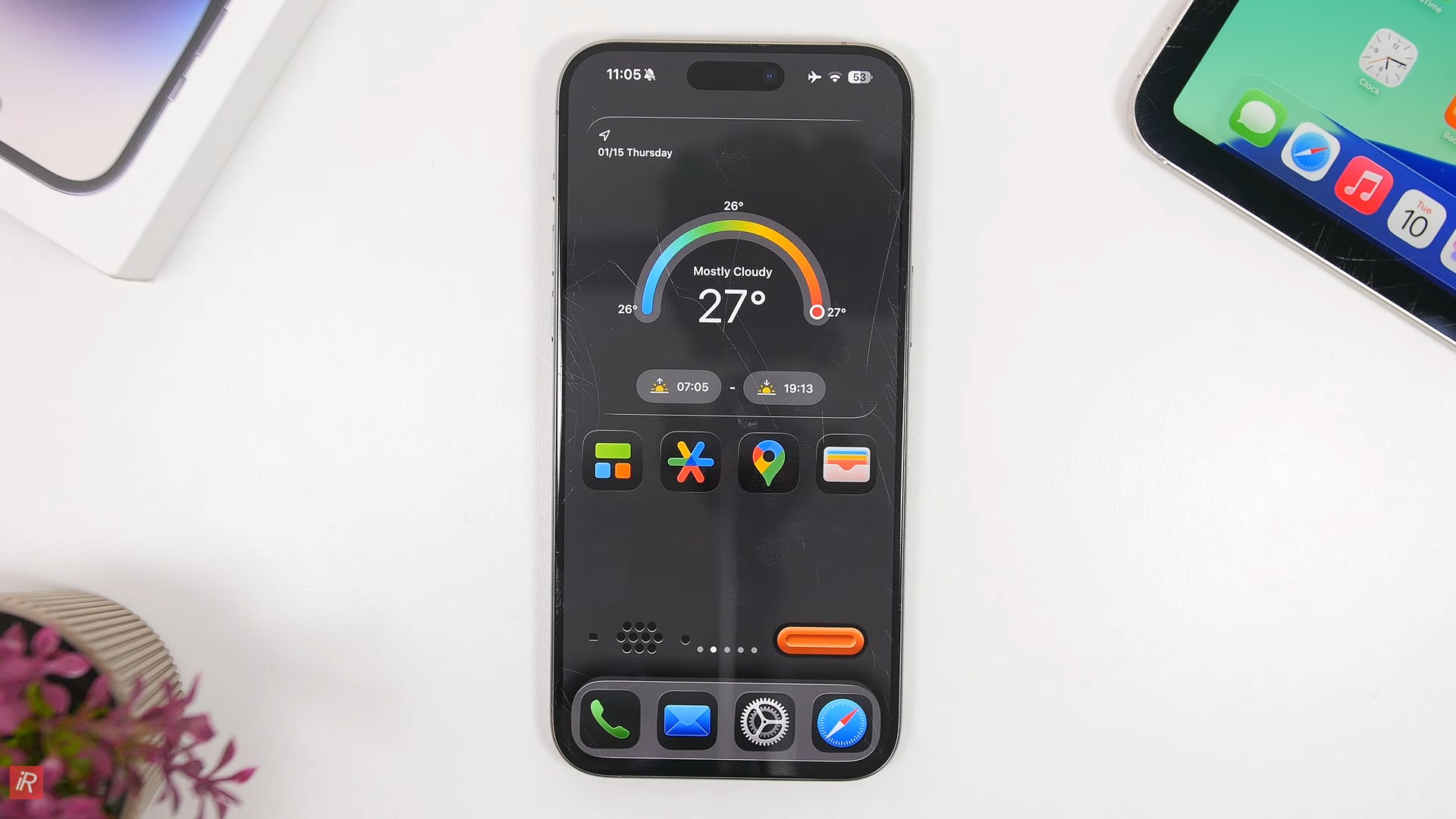
Visual harmony enhances the user experience, and iOS 26 makes this easier with dynamic wallpapers that adapt to your taste, whether you prefer nature scenes or modern designs. The secret lies in customizing the colors of app icons and widgets to blend seamlessly with the background colors; for example, the weather widget can blend into a stunning natural background. Also, try using monochrome or gradient designs for a professional and elegant look, where every element appears to complement each other in a single work of art.
Organization using split backgrounds
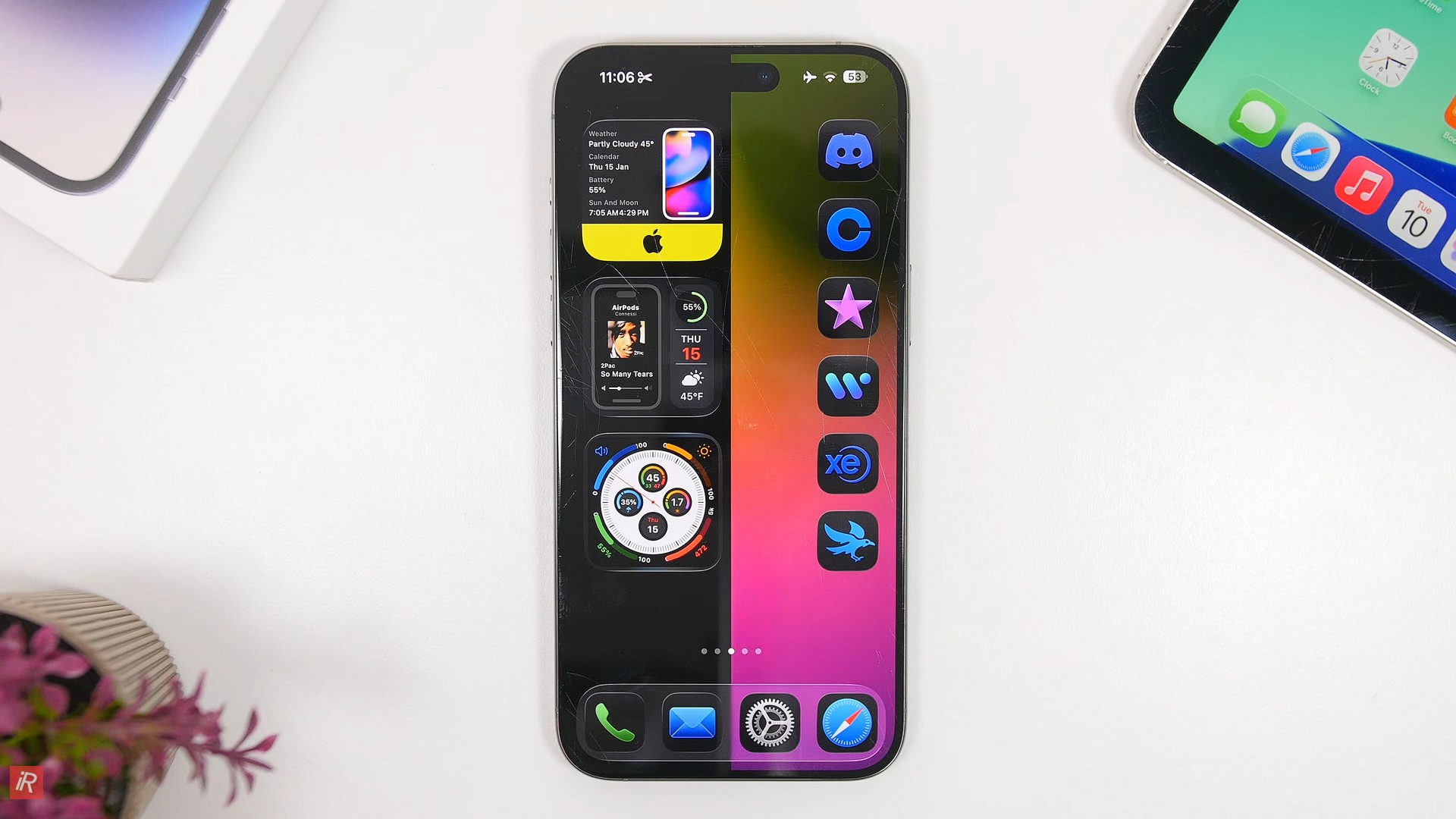
Split-screen functionality is a fantastic feature of the new system, allowing you to visually divide your screen into distinct zones. For example, you can dedicate the top half of the screen to displaying important information such as reminders, news, and weather updates, while leaving the bottom half for your most frequently used apps, keeping them readily accessible. This layout is further enhanced by the combination of dark mode and oversized icons, creating a striking and practical visual contrast that makes accessing information faster and easier.
Ultimate simplicity with a simple phone mode
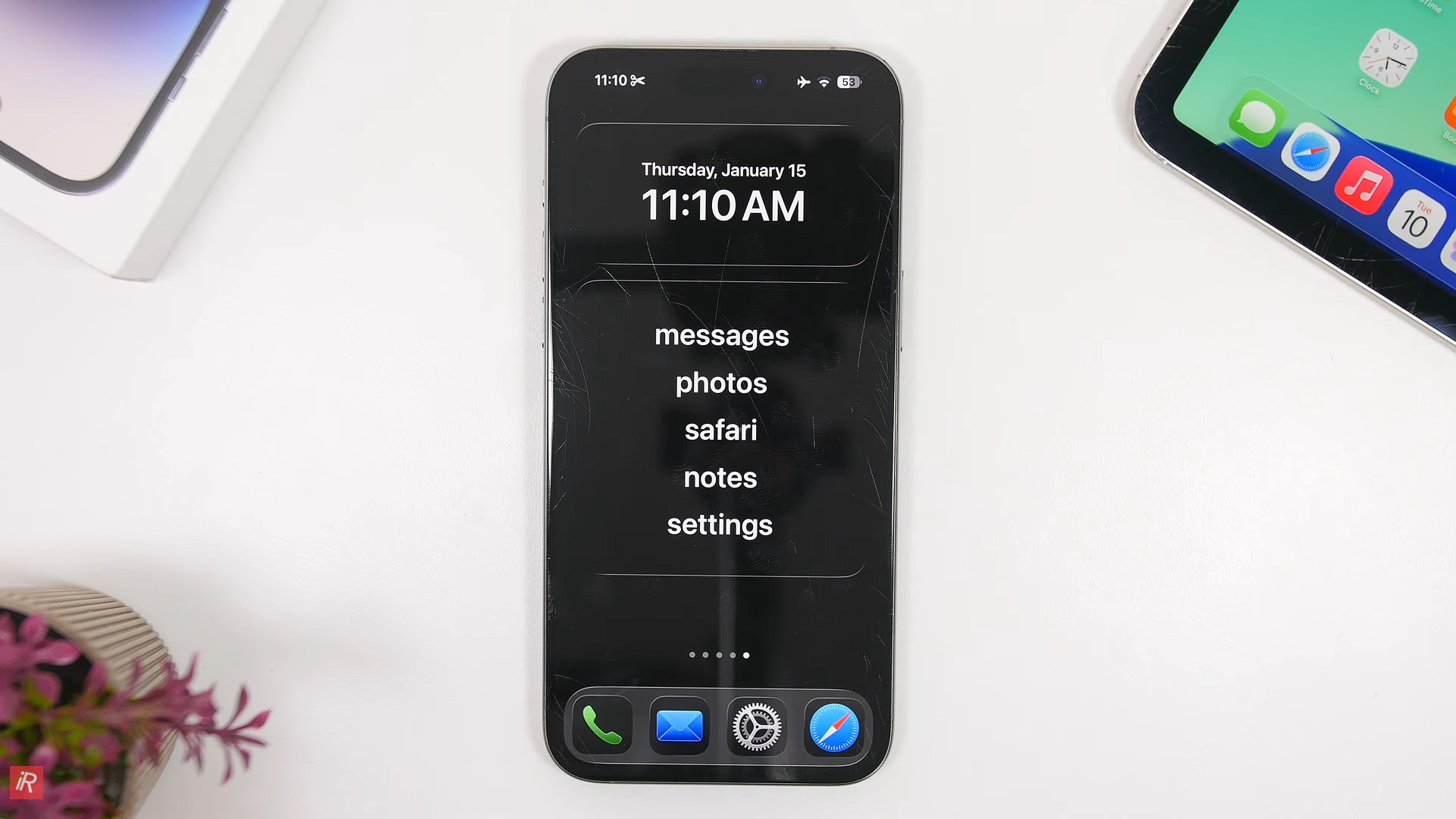
For those looking to reduce phone addiction, iOS 26 offers a Dumb Phone Mode. This mode simplifies the home screen to the extreme, displaying only the most essential apps like Messages, Calendar, and Weather. You can rearrange these apps to suit your daily routine, transforming your phone into a tool for accomplishment rather than entertainment. This mode aligns with the global trend toward digital wellbeing and encourages more conscious and targeted phone use.
Watch the video if you want to change your iPhone interface now:
Ultimately, organizing your iPhone is no longer just a matter of aesthetics; it's a way to create a personalized and functional user experience that suits your lifestyle. Whether you prefer categorized folders, minimalist designs, color harmony, or even a distraction-free mode, iOS 26 puts all the necessary tools at your fingertips. Take advantage of these features to make your home screen reflect your personality while also serving as a powerful tool for efficiently handling your daily tasks.
Source:


12 comment