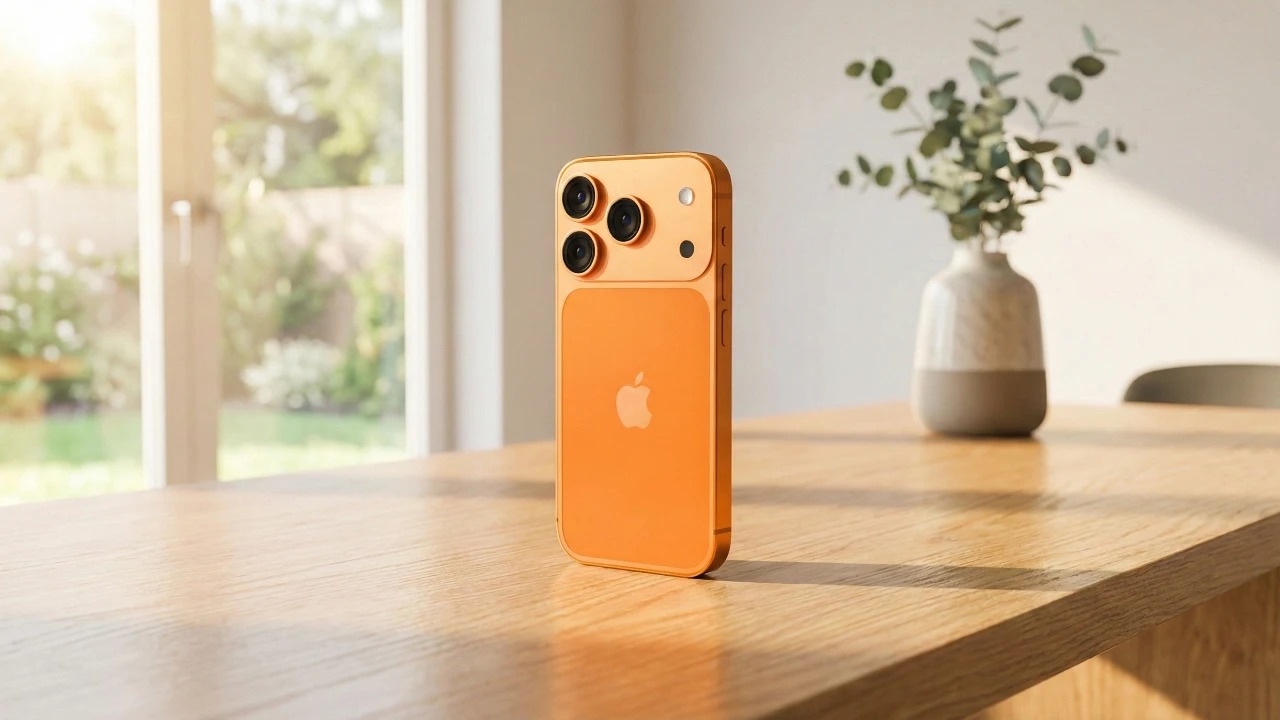
When Apple first introduced the Camera Control button with the iPhone 16 series, we had high hopes that it would function much like the shutter button on professional cameras—a half-press to focus. While the button didn't quite work exactly as we expected, that doesn't mean it isn't a very useful tool.
Today, you'll find this button on almost all modern iPhone models except the iPhone 16e. However, we've noticed that most iPhone users rarely use this button, or only press it by mistake.
We've discovered several ways this button is truly useful, but it does require some knowledge of how to navigate the small menus that appear. Let us guide you through adjusting the settings and using it to open different apps, zoom in, and adjust camera settings before taking a picture.
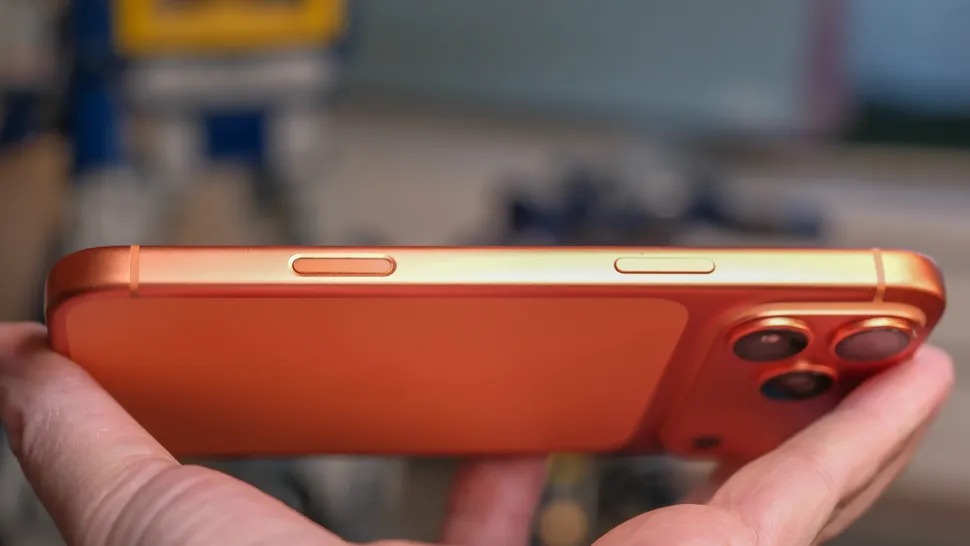
Running other applications
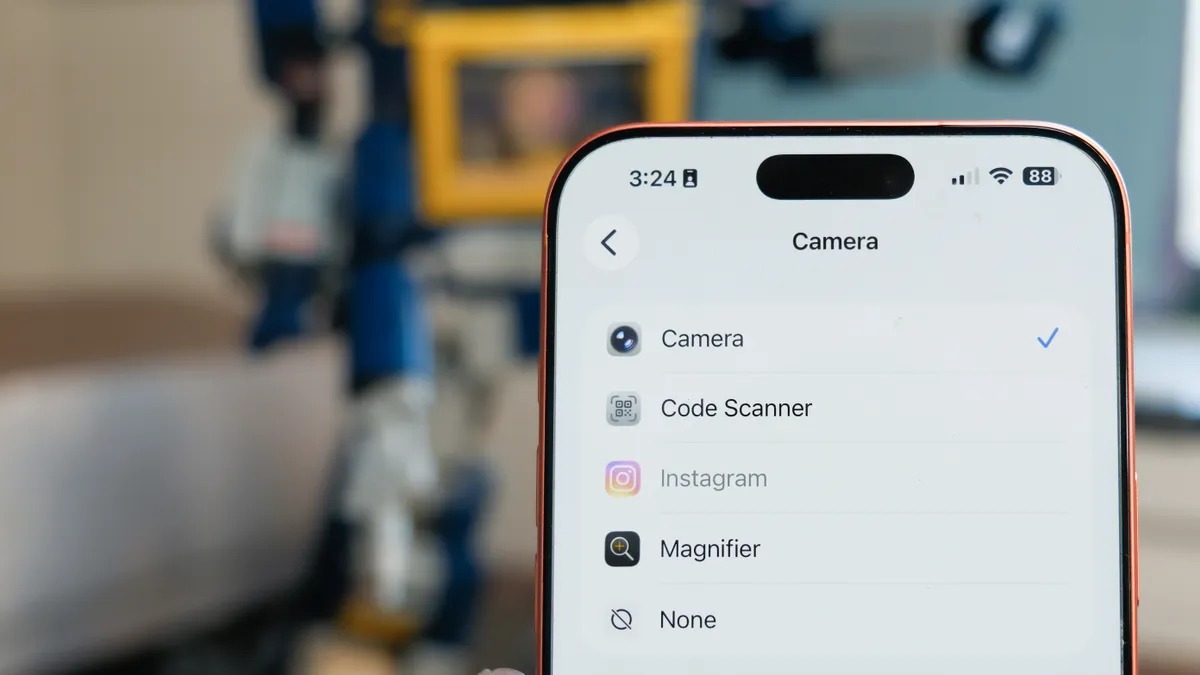
The first step you should take is to go to Settings on your iPhone. Remember that Apple places app settings within the main Settings app, not within the Camera app itself. So, open Settings, scroll down until you find Camera, and the first option you'll find (in iOS 26.2) is Camera Controls.
From here, you can change the button's function. Instead of opening the official camera app, you can set it to open a QR code reader, or even third-party apps like opening the Instagram app's camera directly to take pictures with your favorite filters (provided you have granted Instagram the necessary permissions beforehand).
Use your phone as a magnifying glass
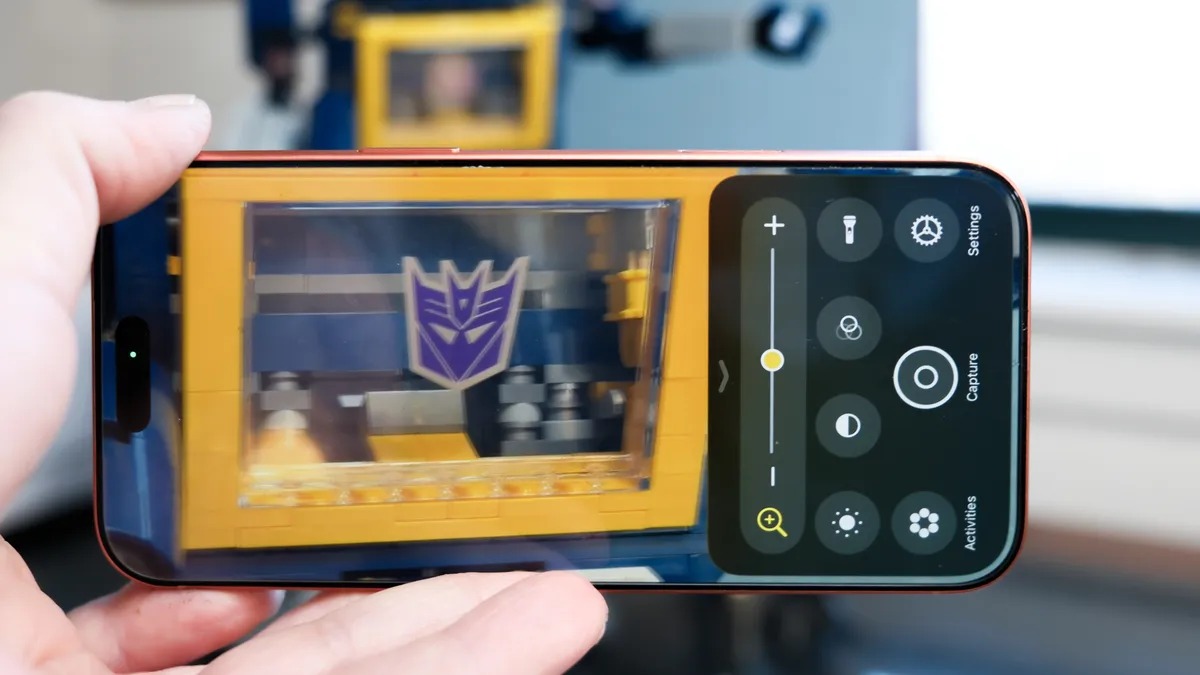
Sometimes we need to enlarge the font to focus on specific information, or perhaps we don't have reading glasses. A quick solution for reading small print is a magnifier app. If you use this feature frequently, you can customize the camera control button to open the magnifier with a single tap instead of using the camera.
The magnifying glass app isn't just a lens; it can also capture images of text, enlarge them, and even convert the image into readable text. It also automatically turns on the flashlight if you're in a dark place to improve visibility.
Ask artificial intelligence: What is this thing?
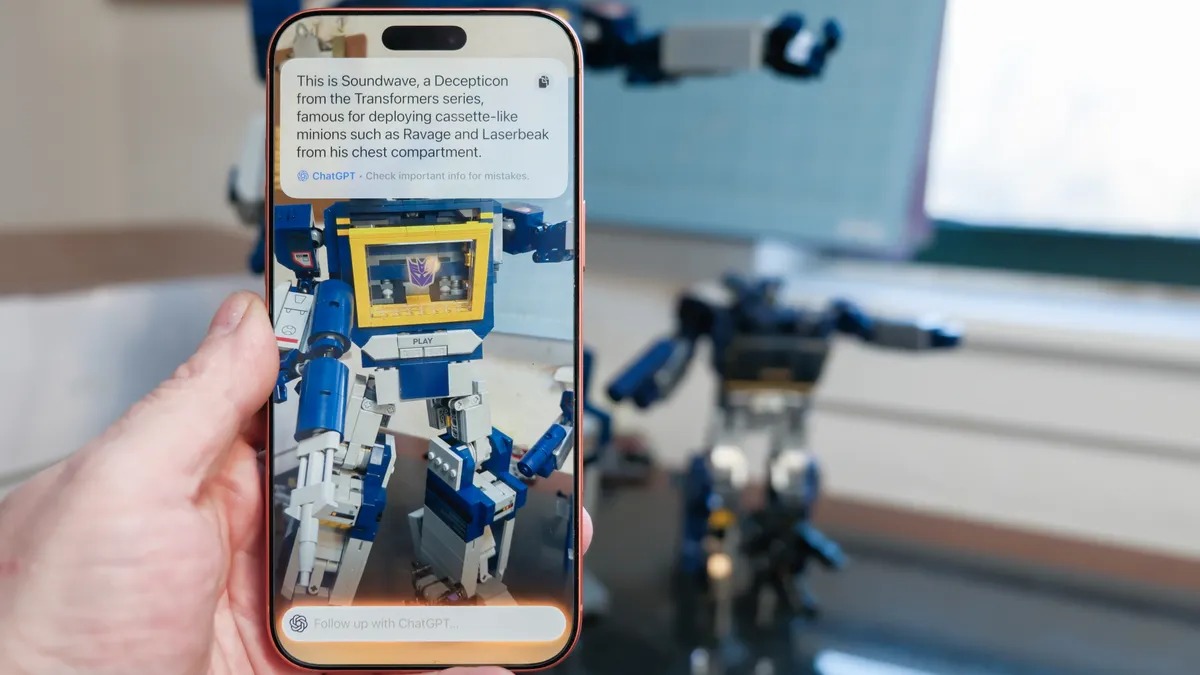
You can use the button to activate Visual Intelligence, an Apple technology that works with ChatGPT to identify objects. Next time you see a strange bird, for example, and wonder what kind it is, just point your phone and ask.
To activate this feature, you don't need to open any app. Simply press and hold the camera control button (when you're on the home screen and not in the camera app). The phone will take a still image and analyze it. It might make mistakes occasionally, but it's very useful for quickly identifying objects.
Professional camera control
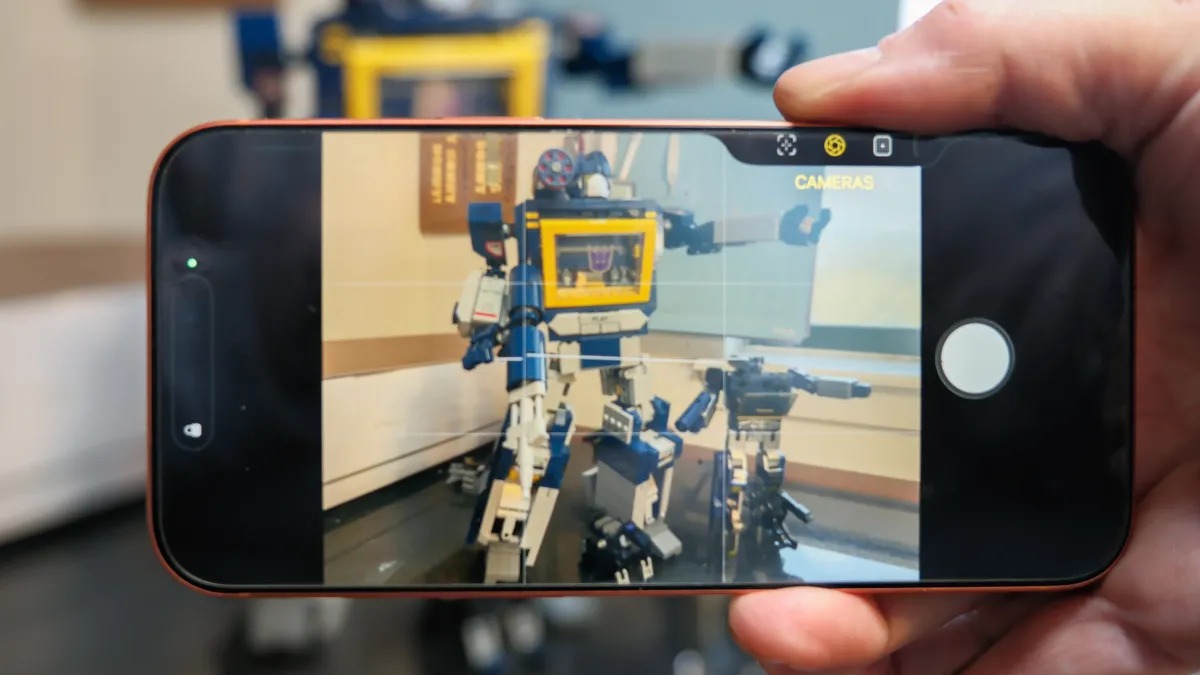
Now let's go back to using the button within the official iPhone camera app. You can press the camera control button to take a picture instantly, but it hides other tricks.
To access it, press lightly (“half”) the button until a small window appears under your finger.
Swipe your finger across the button to navigate between the available tools.
AdviceYou can turn off tools that you don't use often, such as the Depth feature, through the settings.
Here are the tools we recommend using:
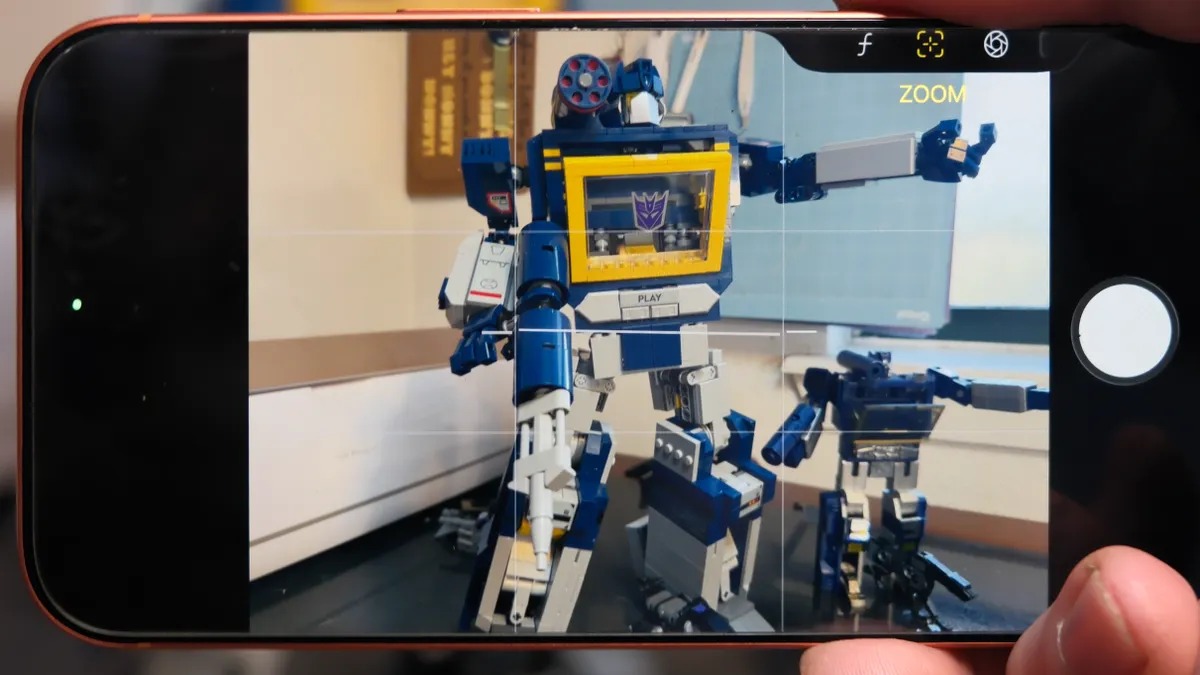
Zooming in and switching between lenses
You can use the button to zoom smoothly. Select Zoom from the menu and swipe left and right on the button. Alternatively, you can select Cameras to quickly switch between the ultra-wide lens (0.5x), the main lens, and the telephoto lens (2x, 4x, 8x). You can even use it to switch to the selfie camera by swiping to the farthest point of the menu.
Fast video recording
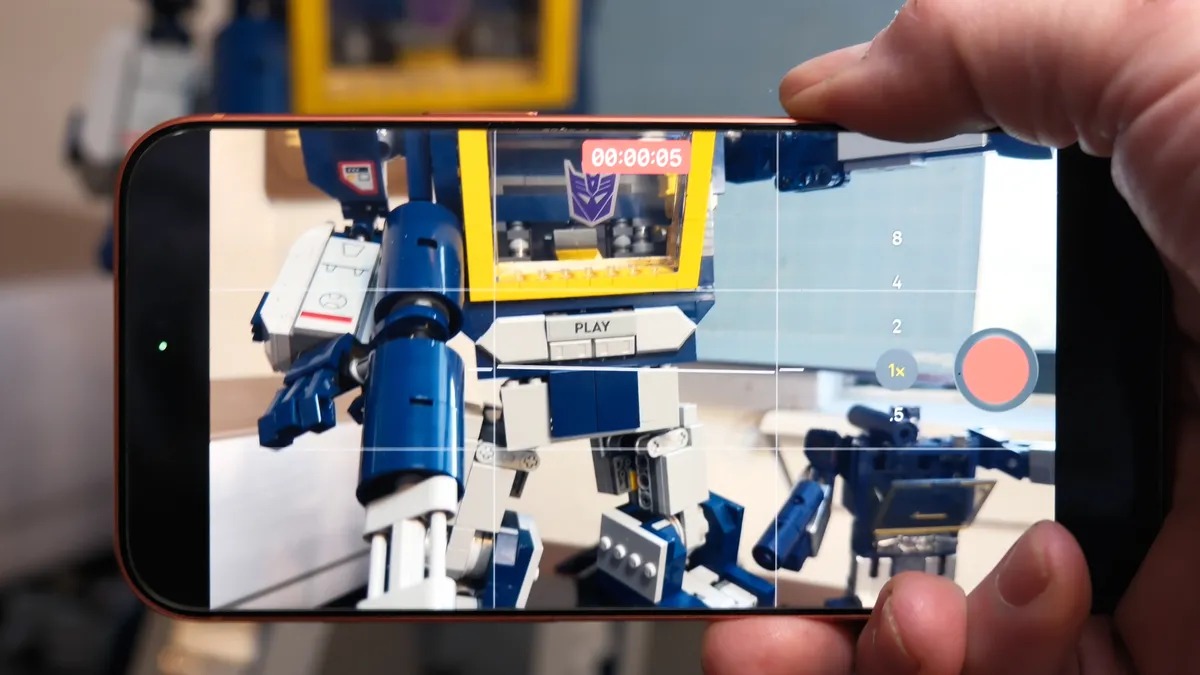
Instead of wasting time switching between photo and video modes on the screen, you can simply press and hold the camera control button. Video recording will begin instantly and stop as soon as you release your finger. This feature is excellent for capturing unexpected moments.
NoteIf you want to take a quick burst of photos instead of a video, you can use the volume up button by pressing and holding it.
Exposure control
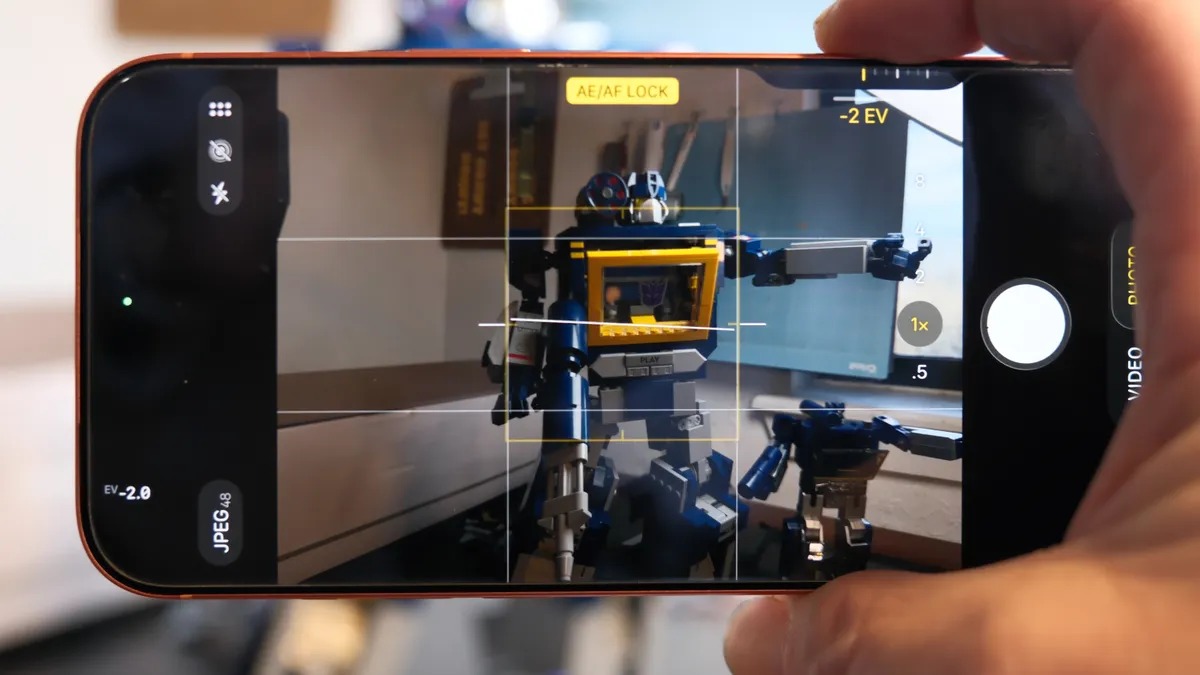
This is a favorite feature for many. Look in the menu for the (±) icon labeled Exposure. By swiping left and right, you can brighten a dark image or reduce the exposure to dramatically highlight details and shadows. If you're not using other tools, I recommend leaving this setting on your screen to quickly enhance your photos.
We're still waiting for Apple to add a two-step shutter button like those found in professional cameras, and perhaps we'll see that in the future, or from competing companies. But until then, we hope these tips help you transform your camera control button from a neglected button into an essential and enjoyable tool in your daily iPhone use.
Source:


9 comment