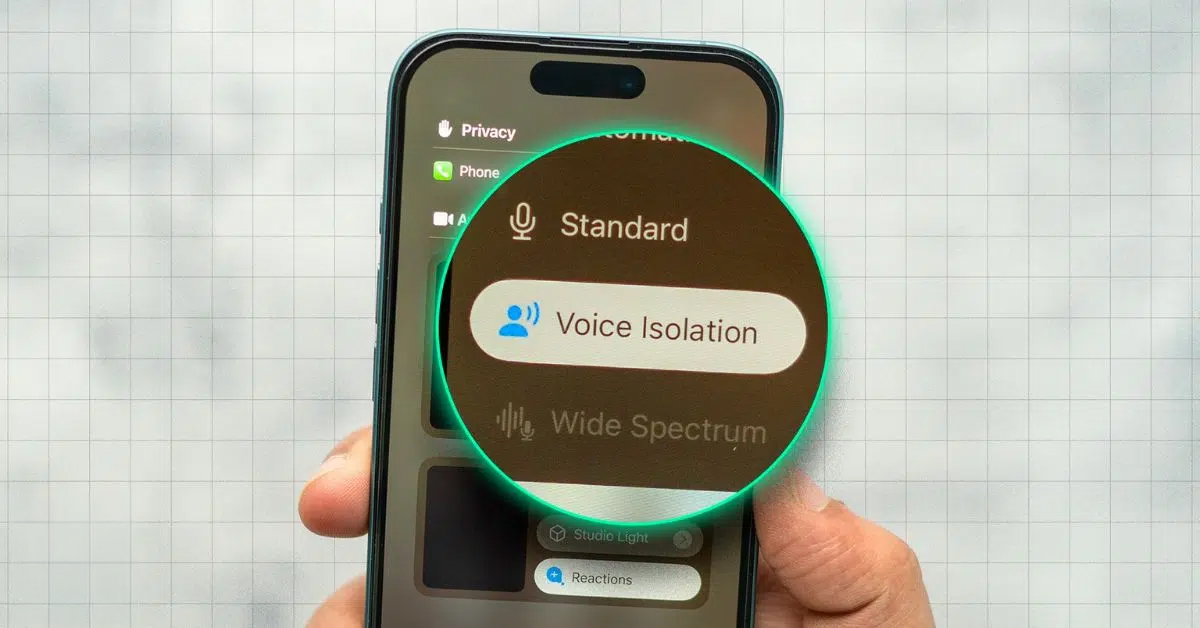
Imagine you are in the middle of an important business call, and suddenly your baby starts practicing their favorite hobby of crying, or the neighbor’s dog decides to engage in a heated debate with a stray cat. An awkward situation, right? Well, my friends, Apple has a magical solution hidden within the depths of the operating system called “Voice Isolation.” This feature is not just a simple filter; it is an intelligent technology that makes your voice crystal clear while blocking out surrounding noise, as if you were speaking from inside a soundproof studio.
The Journey to Phone Calls
The Voice Isolation feature didn’t appear overnight; Apple first launched this feature with iOS 15 in 2021, but it was limited to FaceTime calls only. iPhone fans waited a long time until Apple finally decided to bring this technology to regular phone calls with the release of the iOS 16.4 update in 2023. The concept involves advanced algorithms that process audio in real-time to identify and enhance the frequencies of your human voice, while recognizing and completely ignoring unwanted sounds.
This feature works wonderfully in crowded places or during strong winds, taking the burden off you to shout so the other party can hear you, or having to apologize for the noise around you.
How to Enable the Feature (The Lost Treasure in Control Center)
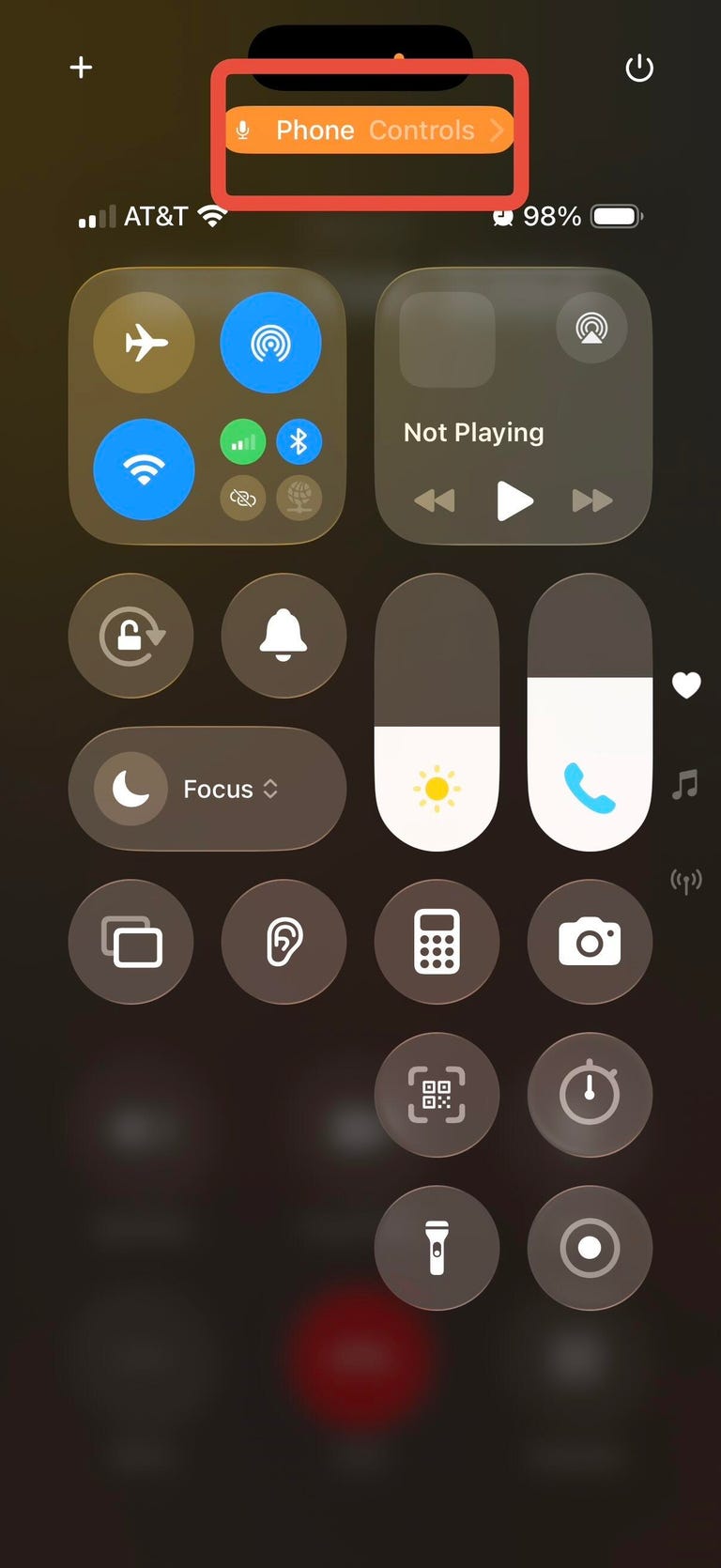
If you search for the Voice Isolation feature in the Settings app, you will come up empty-handed, as it simply isn’t there! To enable this feature, you must be in an “active call.” Once activated, your iPhone will remember your preferences and apply them automatically to all your future calls, meaning you won’t have to repeat these steps every time.
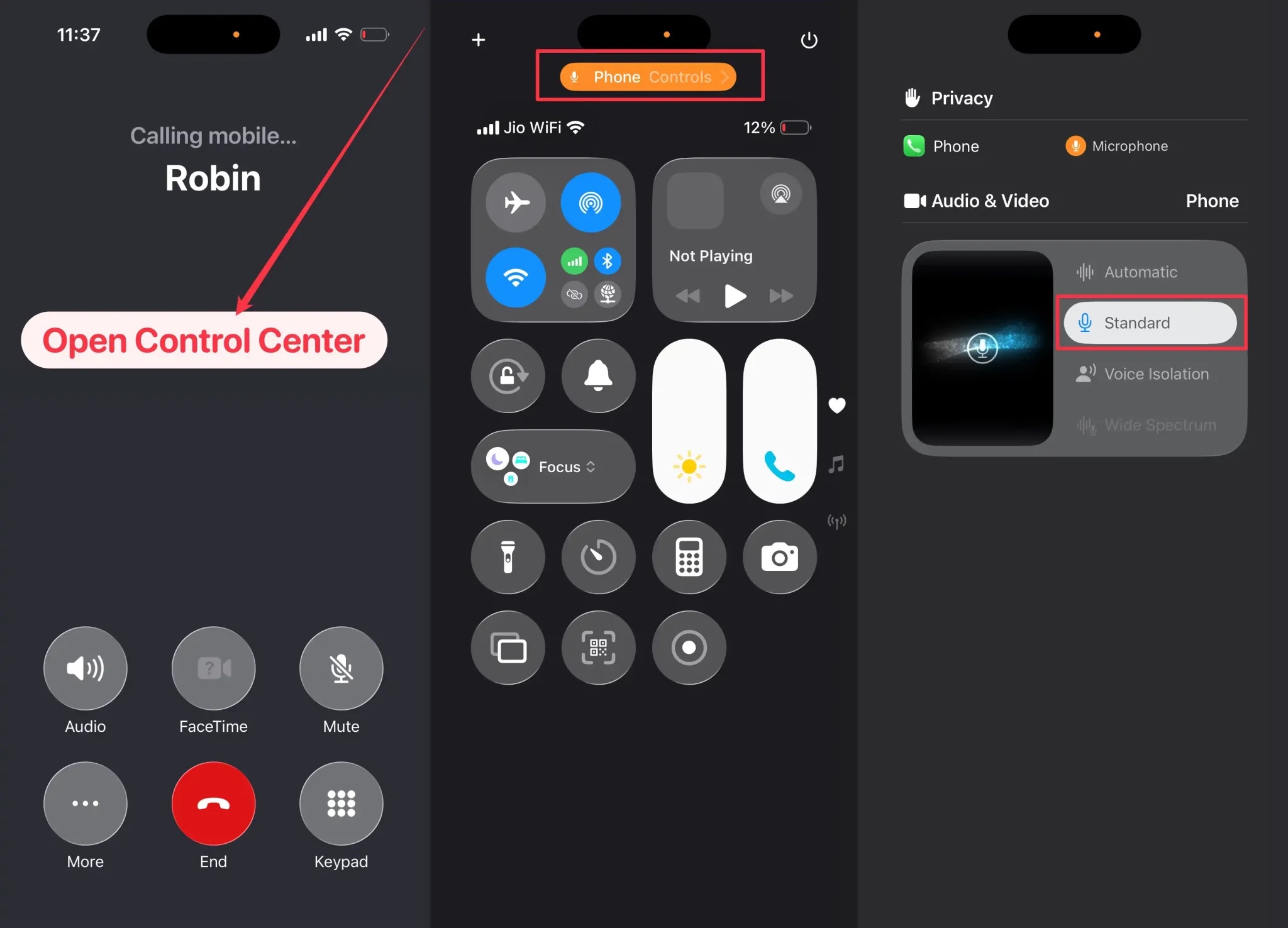
Here is the simple way to enable it: While you are on a call, swipe down from the top-right corner of the screen to access the “Control Center.” At the top, you will find an option called “Mic Mode.” Tap it, and a list of options will appear; select “Voice Isolation.” And in a low voice, you can now say goodbye to noise!
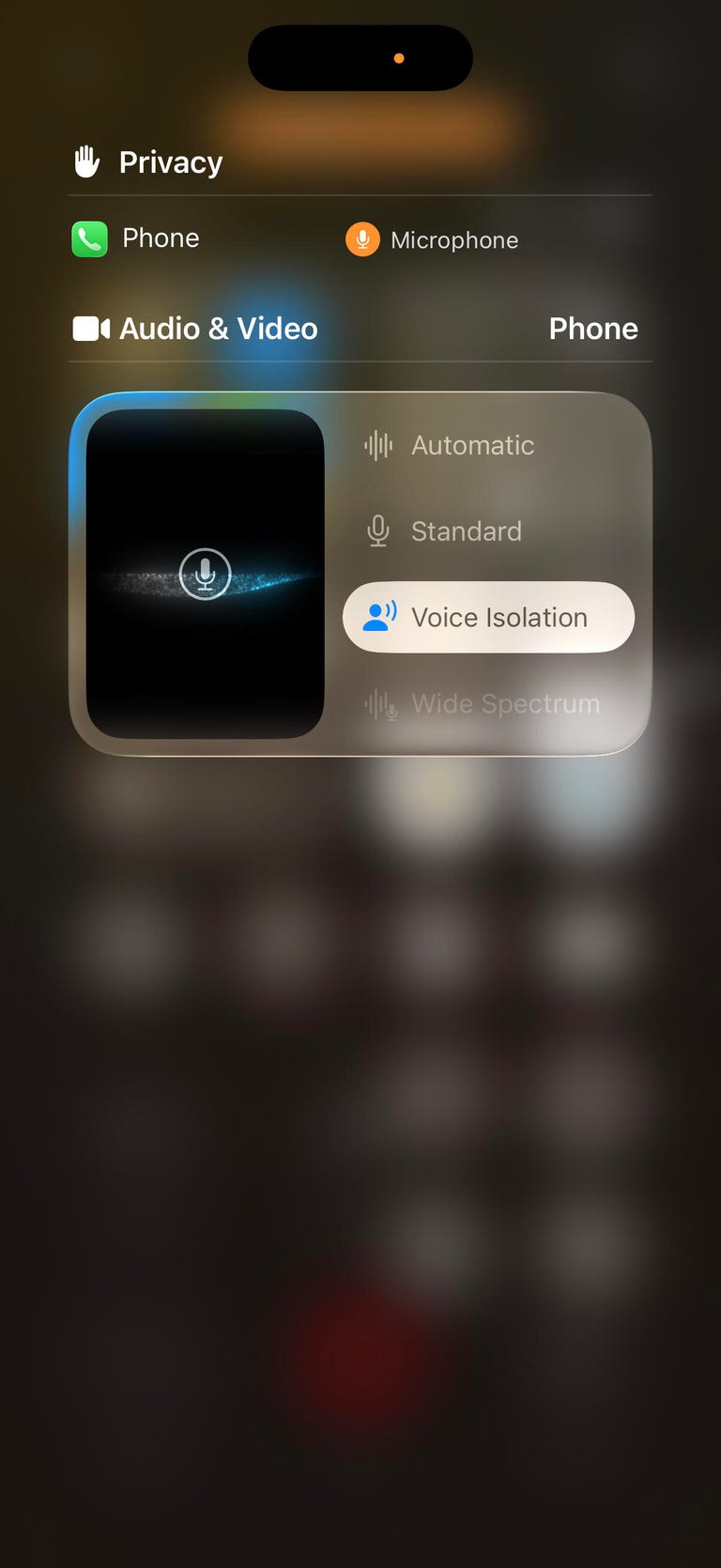
And if you are wondering how to return to the normal mode, it is simple; follow the same steps and choose the “Standard” mode so the microphone returns to its default settings, which pick up everything around you.
Wide Spectrum and Automatic Mode: What’s the Difference?
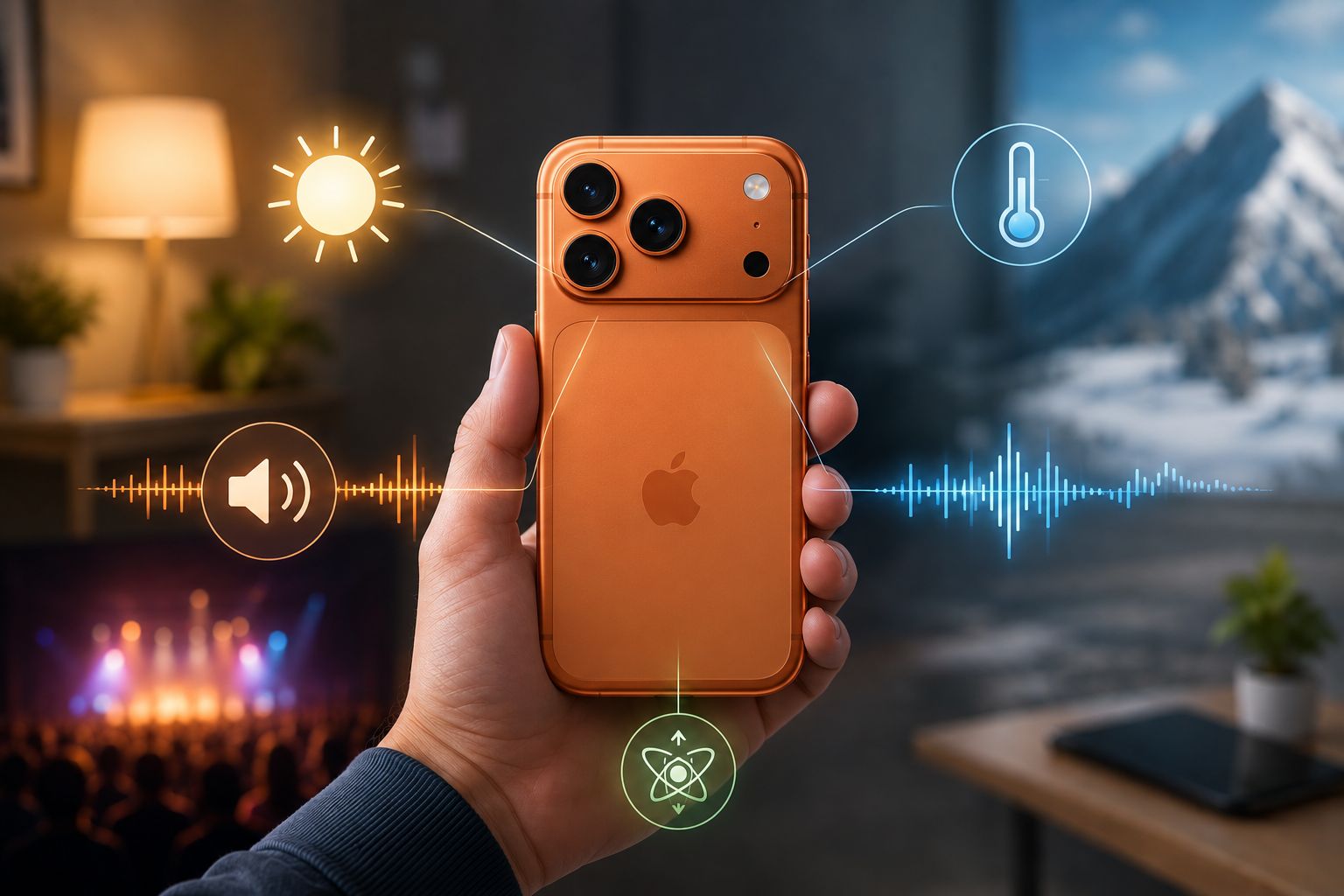
Besides Voice Isolation, you will notice another option called “Wide Spectrum.” This mode is the exact opposite of Voice Isolation; it amplifies the sounds around you so the other party can hear them clearly. Imagine you are at a concert and want to share the atmosphere with your friend, or you are at a family gathering and want the other party to hear everyone around the phone. Currently, this mode is available for FaceTime calls only, but its presence in the menu suggests that Apple may make it available for regular calls soon.
The Intelligence of Automatic Mode
There is also an “Automatic” mode that leaves the task to the operating system to decide what is best for you. For example, Apple experts explain that the system might automatically use “Voice Isolation” when you talk through the regular phone receiver to block noise near your ear, while it might switch to “Standard” mode when using the speakerphone to ensure your voice is captured with more flexibility. It is artificial intelligence working silently to make your life easier.
Source:

Leave a Reply