We always talk about the “hidden features” in Apple devices, but the truth is that the operating system and the Apple Watch have been so thoroughly dissected by tech enthusiasts that there is nothing truly secret left. However, there are some fantastic tools that get lost in the shuffle of conferences and the promotion of major features, even though they offer real, magical benefits in daily life. In this article, we will review 10 underrated Apple Watch features that you can activate and use in just a few minutes to amazingly simplify your daily life.
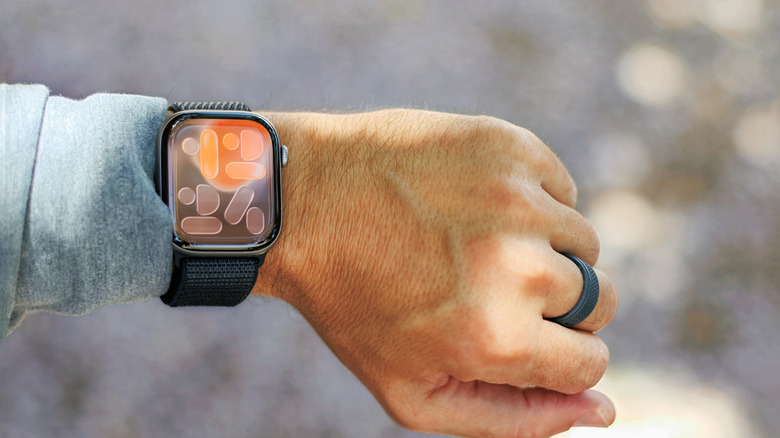
Automatically Unlock Your Mac
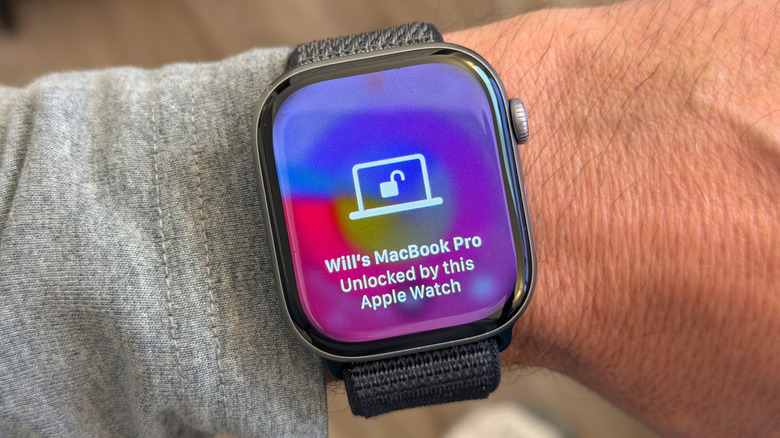
We start with an old but gold feature: Auto Unlock, which first appeared in macOS Sierra in 2016. Instead of typing your password every time you sit in front of your Mac, you can simply skip this step entirely as long as you are wearing your Apple Watch on your wrist. As soon as you approach the device, you will feel a gentle, pleasant haptic tap on your wrist to let you know the doors have been successfully opened.
Some might think that the presence of Touch ID on modern MacBooks has reduced the importance of this feature, but it remains extremely useful in various scenarios. For example, if you use a desktop Mac (like a Mac mini or iMac) with an external display, keep your MacBook in Clamshell mode, or even if you are unable to reach the fingerprint sensor easily. The beauty is that this feature is not limited to just unlocking the device; it can also confirm operations that require administrator privileges, just like a fingerprint.
To activate this magical feature, go to System Settings > Touch ID & Password on your Mac, then toggle the switch next to your watch’s name. Remember that you will need to have Wi-Fi and Bluetooth enabled on both devices, be signed in with the same account, and have a passcode set for your Apple Watch.
Retrace Your Steps to Avoid Getting Lost
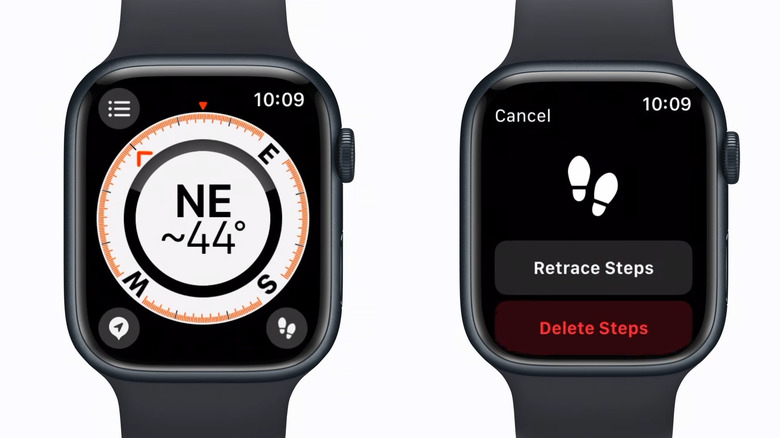
The Compass app on the Apple Watch includes a fantastic and very important feature called “Backtrack.” This feature records your movement path step-by-step, so you can retrace this path and return to your starting point safely if you get lost in remote areas or during long walks. This feature works on Apple Watch Series 6 and later, as well as Apple Watch SE, provided you are running watchOS 10 or later.
By default, the Apple Watch automatically starts a Backtrack session when you begin a workout in an area without coverage or Wi-Fi (you can ensure this is enabled by going to Settings > Compass on the watch and checking the Backtrack button). However, when it comes to adventures in nature, it is better to turn it on manually to ensure your safety.
The easiest way to start is by adding the Backtrack shortcut to the Control Center. If you have an Apple Watch Ultra, you can customize the Action button to start a Backtrack session with a single press (via Settings > Action Button > Action > Backtrack > Start Backtrack). When you decide to return, simply press the pause button at the bottom of the compass screen, select Retrace Steps, and follow the arrow.
Control Your Watch with One-Handed Gestures
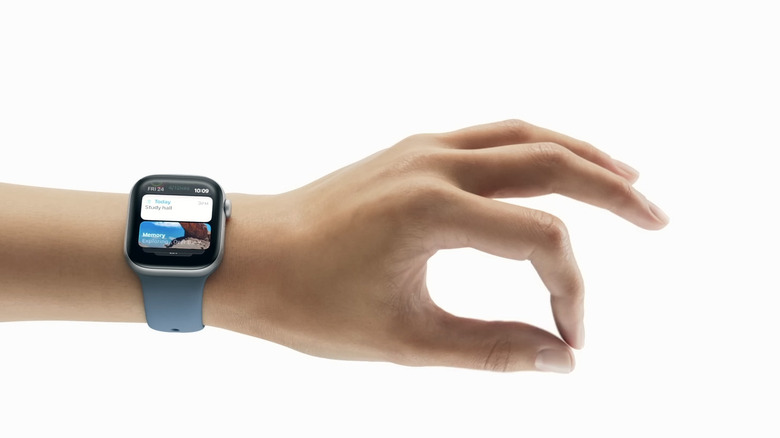
If you have a modern Apple Watch, you can control it entirely with just one hand without touching the screen. The Double Tap gesture allows you to scroll through the Smart Stack, play or pause music, and even answer or end incoming phone calls.
To do this, simply tap your index finger and thumb together twice in the air. It might feel a bit strange at first, but you will quickly get used to it, and it will become very natural. This feature is a lifesaver when your hands are dirty in the kitchen while cooking, or when you are holding a dog leash while walking and want to read and send a quick reply to a message.
In watchOS 26, Apple added a great companion gesture: the Wrist Flick. This gesture acts as a back button; it allows you to quickly rotate your wrist away from you and then back to dismiss what is on the screen and return to the main watch face. It can also be used to mute incoming calls, stop timers, and hide annoying notifications.
The Double Tap and Wrist Flick features require a modern Apple Watch; for the main series, you need an Apple Watch Series 9 or later. It also works on Apple Watch SE 3, Apple Watch Ultra 2, and later versions. You can customize it by going to Settings > Gestures > Double Tap.
And let’s not forget the classic feature available since the first generation of the watch: Cover to Mute. When you receive an alert or call at an inconvenient time, simply cover the watch screen with your palm for three seconds to immediately switch the watch to silent mode. For those who want to dive deeper, the AssistiveTouch feature in Accessibility settings offers immense capabilities to simulate screen touches and rotate the Digital Crown through hand gestures.
Use Your Watch as a Remote Camera Shutter for Your iPhone
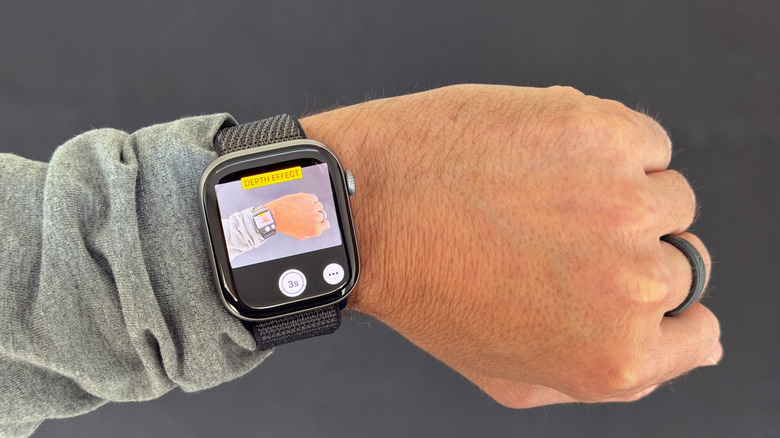
Do you want to take a group photo that includes you and your friends, or take a great selfie from a distance? This feature is the perfect solution. Mount your iPhone on a tripod or lean it against any stable object, then take your place in the frame and use your Apple Watch to be your viewfinder and convenient shutter button.
In watchOS 26, a smart hint automatically appears at the bottom of the watch face as soon as you open the Camera app on your iPhone. By tapping it, the Camera Remote app opens on the watch, turning your wrist into a live preview screen that shows you exactly what the phone lens sees so you can adjust the shooting angle precisely.
The three dots in the bottom right corner open additional options for you to enable a countdown timer or instant capture, and to switch between the front and rear cameras. You can take the photo either by tapping the button on the watch or simply by using the Double Tap gesture we mentioned earlier.
Find Your Lost iPhone in Total Darkness
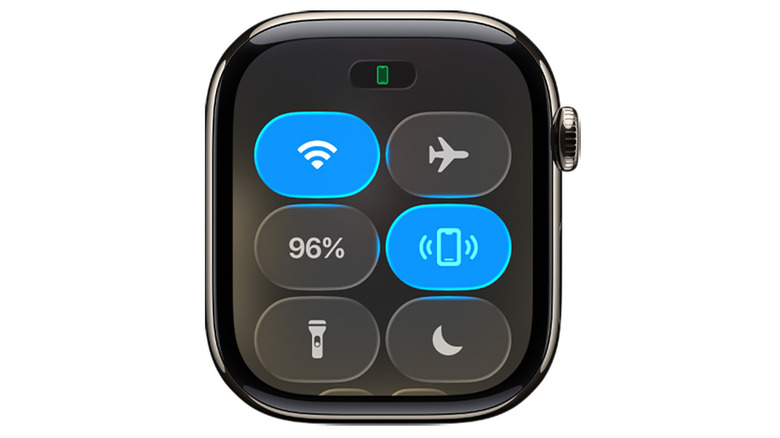
You surely know the feature to ping your iPhone from your Apple Watch when you lose it around the house (if you don’t: open the Control Center by pressing the side button, then tap the phone icon with sound waves). Your phone will start making a loud sound to help you locate it, and the watch will even guide you in its direction and show you the remaining distance to reach it.
But what if the phone fell behind the sofa or under the bed in a completely dark room and your hearing alone isn’t enough? This is where this smart trick comes in: instead of a quick tap on the ping icon, press and hold it. This action will not only make the sound, but it will also turn on the iPhone’s rear camera flash to blink brightly in the dark, giving you a clear visual cue that makes it easy to find it immediately.
Walkie-Talkie App for Quick Communication
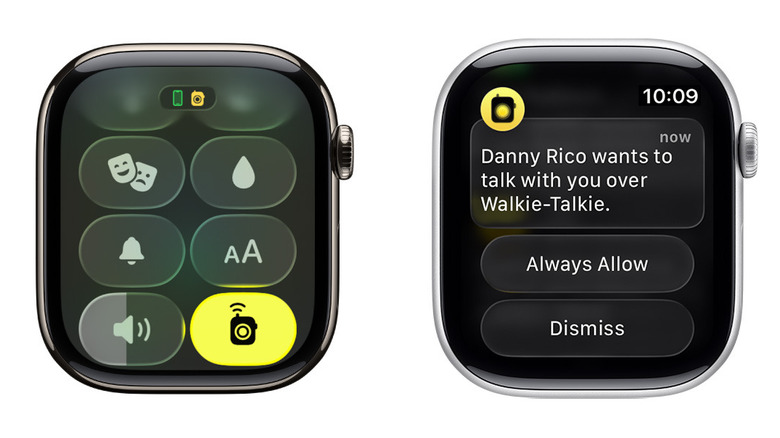
As the name suggests, the Walkie-Talkie app gives you instant, direct communication (push-to-talk) with any friend who has an Apple Watch. It is a great way to communicate quickly and coordinate in shopping malls or during trips without needing to make a full phone call and wait for an answer.
Open the Walkie-Talkie app (the yellow icon with a black walkie-talkie), then browse your contacts to send an invitation to your friend. Once they accept your invitation, their card will turn bright yellow, and you are ready to talk to them at any time.
To use it, select the friend, and press and hold the talk button while speaking. If your friend is available, the Walkie-Talkie app will open automatically on their watch and transmit your voice immediately. You can, of course, set your status to “Unavailable” from within the app or via the Control Center to prevent the watch from speaking at inappropriate times or during formal meetings.
Give Names to Your Multiple Timers
The Timers app is one of the most used apps on our watches. But things can get very messy and confusing when you run more than one timer at the same time, especially while cooking or multitasking. The genius solution here is to give a name to each timer using Siri.
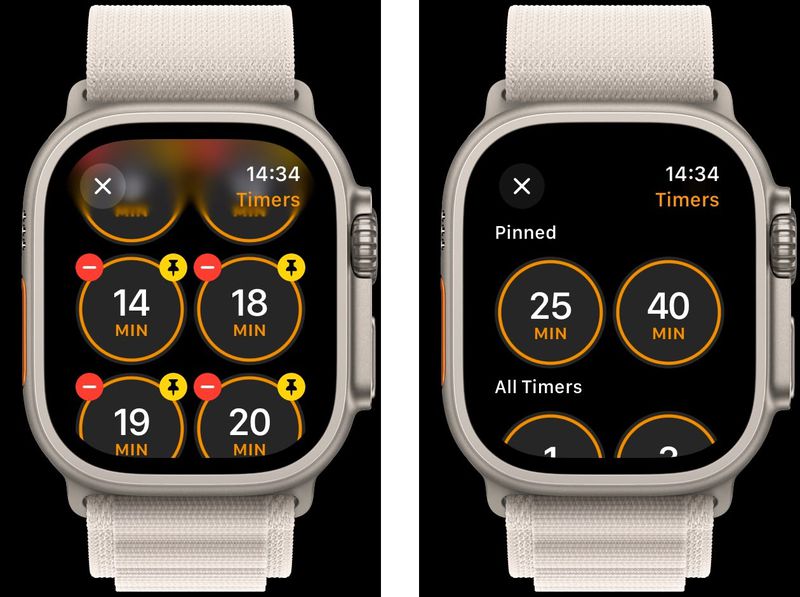
For example, you can say: “Hey Siri, set a pasta timer for 8 minutes,” then “Hey Siri, set a sauce timer for 15 minutes.” The watch will show you each timer separately with its name at the top, ensuring you don’t mix things up and get perfectly cooked food every time!
Contactless Payment with a Flick of the Wrist
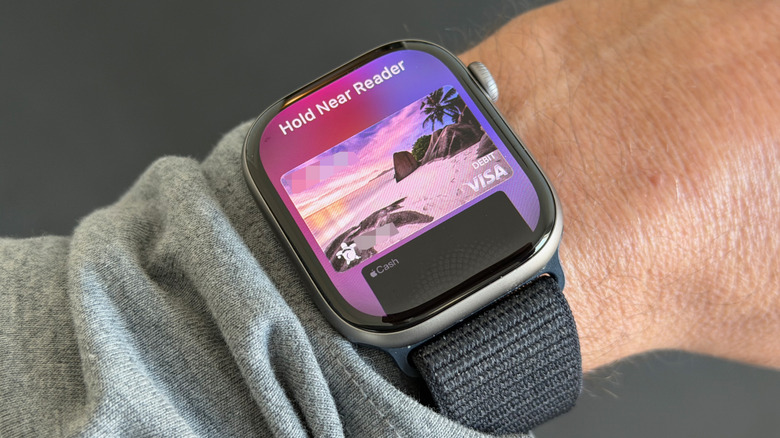
This feature might seem intuitive to many users, but you would be surprised by the number of people who have an Apple Watch and still take out their wallets or phones when paying in stores. Once you set up your credit card via the Wallet app on your watch or through the Watch app on your iPhone, you can pay with a quick flick of your wrist.
When you stand in front of a contactless payment terminal in any store, double-press the side button on the watch, and your virtual card will appear on the screen. Bring the watch within a few centimeters of the card reader, and you will feel a light vibration and hear a chime confirming the payment was completed safely and quickly without needing to take anything out of your pocket.
Let the Watch Speak the Time Out Loud
Sometimes, you might want to know the time but cannot or do not want to look directly at the watch screen, or perhaps you suffer from temporary vision impairment. The Apple Watch provides a great and simple feature to read the time out loud clearly.
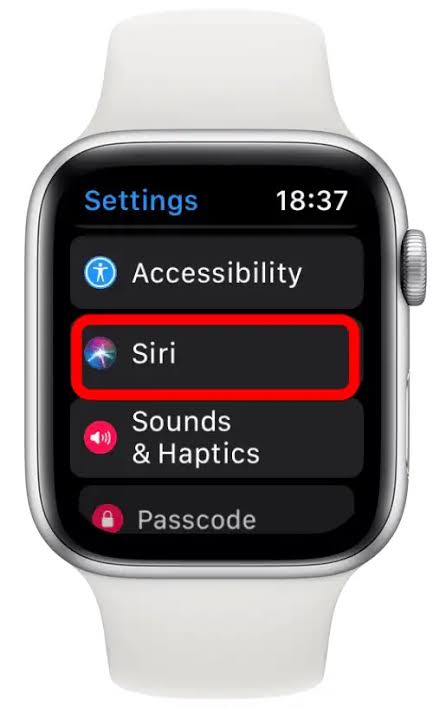
All you have to do is place two fingers on the watch face and hold for one second, and Siri will speak the current time to you in your preferred language. This feature is enabled by default, but if it doesn’t work for you, you can ensure it is turned on by going to Settings > Clock and enabling the Speak Time option.
Send Your Real Heartbeat to Someone You Love
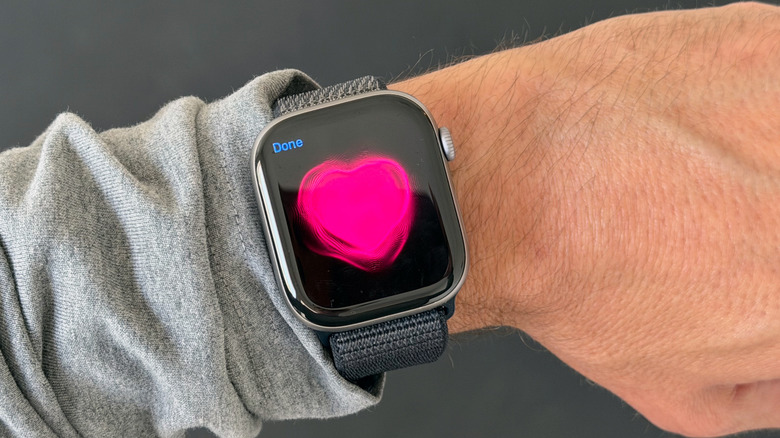
We conclude with a very romantic and sweet feature called “Digital Touch.” This feature allows you to record your actual heartbeat and send it to your partner or friend so it reaches their wrist at the same moment as tangible pulses that express your care for them, even if they are on another continent.
To use it, open the Messages app on the watch, open the desired conversation, then tap the plus (+) button and choose Digital Touch. On the black screen that appears, place two fingers on the screen and hold until you see a red heart beating and feel the real pulse vibrations under your fingers. Once you lift your finger and tap send, the other party will receive the message and feel your heartbeat on their wrist immediately. (The feature works best if the other party has an Apple Watch to get the real haptic sensation; otherwise, it will appear only as an animation on the iPhone screen).
Source:

Leave a Reply