Many iPhone users believe that the Reminders app is just a simple tool for writing quick daily to-do lists, but in reality, it is a powerful and highly underrated productivity tool within the operating system. This app contains smart hidden features that can automatically organize your daily life without the need to subscribe to expensive third-party apps. In this article, we will reveal three amazing features that will change how you handle your daily tasks and put your productivity on autopilot.
1. Smart Grocery Lists: Goodbye to Supermarket Chaos
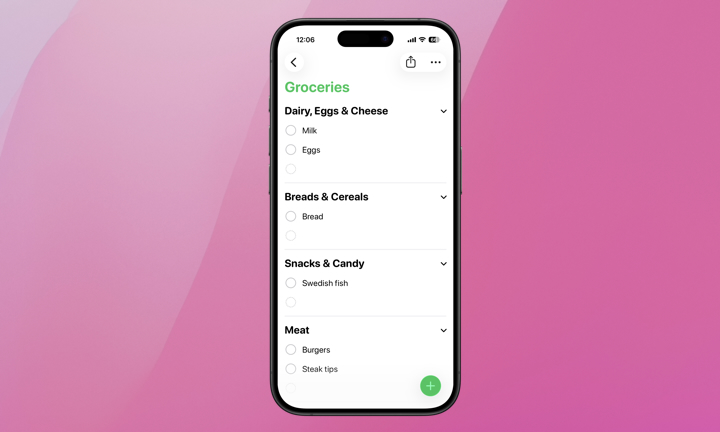
How many times have you gone to the supermarket and had to return to the dairy aisle because you forgot to read an item at the bottom of your random shopping list? Thanks to the Smart Grocery Lists feature, Apple has completely solved this problem in a magical way. When you create a list and set its type to “Groceries,” the app will automatically recognize the items you type and categorize them into organized sections like produce, dairy, bakery, meat, and more, without any manual intervention from you.
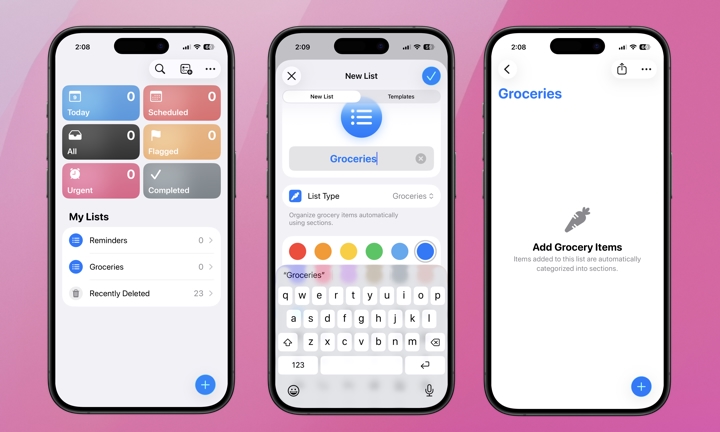
To activate this great feature, follow these steps: Open the Reminders app, then tap the option to add a new list in the top corner. Give the list a suitable name like “Home Shopping,” and under the “List Type” option, make sure to select “Groceries.” As soon as you start adding items, you will notice how the app automatically organizes them for a very smooth and fast shopping experience.
2. The Hidden Notes Field: Always Clean and Tidy Lists
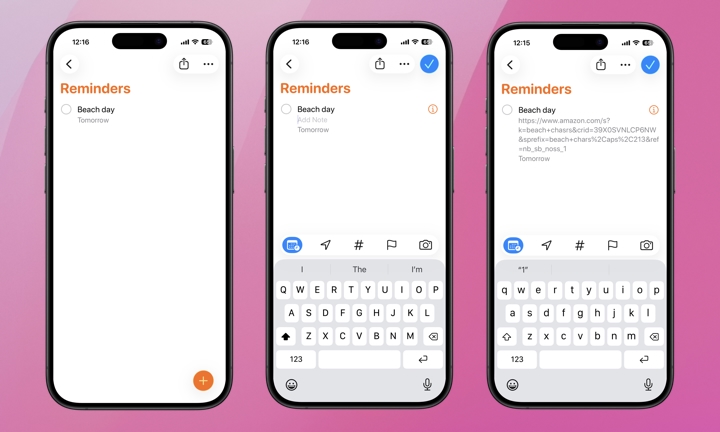
Most users tend to write all the details of a reminder in the main title, which makes the list look messy, cluttered, and difficult to read at a quick glance. Fortunately, the Reminders app offers a smart trick: a hidden notes field dedicated to additional information, links, or side notes, which keeps your main interface completely clean and organized.
To use this field, open the Reminders app and tap the information icon (i) located next to the reminder, where you will find the “Notes” field waiting for you to write whatever you want. You can also simply tap directly on the reminder title and start typing; you will notice the cursor automatically moves to the next line with a faint gray text that says “Add Note,” making it easy for you to save phone numbers, addresses, or important links associated with the task.
3. Early and Urgent Reminders: Complete Control Over Time and Alerts
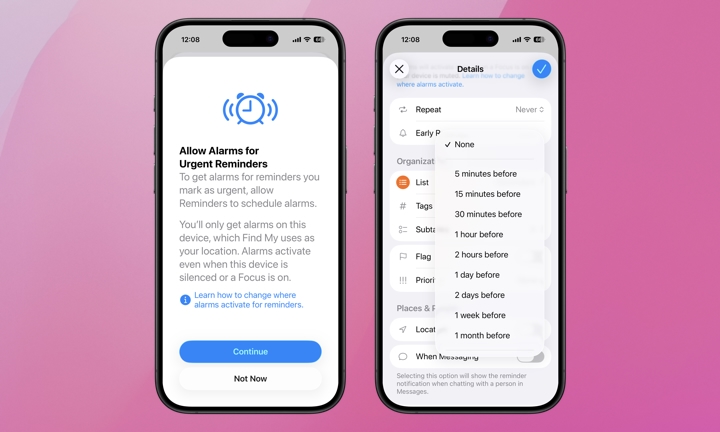
We usually set reminders for a specific date and time, but often we need an advance alert to prepare for the task before its actual time. This is where the “Early Reminder” feature built into the app comes in. This feature allows you to choose to receive an alert minutes, hours, or days before the actual deadline, preventing surprises and giving you enough time to prepare.
For added importance, you can mark any reminder as “Urgent.” This feature gives the alert extra power, as it asks for your permission to bypass Focus Modes and trigger an audible alarm even if the phone is in Silent or Do Not Disturb mode, ensuring your immediate response to sensitive and emergency tasks. To adjust these options, tap the information icon next to the reminder and enable the date and time to see the options for Early Reminder and marking it as Urgent.
Source:


Leave a Reply