A feature that many don’t know about in iOS 26, called “Spatial Scenes”. Imagine your old photos taken twenty years ago now coming to life and turning into three‑dimensional scenes that move in the palm of your hand! Yes, you no longer need a special camera or an expensive headset; all you need is a compatible iPhone and a few simple tweaks to turn your flat memories into a window onto reality.
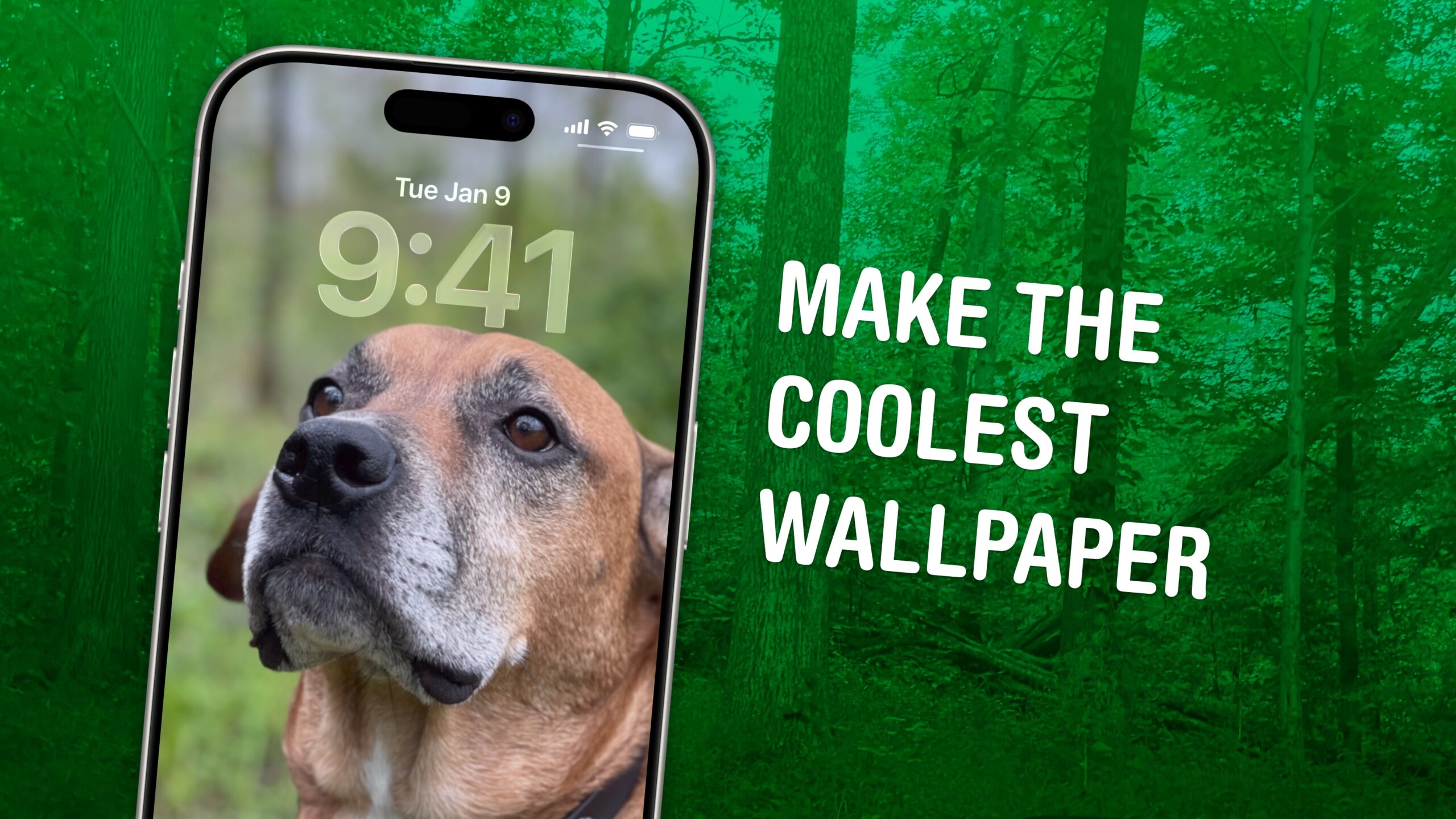
What Is the Spatial Scenes Feature and How Does It Work?
Simply put, this feature is slightly different from “Spatial Photos” designed for the Apple Vision Pro headset. While Spatial Photos appear as regular pictures on a standard iPhone screen, Spatial Scenes give you a direct three‑dimensional effect on your display. The technology uses artificial intelligence to fill in perspective angles in the image, allowing you to tilt your phone in your hand and see the background move in harmony with you.
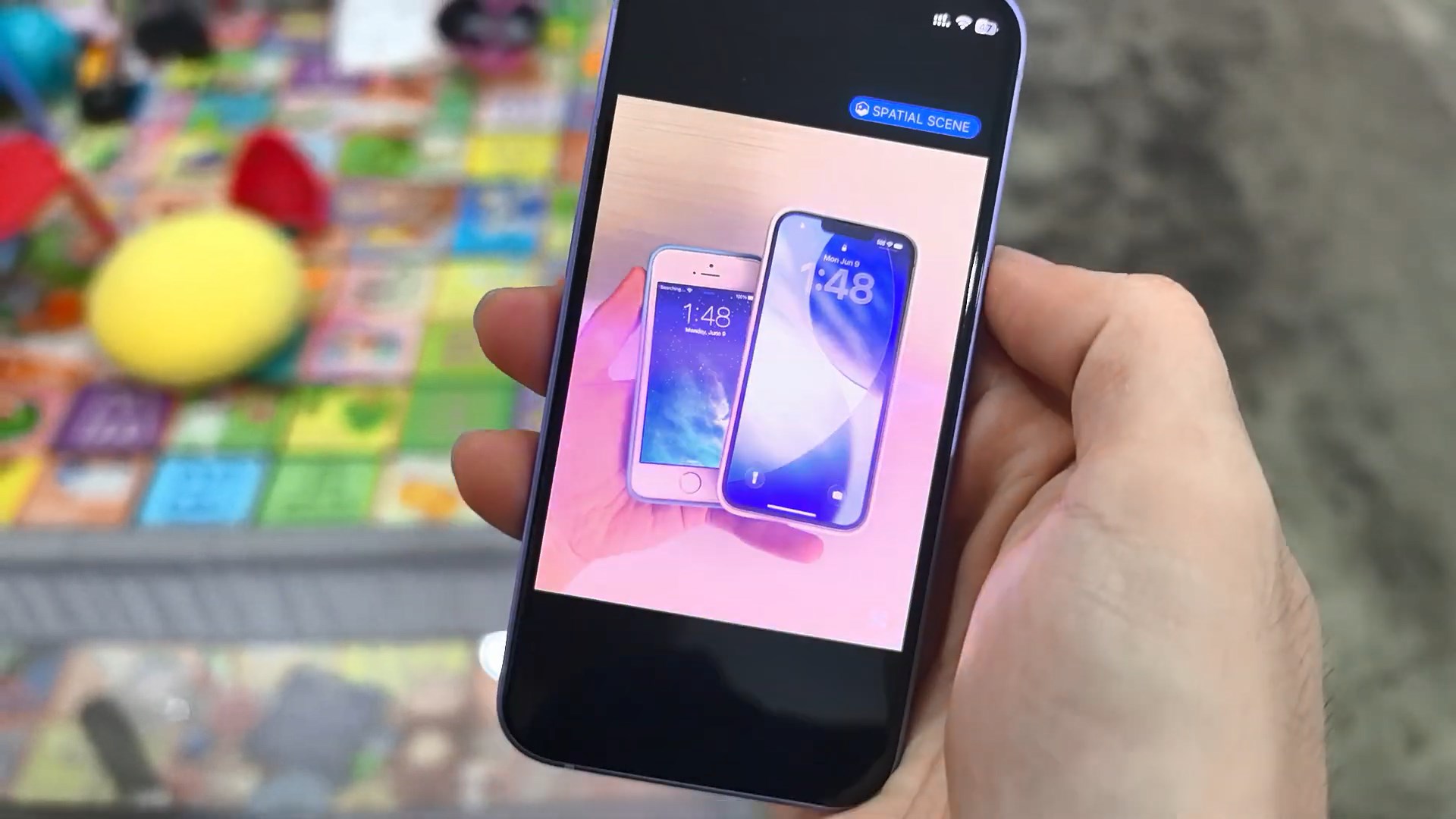
However, it should be noted that in some portrait shots you may see an effect resembling a “diorama”, where people or animals appear as flat cartoon cut‑outs within a three‑dimensional scene. It seems Apple is trying to avoid the Uncanny Valley by not over‑manipulating facial details, which is, as usual, a smart move.
Requirements: Is Your Phone Ready for the Future?
To enjoy this magic, you first need to update your device to iOS 26. The update is available via Settings → General → Software Update. This system supports iPhone 11 and iPhone SE (2nd generation) and later, but hold back a bit before getting too excited!
Creating these spatial scenes requires special processing power, so they are limited to iPhone 12 or newer models. Therefore, if you’re still clinging to an iPhone 11, it may be time to consider an upgrade to experience the third dimension.
How to Turn Any Photo into a Spatial Scene
After updating, open the Photos app and select any picture you like. You’ll see a small gray hexagon icon in the top‑right corner (next to the more button). Tapping it triggers a colored wave that sweeps across the image, and in moments it becomes a spatial scene. You can now shake your phone left and right to see the perspective shift dramatically before your eyes.
Stunning Live Lock‑Screen Wallpaper
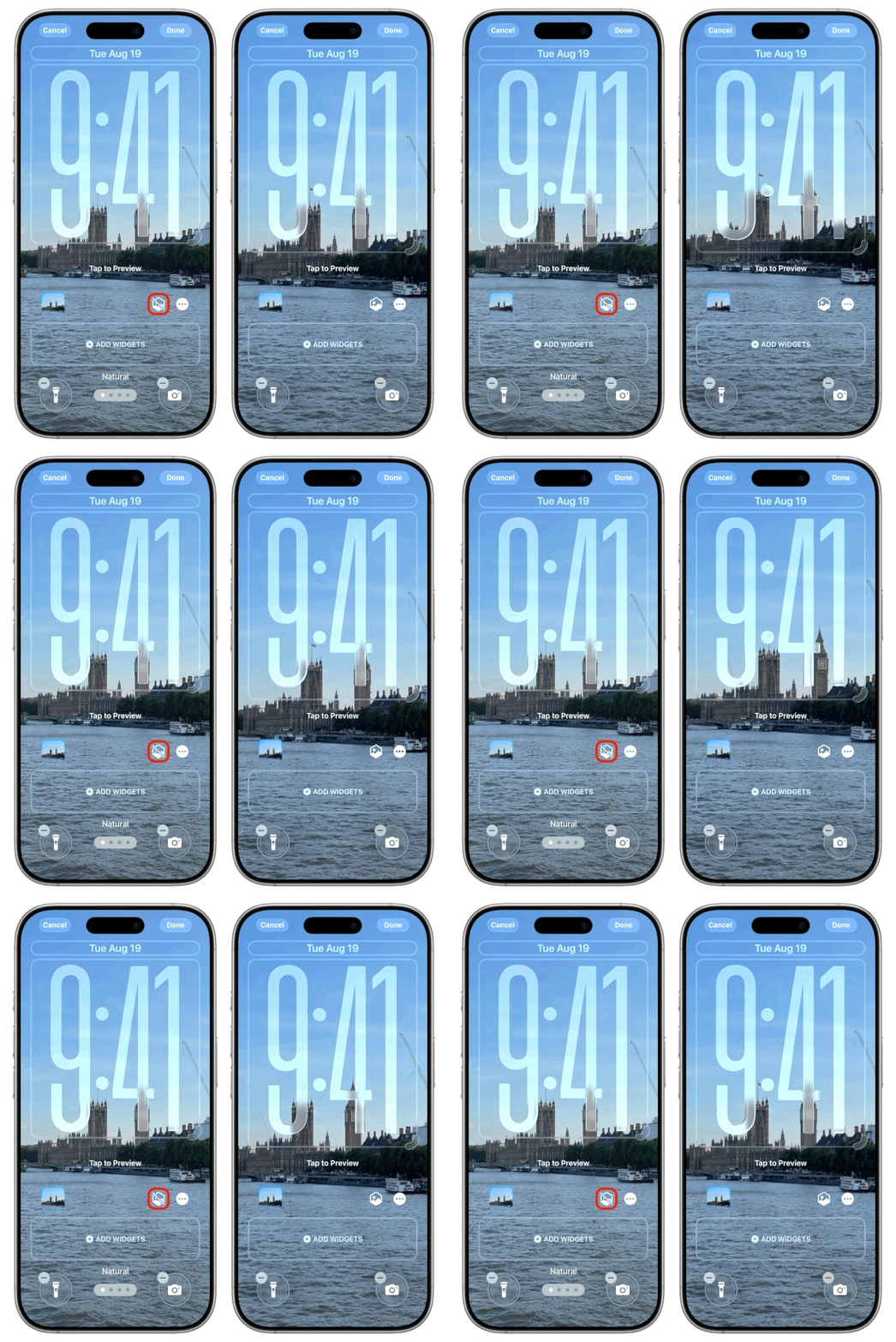
The most exciting part is the ability to set these scenes as your lock‑screen wallpaper. Using the share button, choose “Use as Wallpaper”. In the preview screen, make sure the hexagon icon for “Spatial Capture” is enabled.
One important note: Spatial Scenes on the lock screen currently do not support manual resizing (pinch to resize). So, to avoid your image overlapping the clock, it’s best to choose pictures where the main elements are positioned toward the bottom. Landscapes and cityscapes work perfectly in this frame and make your screen look like a real window.
Source:
Leave a Reply