When it comes to digital security and privacy protection, caution is not just a luxury but an indispensable necessity in our current era. Whether we are talking about cybercriminals or even major advertising and tech companies that pursue your data to analyze your behavior, there is always someone lurking around your digital activity. Although iOS is considered one of the most secure and privacy-respecting systems in the tech world, there are default settings that may leave a trace of your activity without you noticing. The tips here are not just speculation; they were shared by a user citing their former manager, a former intelligence agent at the FBI, explaining the most important settings that must be adjusted on the iPhone to protect your personal data to the maximum extent.
Stop Sharing Siri Recordings and Analytics with Apple
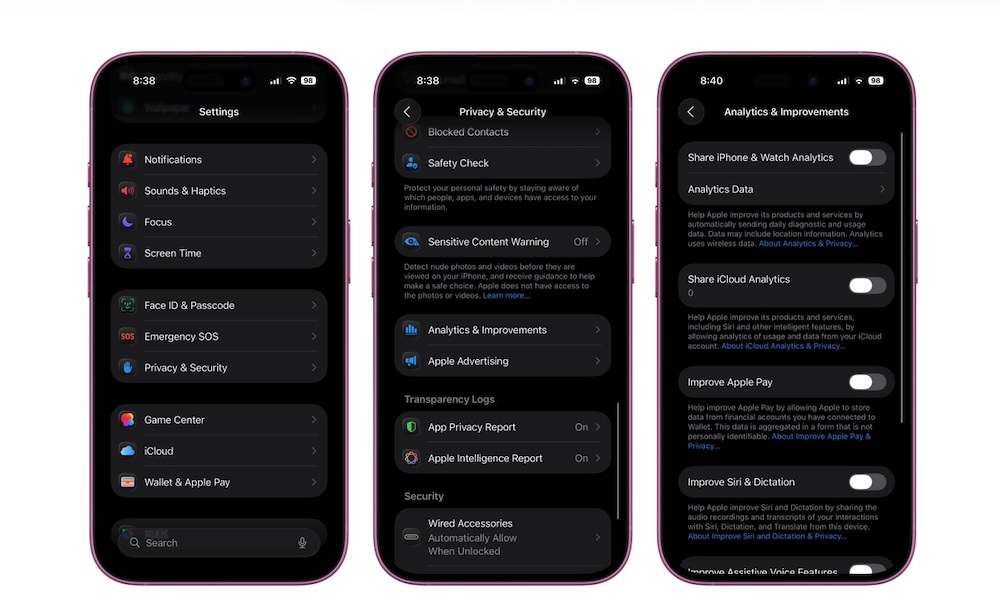
If you regularly use the Siri voice assistant via the famous voice command, you know how useful it is for getting quick tasks done. But what you might overlook is that the iPhone, by default, shares samples of your voice recordings and requests with Apple to improve the service and train language models. Although Apple separates this data from your Apple account and device identifier, the words and phrases you speak may sometimes contain sensitive or private information.
Even with recent developments and most commands being processed locally on the device, many users prefer not to send any audio clips to company servers, especially since Apple faced scrutiny in previous years regarding contractors reviewing some of these recordings. You can easily turn off this option via the following steps:
- Open the Settings app.
- Scroll down and select Privacy & Security.
- Go to the bottom of the list and tap Analytics & Improvements.
- Turn off the Improve Siri & Dictation option.
If you want maximum privacy, you can turn off the rest of the sharing and analytics options in this section entirely to ensure that all your usage data remains confined to your device only.
Permanently Get Rid of App Tracking Requests
Since the launch of the App Tracking Transparency feature, we have become accustomed to pop-up windows from apps asking for permission to track our activity across other apps and websites owned by different companies. This tracking is primarily aimed at building a personalized advertising profile based on your interests and consumer behavior.
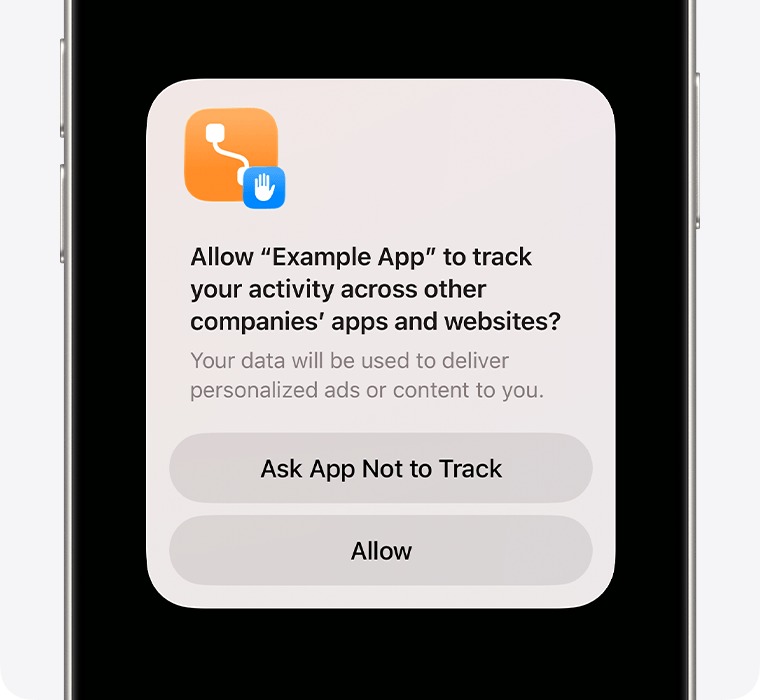
Manually rejecting these requests for every new app can become tedious over time. Fortunately, iOS provides a crucial option to automatically reject all tracking requests without the need for those annoying windows to appear every time:
- Open Settings, then go to Privacy & Security.
- Tap the Tracking option.
- Turn off the Allow Apps to Request to Track option.
Once this setting is turned off, the system will automatically respond with a rejection to any app trying to request tracking permission. You can also review the list of apps you previously allowed and revoke their permission immediately.
Clear and Disable Significant Locations History
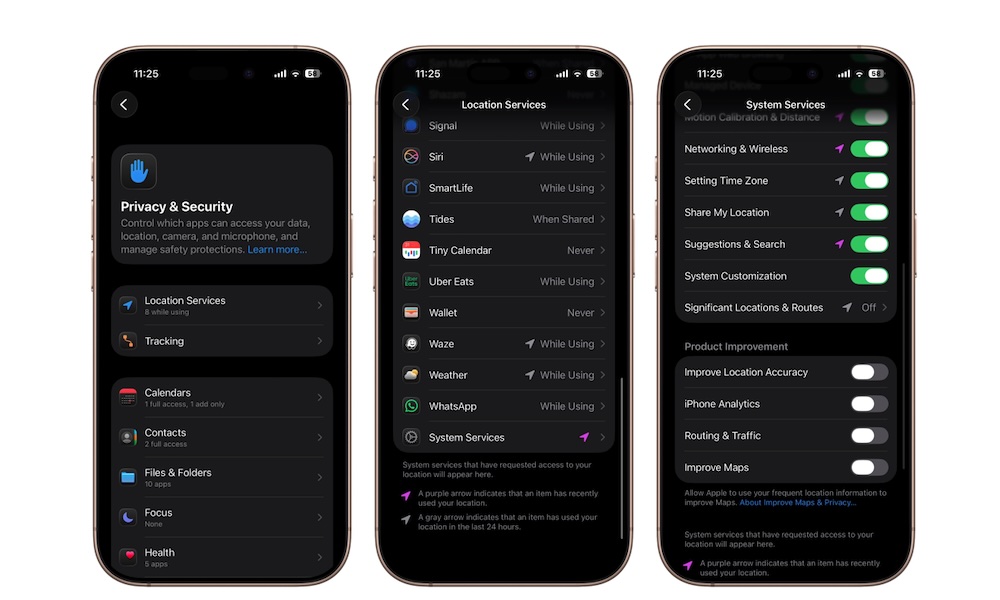
The iPhone contains a hidden feature known as “Significant Locations.” The function of this feature is to learn the places you visit frequently, such as your home, workplace, and the daily routes you take, in order to provide personalized suggestions in apps like Maps, Calendar, and Photos.
Although Apple confirms that this data is fully end-to-end encrypted and the company itself cannot view it, the idea of the phone keeping a detailed log of your movements, arrival times, and departures concerns many. If you prefer not to record these details, you can turn them off and clear the old history by following these steps:
- Open Settings and go to Privacy & Security.
- Tap Location Services.
- Scroll to the bottom of the list and select System Services.
- Tap Significant Locations & Routes after confirming your identity via Face ID.
- Turn off the feature, then tap the Clear History button to delete all previously recorded data.
Hide IP Address While Browsing in Safari
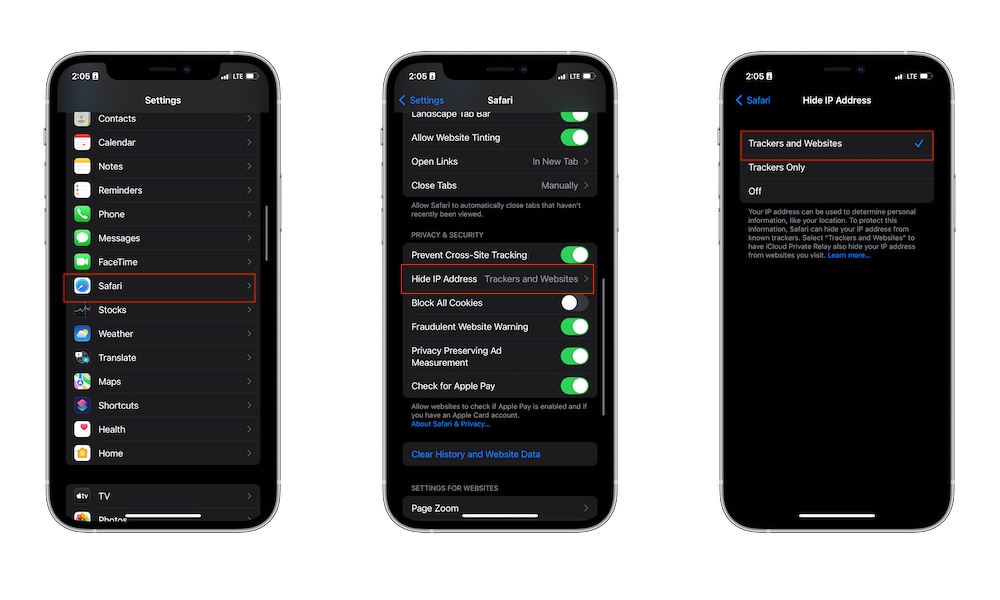
Most websites and tracking tools rely on knowing your device’s IP address to accurately determine your approximate geographic location, know your city, zip code, and the network you are using, which makes it easier to link your online activity to your digital identity.
Fortunately, the Safari browser offers a powerful tool to block your IP address from trackers and advertising sites, preventing them from building a personal profile about you. To enable this feature:
- Open the Settings app.
- Go to the Apps section and select Safari.
- Scroll down until you reach the Privacy & Security section, then tap Hide IP Address.
- Select the Trackers and Websites option to ensure maximum protection while browsing.
Prevent Sharing Precise Location with Unnecessary Apps
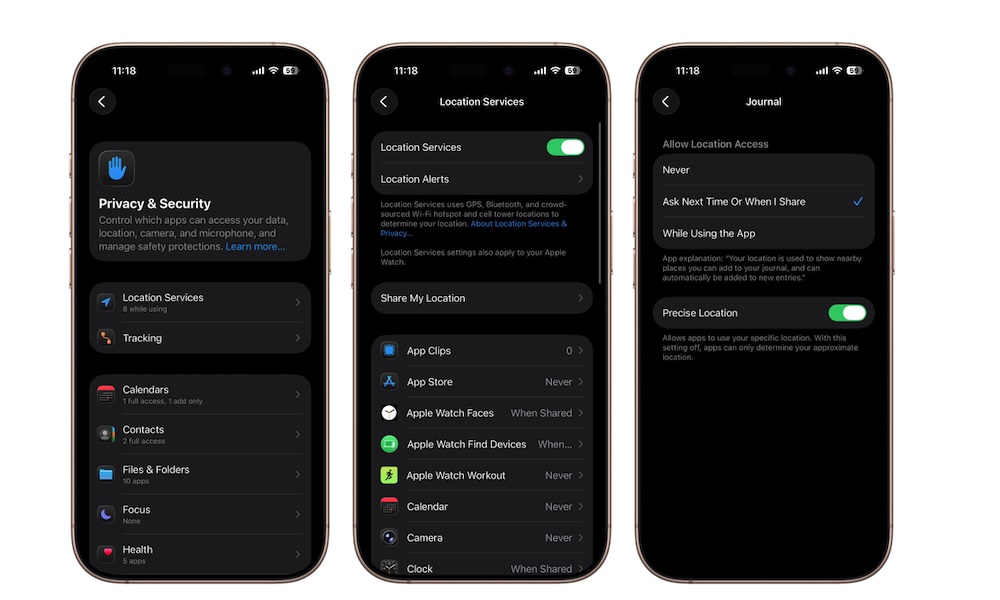
Most apps request permission to access your geographic location when installed. Although some apps need your actual location to function efficiently, such as navigation and delivery apps, there are many social media and game apps that do not need to know your location at all.
Even more dangerous is the “Precise Location” feature, which allows the app to know the exact geographic point you are standing at instead of just knowing the city or general area. You can easily review and adjust these permissions via the following steps:
- Open Settings, then go to Privacy & Security.
- Tap Location Services.
- Review the list of apps and select the ones that do not need to know your precise location.
- Turn off the Precise Location option, or select Never if the app does not need the location at all.
Always remember that protecting your digital privacy is not a one-time step; it is an ongoing practice. Taking a few minutes to review and adjust these settings puts a strong barrier between your daily life and the eyes of advertising companies and trackers.
Source:

Leave a Reply