Do you rely on Apple Maps for your daily commute or while traveling anywhere? If the answer is yes, you have surely noticed different colors appearing while determining the route you wish to take. It can be said that those colors appearing on the roads are not just a visual touch or fleeting lines on the map; rather, they are various messages about the road’s condition and subtle signals about traffic and what awaits you while driving. Naturally, the color red is familiar to many users. But what does the appearance of a dark red color in Apple Maps mean? This is what we explore in this article, as we learn what the burgundy-leaning red line means when you see it in Apple Maps.

Apple Maps
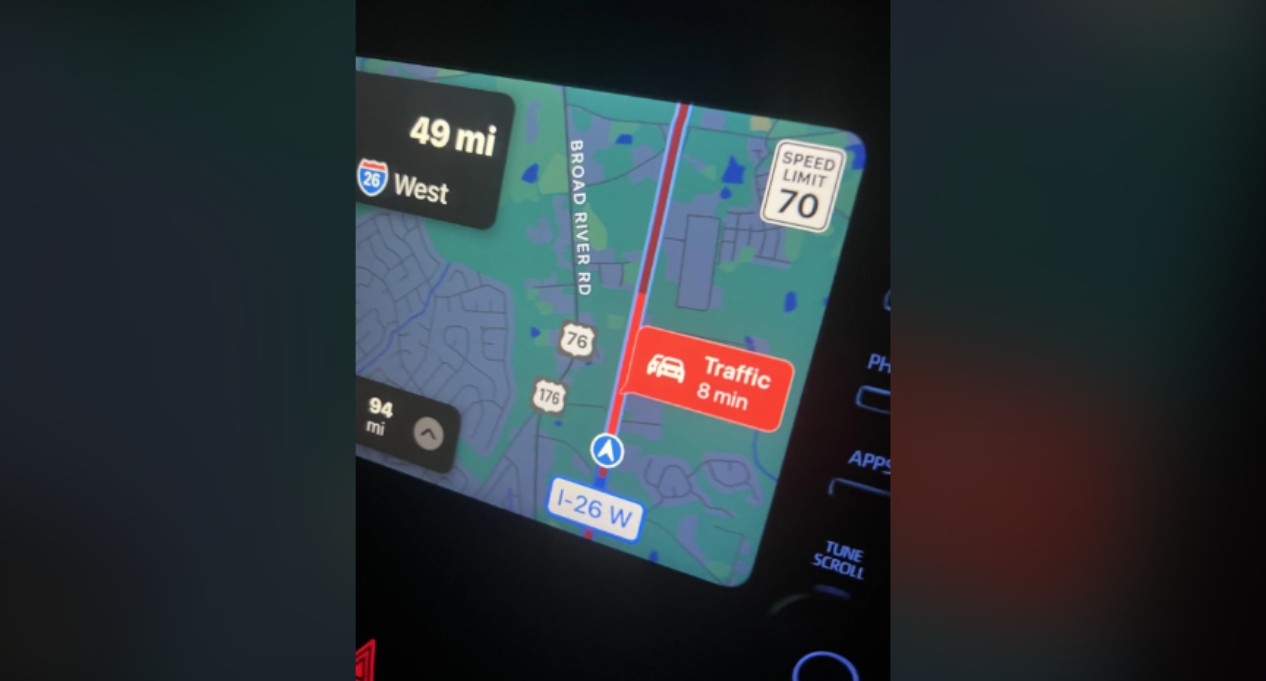
The route you will take through Apple Maps might look clear on the screen, but one color might reveal to you that the trip which seems easy will turn into long minutes and perhaps hours of waiting. Apple Maps uses three main colors to indicate different levels of congestion as follows:
- Yellow: Slow-down areas where there is a deceleration in vehicle movement.
- Light Red: Indicates stop-and-go traffic that requires constant stopping and starting.
- Dark Red (Burgundy): Means there is heavy traffic congestion where cars are moving very slowly or are almost completely stopped.
What distinguishes Apple Maps is that it does not wait until you start your trip to display this information, as you can check the road condition in advance. All you have to do is open the Maps app on your iPhone and create the route you want to use, then press the button at the top right of the screen, choose Driving or Satellite, and then press the X mark to return to the map view, where you can view the status of the roads and the route before you set off in your car.
How to check traffic conditions before moving
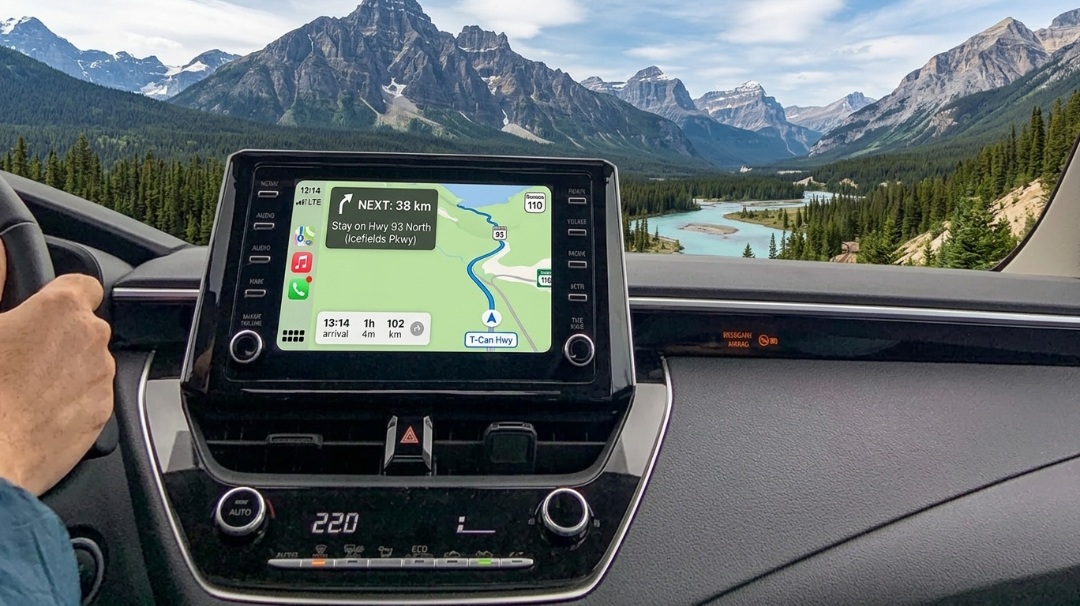
The information displayed by Apple Maps is not limited to traffic only; it also shows markers for accidents, hazards, and events affecting the road or nearby. These markers can include the following:
- Accidents
- Speed cameras
- Traffic
- Roadwork
- Hazards
- Road closures
Note: If you encounter an accident or hazard that did not appear on the map, you can contribute to updating the information through Siri. If you see an accident, say to Siri “Report an accident”. And if there is something or an obstacle in the road, say “There’s something in the road”.
What to do when you see the red line and how to avoid traffic?
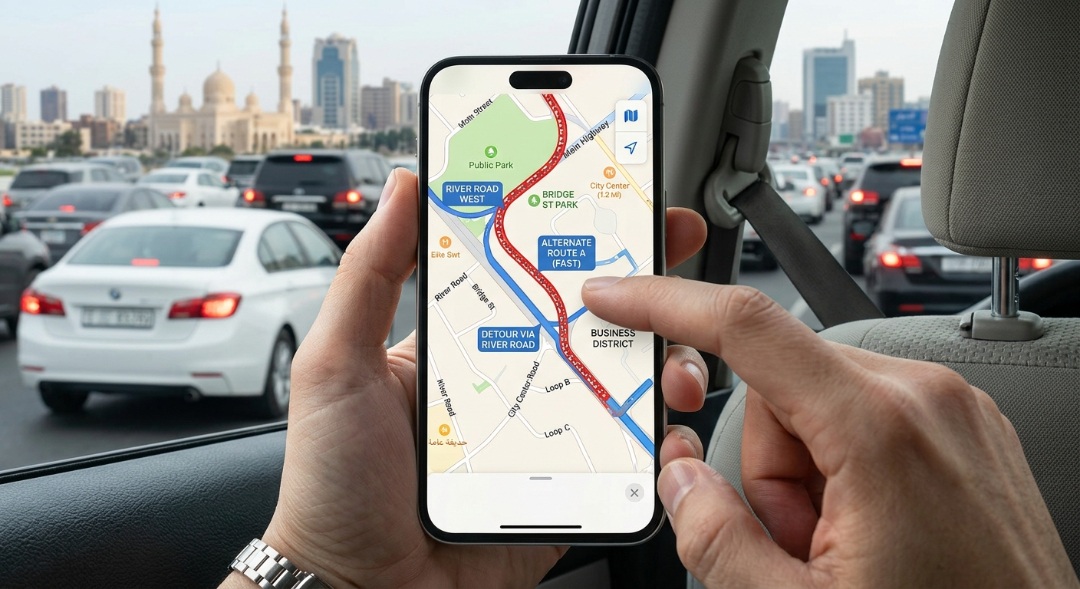
If your primary route appears in red or dark red, this means the road will be crowded or there is a traffic jam. In that case, Apple will suggest alternative routes while clarifying the estimated time of arrival for each path. As for the other method, it depends on you, as you need to adjust your driving preferences to force the app to search for other different options as follows:
- Go to Settings on your iPhone
- Then tap Maps and then Driving
- Enable the option to avoid highways
- Also, you can choose to avoid toll roads
In this way, you will have succeeded in staying away from toll roads as well as highways, even if the trip time is longer. This will be much better than waiting for hours amidst heavy traffic congestion.
Does Apple Maps always choose the best route?
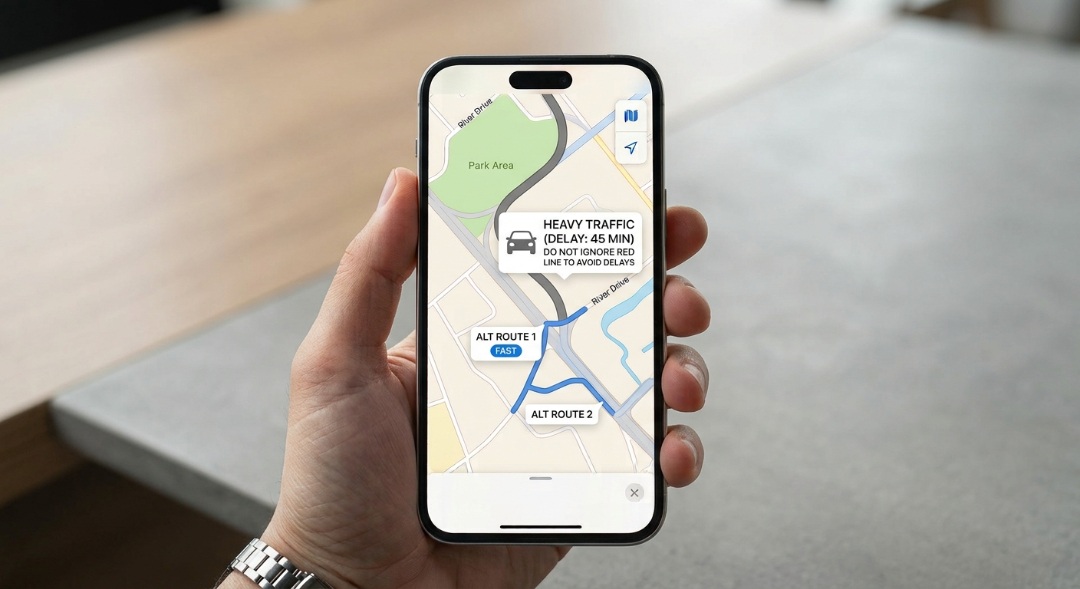
The answer is no, and that is why you should not treat maps as an infallible source. Navigation apps rely heavily on official roads, and they may not always know that a specific street is undergoing construction or recent changes. Apple also uses location data to improve its understanding of the places you visit and to help detect unexpected slowdowns, but the system remains prone to error. Therefore, if someone who lives in the area warns you about a certain road and suggests a better route, it might be wise to listen to their advice instead of relying on the app alone.
In the end, it can be said that Apple Maps gives you a clear picture of the road condition, but that does not mean the suggested route is always the best. Monitor the map colors and alerts, and compare alternatives before you set off; you might save yourself long minutes of traffic.
Has Apple Maps ever saved you from a severe traffic jam? Tell us in the comments!
Source:



Leave a Reply