Nothing ruins the joy of using an iPhone like that annoying message that suddenly pops up to tell you that “iPhone storage is almost full.” Suddenly, you are unable to snap a quick photo, update your favorite apps, or even download a necessary file for work. In this guide, we will take you on a smart tour to bring your device’s storage space back to life and get rid of excess files without losing your important data.
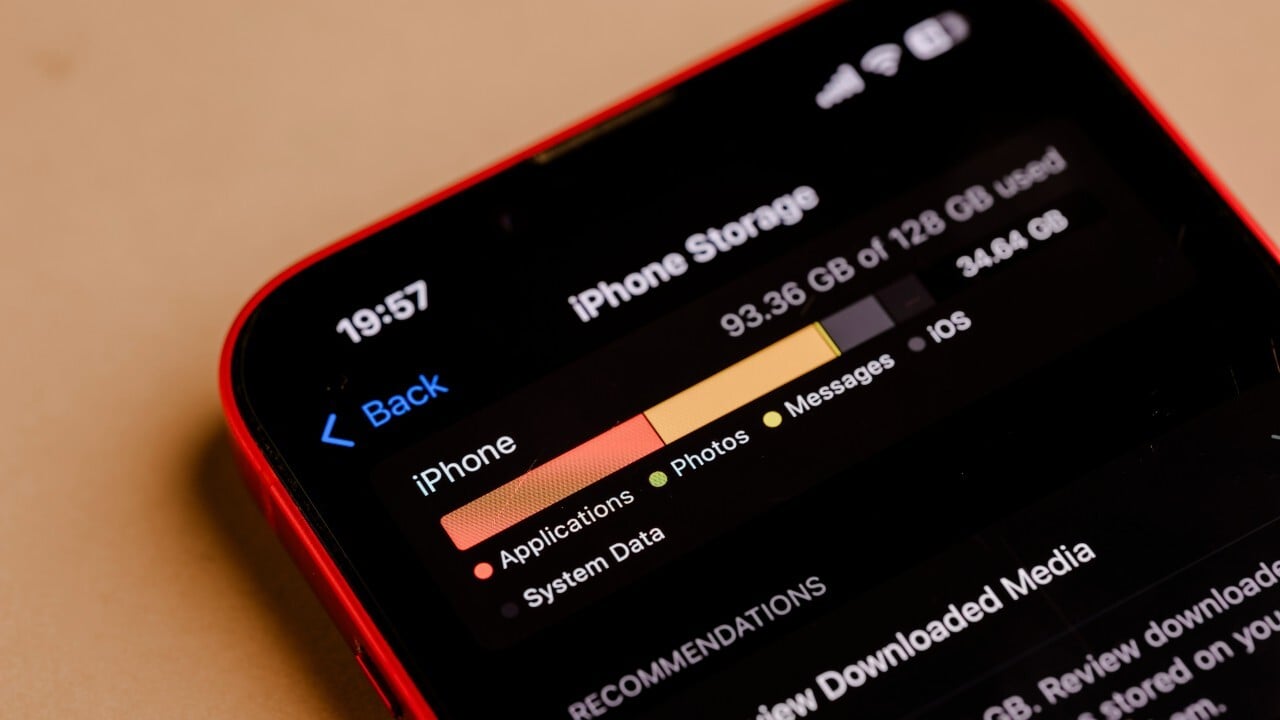
Step One: Knowing where the space goes
Before you start deleting anything, you must first identify the real culprit behind the storage consumption. iOS provides a detailed and easy-to-understand overview that shows you exactly where every gigabyte of your device’s space is going.
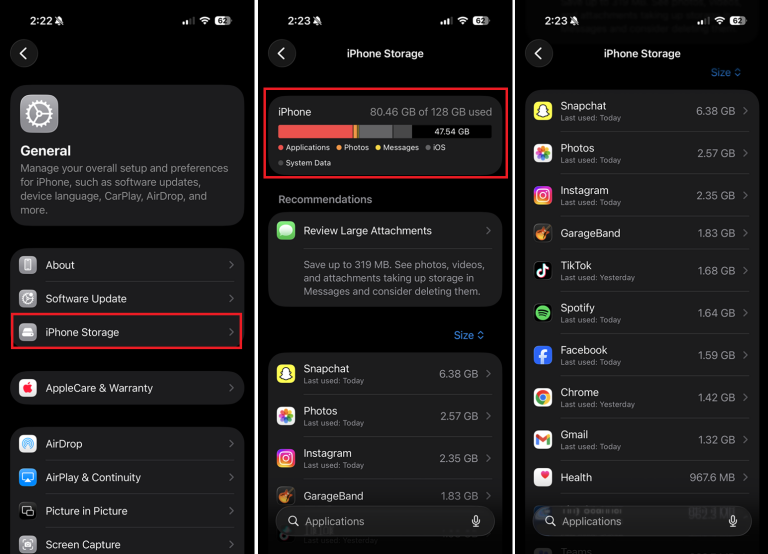
Go to Settings > General > iPhone Storage. Here, you will see a colored bar showing the breakdown of space between photos, apps, system files, and system data. Wait a few seconds for the system to analyze the space and display smart recommendations tailored to your device so you can start the cleaning process intelligently, targeting the largest files first. This video explains how to save 7GB of storage space with one click:
Offload Unused Apps
We all suffer from the syndrome of downloading apps “to try them later” and then forgetting about them entirely, leaving them to devour storage space for no reason. iOS offers a brilliant feature called “Offload Unused Apps.” This feature deletes the app itself to save space, but it keeps all your data, files, and progress logs within the app.
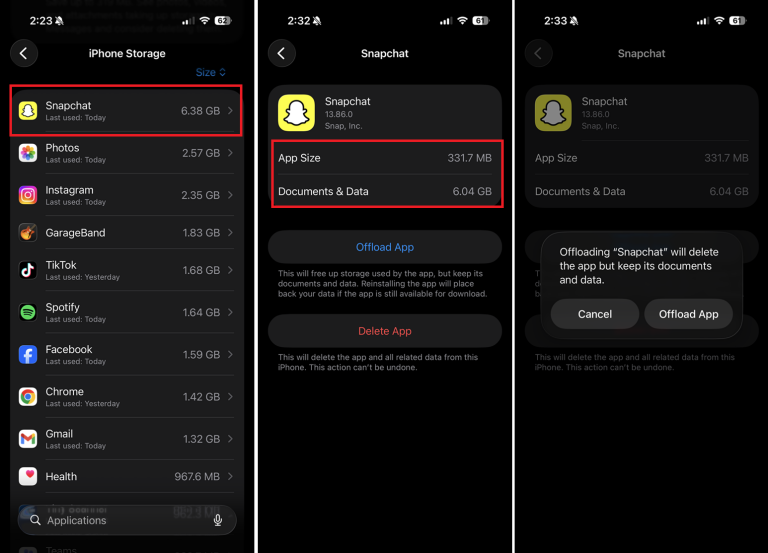
When you enable this feature, the app icon will remain on your home screen with a small cloud icon next to it. When you need to use it again, all you have to do is tap the icon to re-download it, and you can pick up exactly where you left off without any data loss. It is a magical way to save space instantly.
Optimizing Photo and Video Storage
High-resolution photos and videos are the number one enemy of storage space, especially with modern iPhone cameras that capture ultra-detailed images. To solve this dilemma without sacrificing your precious memories, you can enable the “Optimize iPhone Storage” option.
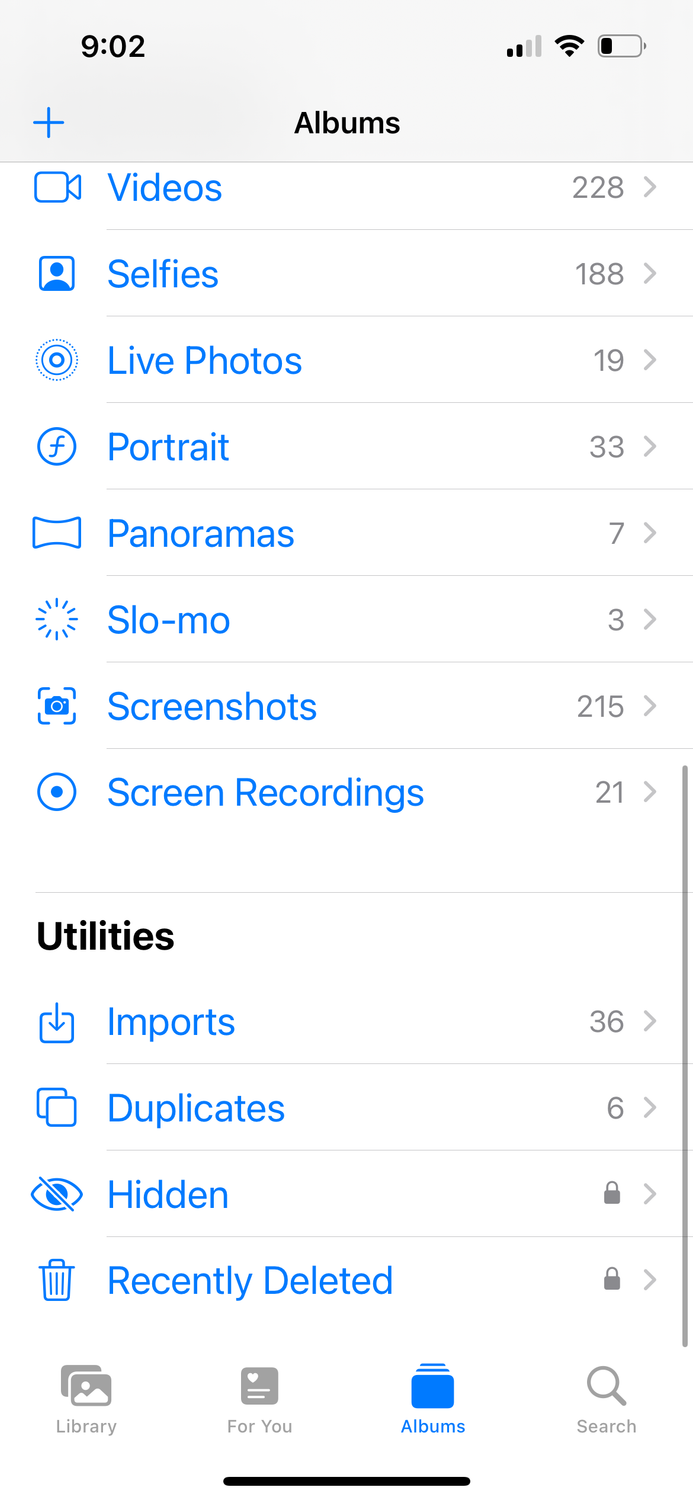
By going to Settings > Photos and enabling this option, iOS will save the full-resolution originals in your iCloud account, while keeping smaller, space-saving versions on your device. When you open any photo, the full version is automatically downloaded in a matter of seconds so you can enjoy its full quality.
Clearing Cache and Deleting Large Attachments
Temporary files accumulate over time, eating up invisible space that might surprise you with its size. One quick and effective solution is to clear the Safari cache by going to Settings > Safari > Clear History and Website Data.
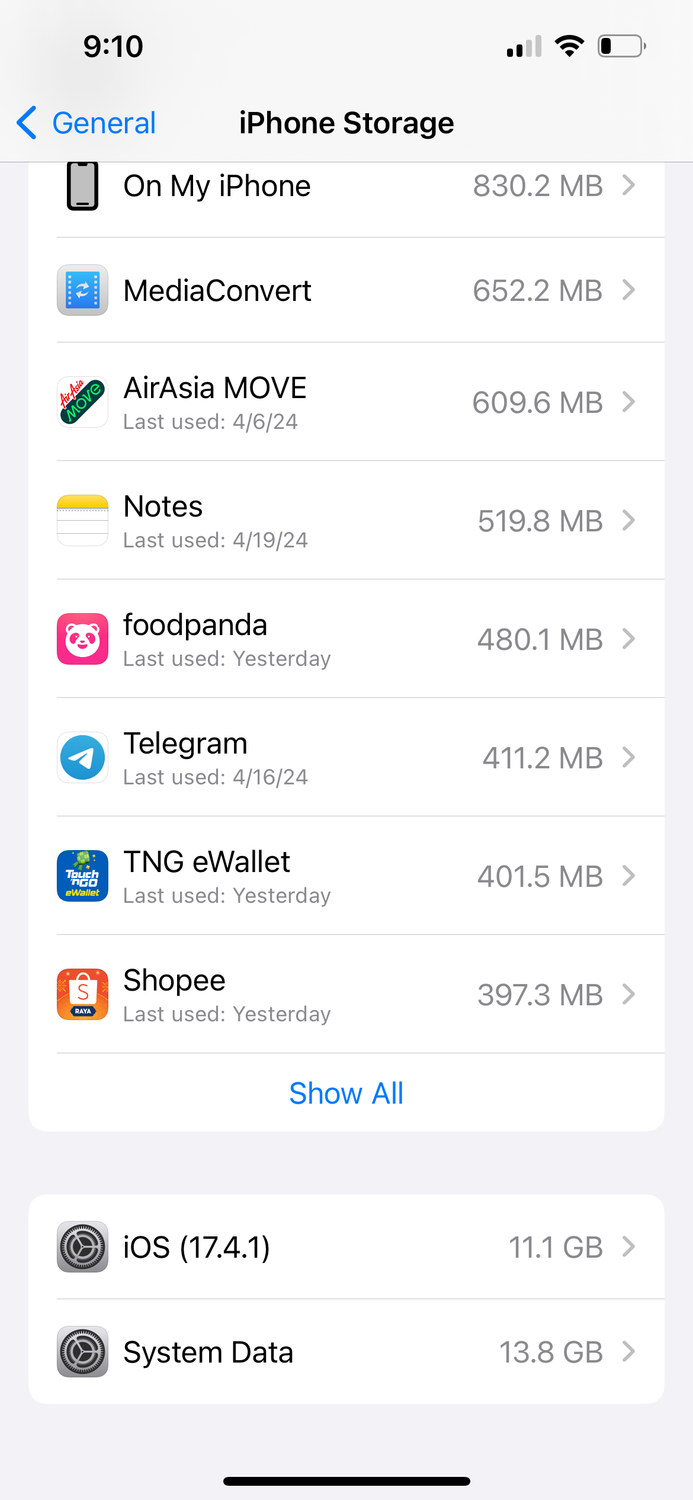
Likewise, attachments sent via the Messages app, such as videos and GIFs, consume huge amounts of space without you knowing. You can review and delete them directly from the “iPhone Storage” page under the “Review Large Attachments” section to get rid of old files that have accumulated over the years and are no longer needed at all.
Source:

Leave a Reply