Apple has long held onto its rigid philosophy in designing the Camera app interface; extreme simplicity and carefully placed options where the user has no say, based on the famous principle that the system always knows what is best for you. But it seems the winds of change have finally blown with iOS 27, as Apple has decided to abandon some of its stubbornness and grant photography enthusiasts the long-awaited flexibility to organize the interface and customize buttons to suit each user’s style and their speed in capturing special moments.
Why did Apple wait for the fall conference to reveal this feature?
Before the Worldwide Developers Conference, leaks were buzzing with talk about the upcoming system’s features, and trusted journalist Mark Gurman from Bloomberg had confirmed that the Camera app would get complete freedom, allowing users to choose which buttons they want to see and where they appear, such as flash, exposure adjustment, timer, and shooting resolution buttons. Although the feature was absent from the first beta versions throughout the summer, reports indicated that it was under internal testing on the devices of the company’s engineers and employees.
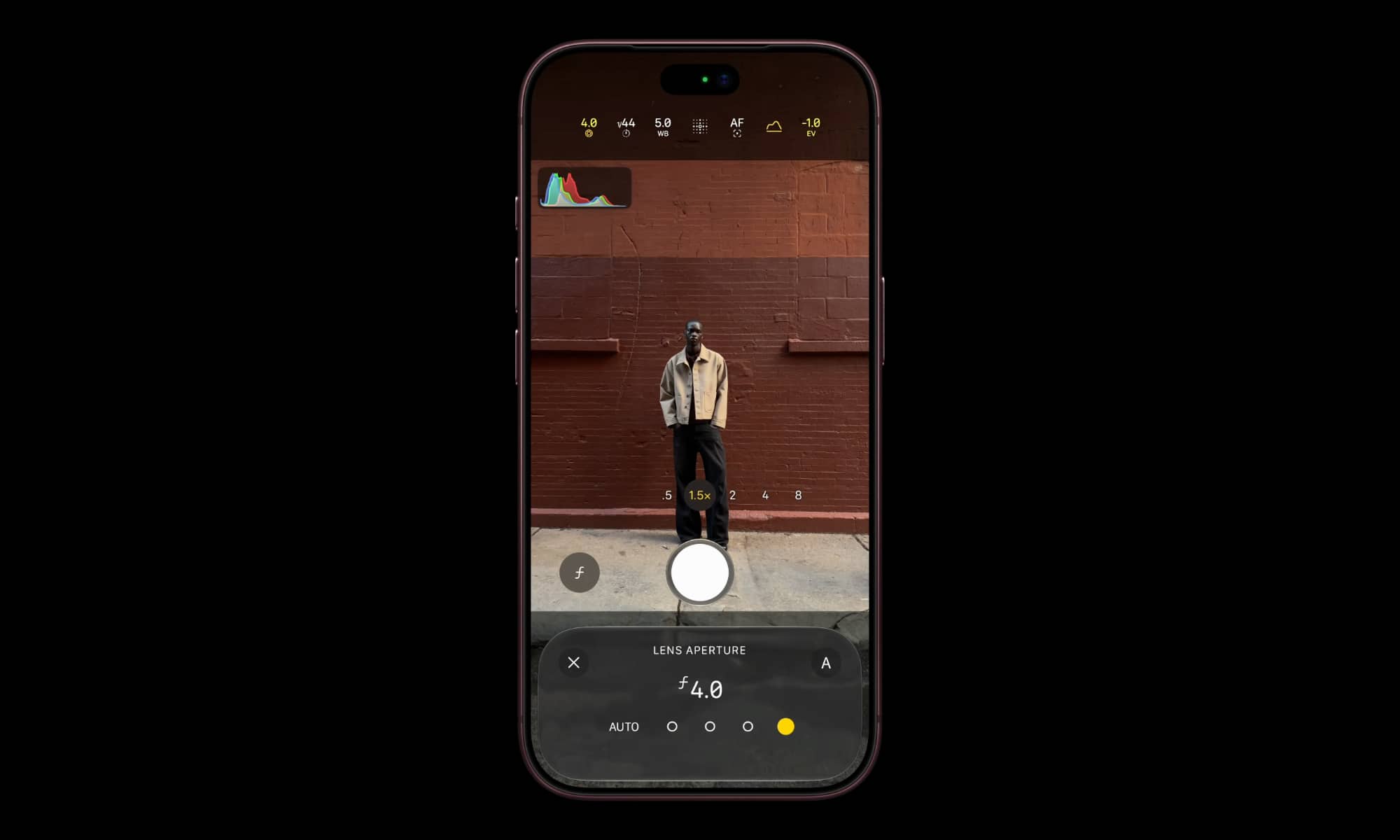
The secret behind delaying this feature is no longer a mystery; Apple has always been accustomed to linking major software features with new hardware developments to give its devices a well-deserved marketing boost. With the announcement of the iPhone 18 Pro and iPhone 18 Pro Max, the new camera with a variable aperture lens appeared, allowing for four precise mechanical options (f/1.48, f/1.8, f/2.8, and f/4.0), in addition to the ability to manually control shutter speed and white balance, and adding an exposure histogram to help photographers evaluate lighting under bright sunlight. Although these manual options are exclusive to the Pro models, general customization of the camera interface is available to all eligible devices with the final version of iOS 27.
Steps to customize control elements in the Camera app
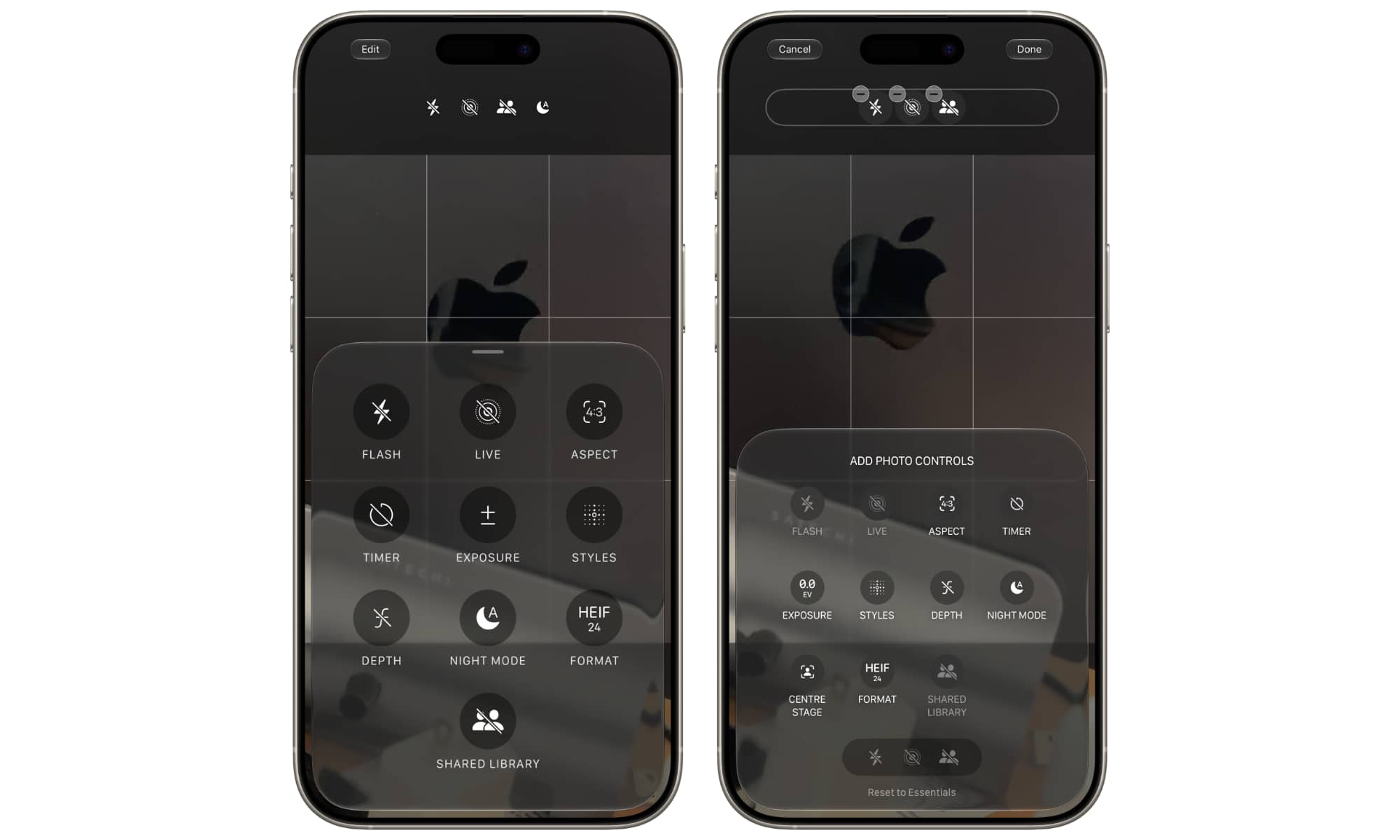
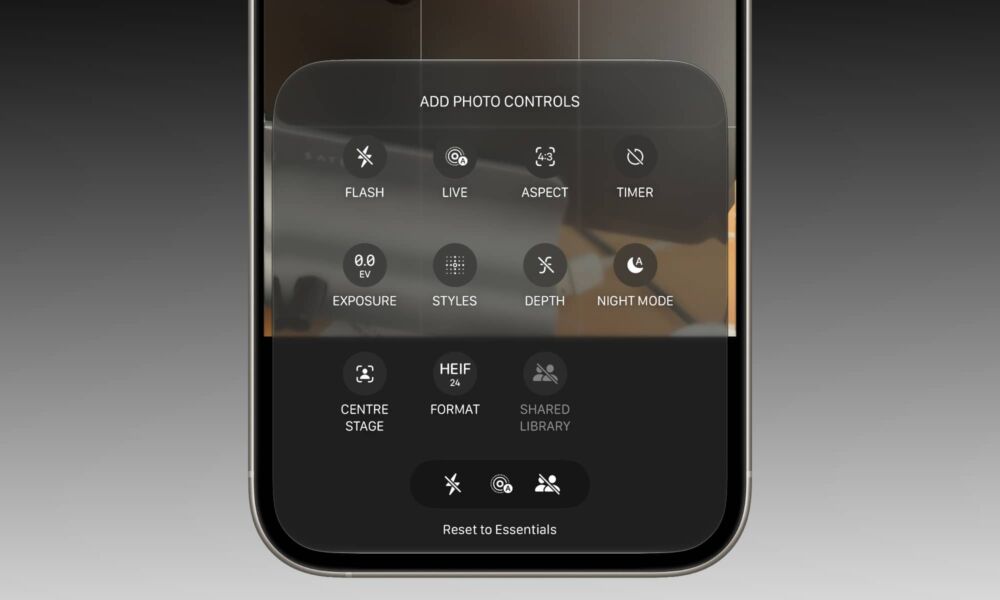
Modifying interface elements has become very easy and does not require leaving the app or diving deep into the settings menu; once you open the Camera in iOS 27, simply long-press on the control bar located at the top of the screen. This simple gesture will open the full tool panel for you to edit. You can also access the same screen by tapping the Edit button that appears in the top-left corner when opening shooting options.
The great feature here is that customization is not global but applies to each shooting mode independently; the buttons you need in standard photo mode are necessarily different from what you need in video, portrait, or cinematic mode. You can arrange your favorite tools and drag away what you don’t need so that the interface remains clean and comfortable for your eyes while shooting.
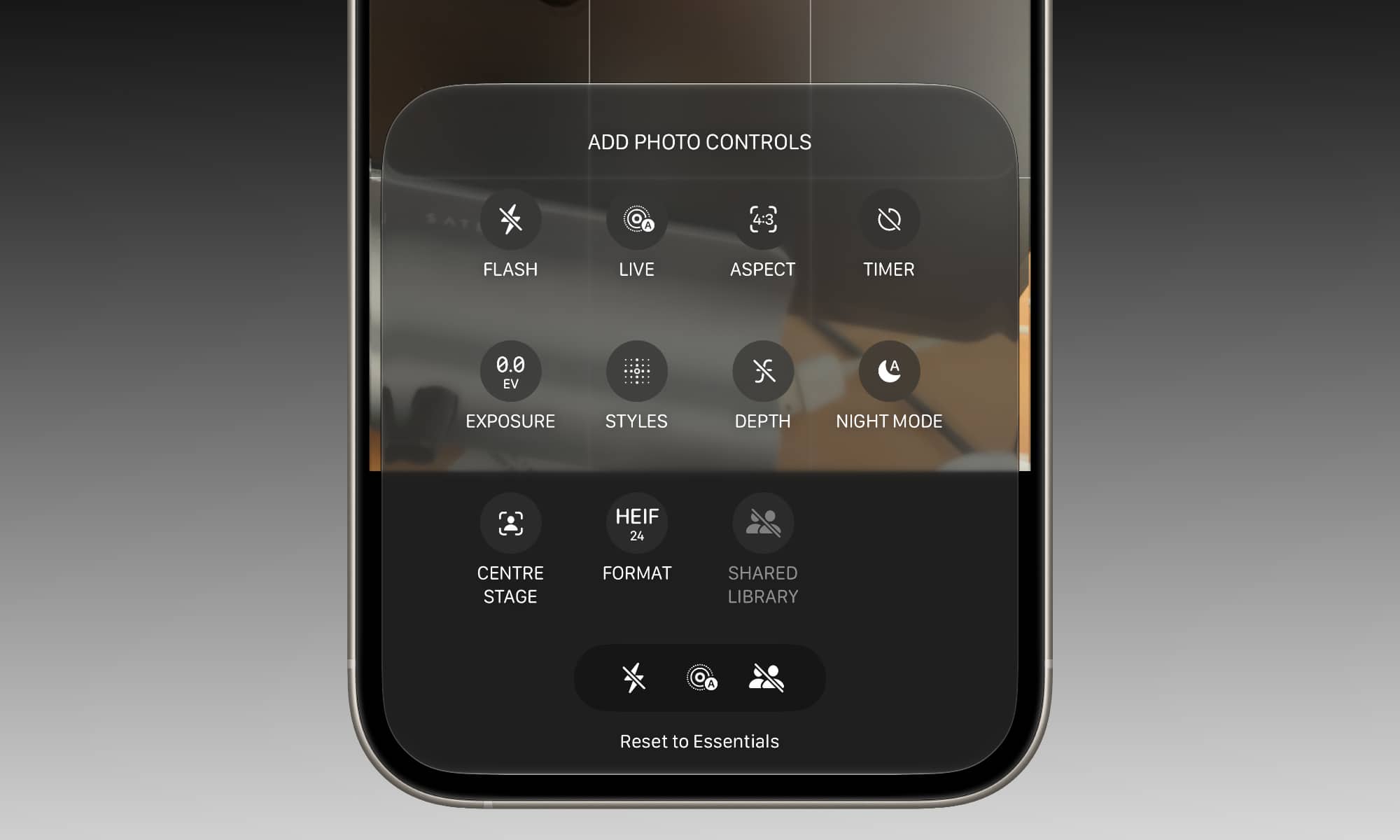
However, Apple’s protective touches are still present; there are elements that cannot be permanently removed to ensure a safe experience. For example, you can pin the Night mode button to always appear, but even if you remove it completely, it will still appear automatically when the phone senses low-light conditions. It was also noted that some features in Pro models, such as Action mode and Dual Recording, continue to appear after saving, a behavior likely intended to prevent vital features from disappearing unintentionally.
Source:

Leave a Reply