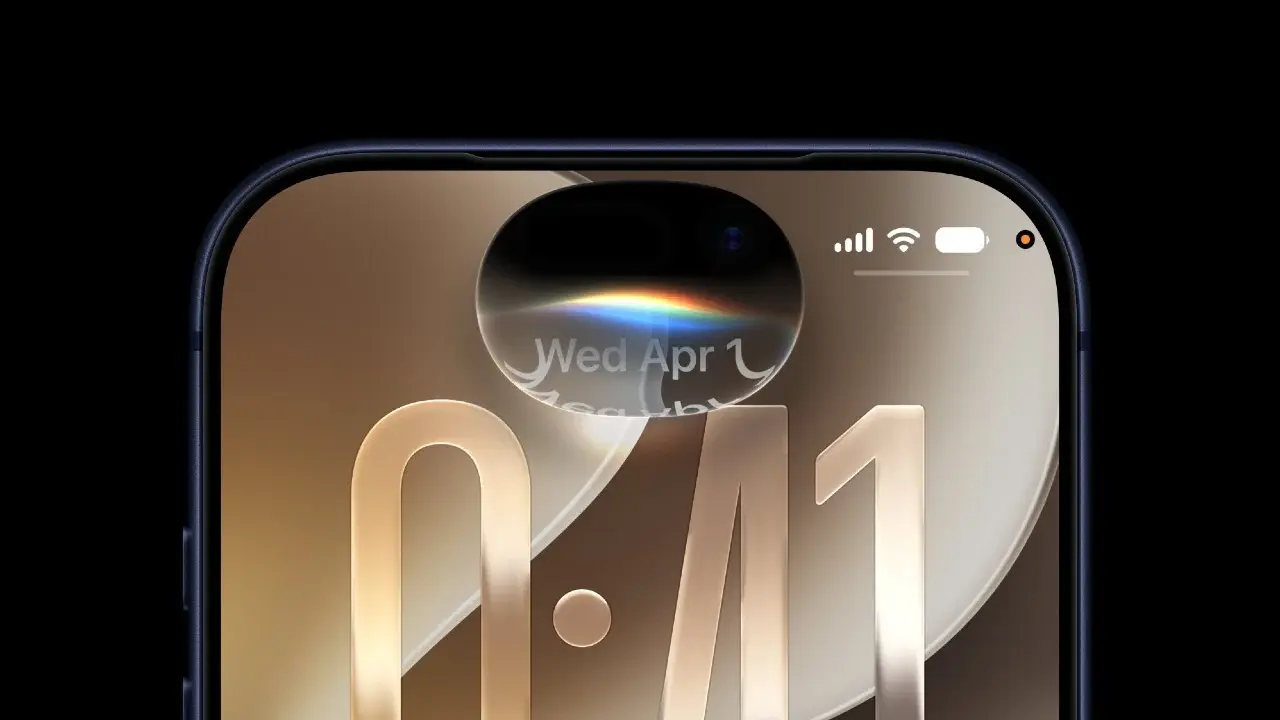
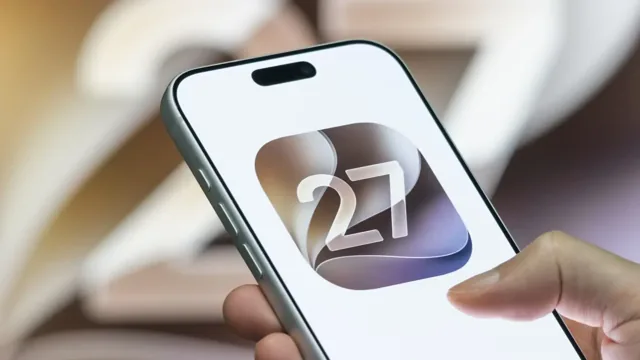
With the launch of every major new operating system release, tech enthusiasts eagerly await the new features, but the early days are sometimes not without some sudden software glitches. This is exactly what happened with the arrival of the iOS 27 update to iPhones around the world, where a strange software bug was spotted that causes the screen to freeze completely and stop responding as soon as quick, successive swipe movements are performed on the home screen.
Details of the bug: How does the iPhone screen freeze with quick movements?
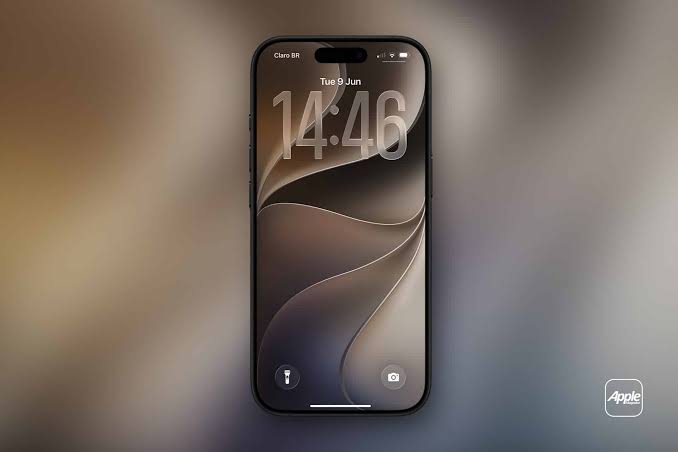
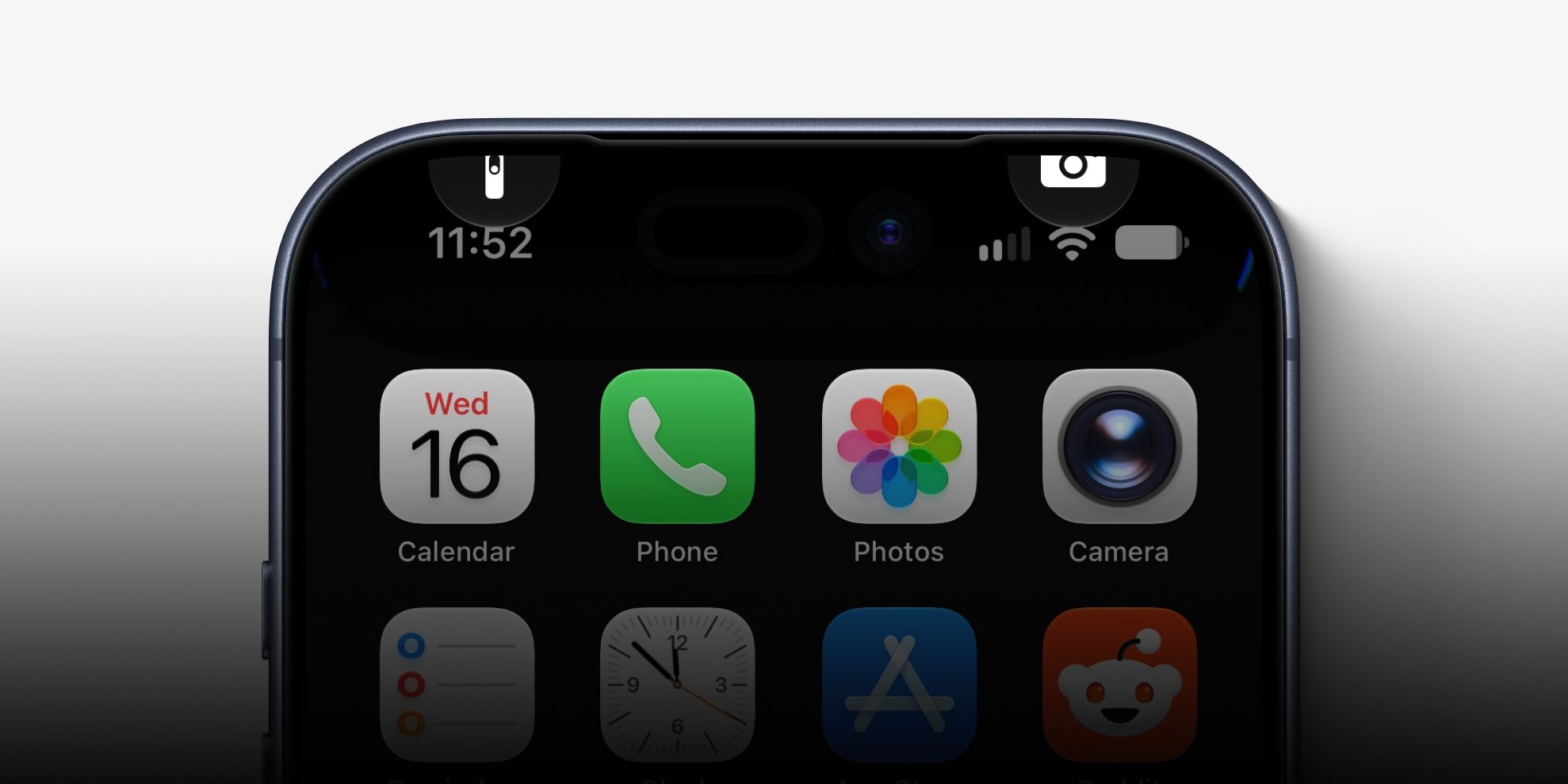
According to what was reported by 9to5Mac and several technical reports, the bug does not appear to everyone automatically, but is activated when a specific sequence of quick gestures is performed. When swiping from the top left corner of the screen to pull down the Notification Center, and before it fully appears, you immediately swipe quickly from the top right to open the Control Center. This rapid maneuver confuses the graphical interface processing and puts the iPhone screen in a state of temporary paralysis and complete shutdown.
When this freeze occurs, the camera and flashlight icons belonging to the Notification Center remain stuck at the top of the screen without moving, and touch response stops completely. This bug is not linked to a specific network carrier, whether you are using STC, Mobily, e&, du, or Vodafone Egypt, nor does it differ depending on the store from which you bought your phone; every device running iOS 27 is eligible to fall into this trap if the gestures are performed at the same speed.
The effective solution: How to perform a Force Restart
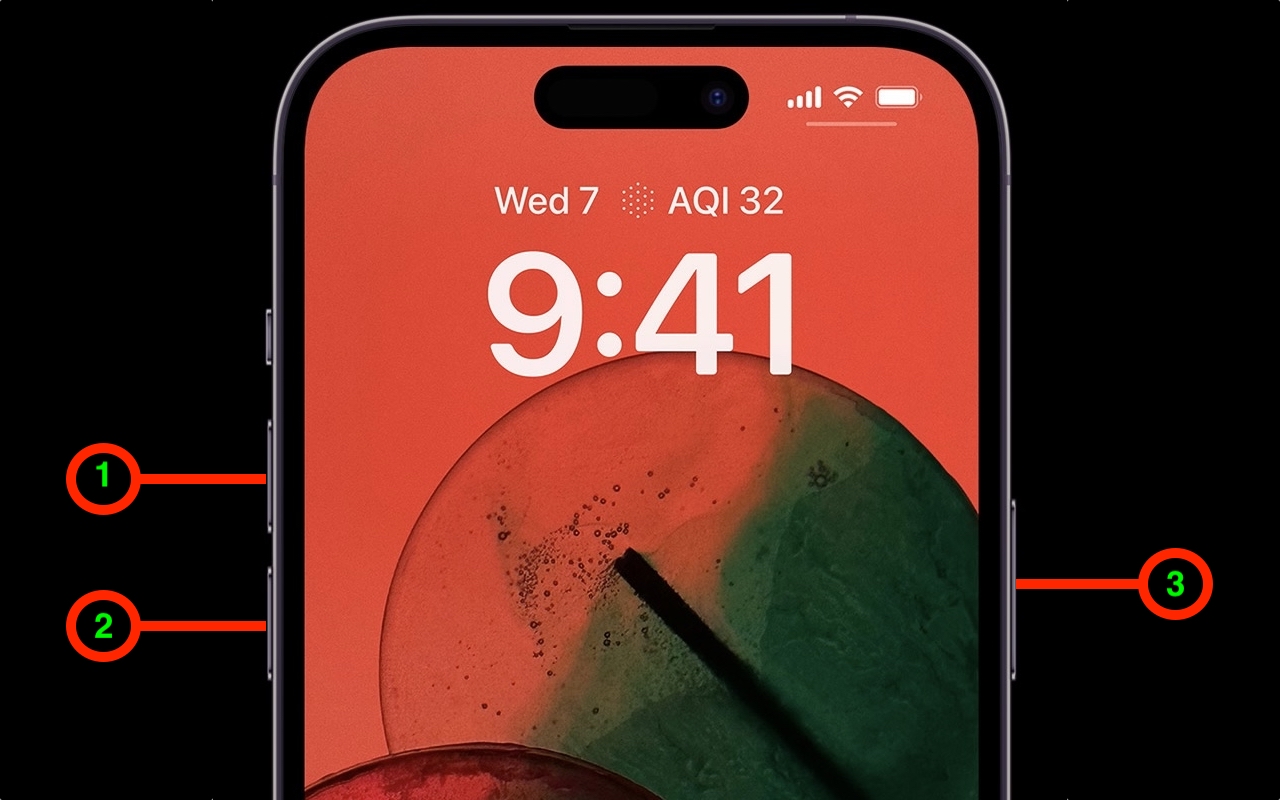
When the screen freezes, the traditional shutdown method becomes impossible, because it requires swiping on the power-off slider that appears on the glass, which is impossible to do when touch stops working. Therefore, resorting to a Force Restart using the physical buttons is the fastest and most effective way to regain control of the device.
To perform a Force Restart successfully, follow these steps precisely and in sequence: Press the volume up button quickly and briefly then release it, then press the volume down button quickly and briefly then release it, and finally press and hold the side button (power button) for several seconds and do not release it until the white Apple logo appears on the screen. As soon as it appears, release the button and the iPhone will restart itself normally, and the screen response will return as it was.
Battery complaints and typical early-stage issues
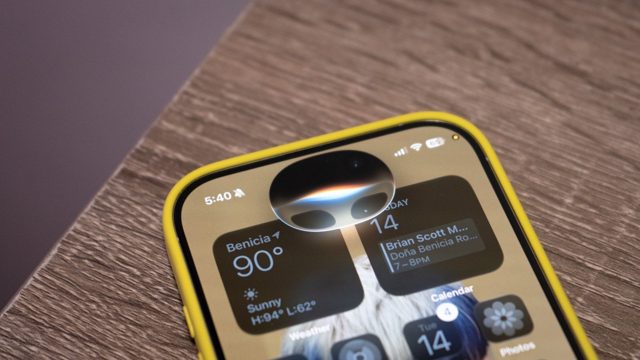
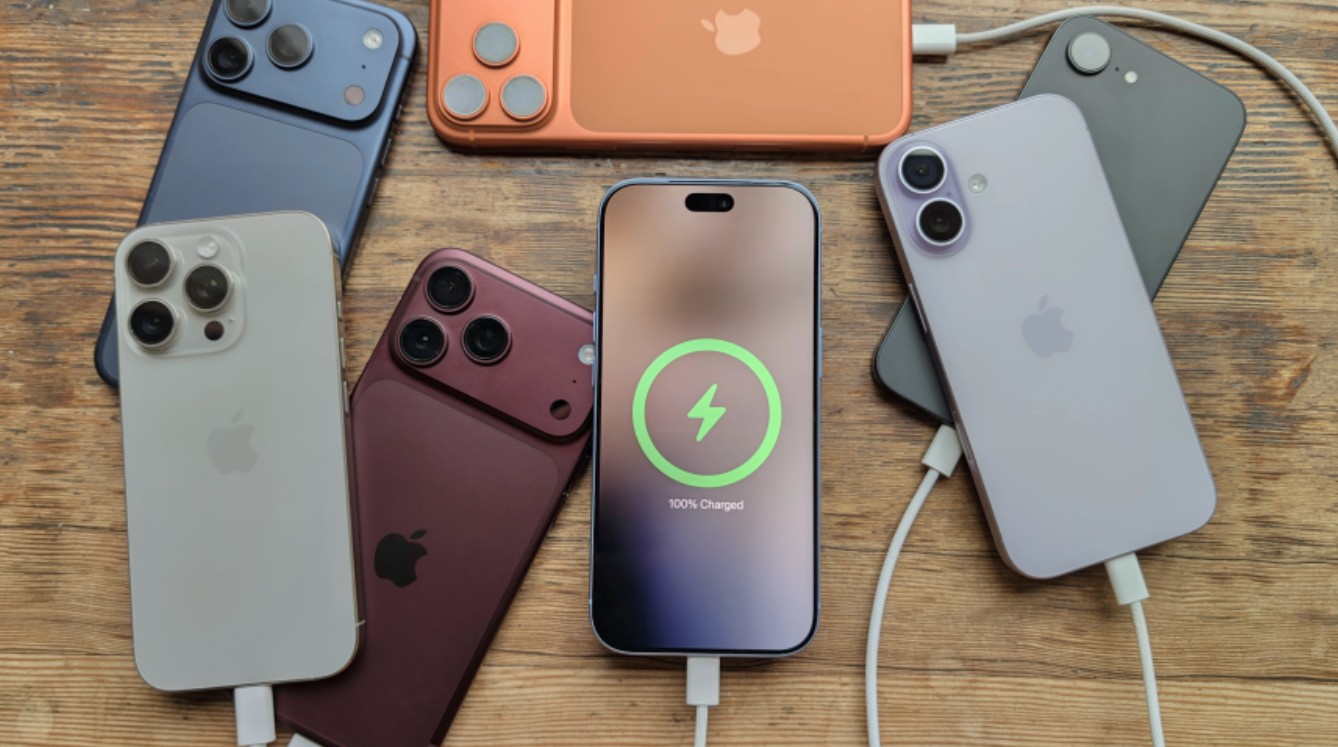
In addition to the screen freezing bug, users have expressed their usual complaints about battery drain and overheating after upgrading to iOS 27. It is worth noting that these complaints appear regularly with every major annual launch, which is exactly what we witnessed last year with iOS 26.
As Apple always explains, this temporary decline in battery efficiency is a normal and expected behavior during the first few days after an upgrade, as the system in the background re-indexes comprehensive databases, organizes the photo library, and adjusts new application files; things will soon return to their usual stability once these hidden computational processes are completed.
Preventive steps while waiting for the next minor update
To avoid this problem for the time being, it is recommended to avoid quick and successive swiping between the two top corners of the screen while waiting for Apple to release a quick corrective minor update that fixes the problem permanently. Apple usually takes the initiative to release these emergency updates to address early compatibility flaws.
To ensure the corrective update reaches your device as soon as it is released, go to Settings, then General, then Software Update, and make sure to enable the automatic updates option via Wi-Fi. You can also report the bug via the Apple Support app, while always making sure to back up your data periodically in case of any emergency.
Source:

Leave a Reply