Have you ever looked at your iPhone in a crowded place and felt that those around you could easily see what you were displaying on the screen? This problem has prompted some Android phone manufacturers to offer solutions to enhance privacy, including the Privacy Display feature that appeared on flagship Samsung phones, to reduce the ability of surrounding people to see the screen content. As for Apple, although iOS 27 came with a large set of features, it has not yet provided a feature that can prevent snoopers from seeing what you are doing on your iPhone screen. No need to be sad, because the official absence of the feature does not mean that the iPhone is incapable of providing it. There is a set of settings and tools hidden within the system options that can be combined to create your own privacy screen without the need for external tools or apps. Let’s learn in the following lines about a hidden trick on the iPhone that protects your screen from the eyes of snoopers.
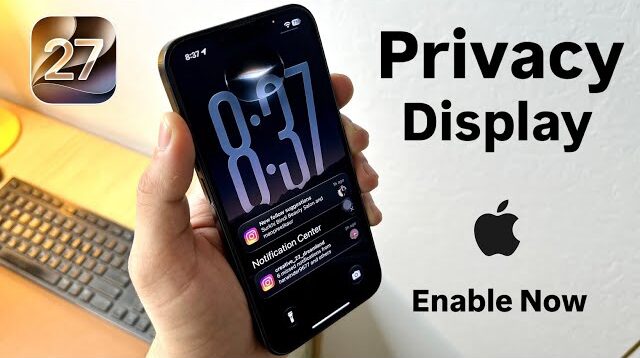
How to enable the hidden privacy screen on the iPhone?
This trick is especially useful when using your iPhone in crowded places, such as cafes, public transport, or shared offices, where there may be eyes watching what appears on the screen without you noticing. Let’s start by reviewing the steps to turn on the hidden privacy screen on the iPhone.
Adjusting Accessibility settings
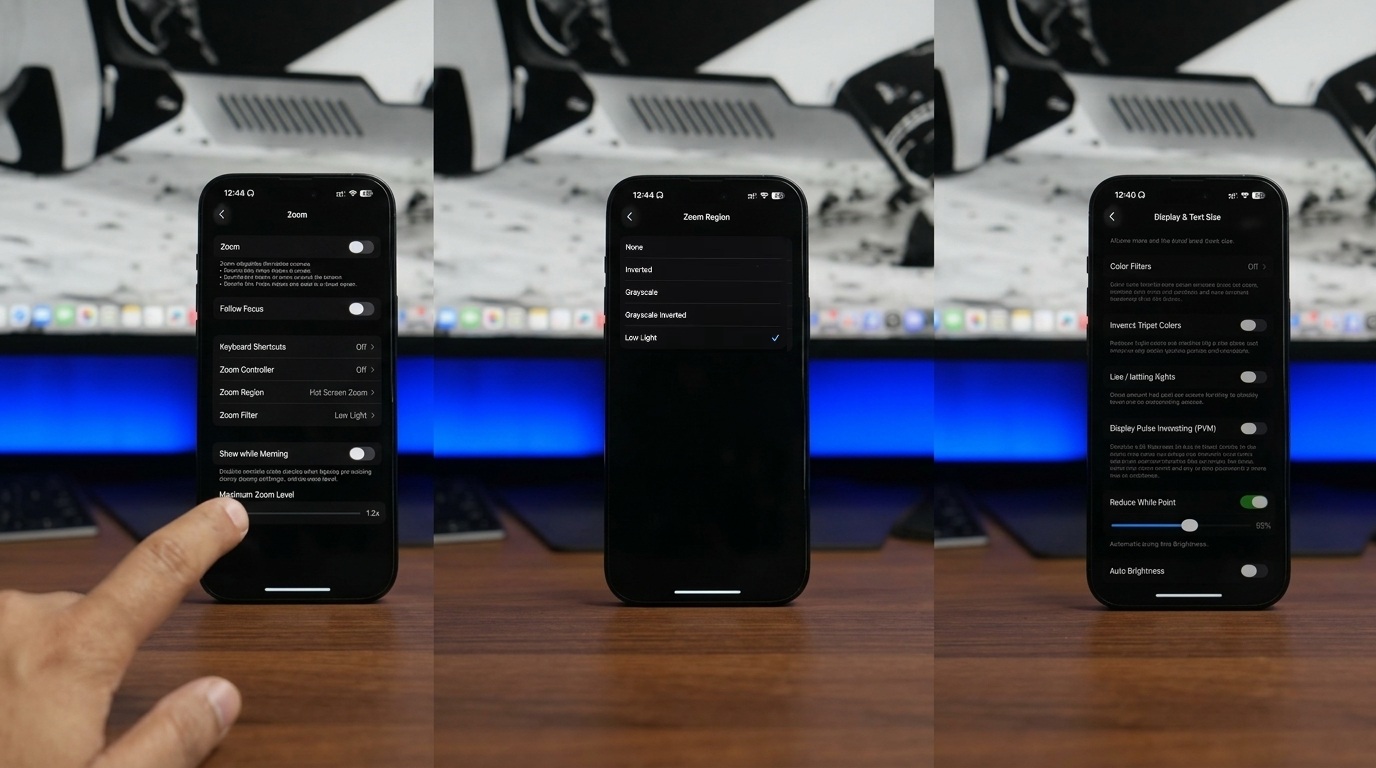
The Accessibility settings on the iPhone contain the tools you need to create a privacy screen, as you can reduce the brightness and change how content appears on the screen as follows:
- Enable Zoom: Go to Settings > Accessibility > Zoom, then enable the feature and set the zoom level to 1.2. It can be said that this ratio provides limited zoom that maintains the ease of using the screen, while reducing its clarity for those looking at it from another angle.
- Enable Low Light filter: From the Zoom settings, choose Zoom Filter then select Low Light. This will lower the screen brightness, making the content less visible to people around you.
- Reduce White Point: Go to Settings > Accessibility > Display & Text Size, then enable Reduce White Point and set the level between 60 and 70%. This way, the intensity of bright colors will be softened, making the screen details less visible.
Note: Although these settings give you an extra layer of privacy, enabling each one manually every time may not be practical. Therefore, in the next paragraph, we will learn how to turn the entire process into a quick action using the Shortcuts app.
Creating a privacy screen shortcut
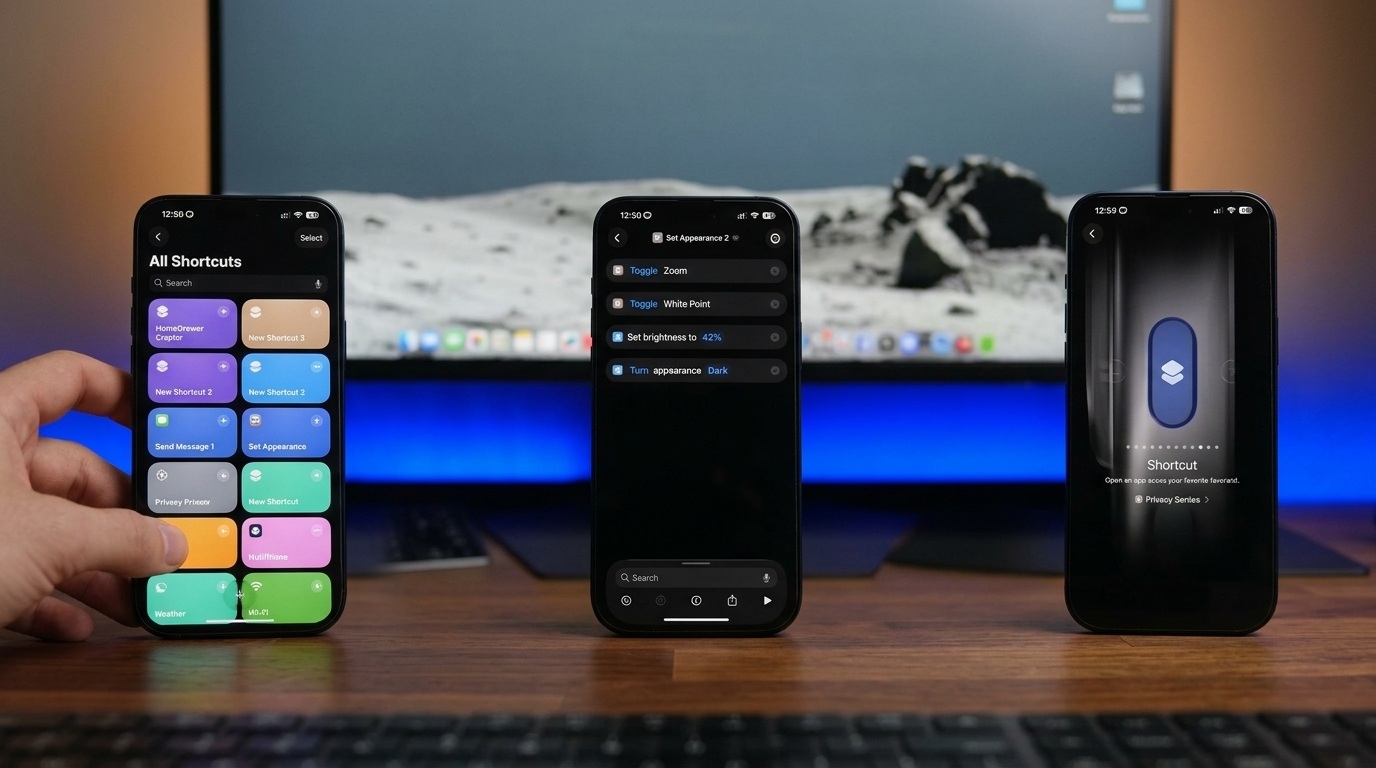
The Shortcuts app allows you to combine a set of the previous settings into one action, so you can turn on privacy mode with a single touch instead of changing each setting individually. Here are the steps to create a privacy screen shortcut:
- Open the Shortcuts app on your iPhone.
- Create a new shortcut.
- Add the necessary actions to enable Zoom.
- Add the action to turn on Reduce White Point.
- Set the screen brightness between 35 and 45%.
- Add the option to enable Dark Mode.
- Give the shortcut a name like “Privacy Screen”, then save it.
Once finished, you have a single shortcut that combines the required settings, and it can be run immediately when you need to reduce the clarity of the screen content.
Make the shortcut within reach
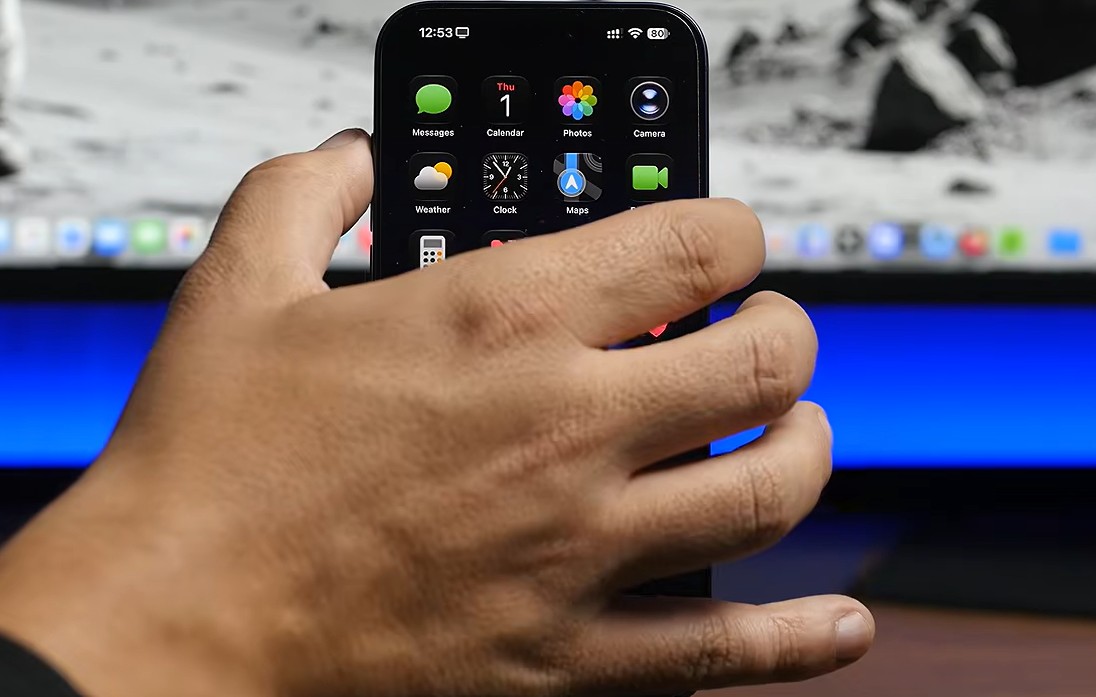
There won’t be much use for a privacy screen shortcut if accessing it requires searching for it every time. That is why the iPhone provides more than one way to place it in an easy-to-reach location as follows:
- Control Center: Go to Settings > Control Center, then add the shortcut to the available controls. After that, you can access it quickly by swiping down from the top-right corner of the screen.
- Home Screen: You can add the shortcut as an icon on the home screen, to turn on privacy mode directly with one touch.
- Action Button: If your iPhone is equipped with an Action button (available on iPhone 15 Pro and Pro Max and higher models), you can customize it to run the “Privacy Screen” shortcut. This is the fastest way when you need to protect the screen immediately.
With these options, the privacy screen will provide the protection you need whether you are sitting in a crowded cafe, using the phone on public transport, or working in an office where several people share the same space.
Adjusting the privacy screen according to your needs
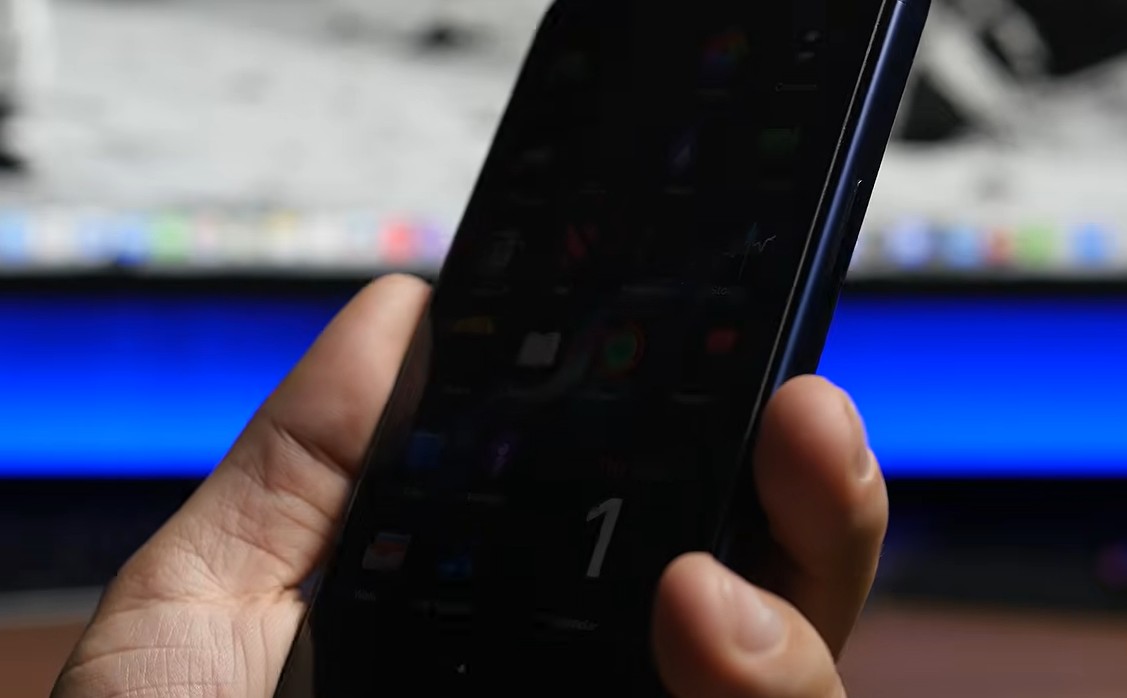
The most important feature of this trick is that it is a flexible solution and not a fixed setting, and for this reason, you can adjust it until you reach the right balance between privacy and ease of use. Here is how to adjust the privacy screen to meet your needs:
- Adjusting brightness and Reduce White Point: Try different levels of brightness with Reduce White Point until you reach a degree that makes the screen less visible to others, while remaining comfortable for you.
- Editing the shortcut: You don’t have to keep all the actions in it. You can add or remove certain settings, such as turning on Dark Mode, changing the zoom level, or integrating other tools from the Accessibility settings.
This level of customization will ensure that the function of the privacy screen is not limited to protecting your information, but extends to suit your unique needs and preferences.
Finally, it is true that iOS 27 does not include a built-in privacy screen feature, but the iPhone already has the tools that allow you to create a practical and customizable alternative. By combining Accessibility settings with the Shortcuts app and customizing the screen, you can get a privacy screen capable of preventing anyone from seeing what you are doing on your iPhone screen.
Did you know this trick before? Tell us in the comments!
Source:

Leave a Reply