We all know that annoying feeling when the phone starts ringing from an unknown number, only to turn out to be a real estate promoter or a marketing company looking for its next victim. The intuitive and quick solution we all turn to is the “Block this Caller” button. But have you ever wondered if there is a maximum limit to the number of digits you can block? It seems that Apple has finally decided to address this silent question in the upcoming iOS 26.6 update, where it will clearly tell you when you have reached the finish line of your block list.
When the block box is full: A new alert from Apple
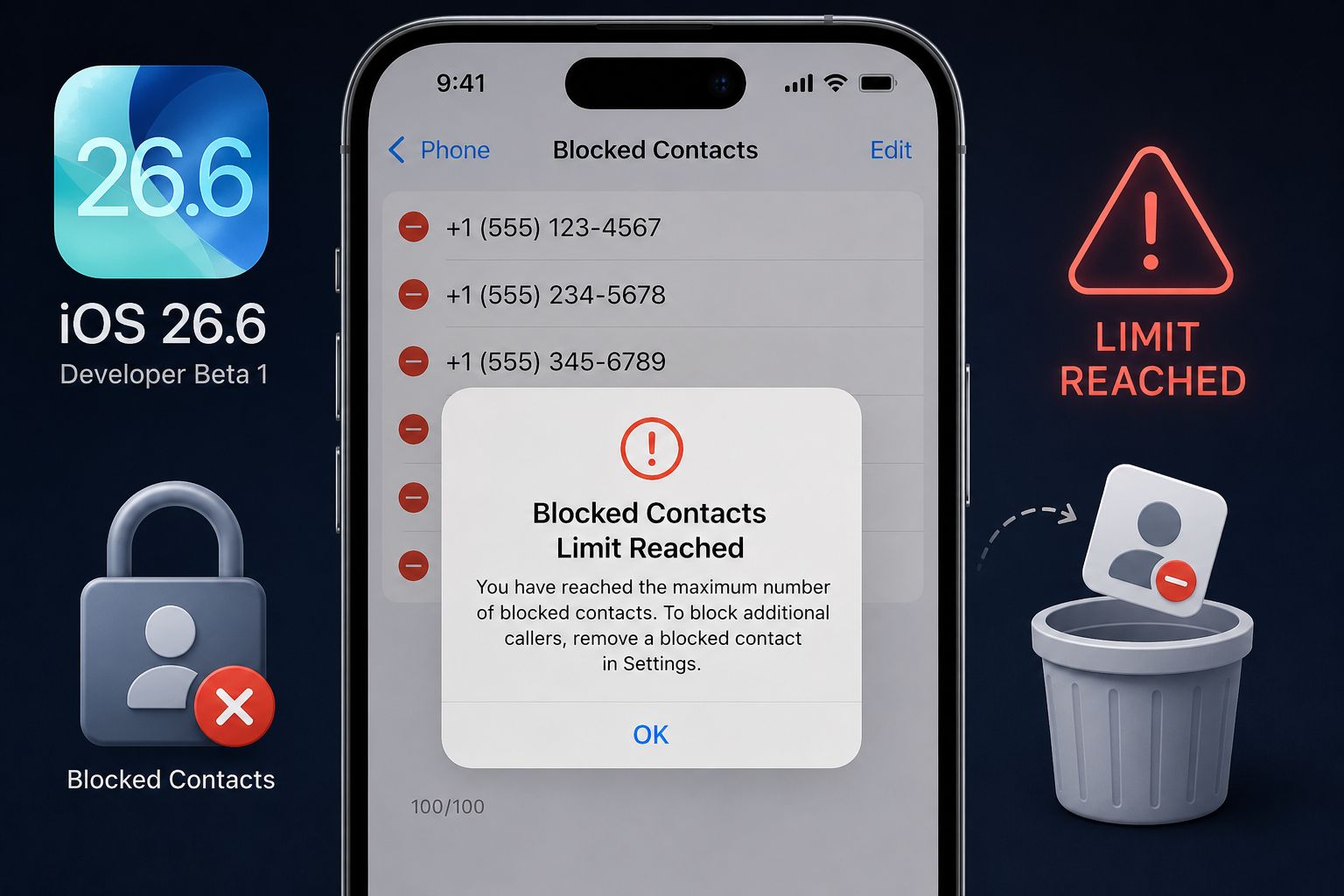
In the first beta version of the iOS 26.6 update that Apple recently released to developers, new code was spotted indicating the addition of an explicit alert that appears to users when they exceed the maximum allowed limit for blocked contacts. The alert comes with the title “Blocked Contacts Limit Reached,” and the message text says: “You have reached the maximum limit for blocked contacts. To block additional callers, remove a blocked contact from Settings.”
This change may seem simple, but it solves a mystery that users have long complained about on Apple’s technical support forum and social media. Previously, users would try to block new numbers to no avail, without realizing that they had exceeded the system’s capacity, given the lack of any official documentation from Apple regarding this limit.
How many numbers can you actually block?
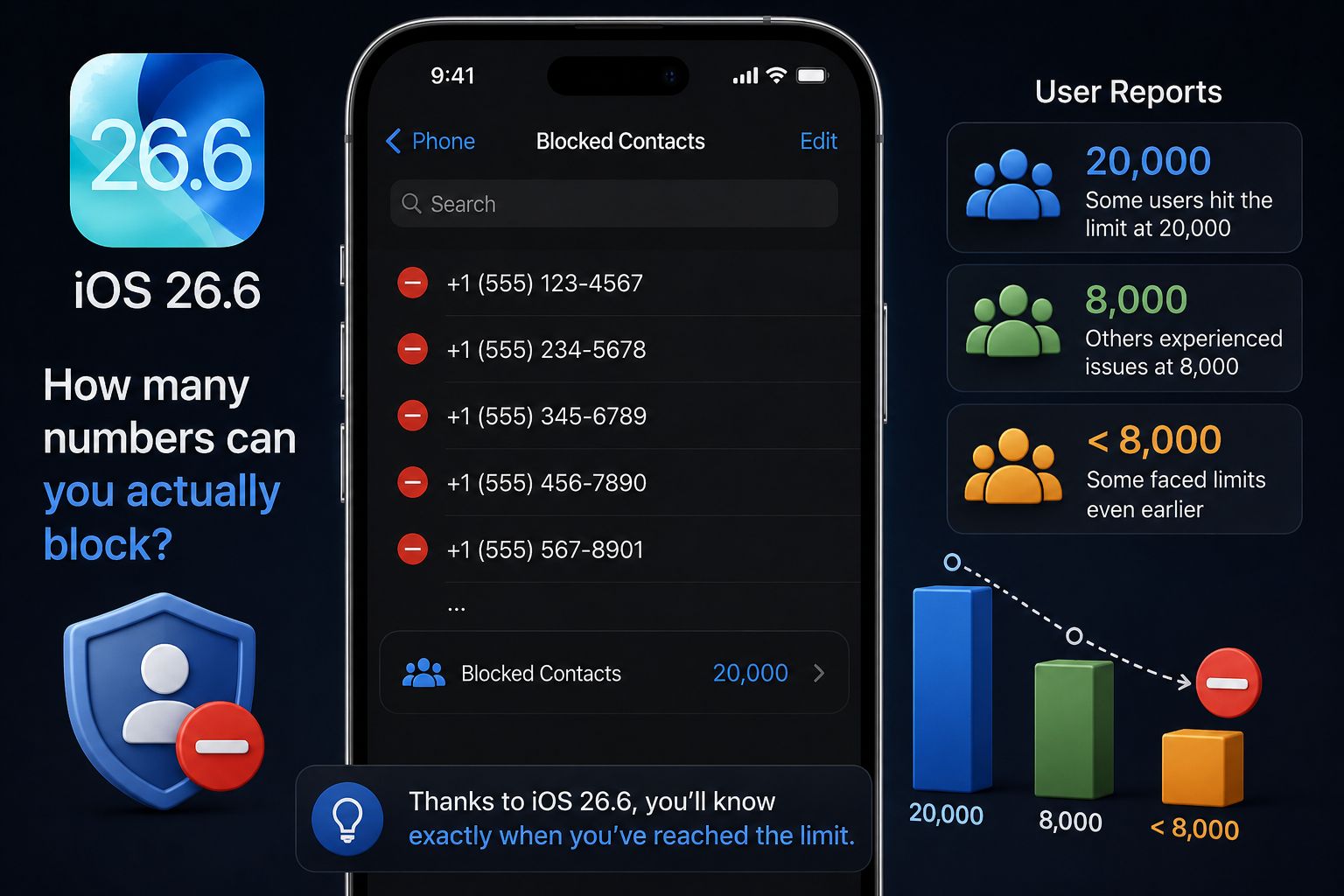
Although Apple does not provide an official guide defining the maximum number of blocked digits, user experiences reveal varying numbers. Some users indicated that they encountered a problem blocking new numbers after exceeding 20,000 blocked numbers (yes, there are those who have the patience to block this huge number of spammers!). While others faced problems after reaching only 8,000 numbers, and there is a category that faced obstacles at much lower numbers than that.
For the majority of average users, it is very difficult to reach these thousands-level limits. However, for those who are subjected to intensive spam campaigns and regularly block every strange number, this limit becomes a reality. Now, thanks to the iOS 26.6 update, they won’t have to guess why the blocking feature stopped working.
How to clean up your blocked list to make room for new nuisances?
If this new alert appears to you in the future, the only available solution is to remove some old numbers that may no longer be active or no longer bother you. To do this, you need to go to Settings > Apps > Phone > Blocked Contacts.
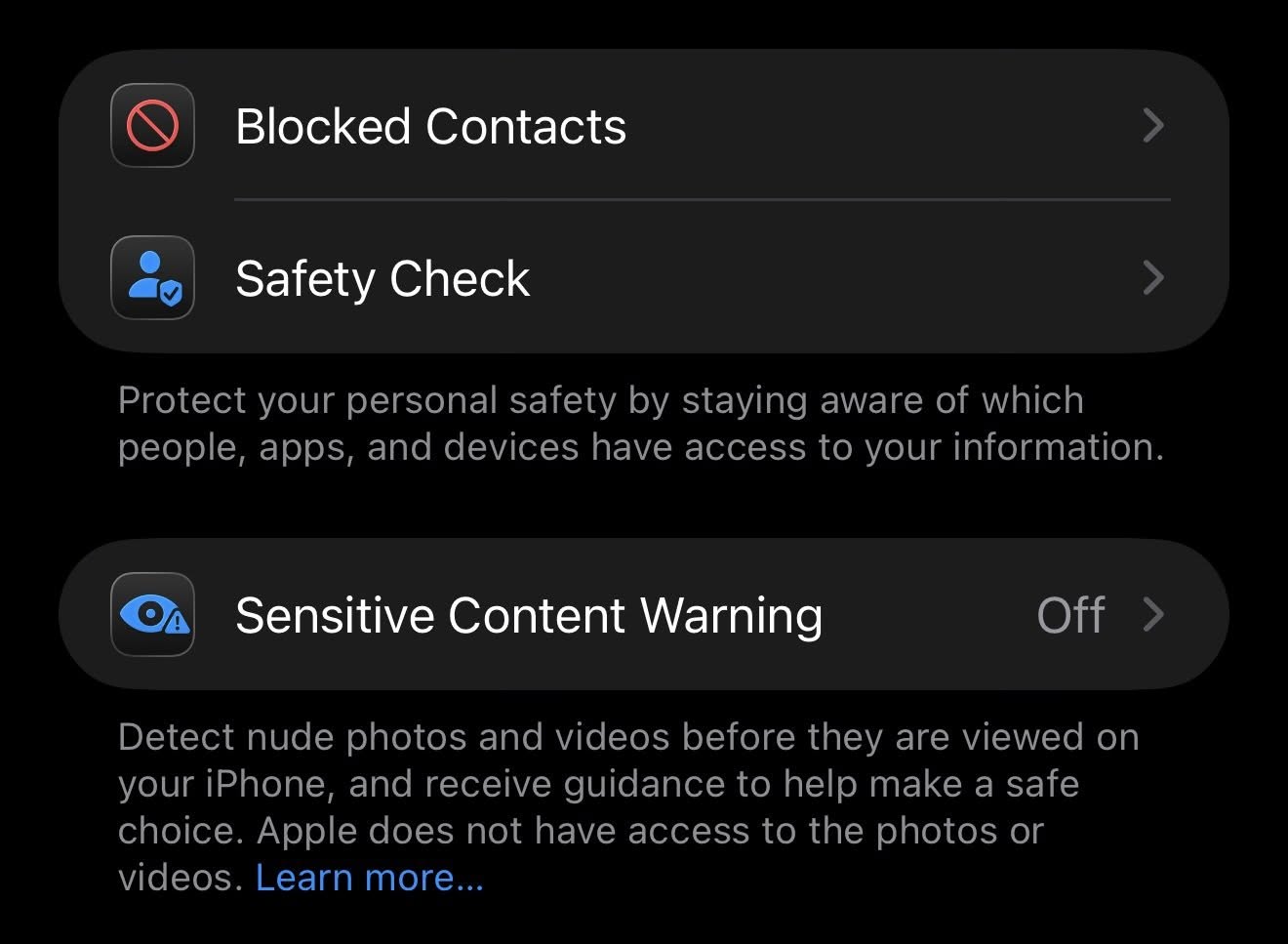
Unfortunately, Apple does not yet provide a tool to delete blocked numbers in bulk (Bulk Unblock). The easiest way is to swipe the contact to the left individually to unblock, or press the “Edit” option and then tap the red minus sign next to each number and choose unblock. A tedious process, no doubt, but it is currently the only option to rearrange your defensive ranks against annoying calls.
Smart features in iOS 26 as an alternative to “traditional blocking”
If you are tired of the “cat and mouse” game and blocking individual numbers, iOS 26 has already introduced smarter and more convenient solutions for managing annoying calls without filling up the block list. One of these solutions is the “Ask Reason for Calling” feature, which sends incoming calls from people not in your contacts list directly to voicemail, where the system asks the caller to write or say the reason for their call, so you can decide based on that whether you want to answer or not.
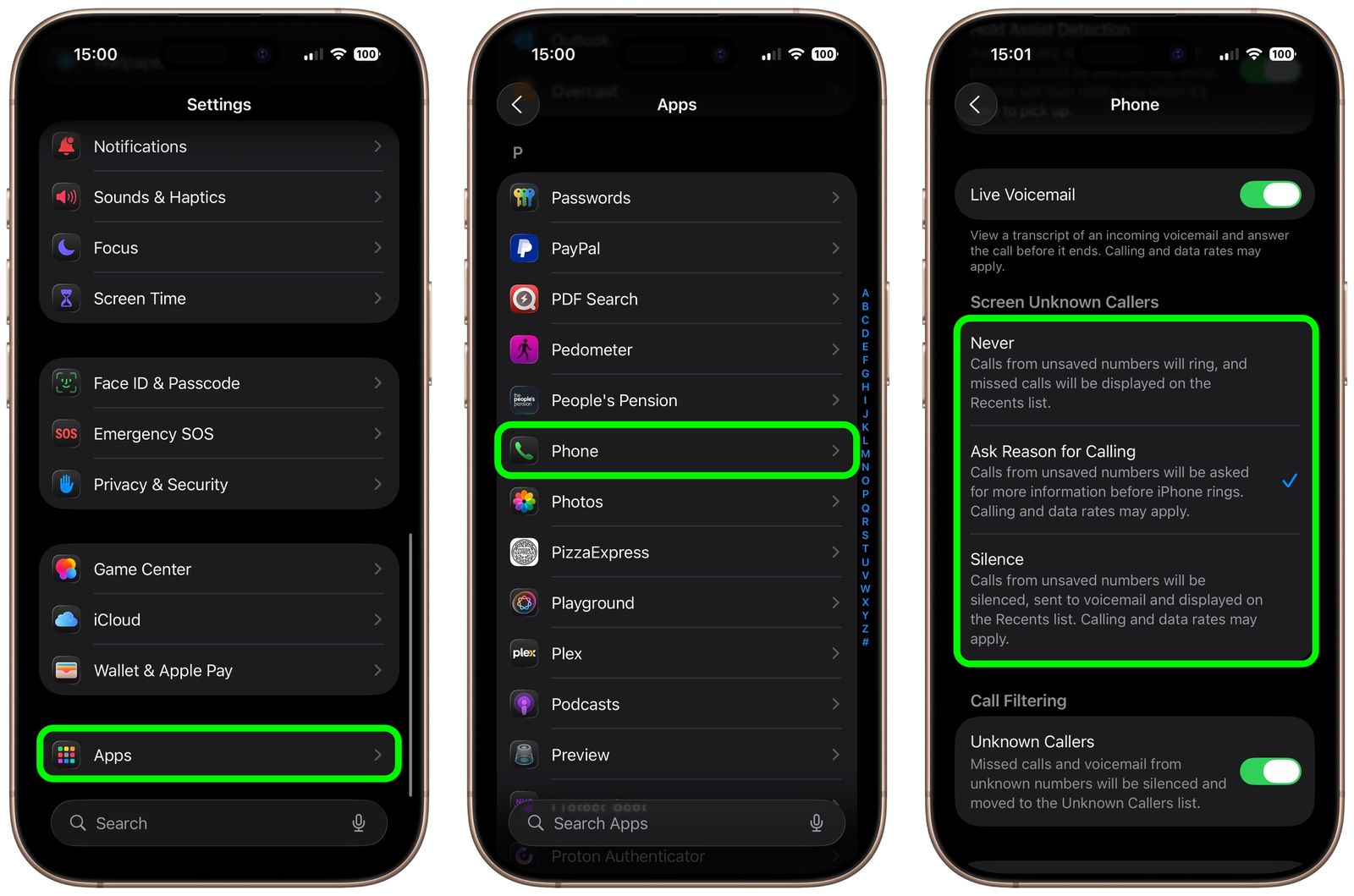
In addition, you can always enable the “Silence Unknown Callers” option to send all unknown calls directly to voicemail without your phone ringing or bothering you at all. These missed calls and voicemails can also be filtered into a separate list called “Unknown Callers” within the Phone app to check later at your leisure.
Source:


Leave a Reply