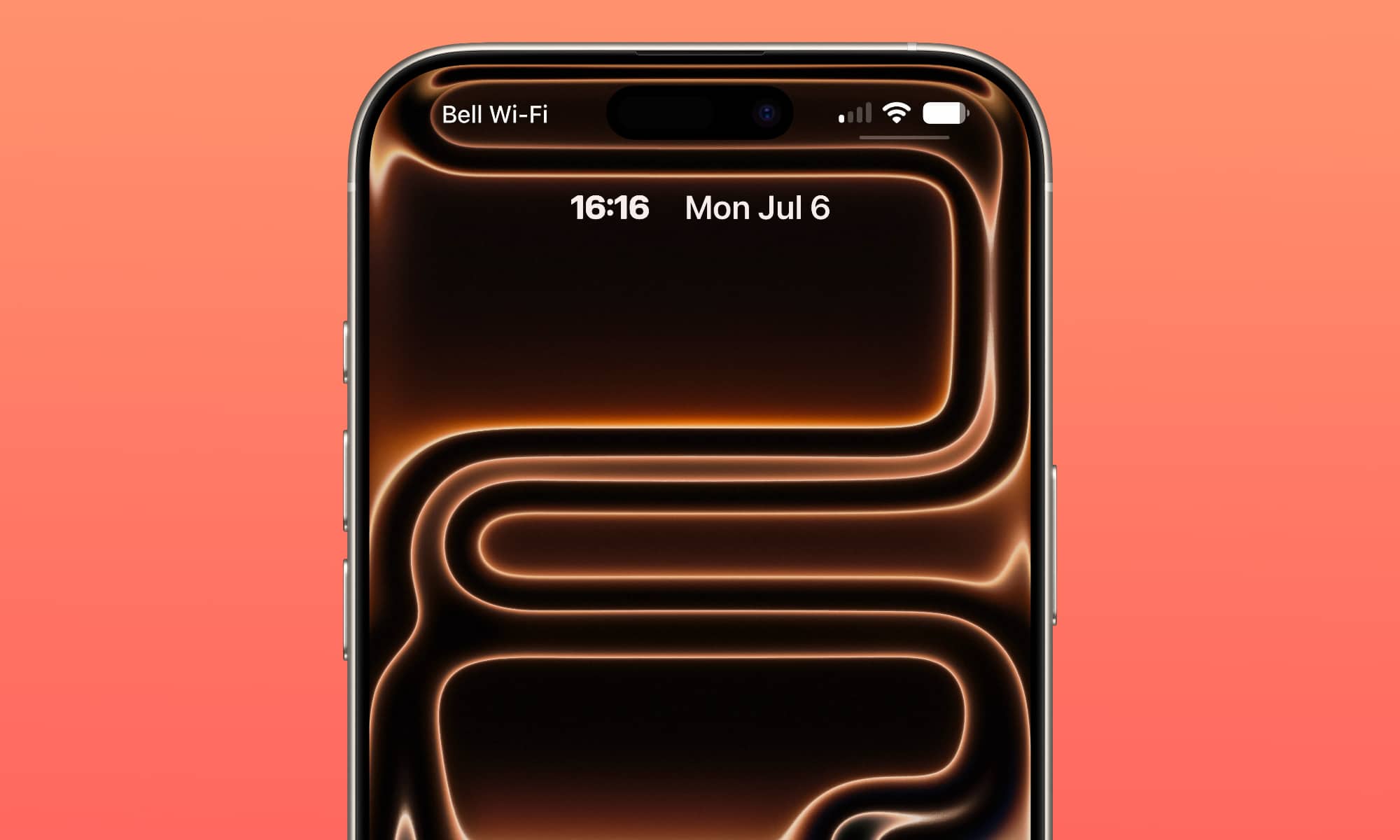
Ever since Apple released the first developer beta of the iOS 27 update, iPhone users have been racing to try out every new feature. Despite the many massive features, there is one small aesthetic change that has sparked excitement for many: the ability to shrink the lock screen clock significantly and move it to the widgets section at the top, allowing your device’s stunning wallpapers to shine fully without obstruction.
Why has this simple change received so much praise?
It might seem strange at first; why would anyone want to shrink the clock to the point where it’s hard to see clearly? The answer lies entirely with “wallpaper lovers”! Previously, the massive clock would obscure the details of the most beautiful images, whether it was a stunning nature shot or a photo of your loved ones. Now, this option gives you complete freedom to showcase your wallpapers without any visual clutter.
In addition, iPhone users are always demanding more customization options. Although there is still a long way to go before Apple reaches absolute freedom, this step is proof that the company has started to truly listen to the demands of its user community, which is hungry for change and simple aesthetics.
How to shrink the lock screen clock in iOS 27?
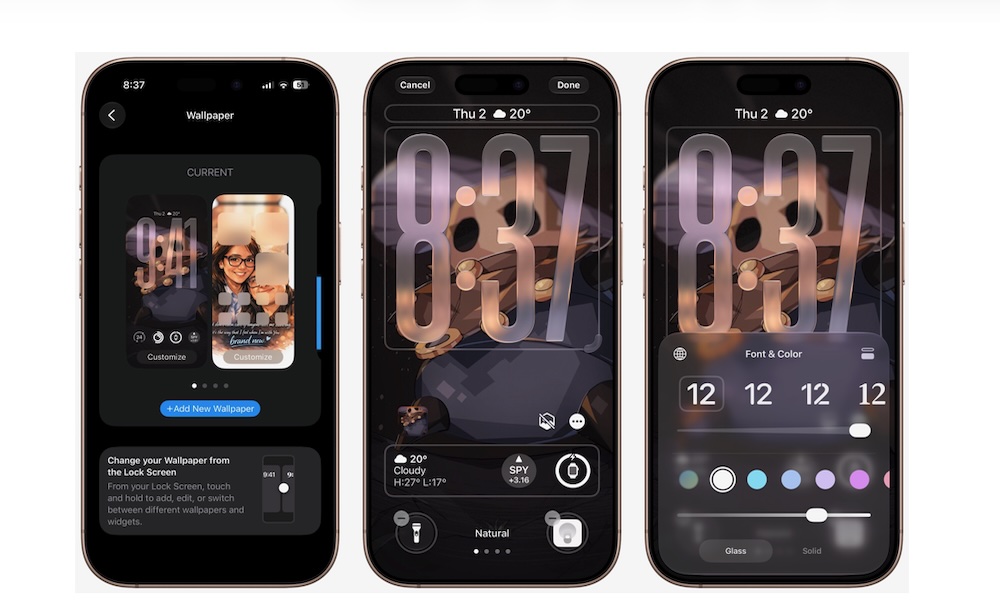
To try this feature, you will of course need your device to be running iOS 27 (currently available as a developer beta, with the public beta release approaching). Once the system is set up, follow these steps:
- Open the Settings app on your iPhone.
- Scroll down and tap Wallpaper.
- Tap Customize below the current lock screen preview.
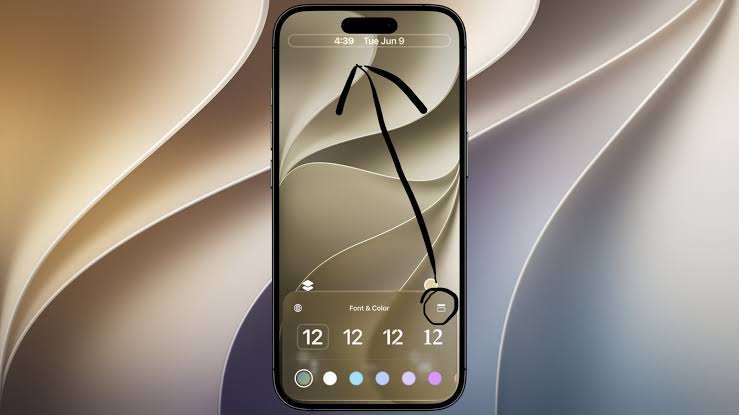
- Tap the clock to open the Font & Color panel.
- Tap the new shrink icon (the button that looks like a small square frame in the top right corner of the panel).
And just like that, the clock will immediately shrink and settle next to the date in the top widget bar. Always remember that iOS 27 is still in its beta stage, so we strongly recommend taking a full backup of your data before attempting to try any of these features to avoid unexpected technical issues.
Source:



Leave a Reply