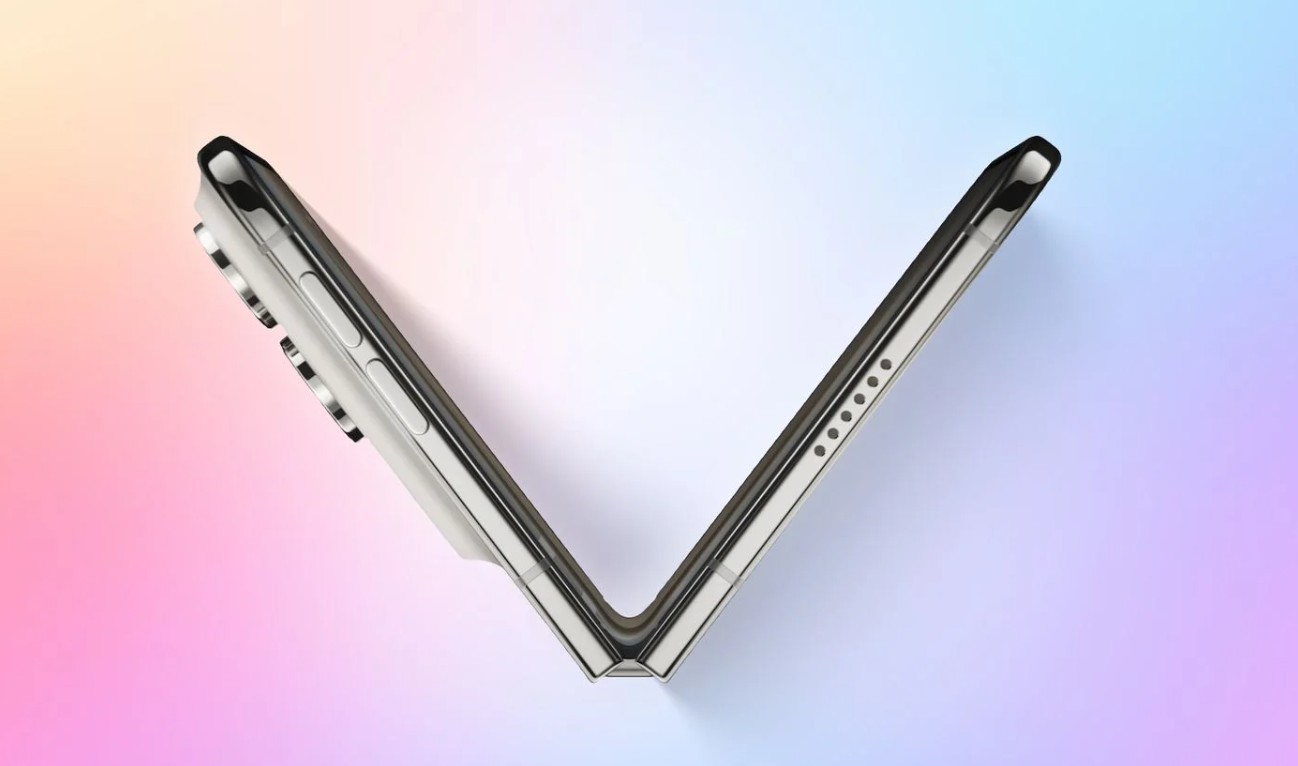
With the launch of the iPhone Duo and its arrival in the hands of users, daily discoveries are being made regarding the subtle details and hidden touches that Apple has incorporated into the operating system. One of the most common criticisms in initial reviews of the device was the difficulty of opening the Control Center while using the phone with the left hand; the device’s wide dimensions and foldable design make reaching the opposite top corner a strenuous task that requires an uncomfortable thumb stretch. Fortunately, it turns out that the engineers in Cupertino anticipated this dilemma and devised a hidden trick that makes opening the Control Center much easier with just a simple tap of a finger.
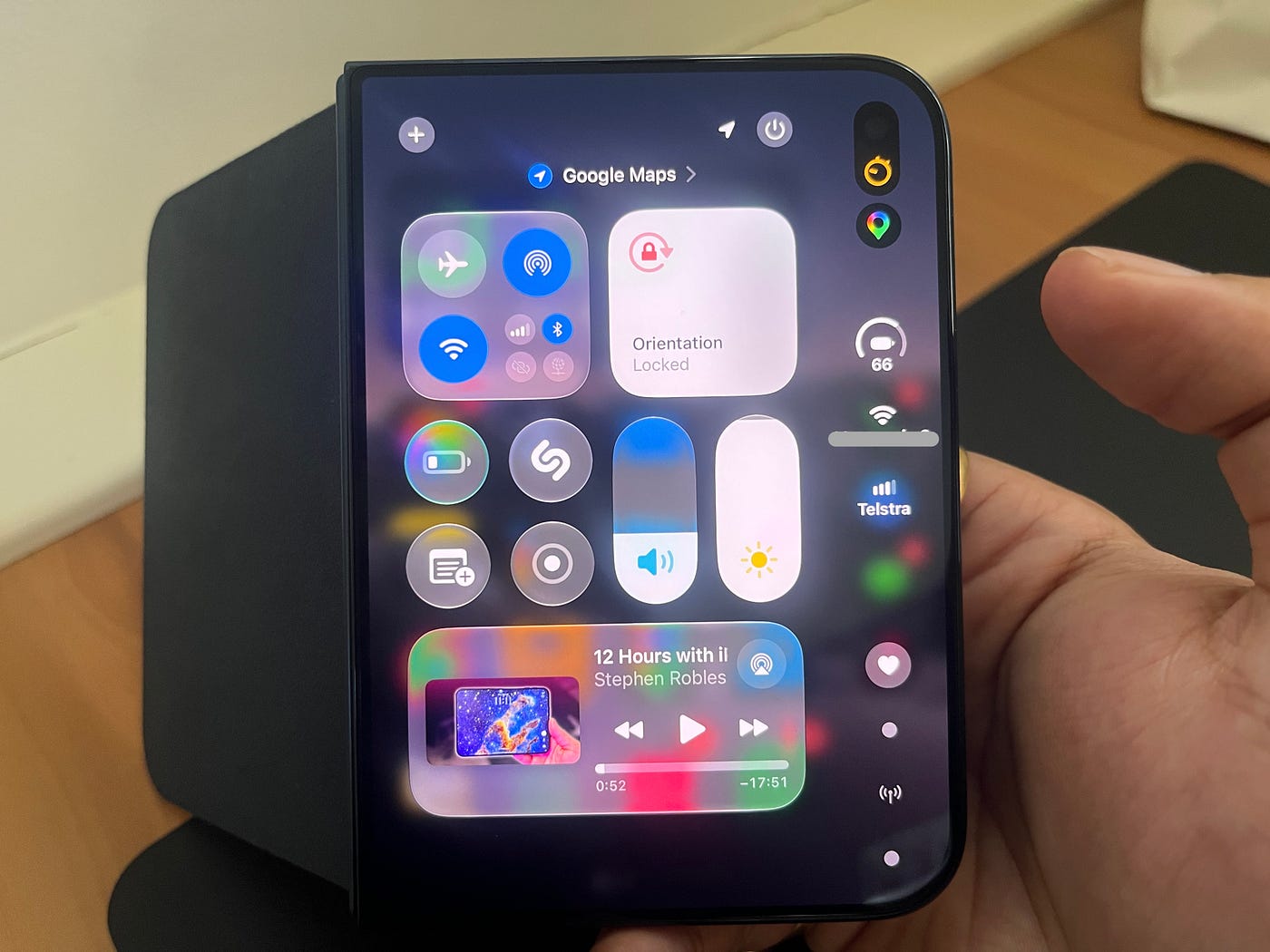
The dilemma of left-handed use with wide screens
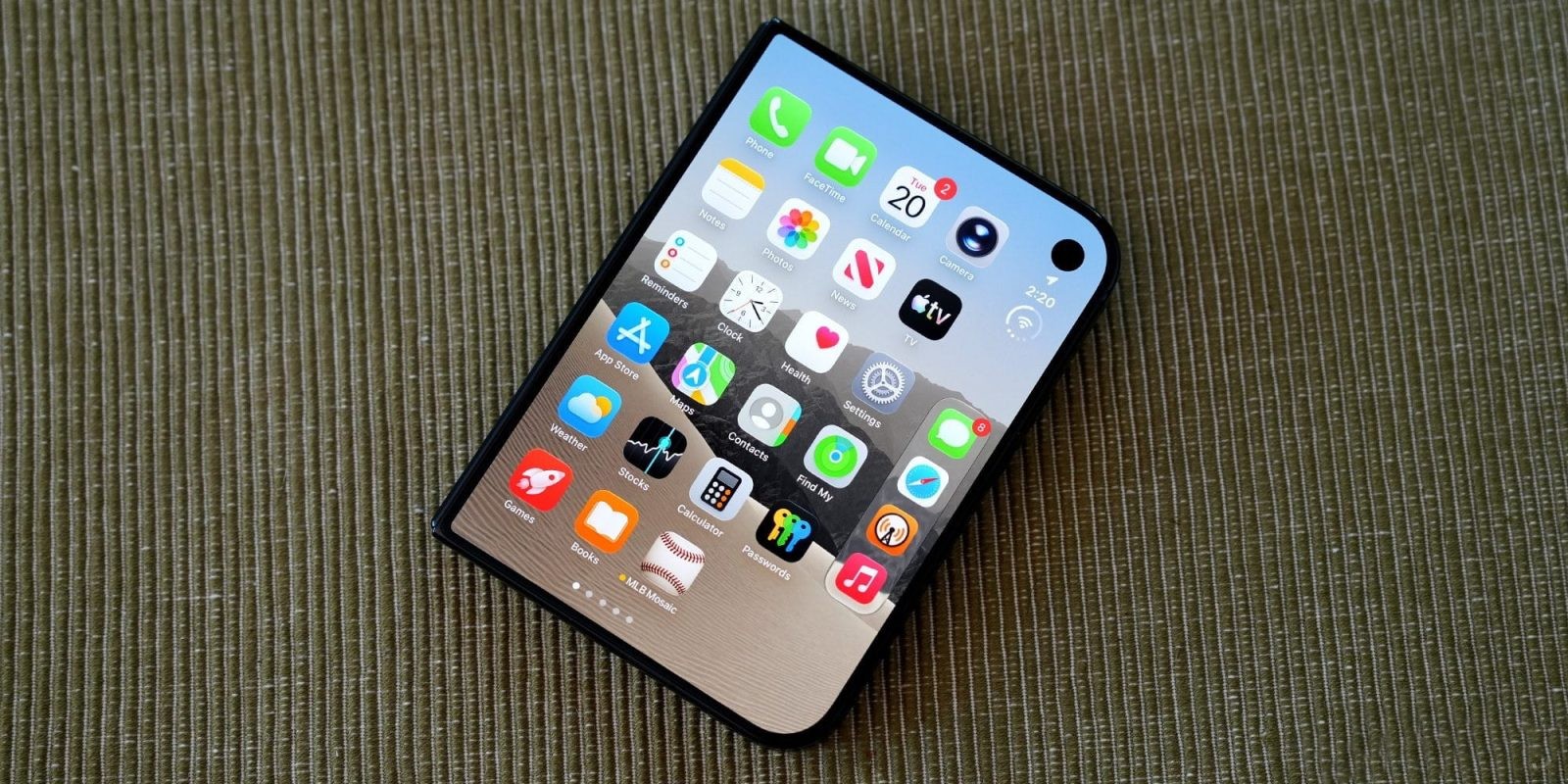
As has been the custom on iPhones for years, the Control Center is opened by swiping down from the top-right corner of the screen. This gesture might seem smooth and natural if you are holding the phone with both hands, or even if you are using your right hand with a slight stretch. However, once you hold the phone with your left hand, the experience becomes quite annoying; the iPhone Duo’s design features a noticeable extra width compared to traditional phones, even when folded, making reaching the far top corner a real challenge for palm comfort and the safety of the device from dropping.
This complaint has been repeated frequently among early reviewers who found themselves forced to change their grip on the phone or use their other hand every time they wanted to adjust brightness or control connectivity, which completely contradicts Apple’s philosophy of providing a daily user experience characterized by ease and maximum comfort.
A single tap on the status bar instead of swiping
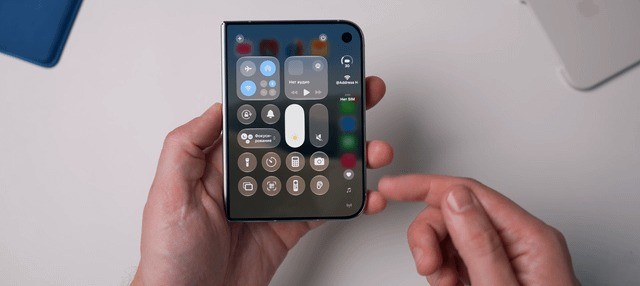
The solution Apple designed was simpler and smarter than some might imagine. As Stephen Robles revealed in a video posted on the X platform, you can simply tap directly on the grouped status bar icons, which include the battery, Wi-Fi, and cellular network indicators, to open the Control Center immediately without needing to swipe down from the top edge.
This shortcut not only saves time but also gives your thumb complete relief; the tapping area is now much closer to reach compared to the extreme corner of the screen. Furthermore, the system’s responsiveness to a quick tap makes accessing various controls extremely smooth with minimal physical effort.
Live Activities feature makes it even easier
What is impressive is that this trick becomes even more useful and practical in specific usage scenarios. When the Live Activities feature is active on the screen, such as when you are tracking an order or a match score, the status bar icons move to a lower position on the screen to make room for the displayed information. As shown in the video, this shortcut button automatically drops to a level closer to the middle of the screen, making it comfortably within reach of your thumb without any need to stretch your hand at all.
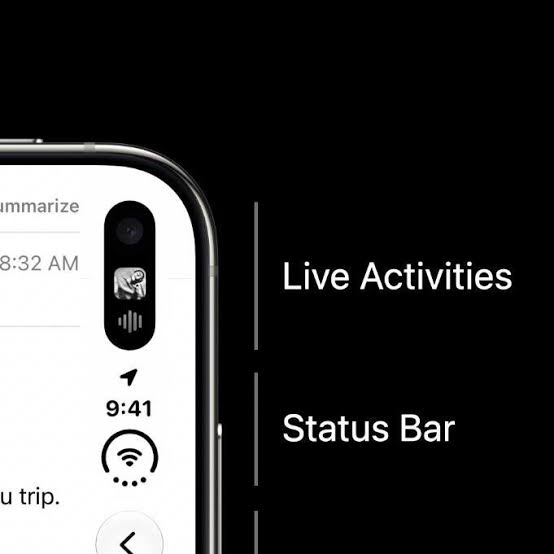
This small detail is further proof of Apple’s attention to ergonomics and the human experience; when the company introduces a device with an entirely new design category like the iPhone Duo, it realizes that changing dimensions requires adjusting interaction methods so that comfort remains the foundation of every tap and movement.
Source:

Leave a Reply