Apple's AI system has come a long and exciting way since its initial announcement. What began as a series of showcase tools that didn't quite live up to its promises has gradually matured into a highly practical and useful system, provided you give it the opportunity and understand where to best utilize it. The idea isn't to force you to completely change how you use your device, but rather to harness these technologies to handle those small, tedious tasks that consume your time and focus throughout the day; from crafting a well-structured email to finding a forgotten photo in your vast library. Here are seven ways you can leverage Apple's intelligence to make your iPhone a more effective daily companion.
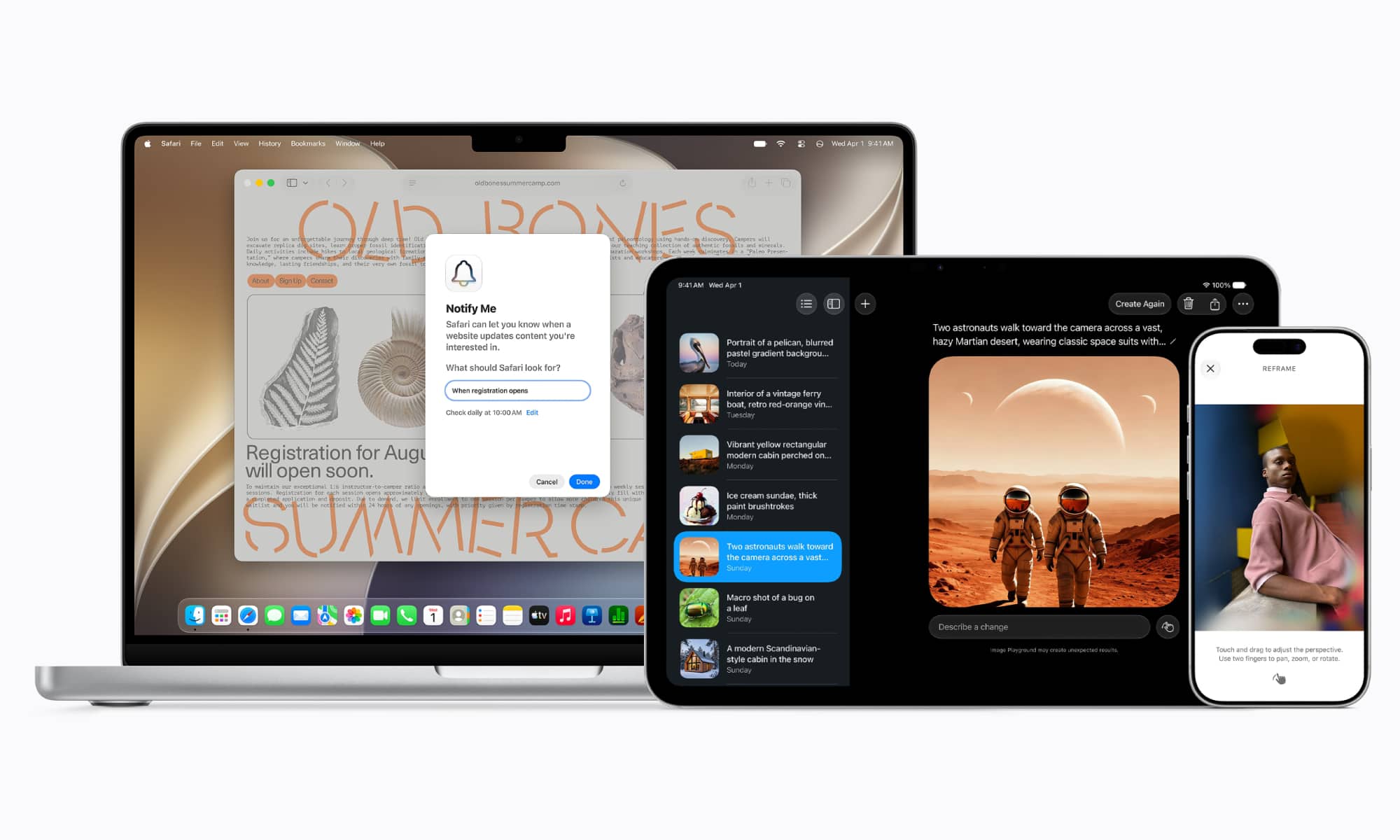
Proofreading messages and adjusting writing style using Writing Tools
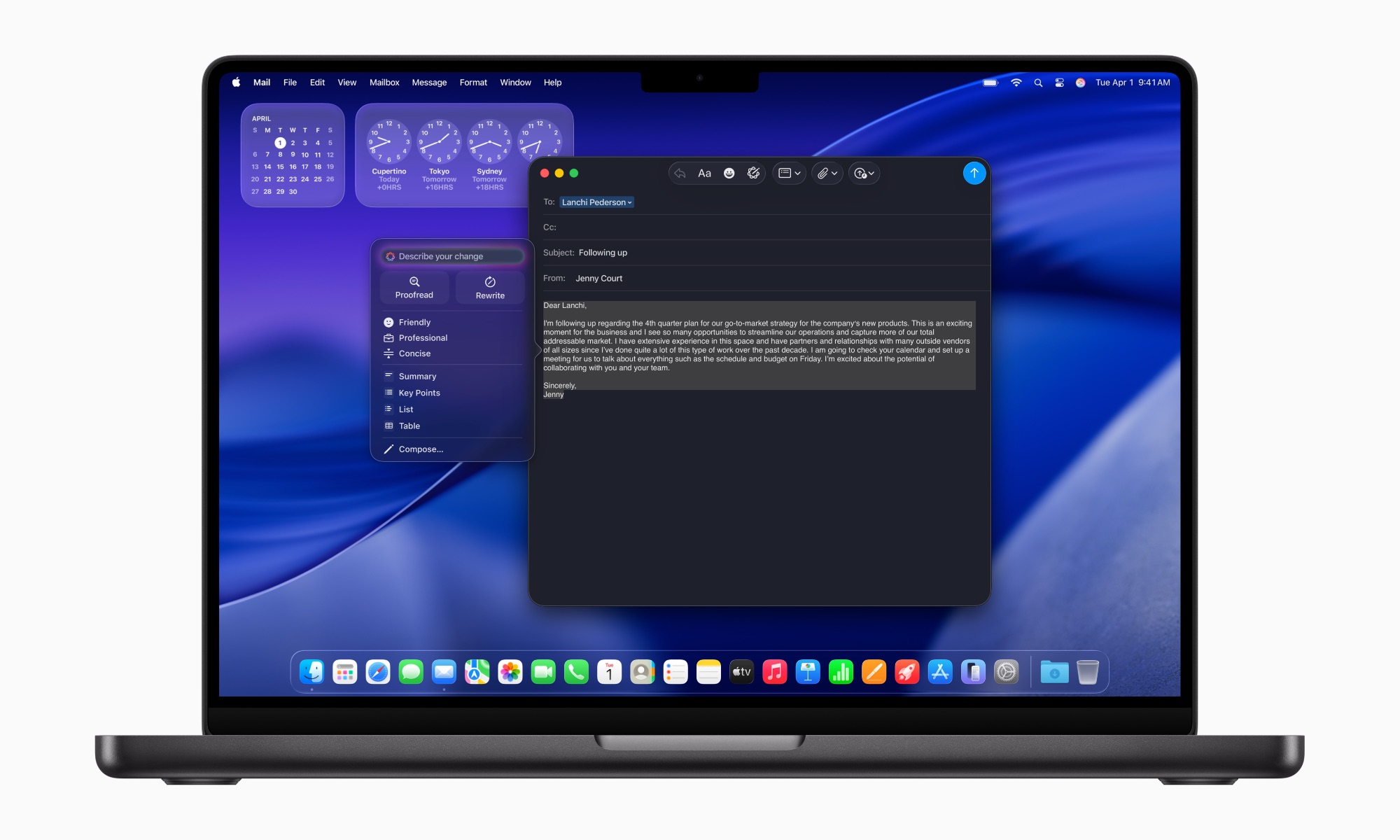
Who among us hasn't sent an important work email only to discover, just two seconds after pressing the send button, an embarrassing spelling mistake? This is where the deeply integrated Writing Tools come in. Apple's intelligence takes over, checking the text for spelling and grammar errors, reviewing the overall tone of the text, and suggesting alternative formulations if it feels the meaning lacks fluency or accuracy.
This feature works virtually everywhere you can enter text, including supported third-party apps and web browsers, meaning you won't need to copy and paste your text into an external AI-powered app for proofreading. Simply select your text on your iPhone and tap the writing tools icon in the pop-up menu, or right-click on a Mac and choose Proofing. However, the golden rule remains: always proofread the final version yourself to ensure it accurately conveys your intended meaning.
Summarize long email threads with one touch

Opening your inbox and finding a lengthy email conversation with dozens of replies is no fun for anyone. But Apple's clever solution is right there in the official Mail app; it can read the entire thread and display a concise summary at the top of the screen, highlighting the main points of the discussion and decisions made, without you wasting your time reading every single line.
To use the feature, open the message in the Mail app and tap the Summarize button. The main points will appear within seconds. Of course, because intelligent modeling can sometimes omit subtle details or only superficially understand a particular context, it's always best to refer to the original message when there are precise instructions or crucial, unambiguous figures.
Search for images and videos by describing what you remember
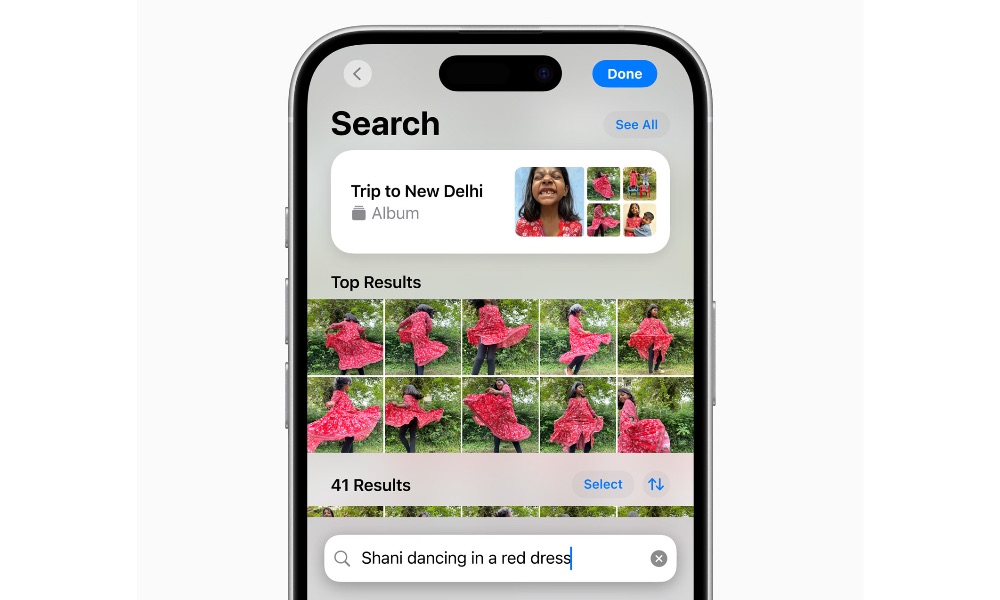
Searching for a photo you took three years ago can turn into a nightmare if you can't recall the exact date it was taken amidst thousands of stored images. Fortunately, human memory often retains visual details: like remembering that your friend was wearing a particular blue jacket, or that you were taking a picture of your cat jumping across the dining table.
Apple's intelligence allows you to type those perfectly natural descriptions into the search bar within the Photos app. Even better, the feature extends to videos as well; the system not only retrieves the relevant video but also identifies the precise moment when the desired scene appears, without you having to watch the entire clip from the beginning.
Remove distracting elements and professionally reframe images.
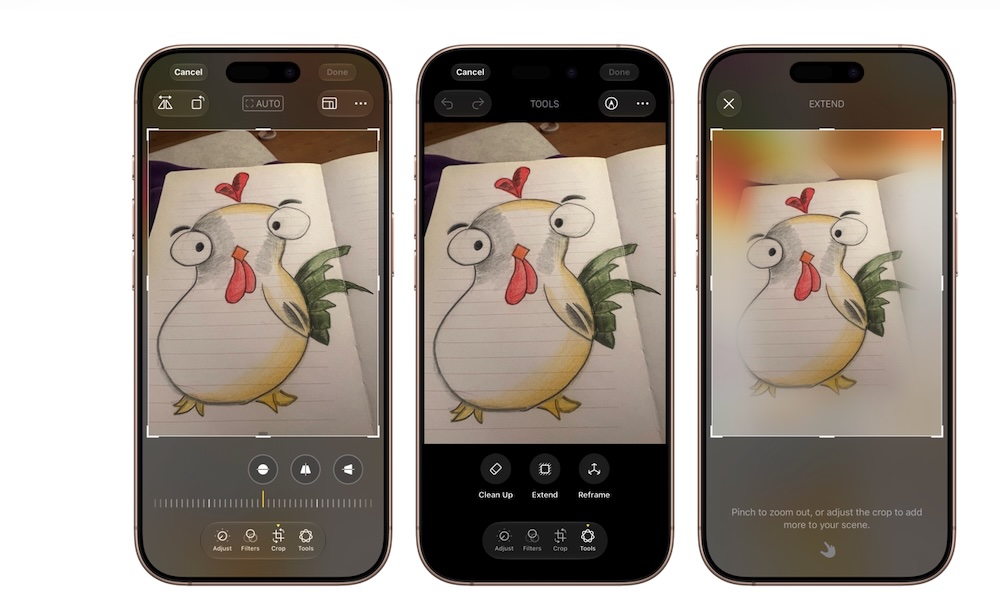
There's no longer any need to open complicated photo editing software just because a stranger accidentally stepped into the background of your favorite picture. Apple introduced the Clean Up tool, which identifies and removes distracting elements with a single tap, filling the gap with a harmonious background that blends seamlessly with the rest of the image.
Image processing capabilities expand to include advanced tools such as the Extend feature, which generates additional parts of the scene if you want to enlarge the frame, and the Reframe feature, which adjusts the shooting angle and the direction people are looking so that the image appears perfectly aligned with the lens. All these options are available directly within the Photos app's Edit button.
Using visual intelligence to understand the content of screenshots
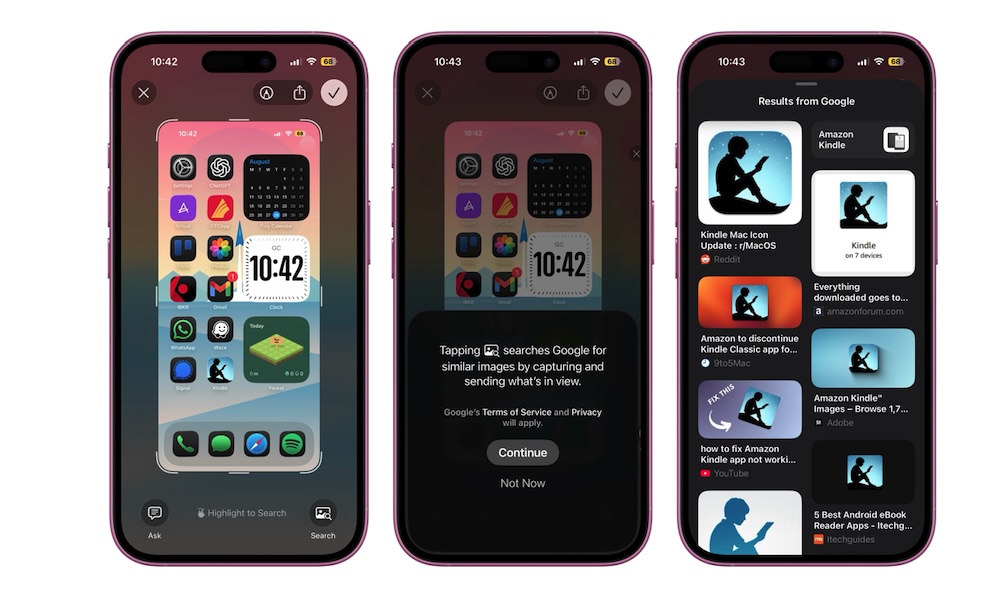
Visual Intelligence is a quick window to identify the contents of the screenshots you take daily. If you see a product in an application and want to know its price on online stores or search for additional information about it via the search engine, the system will help you immediately.
To take a screenshot, press the side button and the volume up button simultaneously, then tap the quick preview in the bottom corner. Visual Intelligence options will then appear. You can swipe to select a specific item within the screenshot and search for it. Be sure to do this immediately after taking the screenshot using the quick preview, as these direct search options are linked to that initial interface.
Automatically record, transcribe, and summarize audio in notes.
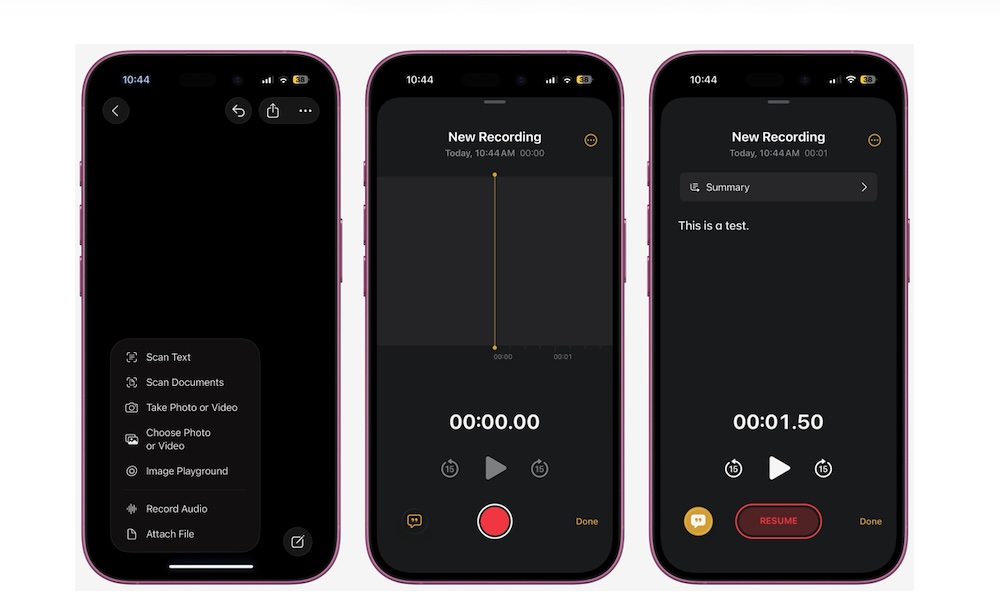
Taking notes during long meetings or lectures often distracts you and makes it difficult to focus on the actual conversation, resulting in incomplete or disorganized notes. A practical solution has emerged with the Notes app, which can now record audio and convert it to text in real time.
It doesn't stop at accurate transcription; Apple's smart technology also provides a comprehensive summary of the session. Simply open a new note, tap the attachment icon (paperclip), and select Record Audio. Once you're finished, you can tap a button to view the full transcript or read the smart summary of the key points discussed.
Create complex shortcuts simply by writing down the idea.
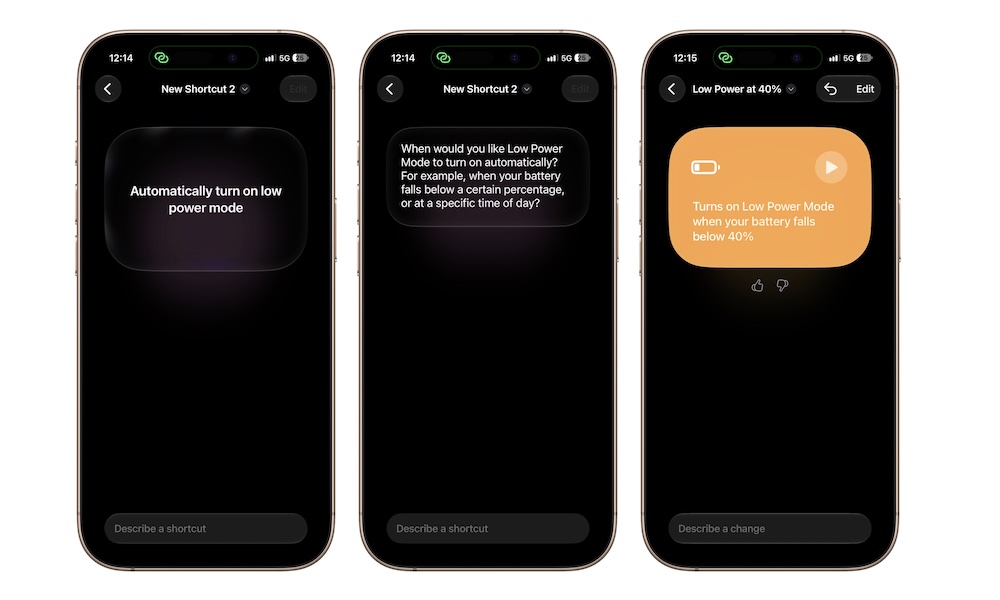
The Shortcuts app has always been one of the most powerful tools in the iPhone system, but the problem has always been the steep learning curve; building a complex shortcut requires a precise understanding of the variables and sequential steps, which leads most users to avoid it altogether.
Now, Apple's intelligence takes over for you; simply explain what you want to achieve in plain language, and the system will automatically build the workflow and sequence the commands. Apple relies on on-device processing for simple tasks, while more complex tasks are routed to private cloud computing to ensure privacy and processing speed, resulting in a ready-to-use summary that saves you hours of trial and error.
Let Apple's intelligence handle the little details of your day.
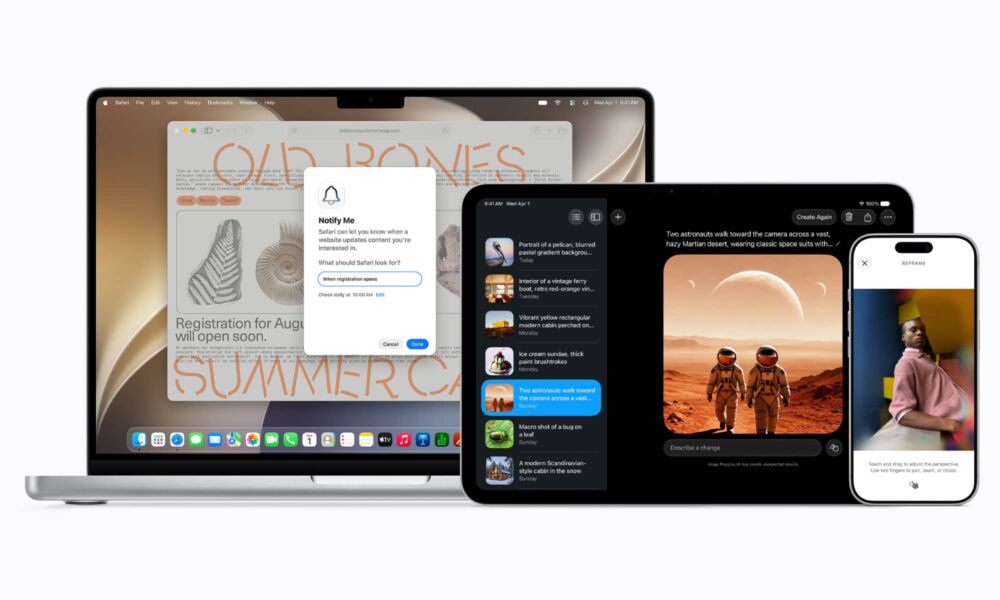
The real benefit of Apple's intelligence doesn't necessarily mean having it write entire articles for you or manage your decisions, but rather assigning it to accomplish those tedious routine details that take up more of your time than they should; whether that's proofreading a business letter, summarizing an urgent email, or finding a fleeting moment in an old video.
Certainly, technology is still evolving and not infallible, and relying on it blindly isn't always a wise approach. But as a helpful tool working quietly in the background of your system, Apple's intelligence proves itself capable of transforming Apple devices into a faster and more agile working environment every day.
Source:




6 comment