One of the points that attracts some to the jailbreak is that it gives them the freedom to completely modify the system, so they can download applications that are prohibited by Apple and some of them are substitutes for the official applications, and they can change the "themes" and the type of font used in the system and also the network's logo, but there are risks in exchange for these advantages, But not all features need a jailbreak, and in this article we review the way to change the logo of the network to replace it with any phrase or image you want, without jailbreak.
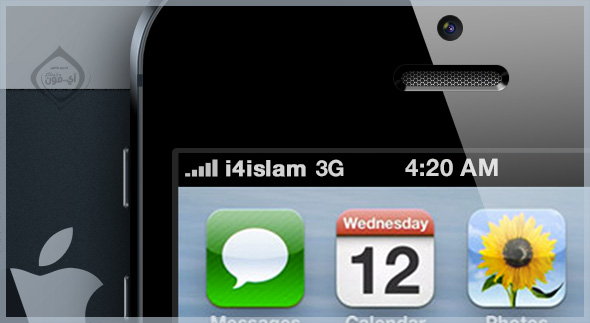
The idea in short is that you can through iTunes update the network settings. These settings are about “network identification” + “the company name of the service provider” and the way is that you can, with a program, set up a file that does not change the “network definition” but modifies the “company logo and name” To any image or text you want. The method differs in Windows from Mac, and here are the two methods.
Windows:
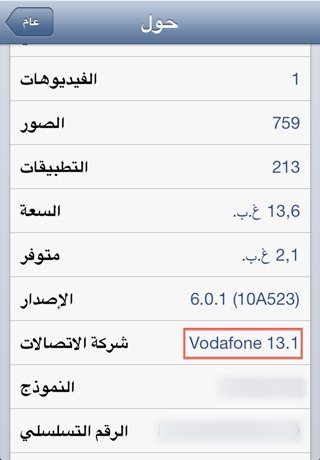
1 You will need to know the current network settings version number, and you can do that by going to Settings> General> About as follows:
2 Download the program from your Windows computer by pressing this link.
3 Open the application and you will see the following image:
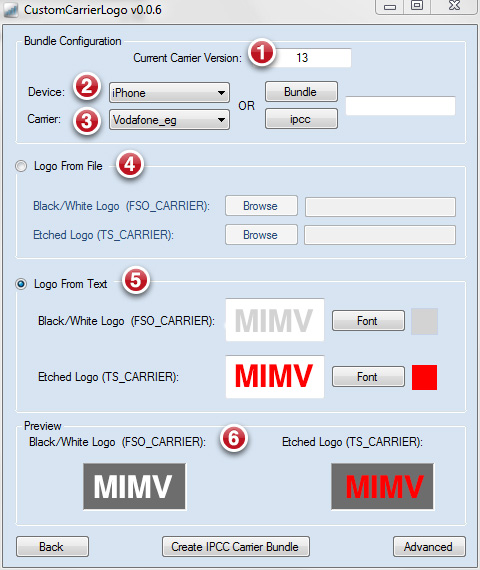
- In front of field number 1 put the network version number that we got in step number 1.
- Select the device type, whether iPhone or iPad, in field number 2.
- Choose the service provider for your device, and if you cannot find your carrier, the method cannot be used.
- If you want to put a logo (image) then choose No. 4, but you must take into account the size of the image and the length should not exceed 40 pixels.
- If you want to write any phrase instead of the network name, choose No. 5, and you can specify the font size and color as you like, and a review of it will appear in step No.
- Finally, click on the Create IPCCC Carrier Bundle button.
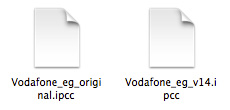
4 You will see two files on the screen with the name of the network, one of them includes the phrase “Original” and it includes the original settings, and the second with the same name without this phrase, which is the file we want and we created it as follows:
5 Open iTunes and press the Alt button with the Restore button and choose the modified file (that does not contain the phrase Original):
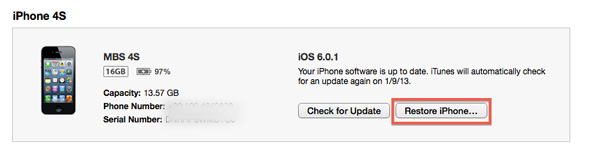
6 You will see the logo that you have chosen (it is preferable that you close and open the device once in order to be modified) and here will be the MIMV:

You can watch the following video explaining:
Mac:
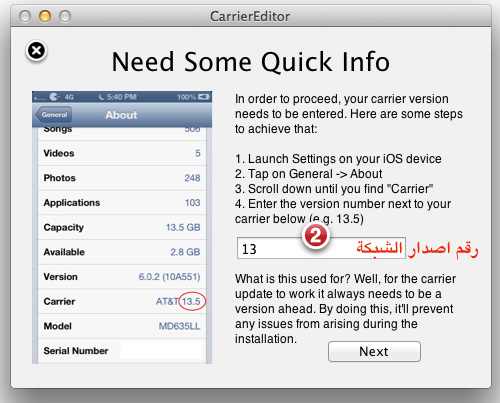
1 Get the network version number as Step # 1 in Windows.
2 Download the application version for Mac Of this link.
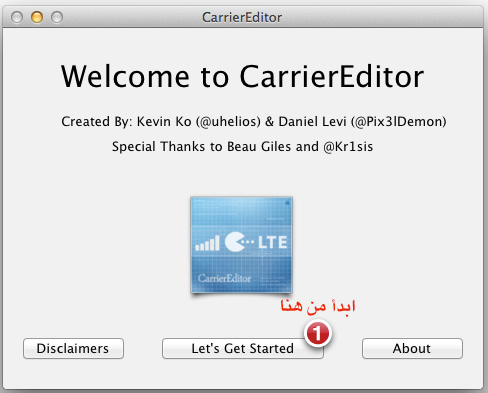
3 Open the application and you will see the opening screen.
4 Write the network version number:
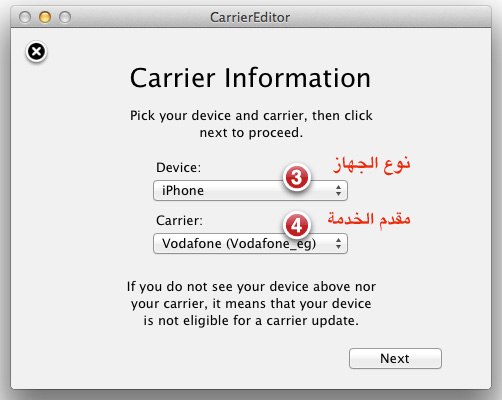
5 Choose the device type and network:
6 Choose the image that appears when the bar is black and also when it is blue (image length is 40 pixels maximum).
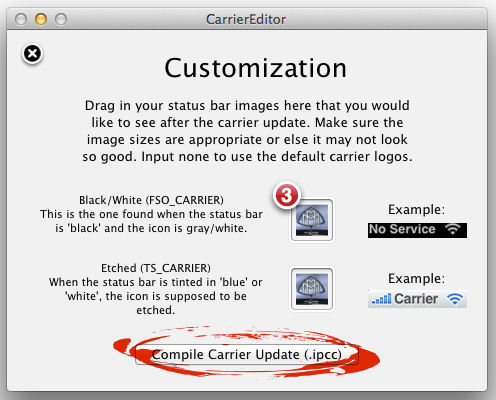
7 Now you will find the two files on the screen, so repeat steps 4 and 5 previously explained in Windows for explaining how to put the logo through iTunes.
Watch the video to find out how:


153 comment