Since Apple launched its new system, iOS 11, and only mentioned a fraction of the advantages of this system, as if it says “discover yourself,” then the specialists began to search in this system for its advantages and disadvantages, and despite what was written and what was said, we still discover something new every day. We, the iPhone Islam site, decided to present a series in which we explain all the advantages and secrets of this system, preferably on the iOS 11 system, so that you can easily identify and apply these features and so that your experience increases and you benefit fully.
Night mode or dark mode feature
We have been waiting for this feature for a long time, but it seems that Apple is avoiding it and has been providing features close to the night mode feature, for example ...
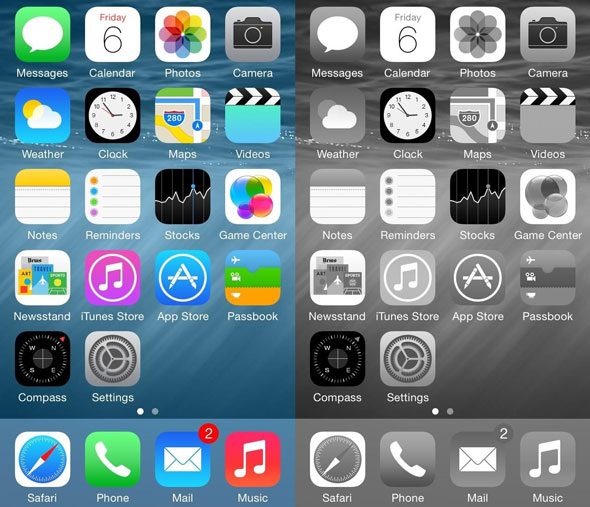
In iOS 8 introduced a "grayscale" feature.
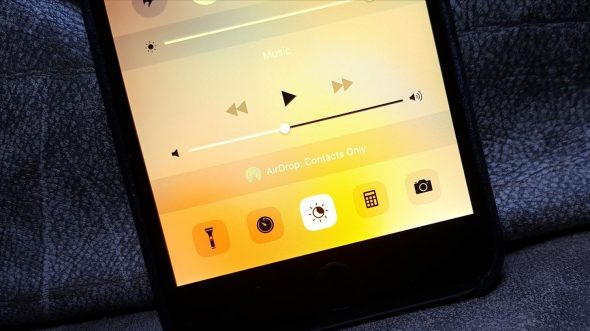
In iOS 9 introduced the "Night Mode" feature to brighten the screen
In iOS 10, hopes were rife that this feature would be updated in the way we want it, but this did not happen and Apple introduced the color inverting feature that reflected all the colors of the screen.
And when Apple launched the iOS 11 system, it did not touch this feature, neither from near nor from afar, until it was found in the name of "smart inverted colors", but it is not the night mode that we know. This mode reflects only certain colors and does not reflect images or videos.
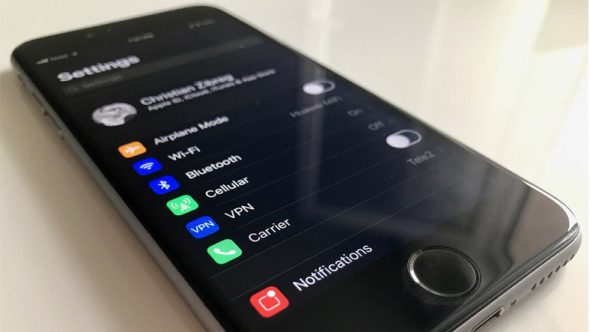
This feature is most useful when surfing the Internet or reading because it is soothing to the eye, and it only works with a few applications.
And to activate This property:
enter on…
Settings - General - Accessibility for People with Special Needs - Screen Facilities - Mirrored Colors - Smart Invert.
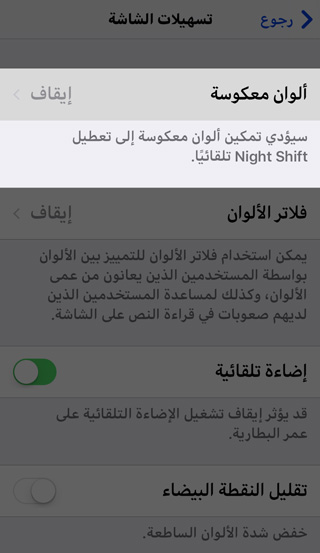
You will also find another option called "Classic Invert." This feature is old, reverses everything, and is basically there to help people with color blindness see better.

If you like this feature, you can create a shortcut for it in two ways:
1- Make a shortcut to it in the home button when pressing it three times in a row, and to activate that go to ...
Settings - General - Accessibility - Accessibility Shortcut.
Then choose inverted colors
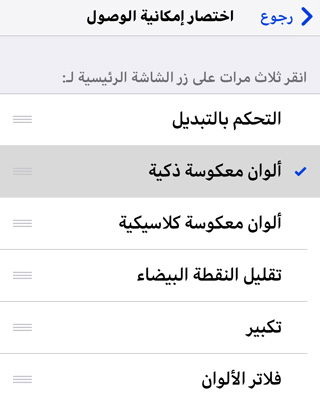
By pressing the Home button three times in succession, a window will appear from which to choose Smart Invert.
2- A shortcut to it can also be placed in the Control Center as follows:
go to the..
Settings - Control Center - Customize controls and then add accessibility shortcuts.
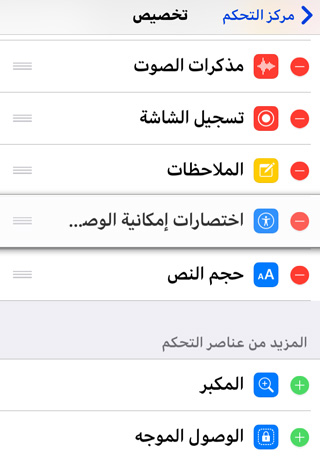
From the control panel, press and hold or use 3D Touch on the icon, then the Smart Invert will appear, and you can turn it on or off.

Source:


64 comment