Many of us don't use the Safari app and use the Chrome app instead. There is no doubt that Safari and Chrome are completely different layout. If you use the Chrome app, here are some tips I know that will make using Chrome much better than before.
NB
The Chrome app toolbar appears at the bottom in portrait mode and at the top in landscape mode. We'll use Portrait to explain these tips.
Add web pages to your Reading list
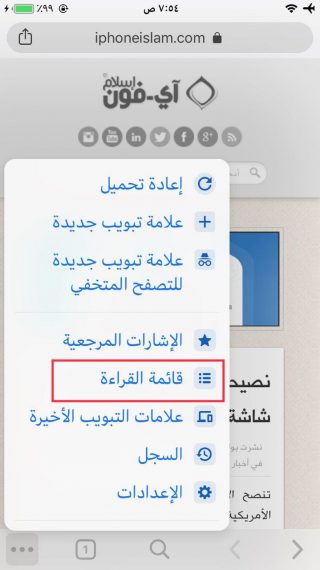
Chrome also includes a reading list like the one in Safari that allows you to save web pages for later reading. To add a webpage to your reading list, when the page is active, click the Share button in the address bar and then Read later or Read later in the share menu.
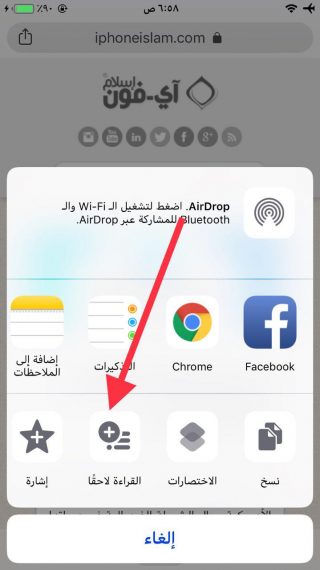
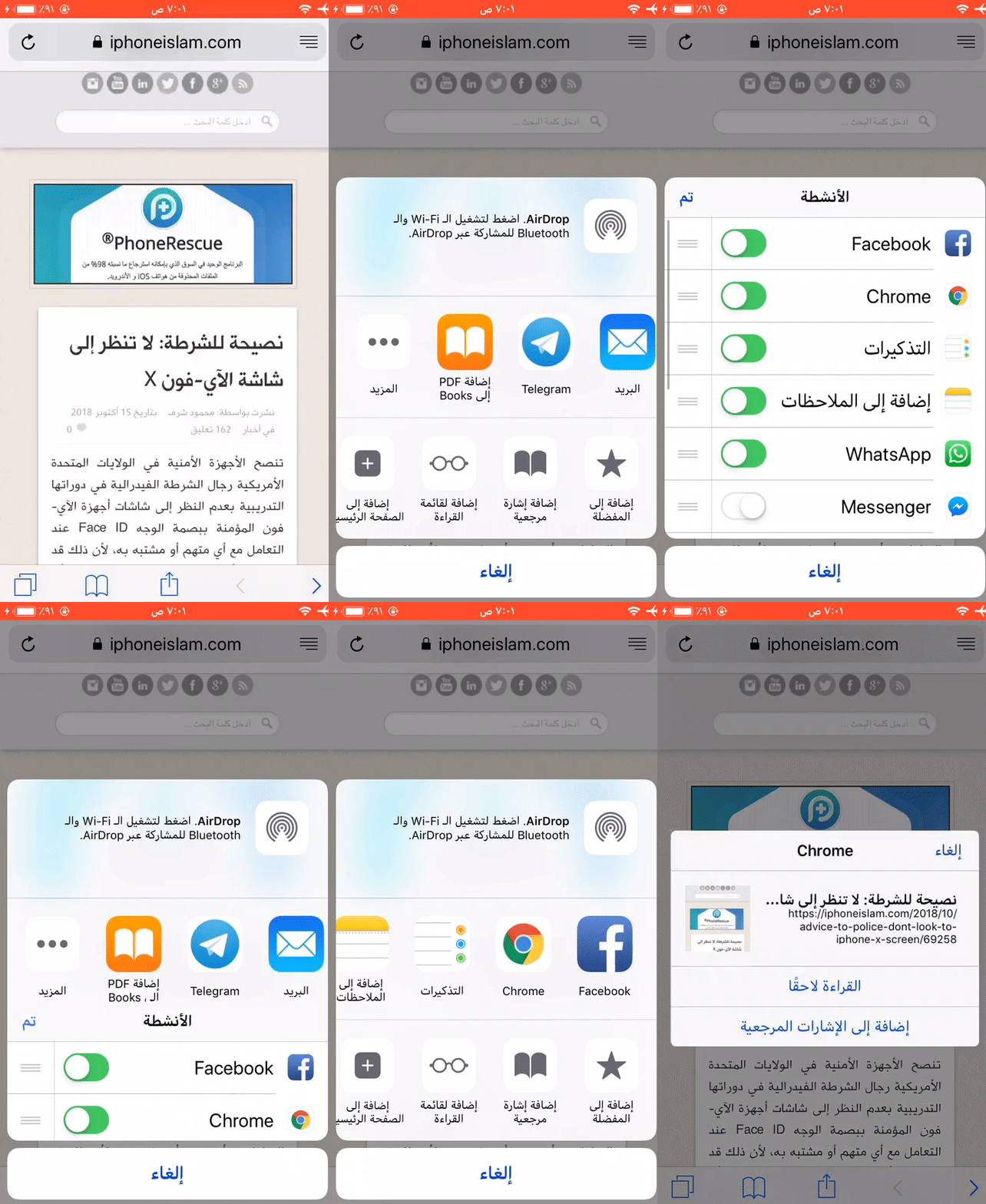
Chrome also allows you to add webpages from other iPhone applications to Chrome's reading list. To access the Read Later option inside another app, Chrome must be enabled in the app's share menu. Once you make the required change and select Chrome from the sharing window, you will see the option to Read Later.
We hoped that Chrome would support "reader view" such as removing clutter such as buttons, ads, and background images from the page to facilitate reading. But on the desktop, you can add a "Reader View" tool to enjoy this feature. You can even change the text size, contrast, layout, night mode, and more for better reading.
Switch tabs, switch pages, and more with gestures
Chrome makes your most used browser actions seamless with gestures. You can switch between tabs by swiping the heading left or right.
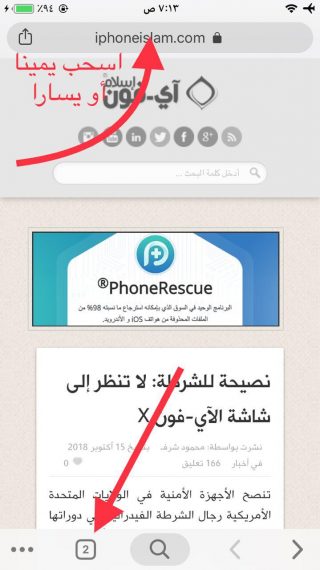
And if you want to move to a specific tab, you will have to use the Show Card button or the Tabs switch hidden behind the number icon in the toolbar. The number shown indicates the number of open tabs.
To reload the webpage, all you have to do is drag or pull the page down and leave it when the Reload button appears.
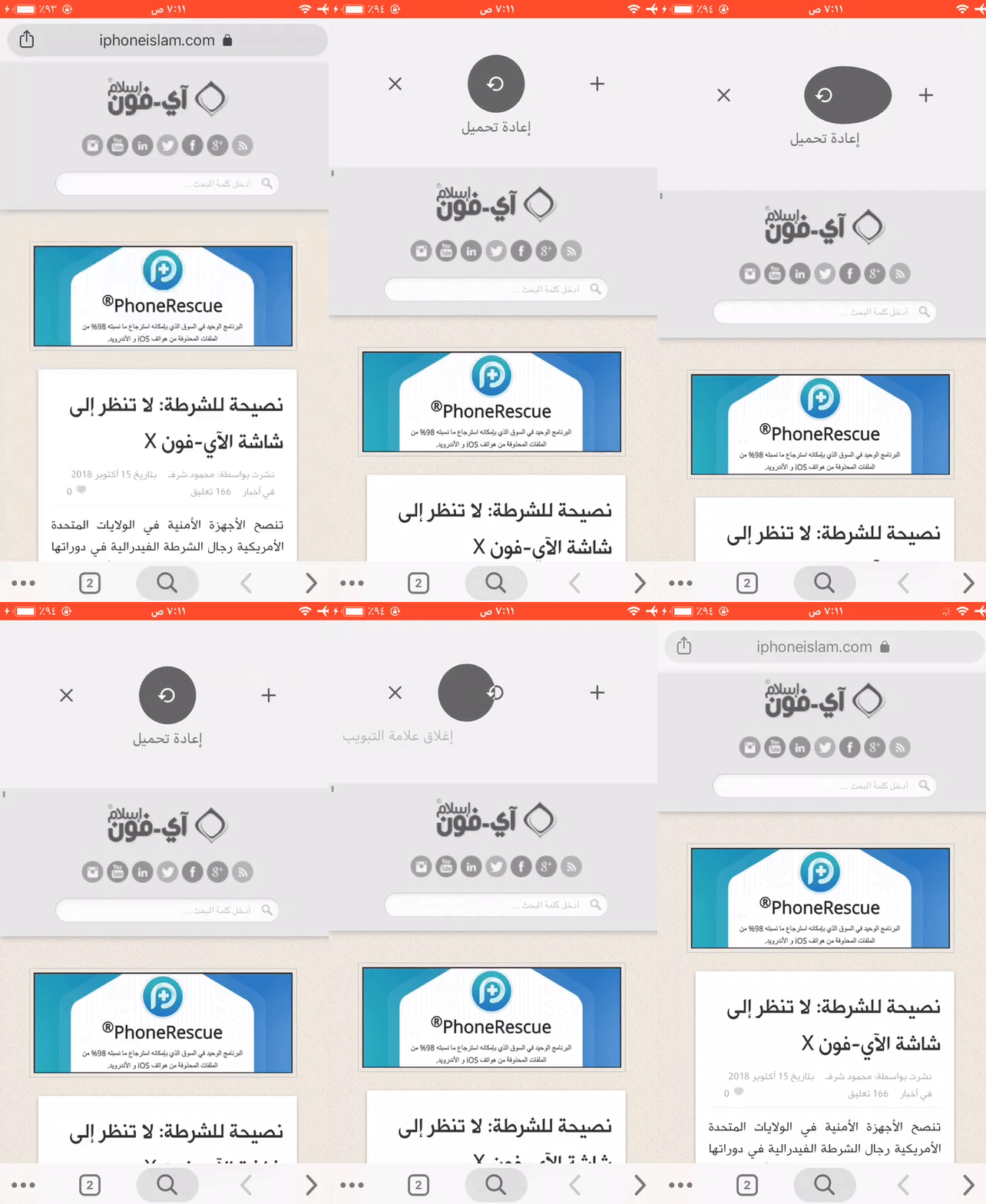
Next to the Reload button, you will find the Add New Tab button and the Close Window button. You can select them using the gesture by pulling down and then flicking left or right before dropping the page.
Voice search
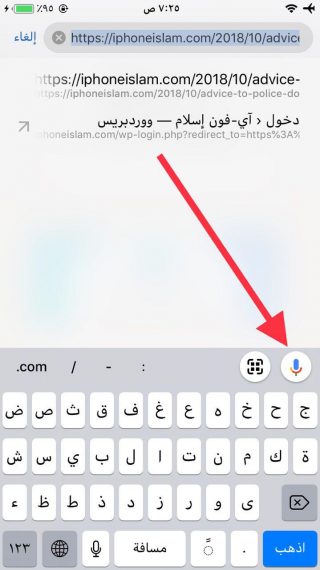
Sure, we all know about Voice Search in Chrome, but the basics can't be overlooked. Of course, Voice Search doesn't work until you first grant your microphone access to Chrome through Settings - Chrome.
Scan QR codes
Several apps in your phone allow scanning QR codes such as the Wallet app, the notes app, and the camera app, but the Chrome app speeds up this procedure a little by using the QR code scanner function.
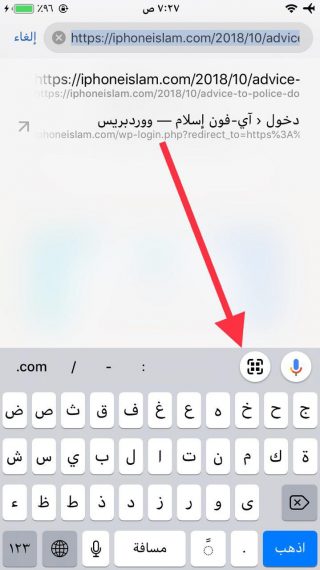
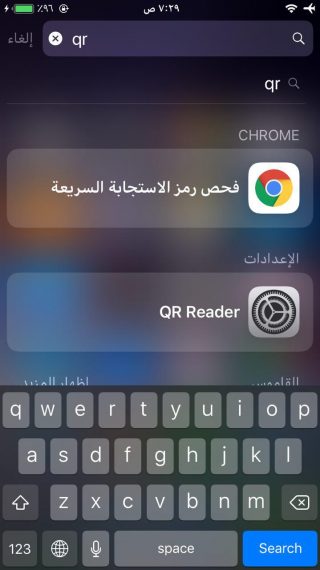
You will find the QR code scanning button next to the Voice Search button or the microphone button on the top of the keyboard when you tap the address heading. Although this method may not be the fastest, try typing the QR in Spotlight and you will find the Chrome Browser QR Code scanning feature as the most important result.
Add quick actions and suggested locations in the widget
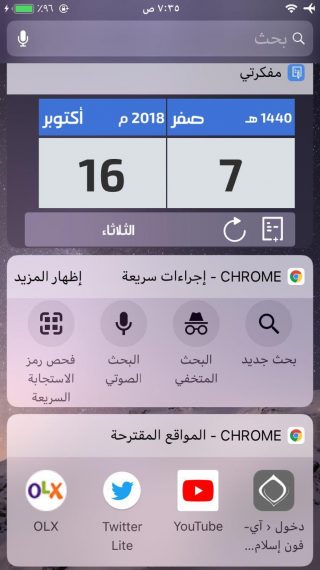
When you install Chrome, it brings some useful tools to your phone's widget menu under the Quick Actions and Suggested Sites sections. With Quick Actions, you can quickly start a new search, as well as turn on QR code scanning, voice search, and Incognito search.
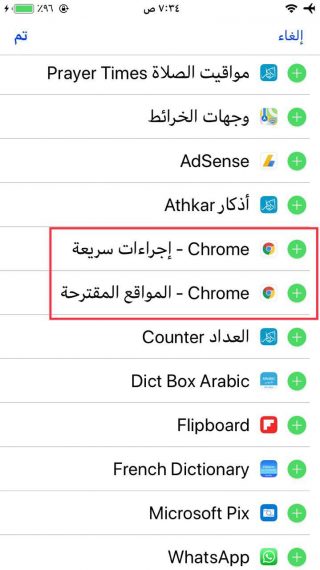
To take advantage of these functions, you will have to add the Quick Actions tool to the widget. To do this, go to the widget - Edit - choose Chrome Quick Actions, choose Chrome, suggested sites, and then add the widget for the Chrome application.
View tabs open on other devices
Open the Chrome app, then go to the tab switcher and swipe left or right, depending on the phone's language, you will find the tabs you closed recently, and below them you will find a list of tabs open on other devices.
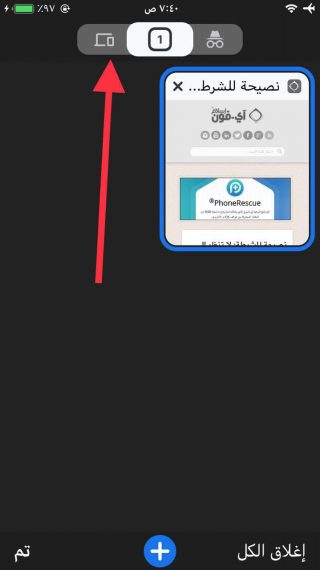
To view the content of the second list, you will need to be signed in to Chrome. This feature is important when you are away from the computer and want to quickly access the tabs you have been working on on that device. You can also click "View Entire History" to see a list of the sites you have visited.
Use 3D Touch shortcuts or long press
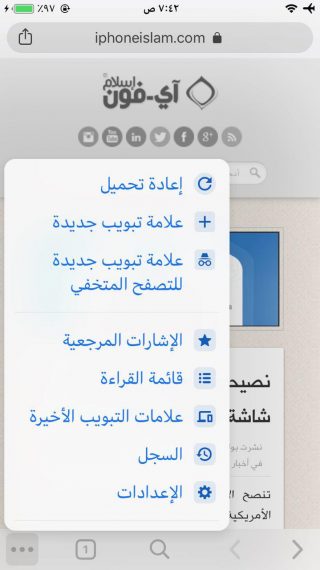
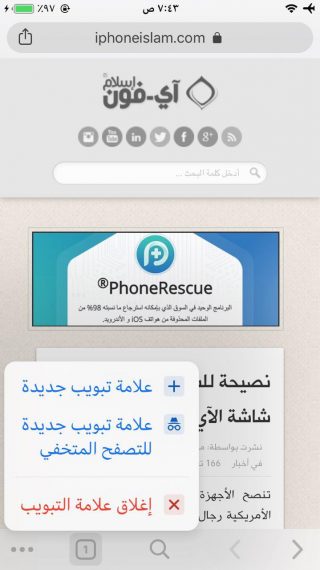
If your phone supports the 6D touch feature "iPhone 3s and later" except for iPhone XR or extended press if it is not supported, through which you can access some important procedures. With XNUMXD Touch, you can click on the tab switcher to access a new tab, incognito, or close the tab.
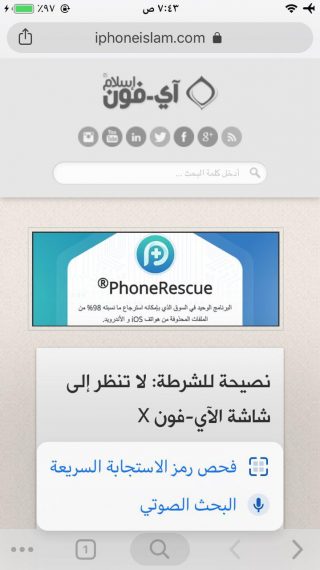
You can press the search tab for quick access to scanning the QR code and voice search or paste and search directly if you previously copied a website address, for example.
Also, when you press and hold the left or right arrow, you can switch to the tab you recently visited. Try pressing and holding each button you see, as it may have useful and quick shortcuts.

Source:



147 comment