We all know that the iPhone is an ideal device for tracking and responding to your emails, as well as creating emails especially short ones that do not need a long time to write them, and also with the many features in it by integrating it with Gmail from Google as well as with other email platforms such as Hotmail, Exchange, Mobile Me, Yahoo and other platforms as well as with advanced features And in addition to it, such as the unified mailbox, the email tree, and other features that facilitate and attract its continuous use while on the move and travel.
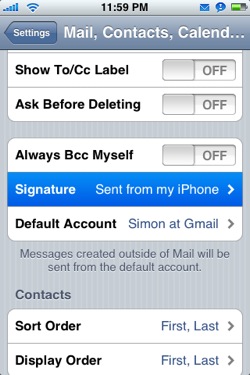
We also know that the e-mail program in the iPhone allows you to add a text signature in all your messages sent through it, such as the phrase "From my iPhone" You can change them from the properties with any phrase you want, but unfortunately, this change is limited to what you type in text, as you cannot add links, images, colors, or any other formatting to these texts.
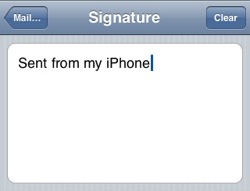
From here came this beautiful and utility tool that allows you through this named website iPhone Signature Creator Or the iPhone signature maker (note: this tool works with the iPod touch and the iPad as well) where you can through his page that contains a form that you fill in with your information, personal data, photos and links and then generate the HTML code through a page that you add to the iPhone and use it periodically All you want is to send an email.
After entering into Previous site
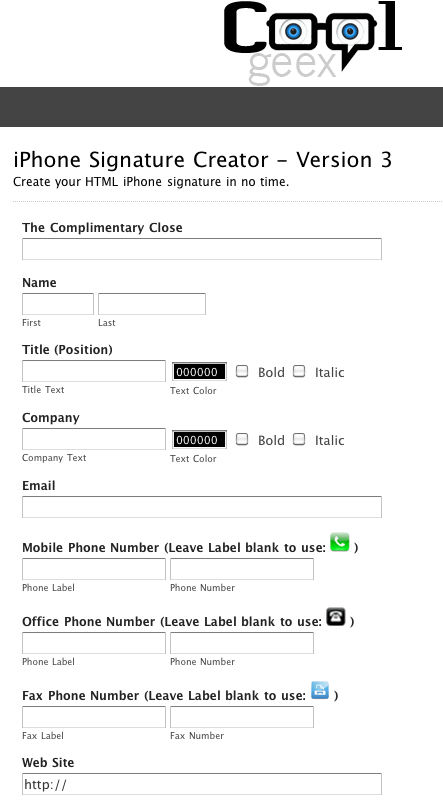
Enter the greeting phrase that you would normally stamp your email with, such as "best wishes" Or "with greetings" Or whatever you like in the field labeled The Complimentary Close
After that, enter your first and second names, respectively, on the second line, in Arabic or English.
Enter your title in the TitlePosition field and choose its format and the color you want it to appear in, and do the same in the next field in which you put your company name.
In the next field, enter your email, and in the three fields that follow, enter your numbers (mobile phone, fixed or desk phone and fax number respectively) in the second field, where you will leave the first in each of these three lines blank in order for the icon to appear.
In the next field, enter your personal website or leave it blank if you want (any information you do not want to display with the signature you want to create, leave its field blank)
In the following five fields, enter your detailed address such as country, city, zip code, and street, and leave everything blank.
In the following two fields, upload an avatar for you or your company, or choose to open it from the internet and place it in the next field. (The image must be 40 kilobytes or less and in JPEG or GIF format only)
In the following seven checkboxes, choose what you want from the features such as displaying the FaceTime icon (make sure it works first for you!), As well as showing your email and your website link, writing your second name before the first, or showing the Facebook, Twitter and LinkedIn icons or not.
In the last six fields it is filled with the following:
Your FaceTime number (leave it blank if it is the same as your mobile phone).
Link to your Twitter address.
Your address on Facebook.
Link to your address on the LinkedIn social network.
Your Skype account name.
The password that you will choose in this form, as it will ask you later, and do not forget to put it (a password of your choice) andIf you forget it and hit the Create Signature button, you will have to fill in the form again.
After clicking the Create Signature button and accepting the data that you filled in correctly, you will be taken to another page with a link that you must enter in the Safari browser through the iPhone, or you can click on the If you want us to email you the link click here in order to send this link To your email and open it from the iPhone.
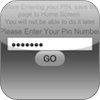
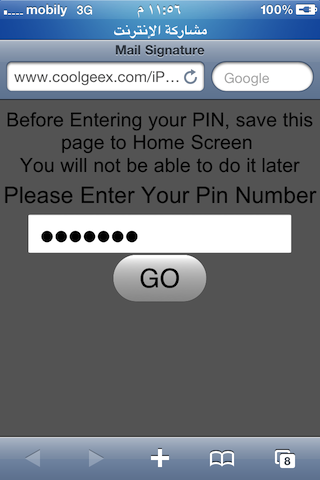
When you open this link from the Safari browser, this page will appear as in the following picture, where you will enter the PIN that you entered at the end of the previous form, enter it andBefore pressing the GO button, add this page to the main screen of iPhone programs via the plus sign + button Then choose "Add to Home Screen", where you will return to this page every time you want to send an email containing this signature that you created.
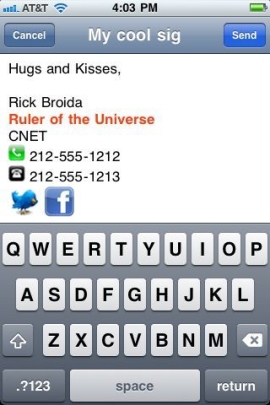
After pressing the Go button, a page will appear for you to send a new email, and at the end of the message there is the new signature that you created, where you will see what this signature looks like:
Source: Adapted from: CNET


91 comment