It seems that Apple enjoys destroying everything that we are attached to, and Apple is the only company that has the courage to do this, and we never say that this is a mistake. In order for technology to develop, companies must take bold steps to move forward, but is Apple persisting in these bold steps?

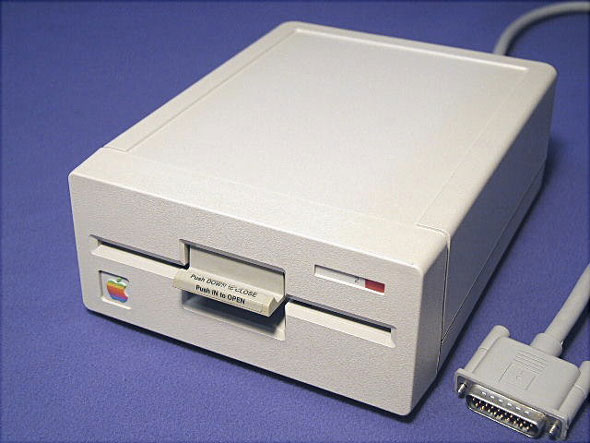
Apple is the first to eliminate the floppy disk drive, which was responsible for running floppy disks, and it is also the first to eliminate the use of CD / DVD.
Apple is also the first It gave up the Flash technology Although it was a difficult decision because the Internet at the time was largely dependent on this technology, it was proven that Apple was She is right in this decision The Adobe company that made this technology finally gave up.

In the past few years, the headphone jack on the iPhone has also been abandoned.
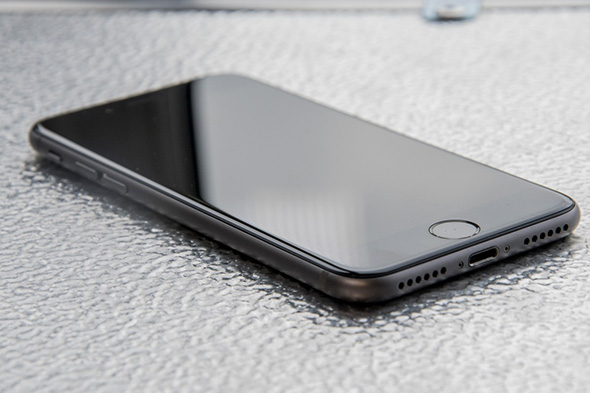
“I fear what I fear will come one day and cancel the screen as well "
Anyway, Apple did it again, this time on the $ XNUMX iPhone X where it came without the home button, which is the most important button in all smartphones today.
How to abandon this button, which has always been a very easy escape port, how is this button abandoned, which no matter how far you go and get lost, you return again to your place through it, and not only that, the home key has several functions, all of which are vital and indispensable , it was It can be used to switch between applications, as well as calling Siri, activating the lens, and taking a screenshot, as well as with the payment service from Apple, as well as a forced exit from applications or a forced restart, and it was also used to enter the reset mode.
So how can anyone on earth use a phone without a home button?
And the only answer to this question: Through a group of tricks and magic tricks ... But how?
Do not be surprised or in a hurry ... In the next few lines we will share with you these tricks that Apple provided in its iPhone X.
A complete list of all the tricks you do with the Home button on most iPhones and how you can use them on iPhone X.
Wake up
🔳 by using the home button
We were using the home button to wake up the iPhone if it was in sleep mode.
◼️ without the home button
Press the screen or the power button with a light click, or raise the phone to wake up as in an iPhone 6s and above.
Unlock or Unlock phone
🔳 by using the home button
You just have to put your finger on the home button, and this feature is known as the Touch ID feature, which is integrated with the home button.
◼️ without the home button
You can unlock your phone through the face recognition feature, or what is known as Face ID, just look at the phone and it will unlock with you, knowing that this feature is also optional, so you can log in as usual by typing the password.
And do not worry, my generous brother, you will get used to using the face print as you used to use the fingerprint.
And to get to know You can get more information regarding face print Read this article
Return to the main menu
🔳 by using the home button
Press the home button once to call up the home screen.
◼️ without the home button
Swipe from the bottom edge up on the iPhone screen and you will return to the main screen.
wait!!! Isn't that how to open the control panel?
Now you can open the control panel by swiping from the top edge of the screen down!
Siri
🔳 by using the home button
Hold the Home button for three seconds and Siri will wake up.
◼️ without the home button
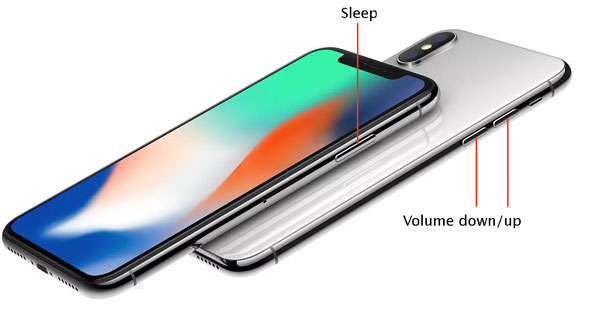
Keep pressing the power button on the right side of the phone and it will wake up Siri too, or say: “Hey Siri” if you have already enabled this feature.
App Switcher
🔳 by using the home button
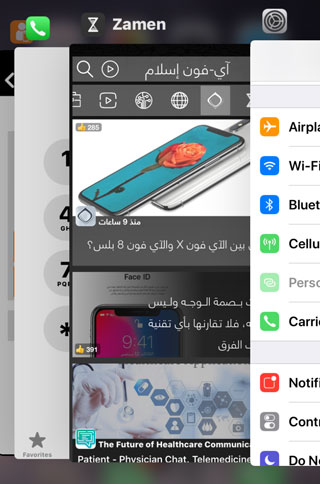
Double tapping you can view and switch between applications.
◼️ without the home button
Swipe up from the bottom of the screen as if you were going to the main menu but pause in the middle of the way and the previous apps will appear.
Reachability
🔳 by using the home button
This feature began with the iPhone 6 because of the large size of the phone, especially the iPhone 6 Plus, which has become larger and larger and with the large screen size, you cannot reach the entire screen with one hand, and it is known that it is Apple's policy to use the phone with one hand, so it had to Maintains this policy and provides a feature to the user that enables him to do so, and I found the feature to facilitate access, or what is known as Reachability.
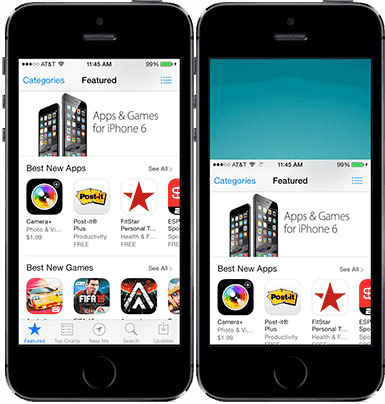
And to activate this feature, all you have to do is touch the fingerprint sensor twice, and the screen will go down to the middle of the phone, and as soon as you touch anything on the screen, the screen will return to its previous state.
◼️ without the home button
Unfortunately, this feature has also been abandoned, perhaps because many people do not use it or it is difficult to find an alternative.
Accessibility Shortcuts
🔳 by using the home button
You can activate these features on the home button through Settings, then General, then Accessibility, and you can do any of these features and operate them via the Home button, either with three clicks or otherwise.
◼️ without the home button
Three presses of the power button on the right side of the phone.
Apple Pay
Advantage of electronic payment in places that support this service. For more information about this feature, please read This article.
(I.e. Using the home button
Double press the home button, and your fingerprint will be read.
◼️ without the home button
Double-click the power button and make sure your face print is you.
Screen capture
🔳 by using the home button
To take a screenshot, press the home button and the power button with a quick press at the same time, and the image will be saved automatically in the pictures folder.
◼️ without the home button
Press the power button and volume up button together.
Do a forced restart of the iPhone
🔳 by using the home button
This method is very useful if you encounter a problem with your phone, for example, if the phone does not respond to you, or what is known as fluttering, and nothing in the phone responds to you, all you have to do to solve this problem is to force the phone to restart, just press the home button and the power button for ten seconds and The phone will restart, and on iPhone 7 phones, press the power button and the volume down button together for ten seconds.
◼️ without the home button
Just like on iPhone 7, press the Volume Down button and the Power button on the left side.
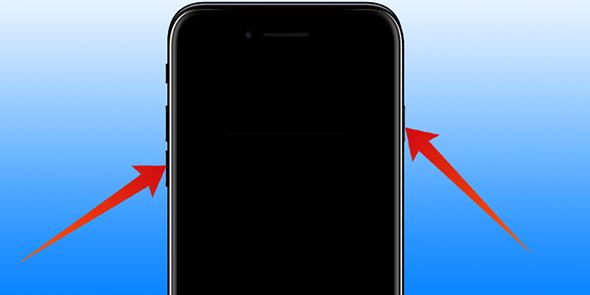
To see an article on How to Force an iPhone 7 to Restart, you can go to this Link
So it appears that Apple has successfully deleted the Home button and replaced its functions with quick and practical shortcuts



61 comment