Did you know that you can control your device? IPhone You can control your iPhone using your eyes. You can do this if you have an iPhone 12 or later running iOS 18. Eye-based arbitration is one of Apple's great accessibility features to make life easier for users and also to help those with limited use of their hands. It's also a smart way to use your iPhone smoothly and quickly. Let's learn in the following lines how to control your iPhone using your eyes.
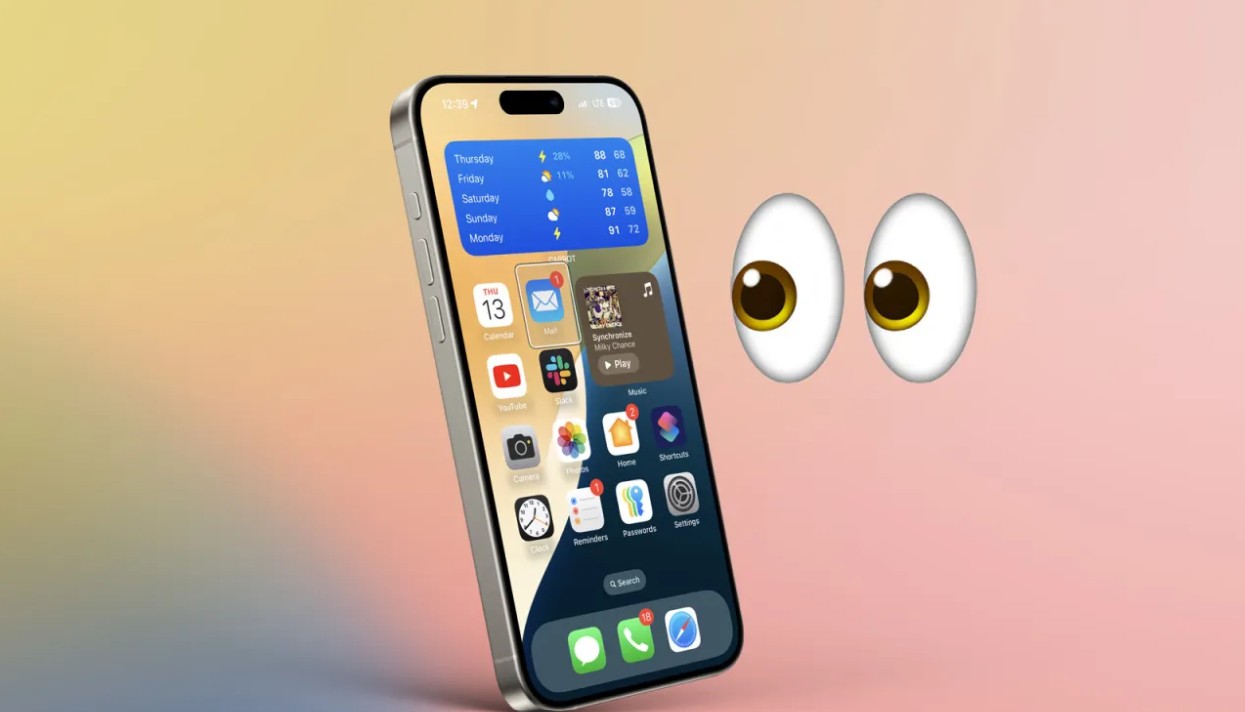
iPhone eye movement control feature
With the iPhone's Eye Control feature, you'll be able to control your smartphone using only your eyes. The cursor on the phone's screen tracks your eye movements. When you look at something, stare at it for a long time, or hold it, you're performing an action. The user's eyes are tracked by the iPhone's front-facing camera. For the feature to work properly, your face must be clearly visible in front of the camera and there must be adequate lighting. Don't forget to hold the iPhone about a foot and a half away from your face (about 45 cm).
How to turn on eye tracking
Before we learn the steps to activate the eye movement control feature on the iPhone, you must have a third generation iPhone. iPhone SE Or an iPhone 12 or later with iOS 18 installed. Now, let's take a quick look and learn the steps to enable eye tracking on your iPhone:
- Go to Settings
- Then the convenience of use
- Choose eye tracking
- Then turn on the feature.
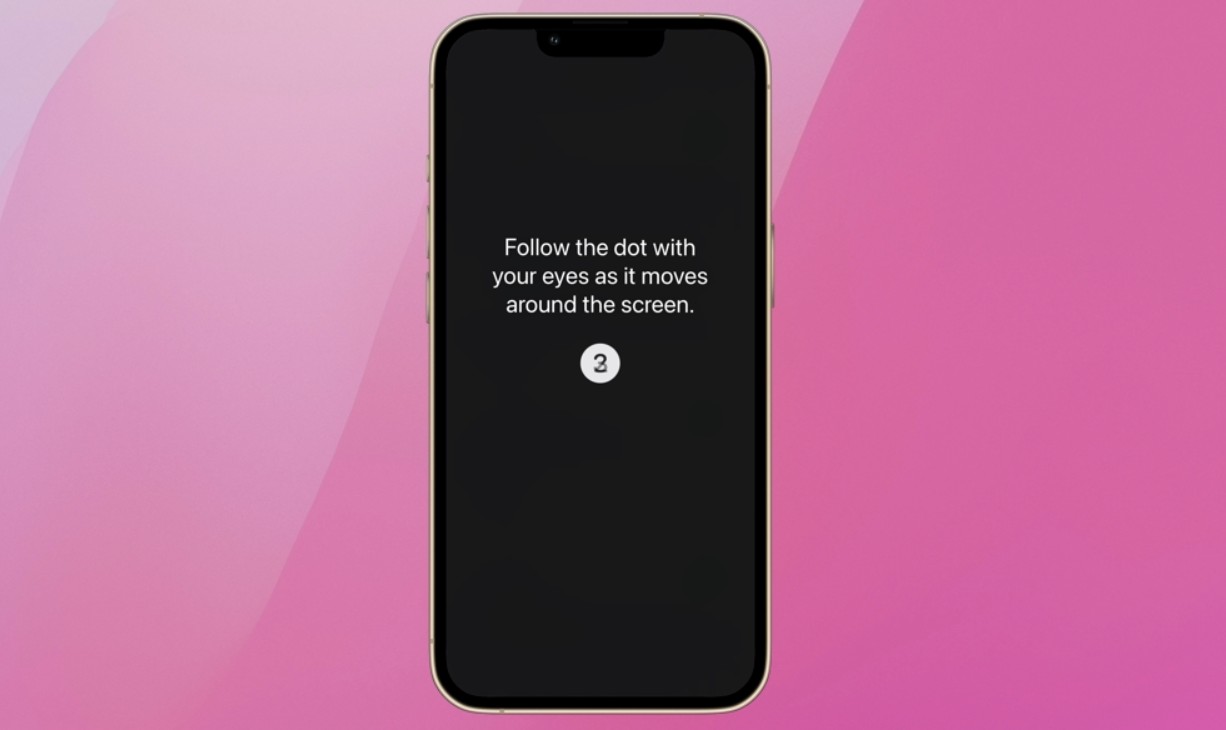
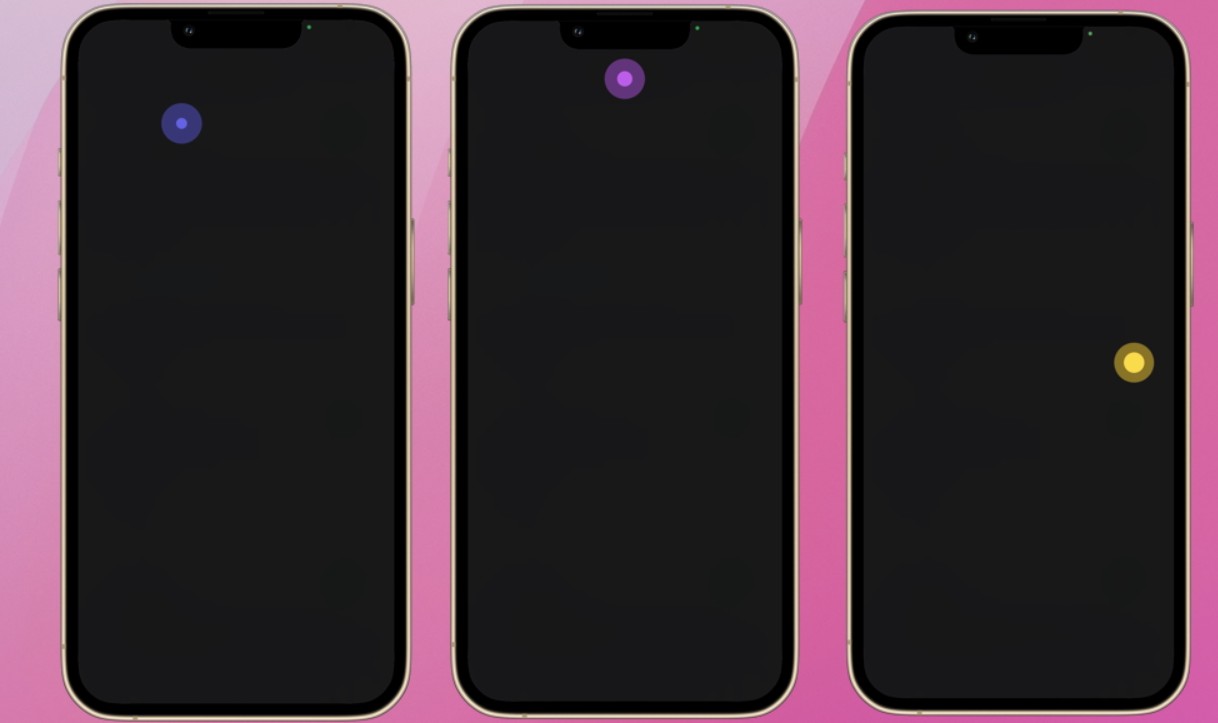
You'll see on-screen instructions for calibrating eye tracking. A dot will appear in various locations on your iPhone screen, which you can track using your eye movement. The process takes about 20 seconds. A new calibration is required each time you enable eye tracking.
What are the eye tracking options?
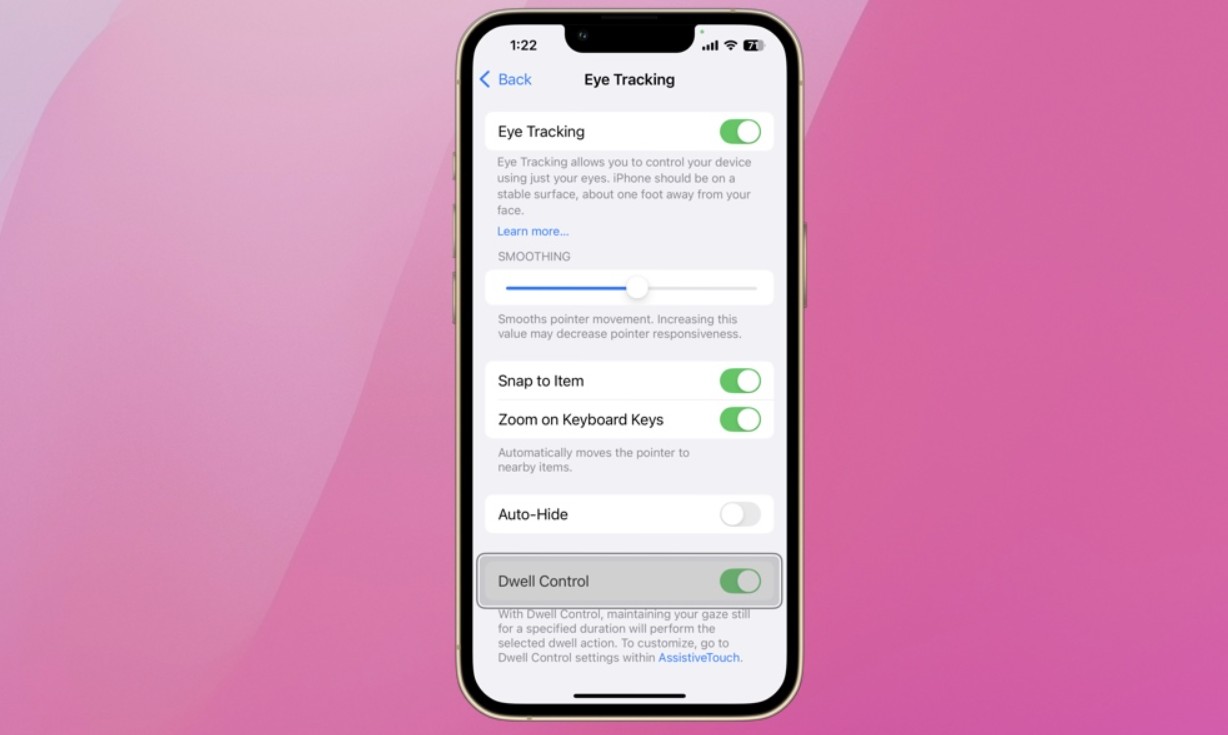
Once enabled, eye tracking will use an on-screen cursor to track your eye movement. A white outline will appear around whatever you're looking at on your screen. If you hold your gaze on an item, a holding cursor will appear, and a timer will start. The holding cursor circle will start filling up. By default, a tap action is performed when the timer expires and the circle is full. You can customize your holding control settings by going to Settings, then Accessibility, then Touch, and then tap AssistiveTouch. Here are the options for the feature:
- Increase smoothness: You can make the cursor smoother by increasing this option or more responsive by decreasing it.
- Move to item: Allows you to make the pointer automatically move to the item near where you are looking on the phone screen.
- Focus on keyboard keys: When you hold down on the keyboard, you can zoom in on the part of the keyboard you're looking at. Hold down again on a key to press it.
- Auto-hide: To show the pointer, hover for a few seconds over something on the screen. To hide the pointer, move your eyes.
- Control Dwell Time: Dwell time refers to the amount of time a user looks at an item on the screen for. This option allows you to control dwell settings, including setting the default dwell time and turning it on or off.
Finally, the ability to control the iPhone using eye movement represents a breakthrough in technology, opening up new horizons for users and helping people with mobility disabilities enjoy their iPhone experience without any problems.
Source:


13 comment