Security in technology is a difficult thing to obtain, so most companies have turned to a new way to enter accounts, which is 2Step Verification, or two-step access to the account. In this article, we will explain how to add a Gmail account that supports this secure feature in iOS settings.
Of course all technology users want security. This is why most companies, including Google, have provided the feature of entering the account with two steps, and through it you will enter your account with the mail and your password, then Google will send you a text message containing a code that changes every time you log in. If you want to use your mail on the phone, it will be required. This can be added through Apple's system settings, but the iOS system only provides one field, which is the password field. How will you log in to your account?
In iOS 8.3, Apple will provide direct support for this secure method - see this link IOS 8.3 Advantages - But how about now, how can you log in to your secured account in this way?
In order to avoid this problem, Google has provided a great feature called Application Specific Password, which in turn will provide you with a special password without the need to obtain a code.
1
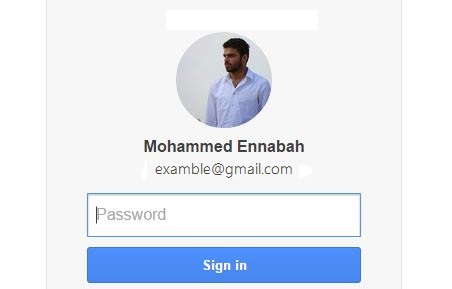
Enter the link Enter your Google account information
2
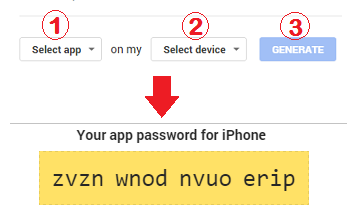
It will open a page containing the various Google applications, select Mail and your device and click on Generate, and it will give you a password.
3
Copy the password (without spaces) and write it in the Mail settings by going to your iOS device settings, then Mail, Contact, Calendar, and you will find Add Account. Click on it and choose Google and fill in the data. Don't forget to write the new password in the Password field :)
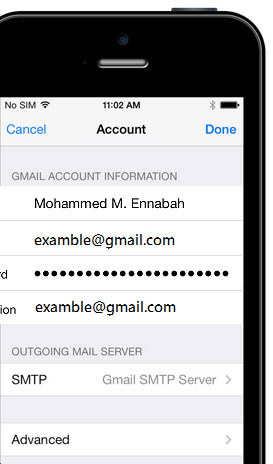
The steps are over, and now your new secure Gmail account is added to the settings.
This method is only suitable for those who have secured their Gmail account in two steps, and you can secure your account via this link


65 comment