A permanent struggle between iOS and Android, and each system has its fans and supporters; Android is the most widespread system, the most flexible, smooth and free for the user, while the iOS system is the most secure, stable and supportive of the company for users and developers. Who is the best system? It is a question that occupies millions and causes thousands to move monthly between the two systems. Here, the Android user faces an important question, which is: How do I transfer my data from my Android device to Apple devices?
Transfer contacts and calendar from Google account
The most important thing in any phone is the numbers. By default, the Android system syncs contacts, calendar, notes, etc. to your Gmail account. To transfer the calendar to Apple devices, you must log in with your Google account as “Microsoft Exchange,” and you can review it this link For a detailed explanation.
As for the names, it can be done with CardDEV as follows:
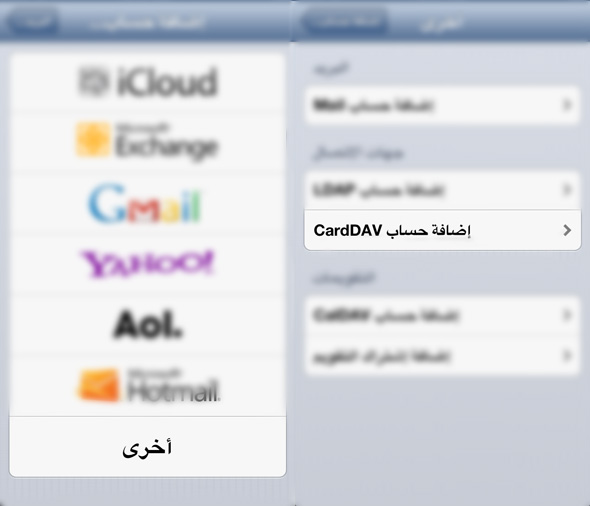
1Go to "Settings, Mail, Contacts, Calendar" and choose "Add Account", then choose "Other", then choose "Add CardDAV Account" as the following picture:
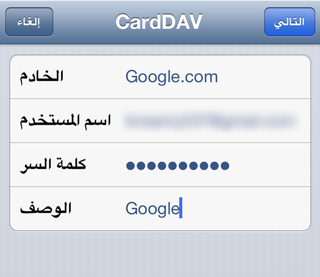
2In the server field, enter "google.com" as it appears in the following image, then click Next and it will start syncing the contacts.
Note: If you want to sync notes then step # 1 but choose Gmail and add your mail and you will see memos sync.
Transferring contacts from the device
Some users do not prefer to sync with their Google account for one reason or another, so the previous method is not valid in this case, and also in the event that you want to transfer the names without relying on syncing with Gmail, do the following steps:
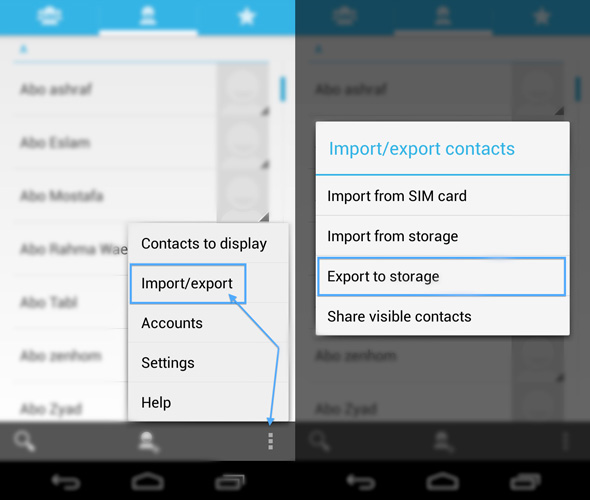
1Open the Contacts application on your Android device, then press the menu button and choose "Import / Export", then choose "Export to Storage" to save a file in the memory containing the list of contacts.
2Transfer the file from the phone memory to the computer.
3Download iTools from this link For Windows andthis link For Mac - you will find a detailed explanation of the program in two articles part One وpart two.
4Go to the info tab and click on Import and choose "import VCF" as shown in the following picture:
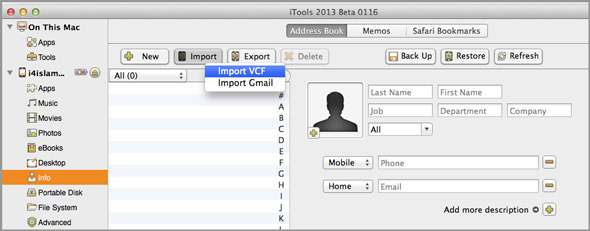
5Choose the file that you obtained in Steps 1 and 2 and you will find the names on your device.
Multimedia transmission
After transferring names, numbers, notes, and calendars, the role of the media will come; Such as pictures, movies, audio, ringtones, books ... and others. They can be transferred through the following steps:
1
Transfer files from your Android phone or device to your PC in the traditional way.
2
In the case of books, whether PDF or ePub, drag them to the iTunes program on your device and then synchronize with the phone, but make sure you have the iBooks application on your phone or iPad that you want to transfer the books to.


3
Tones must be in the supported format M4r, and you can learn more about the conversion method via this link.
4
Pictures, videos, audios, etc. can be transferred by the detailed explanation mentioned in this link.
Applications
This is the easiest point to transfer, as the vast majority of applications are available on the Apple system and most of these applications - if not all - come with a more quality design than their Android counterpart, just open an account in the aforementioned way. In this linkAfter that, you can download whatever applications you want. You can also follow Programs tab On our site or download the App-Back application to find out the latest offers and best applications in the store.

Professionalism of the Apple system
Now that you have transferred all your data and everything to your new device, see This article To find out more for beginners, as well as a Tips and Tricks tab for system secrets via this linkAnd, if you have any questions, you can search among the hundreds of answered questions in the You-Ask That series Find it here.
Source | gizmodo


82 comment